Category: Windows

  • Thy Phone for Windows 11

    In the recent Windows 11 22H2 release Microsoft deprecated a number of APIs used for making phone calls. Previously Thy Phone had used these because they presented a standard Windows dialog for call handling (incoming and outgoing) and the experience was consistent with Your Phone / Phone Link.

    The reason for removing these was given as an opportunity for differentiating apps by providing a custom UI. So rather than having the option of taking either approach and choosing to keep a consistent experience with Android calling, I’ve had to re-invent the wheel and create a new call progress dialog and notifications for incoming calls.

    This week’s new release of Thy Phone 1.27 features these changes and ensures the app continues to work on Microsoft’s latest OS versions. v1.25 will be the last release for Windows 10 as I just can’t spread my limited time and energy across multiple versions of the app.

    You’ll get a toast notification with answer/reject buttons when there is an incoming call. This is as close as possible to the Phone Link behaviour. For an in-progress call I’ve created a new dialog which displays the caller name/number, call duration and buttons to toggle mute, switch audio to the phone or hang up the call. In a future release I will add an in-call keypad and possibly the ability to put calls on hold and switch between them to restore feature parity with Windows 10. It didn’t make it into this release because of the work involved and the need to get an update out quickly to unblock the app with the basic calling functionality.

    I’m hoping that something positive can come out of this, and am looking at how to make some of this re-usable with a 32feet library for Bluetooth Handsfree calling. Both Windows and macOS have APIs for this so it would be good to provide a consistent cross-platform API around the functionality.

  • Improving Keyboard Navigation with NavigationView

    Thy Phone uses the NavigationView control to provide a pop out navigation pane to provide a similar UI to Your Phone. I was contacted this week by a user indicating problems with the app for blind users – it doesn’t play well with screen readers and the keyboard navigation is not clear. My first investigation was to see how Your Phone differs and if there is anything I can learn from that. I’m also porting the entire app away from UWP and to desktop WinUI so this has also created a number of changes and issues. Ultimately I think this will make it a much more powerful app and this seems like a good time to rethink the UI and make it more inclusive.

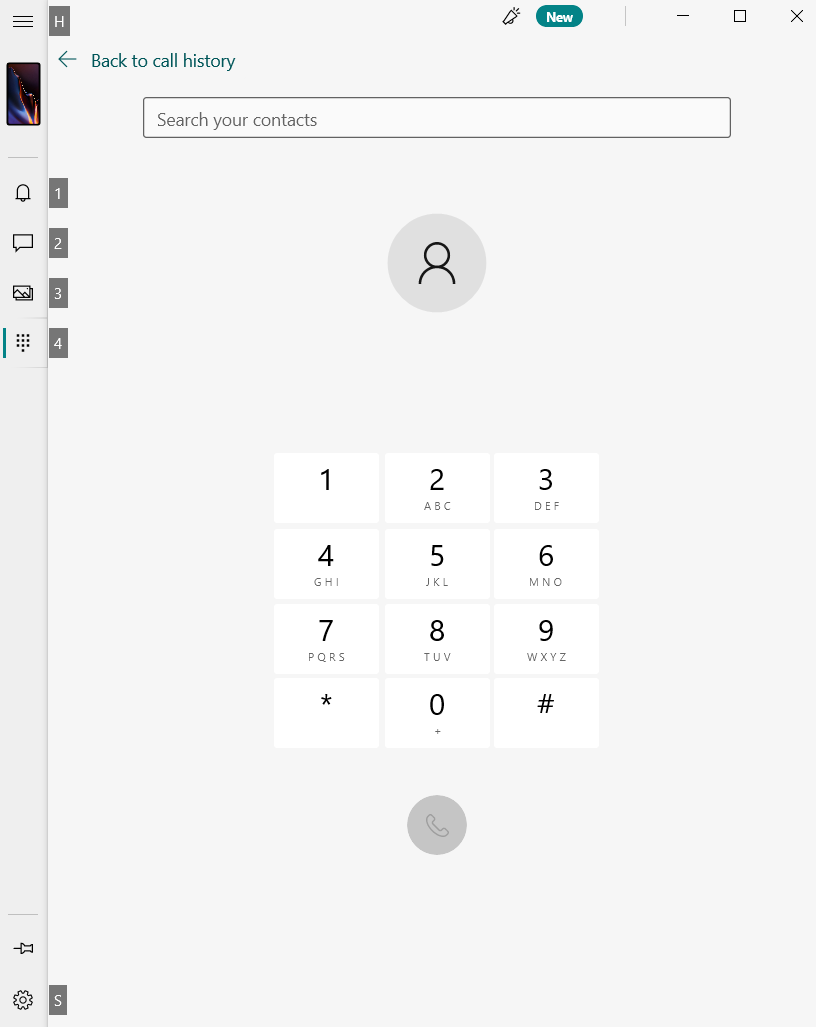
    Instantly something which struck me was that the NavigationView in Your Phone implements a number of AccessKeys, not just for the navigation items but also for the expand/contract button and the built-in Settings button. These are not a standard feature of the NavigationView control and I couldn’t find examples in any other first-party apps using the NavigationView. We are in a strange transition where some apps have a Windows 11 feel and others don’t – Compare Microsoft Store, To Do and Your Phone apps and even though all adopt a Windows 11 look they are wildly different.

    Your Phone showing AccessKey tips.

    I found that applying an AccessKey to the NavigationView control itself implemented the key for the expand/contract action. For Settings you have to access the SettingsItem, cast it to a NavigationViewItem and then set the AccessKey property. For both of these the tip placement must be manually set in order for all of them to line up.

    I created a reusable code snipped in this Gist to apply the same behaviour as used in Your Phone to any NavigationView. It doesn’t allow for localisation in this iteration, I’ll leave it as an exercise for the reader to supply the strings from a resource so that you can change the keys to match the UI language.

    using Microsoft.UI.Xaml.Controls;
    using Microsoft.UI.Xaml.Input;
    namespace InTheHand.UI.Xaml.Controls
    {
    public static class NavigationViewHelper
    {
    /// <summary>
    /// Add standard access keys to the NavigationView control.
    /// </summary>
    /// <remarks>These are based on Microsoft Your Phone, there isn't a standard implementation across all NavigationView based apps.</remarks>
    /// <param name="navigationView"></param>
    public static void SetAccessKeys(this NavigationView navigationView)
    {
    // access key to show/hide navigation pane
    navigationView.AccessKey = "H";
    navigationView.KeyTipPlacementMode = KeyTipPlacementMode.Right;
    // access key to open Settings item
    var settingsItem = navigationView.SettingsItem as NavigationViewItem;
    settingsItem.AccessKey = "S";
    settingsItem.KeyTipPlacementMode = KeyTipPlacementMode.Right;
    }
    }
    }

    This is only a tiny step on the way to improving the usability of the app. It will involve making lots more changes and probably deviating from the Your Phone look where it makes more sense.

  • We Don’t Talk About IrDA

    We take for granted that every mobile phone, tablet and laptop has Bluetooth built in, and probably use it all the time for headphones, mice etc without even thinking about developing software for it. There was a time long ago when phones and laptops had IrDA built in and it could be used for exchanging data from contacts to images.

    Not all industries move as fast as consumer electronics so you can often still find IrDA in specialist devices in the medical world and beyond. Although it’s no longer ready to run out-of-the-box there is still supported IrDA support in Windows 10 and 11 and an API which is neatly wrapped in InTheHand.Net.IrDA.

    Understandably IrDA is now an optional feature in Windows which you can add from Settings > Apps > Optional features > IrDA infrared. You may need to add it as part of your configuration and you can do this programmatically via a Powershell command:-

    Add-WindowsCapability -Online -Name "Network.Irda~~~~0.0.1.0"

    The IrDA support in Windows includes the Sockets based API and a few sharing features (the ability to send or receive files) but this is more hidden than it used to be and doesn’t integrated with the new Share experience. You can access settings via the classic Control Panel.

    The InTheHand.Net.IrDA library provides a simple .NET API over the IrDA specific Socket options and extensions. It’s modelled on the API from the .NET Compact Framework, but that was never implemented by Microsoft for desktop Windows so became part of 32feet.NET. InTheHand.Net.IrDA now only has desktop Win32 support, there didn’t seem any point in including the Window CE implementation (as with Bluetooth there were some differences in the underlying API).

    Functionality-wise you can discover remote devices (in practise a single remote device at a time). The device info contains a display name and an address and you can open a Socket to that address and send and receive binary data. Beyond the basics of this you need to know what the remote device expects and luckily there are some standards here.

    Sending and receiving files is done using Object Exchange (OBEX) and InTheHand.Net.Obex allows you to send files programmatically over IrDA and Bluetooth. Obex is similar to HTTP but all the commands and headers are passed in a compact binary form to cater for the limited bandwidth of these kind of connections.

  • Back to the Future With C++/WinRT

    Recently I was asked to investigate a scenario for a desktop C++ application. It was something I’d done before with C# and used a number of WinRT APIs. This meant I had to refresh myself in C++ which has changed again since the last time I used it!

    I started with the latest C++/WinRT template so a lot of the plumbing is already set up for you. However there was a useful reference here with mappings for some common things from C# and how they appear in C++.

    Of course if your starting point is an existing desktop C++ app there are a few steps you need to follow to add WinRT functionality. I found this reference useful.

  • Bluetooth and Windows 11

    It’s still early days for Windows 11 but pre-release API documentation is available on Microsoft Docs and it gives some hints of new functionality for developers:-

    BluetoothLEDevice gains functionality to request preferred connection parameters. These include minimum and maximum connection interval, latency and link timeout. If these seem a bit complex to set individually there are three static properties which give you a choice of optimizing for throughput, power consumption or a balance in the middle. It also has the ability to query the Bluetooth PHY (physical layer) used which (if both devices support Bluetooth 5.0) can be either Coded (smaller data but longer range), 2M (larger data) or 1M (same as Bluetooth 4.x). It doesn’t currently seem to support requesting a preferred PHY.

    I’m looking at how these can be incorporated into 32feet.NET given that there is currently support for PHY on Android only.

  • Bluetooth Virtual Sniffer for Windows

    I only just found out about this but Microsoft released a packet sniffer for Bluetooth on Windows 10 back in February. This is incredibly useful for debugging and is something I’ve been craving for some time. Previously I’ve been able to analyse packets from Android using Wireshark and now we can view activity between Windows and another device.

    I’m desperately hoping this provide some clues to the constant “Unreachable” errors when trying to communicate with an iPhone which Windows Settings acknowledges is currently connected…

    You can download the Bluetooth Test Platform here.

  • New Windows Phone App

    Okay, now I’ve drawn you in with a click-bait headline I need to clarify a little! For some time now Windows 10 has had a tightly integrated app called Phone Link (previously Your Phone) which allows you to interact with your phone from the desktop. However, it doesn’t cater for the 50-odd percent of users who have fruit based phones. I’ve been working on closing this gap by creating an app for Windows which is now available in the Microsoft Store called Thy Phone.

    The name came about because thy is an archaic version of your and the name also happens to rhyme with a popular phone type.

    It uses functionality available in Windows 10 2004 and above to setup a phone device to use Windows as a handsfree device. This allows you to conduct calls through your PC microphone and speakers (or headset) and see call progress and incoming call alerts on your desktop. It also allows you to activate the Bluetooth Audio support so that you can play music, podcasts etc from your phone through your PC.

    Finally when using an iPhone it supports toast notifications and mirrors those notifications directly in the Windows notification center. Notifications which uses actions can also be triggered directly from the desktop Toast.

    I’ll be adding more functionality over time including Messaging support. I completed a proof of concept but I’m working on a new version of InTheHand.Net.Obex to make it easier to do this. That will also open up other functionality such as file transfers. Because these features all use standard Bluetooth profiles the app is not limited to just iPhones, you can even pair and use your Windows Phone or Nokia 3310 – whatever floats your boat!

    English badge
  • What’s in a BluetoothLEDevice.Name

    I’ve noticed an odd behaviour when creating a BluetoothLEDevice from a found device id. I’m not doing anything special, just retrieving paired devices and then trying to access the relevant BluetoothLEDevice. In common with all Windows device searches (whether by Picker or programmatically with DeviceInformation.FindAllAsync) you receive a DeviceInformation which contains the name and unique id (an opaque device path).

    If you search for paired BluetoothLEDevices the returned DeviceInformations contain the valid name and id of the device. When you use BluetoothLEDevice.FromIdAsync() you get back a working BluetoothLEDevice instance but the Name is of the form “Bluetooth nn:nn:nn:nn:nn:nn” which is slightly less than useless. It turns out that Windows isn’t suffering from Amnesia and the actual display name of the device is accessible from BluetoothLEDevice.DeviceInformation.Name. I was scratching my head for a while over the logic of this but at least now I’ve been able to put in a workaround in InTheHand.BluetoothLE 4.0.18. The BluetoothDevice.Name now shows the same name as Windows shows in the UI and so it behaves the same as the other platform implementations!

  • Bluetooth Virtual COM Ports

    I was thinking about a comment on a Gist I wrote some time ago and thought I’d written a blog post on the topic, but when I couldn’t find any sign of it I decided to start from scratch as I’d have probably needed to update it anyway.
    The Bluetooth stack in Windows has supported virtual COM ports since the beginning (Windows XP SP2 if you can remember that far back!). It’s important to understand the difference between these and any Serial Port Bluetooth device. The Virtual COM port functionality exists purely for interop with older software – you can make a Bluetooth device appear to the system as a wired Serial device and open a COM port and talk to the device as if it was plugged into your PC.
    If you’re writing modern software which talks to devices then you would use a Bluetooth API – either 32feet.NET or the platform specific Bluetooth API directly. If not you can create a virtual COM port. Throughout Windows 10’s lifetime the Bluetooth options have been slowly moving to the modern Settings experience but the old Control Panel still exists and is used for some additional functionality – Virtual Serial ports are still in there.
    The port can be either incoming – you have a listening service which other devices can connect to; or outgoing where you connect to a specific remote device. From Settings > Devices select “More Bluetooth options” from the righthand menu.

    2020-11-22 (1)

    From the resulting “classic” control panel applet select the “COM ports” tab to see configured ports or to set one up.

    2020-11-22

    When I reworked the 32feet.NET library I decided not to include the COM port functionality as it’s only relevant to Windows and is for legacy code only. However I put together the required code to enumerate all the Bluetooth virtual COM ports on the system in a Gist which you can find here:-

    using System;
    using System.Collections.Generic;
    using System.Diagnostics;
    using System.Runtime.InteropServices;
    using System.Text;
    namespace BluetoothDiagnostics
    {
    public sealed class BluetoothComPort
    {
    /// <summary>
    /// Returns a collection of all the Bluetooth virtual-COM ports on the system.
    /// </summary>
    /// <returns></returns>
    public static IReadOnlyList<BluetoothComPort> FindAll()
    {
    List<BluetoothComPort> ports = new List<BluetoothComPort>();
    IntPtr handle = NativeMethods.SetupDiGetClassDevs(ref NativeMethods.GUID_DEVCLASS_PORTS, null, IntPtr.Zero, NativeMethods.DIGCF.PRESENT);
    if (handle != IntPtr.Zero)
    {
    try
    {
    NativeMethods.SP_DEVINFO_DATA dat = new NativeMethods.SP_DEVINFO_DATA();
    dat.cbSize = Marshal.SizeOf(dat);
    uint i = 0;
    while (NativeMethods.SetupDiEnumDeviceInfo(handle, i++, ref dat))
    {
    string remoteServiceName = string.Empty;
    StringBuilder sbid = new StringBuilder(256);
    int size;
    NativeMethods.SetupDiGetDeviceInstanceId(handle, ref dat, sbid, sbid.Capacity, out size);
    Debug.WriteLine(sbid);
    long addr = GetBluetoothAddressFromDevicePath(sbid.ToString());
    // only valid if an outgoing Bluetooth port
    if (addr != long.MinValue && addr != 0)
    {
    IntPtr hkey = NativeMethods.SetupDiOpenDevRegKey(handle, ref dat, NativeMethods.DICS.GLOBAL, 0, NativeMethods.DIREG.DEV, 1);
    var key = Microsoft.Win32.RegistryKey.FromHandle(new Microsoft.Win32.SafeHandles.SafeRegistryHandle(hkey, true));
    object name = key.GetValue("PortName");
    var pkey = Microsoft.Win32.Registry.LocalMachine.OpenSubKey("SYSTEM\\CurrentControlSet\\Services\\BTHPORT\\Parameters\\Devices\\" + addr.ToString("x12"));
    if (pkey != null)
    {
    foreach (string nm in pkey.GetSubKeyNames())
    {
    if (nm.StartsWith("ServicesFor"))
    {
    var skey = pkey.OpenSubKey(nm);
    string s = sbid.ToString();
    //bluetooth service uuid from device id string
    int ifirst = s.IndexOf("{");
    string uuid = s.Substring(ifirst, s.IndexOf("}") – ifirst+1);
    var ukey = skey.OpenSubKey(uuid);
    // instance id from device id string
    string iid = s.Substring(s.LastIndexOf("_")+1);
    var instKey = ukey.OpenSubKey(iid);
    // registry key contains service name as a byte array
    object o = instKey.GetValue("PriLangServiceName");
    if(o != null)
    {
    byte[] chars = o as byte[];
    remoteServiceName = Encoding.UTF8.GetString(chars);
    remoteServiceName = remoteServiceName.Substring(0, remoteServiceName.IndexOf('\0'));
    }
    }
    }
    }
    ports.Add(new BluetoothComPort(sbid.ToString(), addr, name.ToString(), remoteServiceName));
    key.Dispose();
    }
    }
    }
    finally
    {
    NativeMethods.SetupDiDestroyDeviceInfoList(handle);
    }
    }
    return ports;
    }
    private string _deviceId;
    private long _bluetoothAddress;
    private string _portName;
    private string _remoteServiceName;
    internal BluetoothComPort(string deviceId, long bluetoothAddress, string portName, string remoteServiceName)
    {
    _deviceId = deviceId;
    _bluetoothAddress = bluetoothAddress;
    _portName = portName;
    _remoteServiceName = remoteServiceName;
    }
    public string DeviceId
    {
    get
    {
    return _deviceId;
    }
    }
    public long BluetoothAddress
    {
    get
    {
    return _bluetoothAddress;
    }
    }
    public string PortName
    {
    get
    {
    return _portName;
    }
    }
    public string RemoteServiceName
    {
    get
    {
    return _remoteServiceName;
    }
    }
    private static long GetBluetoothAddressFromDevicePath(string path)
    {
    if (path.StartsWith("BTHENUM"))
    {
    int start = path.LastIndexOf('&');
    int end = path.LastIndexOf('_');
    string addressString = path.Substring(start + 1, (end – start) – 1);
    // may return zero if it is an incoming port (we're not interested in these)
    return long.Parse(addressString, System.Globalization.NumberStyles.HexNumber);
    }
    // not a bluetooth port
    return long.MinValue;
    }
    private static class NativeMethods
    {
    // The SetupDiGetClassDevs function returns a handle to a device information set that contains requested device information elements for a local machine.
    [DllImport("setupapi.dll", SetLastError = true, CharSet = CharSet.Auto)]
    internal static extern IntPtr SetupDiGetClassDevs(
    ref Guid classGuid,
    [MarshalAs(UnmanagedType.LPTStr)] string enumerator,
    IntPtr hwndParent,
    DIGCF flags);
    // The SetupDiEnumDeviceInfo function returns a SP_DEVINFO_DATA structure that specifies a device information element in a device information set.
    [DllImport("setupapi.dll", SetLastError = true, CharSet = CharSet.Auto)]
    [return: MarshalAs(UnmanagedType.Bool)]
    internal static extern bool SetupDiEnumDeviceInfo(
    IntPtr deviceInfoSet,
    uint memberIndex,
    ref SP_DEVINFO_DATA deviceInfoData);
    // The SetupDiDestroyDeviceInfoList function deletes a device information set and frees all associated memory.
    [DllImport("setupapi.dll", SetLastError = true, CharSet = CharSet.Auto)]
    [return: MarshalAs(UnmanagedType.Bool)]
    internal static extern bool SetupDiDestroyDeviceInfoList(IntPtr deviceInfoSet);
    // The SetupDiGetDeviceInstanceId function retrieves the device instance ID that is associated with a device information element.
    [DllImport("setupapi.dll", SetLastError = true, CharSet = CharSet.Auto)]
    [return: MarshalAs(UnmanagedType.Bool)]
    internal static extern bool SetupDiGetDeviceInstanceId(
    IntPtr deviceInfoSet,
    ref SP_DEVINFO_DATA deviceInfoData,
    System.Text.StringBuilder deviceInstanceId,
    int deviceInstanceIdSize,
    out int requiredSize);
    //static Guid GUID_DEVCLASS_BLUETOOTH = new Guid("{E0CBF06C-CD8B-4647-BB8A-263B43F0F974}");
    internal static Guid GUID_DEVCLASS_PORTS = new Guid("{4d36e978-e325-11ce-bfc1-08002be10318}");
    [DllImport("setupapi.dll", SetLastError = true)]
    internal static extern IntPtr SetupDiOpenDevRegKey(IntPtr DeviceInfoSet, ref SP_DEVINFO_DATA DeviceInfoData,
    DICS Scope, int HwProfile, DIREG KeyType, int samDesired);
    [Flags]
    internal enum DICS
    {
    GLOBAL = 0x00000001, // make change in all hardware profiles
    CONFIGSPECIFIC = 0x00000002, // make change in specified profile only
    }
    internal enum DIREG
    {
    DEV = 0x00000001, // Open/Create/Delete device key
    DRV = 0x00000002, // Open/Create/Delete driver key
    }
    // changes to follow.
    // SETUPAPI.H
    [Flags()]
    internal enum DIGCF
    {
    PRESENT = 0x00000002, // Return only devices that are currently present in a system.
    ALLCLASSES = 0x00000004, // Return a list of installed devices for all device setup classes or all device interface classes.
    PROFILE = 0x00000008, // Return only devices that are a part of the current hardware profile.
    }
    [StructLayout(LayoutKind.Sequential)]
    internal struct SP_DEVINFO_DATA
    {
    internal int cbSize; // = (uint)Marshal.SizeOf(typeof(SP_DEVINFO_DATA));
    internal Guid ClassGuid;
    internal uint DevInst;
    internal IntPtr Reserved;
    }
    }
    }
    }

    I’ve just updated it as I noticed an issue with the null termination of the port names so it is now correctly trimmed. The class is very simple to use – the following will write out all the configured ports to the debug console:-

    foreach (var p in BluetoothDiagnostics.BluetoothComPort.FindAll()) 
    {
       System.Diagnostics.Debug.WriteLine($"{p.PortName} {p.DeviceId} {p.BluetoothAddress:X6}"); 
    } 

    This will match the contents of the Control Panel shown above.

  • WPF Activity in Xamarin Forms

    WPF Activity in Xamarin Forms

    I’ve recently been working on extending an existing product written in Xamarin Forms to Windows desktop and this has meant learning a lot more about the WPF implementation. Originally Xamarin Forms was created for mobile platforms such as Android and iOS (and Windows Phone – more on that later) but has since expanded to desktop platforms such as macOS, GTK and WPF on Windows (UWP originally straddled mobile and desktop). WPF is a more recent addition to Xamarin Forms and so understandably the implementation is less mature. It does follow the native look and feel closely but I soon found quite a jarring omission.

    Our app uses the ActivityIndicator to represent indeterminate activity. On Android et al. this displays a rotating circular spinner but on WPF it was using an indeterminate progress bar squashed into a rectangular space which looked odd. This is understandable as there is no native control in WPF. I then had a flash of deja vu when thinking about something I wrote some time ago for Windows Phone!

    Windows Phone 8.1 introduced the WinRT application model (from Windows 8) alongside the existing Silverlight approach but there were some complications and some types of apps could only be written in Silverlight. I created a library called Charming which added some of the Windows 8 style APIs to the Silverlight app model. This was later expanded and became Pontoon. One of the APIs was a Silverlight ProgressRing control which looked just like the Windows 8 equivalent. The progress ring still regularly appears in the Windows shell and is implemented in UWP. Since Silverlight is a subset of WPF it was straightforward to port it into the Xamarin Forms WPF platform library and modify the renderer for ActivityIndicator. Voila! A nice native looking ActivityIndicator for Windows desktop apps. This has now been merged into the Xamarin Forms code and should appear in a preview release soon alongside the MediaElement that also got merged recently. Until it hits a stable release you can add it via InTheHand.Forms too.