Category: Windows Phone

  • Nokia DT-601 Review

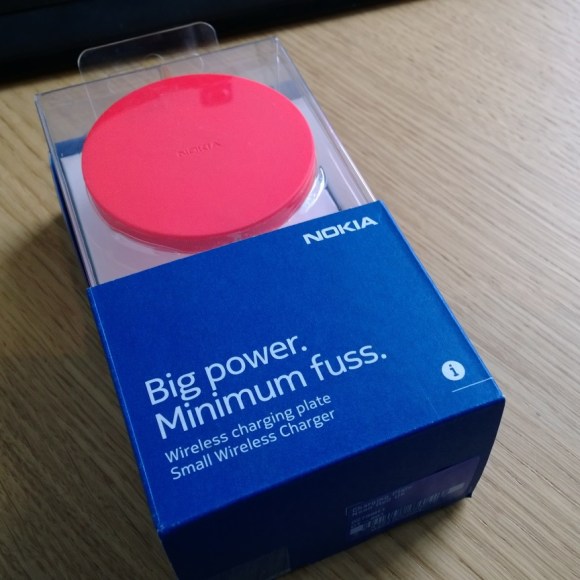
    Nokia Smart Wireless Charger in packaging

    As part of the New Year tidy up I decided to add a wireless charging pad to my desk so that I can easily top up devices without too many trailing wires. I saw the new second generation DT-601 and thought it looked perfect – smaller than the original pad and with a USB interface which can go into a powered hub or optionally its own a/c adaptor. I picked the red one expecting bright post office red from the pictures but on the packaging it is described as neon red. Personally I would describe it as “Radioactive Salmon”, it has certainly brightened up my desk!

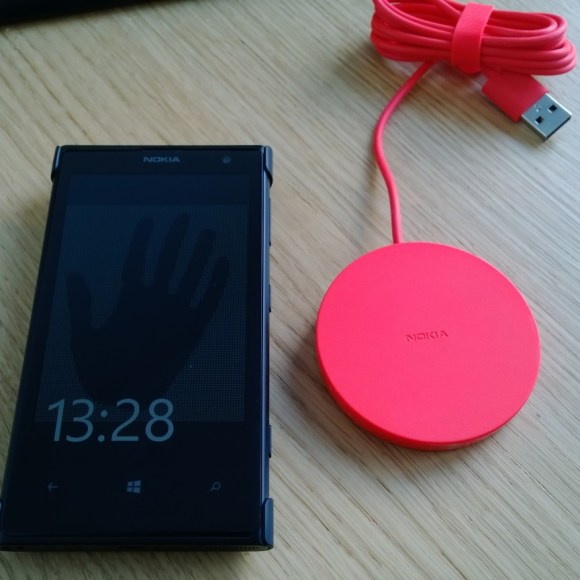
    Nokia Wireless Charger next to Nokia Windows Phone

    I plugged it in and tried a couple of devices on it and it was straight-forward to use. I have a 1020 with charging shell and this one was odd because you have to put the phone onto the round pad so the camera bezel sits on the edge of the pad so it’s not quite flat. This feels wrong but works fine – I guess the 1020 was always going to be a special case because of its unusually shaped derriere. If you have multiple devices you have to get used to where the charging point is as they seem to vary a bit. Keeping moving the phone around until you see that it is charging. I don’t have anything which supports QI charging which isn’t a Nokia phone but it should support any QI compatible device.

  • Tasks 1.81– Now with added programmability

    In the latest update to the Windows Phone Tasks app I’ve added in some API features for other apps to hook into. This is facilitated by Windows Phone 8’s support for custom Uri schemes – the app supports the tasks: scheme and allows you to do a couple of useful things with it. You can use it both to launch the app and also to pre-populate the New Task dialog. This allows the user to save a new Task as they can a Calendar event or Contact from your app. Full details on the Uri scheme are maintained here:-

    http://inthehand.uservoice.com/knowledgebase/articles/350181-tasks-uri-scheme

    In addition to this and following the example of Nokia, I’ve created an API library for Windows Phone which is available now on NuGet. This simplifies the creation of a new Task by providing a SaveTodoTask which has a model which should be instantly familiar to any Windows Phone developer. I chose to name this SaveTodoTask rather than SaveTaskTask as that sounded clunky and task items are interchangeably known as to-dos as well.

    This functionality follows swiftly on the heels of the 1.80 release which added a New Task optional start tile as a short-cut to this functionality. 1.81 also includes numerous bug fixes and sync improvements along with support for Lock Screen notifications.

  • Linking to your other apps

    Using the Windows Phone SDK the only method to return a list of your other published apps (e.g. for your About page) is to use the MarketplaceSearchTask and specify your company name in the search criteria. The problem with this is that it doesn’t return the actual publisher list but does a keyword search so you may find that a few other apps appear if other devs have used your company name in their descriptions or keywords.

    The solution is to use a Uri and the LaunchUriAsync method in Windows Phone 8. The zune (yes it’s a throwback from the olden days) Uri scheme includes the ability to specify a publisher name e.g.

    Windows.System.Launcher.LaunchUriAsync(new Uri(“zune:search?publisher=In The Hand Ltd”));

    In case you don’t want to hard-code your publisher name (to create a shared component for example) you can add this from the metadata of your app using Charming ApplicationModel e.g.

    Windows.System.Launcher.LaunchUriAsync(new Uri(“zune:search?publisher=” + InTheHand.ApplicationModel.Package.Current.PublisherDisplayName));

    The equivalent functionality in Windows 8 is implemented through the ms-windows-store Uri scheme:-

    ms-windows-store:Publisher?name=In%20The%20Hand%20Ltd

    or again using package information:-

    Windows.System.Launcher.LaunchUriAsync(new Uri(“ms-windows-store:Publisher?name=” + Windows.ApplicationModel.Package.Current.PublisherDisplayName));

  • Translating Windows Phone Features

    There are a number of steps when translating a Windows Phone app. Hopefully you are using the Microsoft Multilingual App Toolkit (http://msdn.microsoft.com/en-us/windows/apps/bg127574) which supports the standard XLIFF format. Often you will start with your own language string resources and then add other languages, possibly first with machine translation and then passing them to a native speaker to correct. Since Windows Phone (and Windows 8) adopt quite an informal conversational style it is likely that colloquialisms will enter your text which won’t necessarily translate literally. Also there will be times when you want to use a phrase for a system feature or action where there are existing strings which appear throughout the system. You’ll want to match these to avoid confusing the user. Take for example “Pin to Start” – if translated literally it would imply that you must use a pin to start some action (e.g. French “broche pour commencer”), when actually you want to place a link on your start screen, the OS uses the following string “épingler sur l’écran d’accueil”. The good news is all of these are available publicly for all of the supported Windows Phone languages. The Microsoft Languages site (http://www.microsoft.com/language) has a search tool which allows you to look up phrases for particular products and in specific languages. For example a deep link to the “pin to Start” string would be:-

    http://www.microsoft.com/Language/en-US/Search.aspx?sString=pin+to+start&langID=fr-fr

    Don’t be surprised if the search returns multiple identical matches, I’ve noticed this happens frequently. An example of where I used this was in my NFC Share Task. In order to be instantly familiar I wanted exactly the same text and appearance as activating the feature from built in apps, and I wouldn’t be able to call on native speakers from every possible language for Windows Phone 8. You get the advantage here of Microsoft’s own user testing and provide consistent wording to features the user will already be familiar with.

  • Charming Storage for Windows Phone

    A tweet by @martinsuchan earlier reminded me of an issue I faced porting some code from Windows Phone to Windows Store. Moving from the Isolated Storage API to the new Windows.Storage namespace there was nothing built-in to determine if a file/folder exists prior to Windows 8.1. This meant the only supported option was to try and access the file and catch an exception. This is in itself horrible but even worse if you’re trying to use the same code on Windows Phone and Windows 8, because these exceptions have an even worse impact on the phone. My solution was to create an extension method for StorageFolder which would use the Isolated Storage API under the hood to call FileExists() or DirectoryExists() on Windows Phone and only the try/catch method when compiled on Windows 8. I had this code sitting around for a while and following 8.1 I reworked the code to add a TryGetItemAsync extension method for Windows Phone and I didn’t need the Windows 8 version any more. This functionality is packaged up in “Charming Storage” which is available on NuGet:-

    https://www.nuget.org/packages/InTheHand.Storage/

    Add the package, insert:

    using InTheHand.Storage;

    At the top of your code file and then you can use the extension method in exactly the same way as the Windows 8.1 method. Checking for file existence is as simple as:-

    if(await Windows.Storage.ApplicationData.Current.LocalFolder.TryGetItemAsync("cheese") != null)

    The Charming Storage library also adds a local settings API which is code compatible with Windows 8 and stores settings in the package’s local storage. This offers a replacement to IsolatedStorageSettings and gives you the same code as Windows Store (just the namespace is different).

  • Windows Phone: App Accent Color

    The last post showed how to get the current app’s tile colour in Windows 8. What about Windows Phone? There isn’t the concept of a tile colour – you provide a full image for your app icon and tiles and this can be whatever colour you choose or transparent in which case the user’s accent colour is used. In terms of a theme colour for phone apps the application icon is probably a better place to start. The vast majority of apps use a solid colour background, this is seldom the case with games but since this post focusses on apps let’s not worry about that.

    The Charming ApplicationModel library contains a more complete implementation of the Windows.ApplicationModel.Package class for reading app metadata at runtime – on Windows Phone most of the properties are not implemented. This has been updated with a number of new Windows 8.1 properties such as Logo which returns a Uri to the application logo file within your package. We can then use a WriteableBitmap to read an individual pixel from the image and create a solid colour brush to be used inside the app. This allows you to change the appearance of your app without any code or XAML changes, and is also useful for custom controls where the code might reside separately from the application itself. Below is the equivalent code to the Win8 version posted before. This creates a resource “AppAccentBrush” which can be used within the app UI.

    System.Windows.Resources.StreamResourceInfo sri = Application.GetResourceStream(InTheHand.ApplicationModel.Package.Current.Logo);

    System.Windows.Media.Imaging.BitmapImage img = new System.Windows.Media.Imaging.BitmapImage();
    img.SetSource(sri.Stream);

    System.Windows.Media.Imaging.WriteableBitmap wb = new System.Windows.Media.Imaging.WriteableBitmap(img);
    int rgb = wb.Pixels[0];
               
    byte r, g, b;
    r = (byte)((rgb & 0xFF0000) >> 16);
    g = (byte)((rgb & 0xFF00) >> 8);
    b = (byte)(rgb & 0xFF);
    System.Windows.Media.Color c = System.Windows.Media.Color.FromArgb(0xff, r, g, b);
    Application.Current.Resources.Add(“AppAccentBrush”, new System.Windows.Media.SolidColorBrush(c));

    There is currently no check here for transparent backgrounds as we’d probably want to default to a solid colour in this case (perhaps fall back to PhoneAccentBrush). I’m looking at improving this code and integrating it into the charming libraries, to provide customisation to some of the UI such as the settings screens. You can grab the Charming libraries from GitHub (https://github.com/inthehand/Pontoon) or NuGet (https://www.nuget.org/profiles/InTheHand).
  • From Isolated Storage to LocalFolder – Getting Folder Size

    If you want to determine the space used for a particular folder in Isolated Storage you have to work recursively through the files in the folder (and sub-folders) and determine their sizes. In the Windows API the StorageFolder gives the indication that you can get the BasicProperties for a folder and use this to get its size. Unfortunately this just returns zero for folders. Therefore you have to use the same basic approach but modified for the new API (and async code). Below is an example of a method to do that. Simply pass in the StorageFolder of interest and it will return the size e.g.

    ulong size = await GetFolderSize( await Windows.Storage.ApplicationData.Current.LocalFolder.GetFolderAsync(“cheese”));

    The method looks like this:-

    public async System.Threading.Tasks.Task<ulong> GetFolderSize(Windows.Storage.StorageFolder folder)
    {
        ulong size = 0;

        foreach (Windows.Storage.StorageFolder thisFolder in await folder.GetFoldersAsync())
        {
           size += await GetFolderSize(thisFolder);
        }

        foreach (Windows.Storage.StorageFile thisFile in await folder.GetFilesAsync())
        {
           Windows.Storage.FileProperties.BasicProperties props = await thisFile.GetBasicPropertiesAsync();
           size += props.Size;
        }

        return size;
    }

    You can use this across both Windows Phone 8 and Windows Store projects.

  • Build Windows Phone Apps Without Any Code

    Microsoft have today announced Windows Phone App Studio Beta (https://apps.windowsstore.com/default.htm). This is a web based tool which allows you to build your own app by putting together data sources and customising the look and feel. The instructions list just four basic steps and there is a library of templates to start from. This might not be of huge interest to hardcore developers but it does allow non-developers to build and test apps and get a feel for what the platform is capable of. One of the interesting features is that once you’ve created your app you can download the source code as a Visual Studio solution and then customise it however you see fit.

    To investigate this I picked a couple of the Charming libraries (http://charming.codeplex.com) to add Search and Sharing functionality to a ready-made app. I’ll be following up with a detailed step-by-step approach of adding Search support to a generated app.

  • Charming ApplicationModel

    My previous couple of posts have been related to the Sharing functionality provided by the Charming libraries. This one looks at a smaller (but no less exciting) component. For Windows Phone development if you want to retrieve the app information at runtime you have to read the WMAppManifest.xml file included in the package. In Windows 8 an API was provided (Windows.ApplicationModel.Package and related classes) to provide a strongly typed API around the Windows Store metadata. Although these classes are present in Windows Phone projects they aren’t all implemented and you can waste a lot of time getting exceptions assuming that the functionality will work.

    Enter Charming ApplicationModel. This replicates the same object model you see for Windows Store apps but in a way which actually works and reads information from the xap. In addition to this there is an added property – Capabilities which returns the combination of capabilities requested by your package. This has been especially useful in developing the other Charming libraries as it makes it possible to add functionality only when certain capabilities are added in the consuming app. For example you won’t get any nasty surprises if you add the Share library and not the Proximity capability – the library won’t include the “Tap+Share” option.

    Beyond the other Charming libraries you can use this library yourself – for example write a generic About page which is populated at runtime by the app metadata. The library is tiny, you won’t need to mess about with XML parsing and it gives you the potential of sharing more code between Phone and Store projects.

    ApplicationModel is the only one of the Charming libraries which doesn’t expose any UI. As already stated it is used by Charming Share, and also Charming Settings and as of 8.1 it will also be used by Charming Search but more of that in the next post…

  • A Trip Around Charming Share

    The Charming libraries for Windows Phone are a set of (currently) six components for Windows Phone development with the mission of providing more code consistency with Windows 8. Following on from the NFC component, this post will cover its cousin the Share component.

    Windows Phone provides a number of classes in the Windows.ApplicationModel.DataTransfer namespace but there is no Share charm or sharing functionality here. The Charming Share library replicates this functionality with a sharing component which can be called in the same way as on Windows 8 and yet exposes the various platform sharing mechanisms. Because this is not an OS feature it is not possible to create share targets and share data with other apps. I am looking at the possibility of making the providers extensible so that you can add items to the list of targets.

    You can currently share three types of object – Text, Uri and Image. The available targets will vary depending on the data you pass. Image is a special case as it uses the ShareMediaTask which means you have access to all the system targets including other apps registered as Photo Extras. This also means you can share an image via Email which is not possible with the EmailComposeTask. The table below shows the supported targets based on data type:-


    Text

    Uri

    Image

    Tap+Send


    Yes

    Yes

    Bluetooth


    Yes

    Messaging

    Yes

    Yes

    Yes

    Email

    Yes

    Yes

    Yes (Individually Listed)

    Social Networks

    Yes

    Yes

    Yes (Individually Listed)

    Photo Extras


    Yes

     The Tap+Send functionality for Uris is provided by the separate Charming NFC Share component. It will only appear in the list if you add the NFC library as a reference in your project (and add the Proximity capability). The share dialog shown when passing a Uri is designed to look familiar and uses page transitions from the Phone Toolkit:-

    I’m working on localised resources for these components so that they will be supported in all Windows Phone 8 languages. Because the Image sharing dialog is system provided this is already localised into the device language. In early testing the NFC and Share components are looking good with localised text and supporting LeftToRight and RightToLeft layouts.

    If other formats can be supported I’m looking at the possibility of adding a Bluetooth provider to beam files using OBEX, again trying to stick as closely to the system provided Bluetooth sharing for images. Another possible target is a Clipboard provider for Text or Uri, the source code is in there but the provider is not currently used.