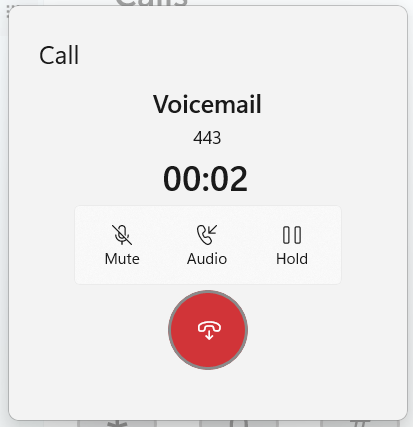
I finished the week off with another update to Thy Phone. This adds a new call progress dialog with features which didn’t make it into the last update along with a new Fluent design.
Fluent Design: Rounded corners, a bigger rounded end call button. Improved display of caller name (when available), number and duration counter.
New: New toggle to allow you to put calls on hold and resume them.
New: While there isn’t yet an on-screen keypad during calls you can now use your keyboard to send DTMF tones (0-9, * and #) to navigate menus during calls. This doesn’t currently play the tone on your PC, unlike Phone Link and Skype, but I’m working on this.
One of the challenges with 32feet.NET is to try to provide as consistent an experience as possible on multiple platforms even though the underlying implementation varies wildly. One such case is with Bluetooth Classic and the stream used to read and write data over an RFCOMM connection.
As it turns out each platform has its own way of implementing these connections, either using Berkeley sockets (Win32 and Linux), BluetoothSocket (Android), ExternalAccessory framework (iOS) or IOBluetooth (macOS). Because there is a level of abstraction even within these native APIs (not including anything 32feet is doing to hide the implementation) what you get when you want to just write to a stream is not at all the same.
One place this becomes clear is when writing an app to talk between multiple platforms e.g. Windows and Android because it soon becomes clear that you’re writing data and not seeing it on the remote device. This is because on Windows the stream is internally buffered and so simply writing data to it doesn’t actually send it over the air to the other device. Either you have to hit a specific buffer level where it will have to send it, or you must call Flush (or FlushAsync) to ensure the buffer is emptied. This doesn’t necessarily mean that you should call flush with each write to the stream, but if you are building a packet containing a chunk of data you probably want to ensure this is flushed so that the receiving device can process it together.
Trial and error shows that the Android side of things doesn’t do this and a write is a write. However, knowing what we know about all the many versions and flavours of Android OS it’s probably best not to assume this is always the case. If the stream has no buffer, or the buffer is already empty then a well placed Flush will not have a measurable impact. Therefore I recommend always adding code to flush data, regardless of what platforms you intend to support so you can ensure it will behave consistently across any platform.
A month on from its original release, I’ve made a number of significant changes to improve the usability of the app.
Firstly the app is now a system-wide AAC tool, not just for phone calls but using local audio to conduct conversations in-person.
Secondly, I’ve added the ability to select the voice you use with Thy Voice. This is significant because you may wish to use a different voice when you are talking than when your PC is talking to you. I’m still looking into whether there is any chance we can use the Natural voices which are available with Narrator but don’t currently show up in the system for other apps using speech synthesis.
Finally, to emphasise its wider uses, the app has a new icon and a few other visual tweaks.
You can get the app through the Microsoft Store. I’m always interested in further feedback on how to make the app easier, and useful for as many users as possible.
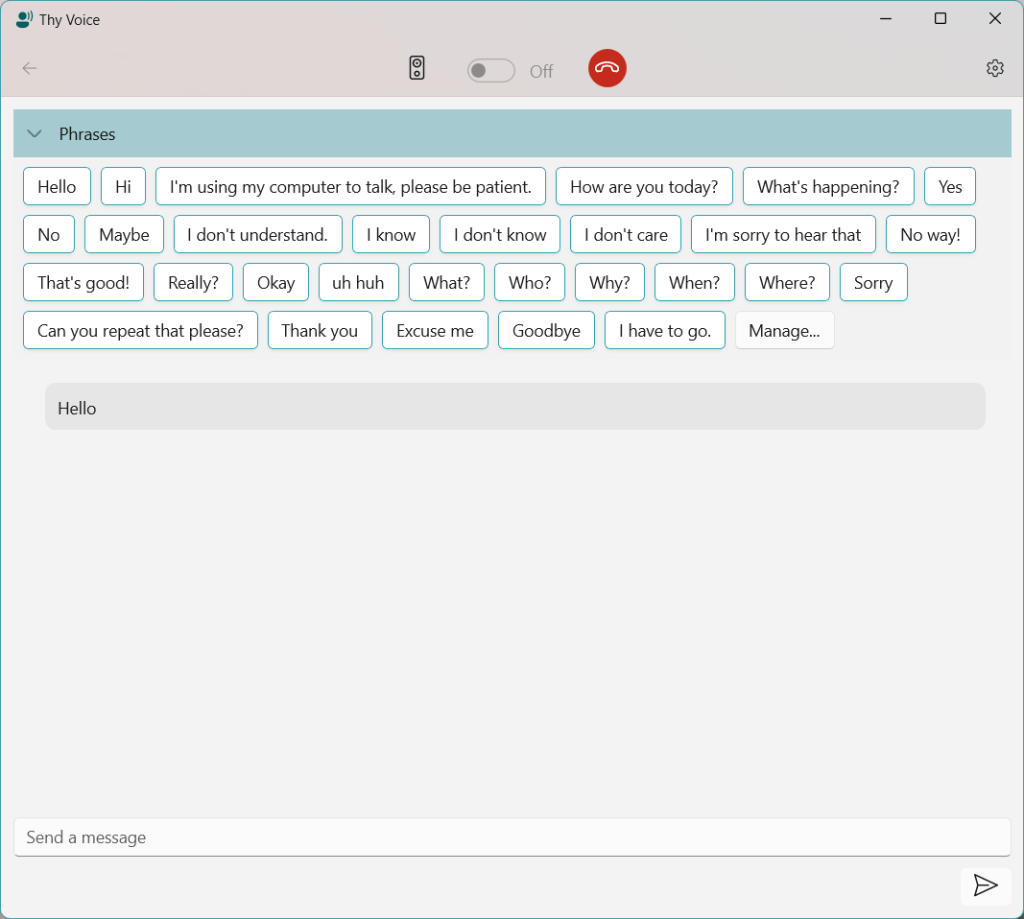
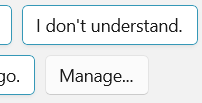
In my current Thy Voice app for Windows 11, I wanted to keep the regular Fluent style for controls so that the UI was instantly familiar but I needed to make some changes to differentiate the stored phrases. These are represented by a collection of variable sized buttons, and designed to function like suggested replies in a chat app. I looked at some examples and in Microsoft Teams they have white backgrounds (in light theme) with an accent colour border. However they retain a fluent style with rounded corners and subtle shadows.
This is where I discovered something which may not be obvious to everyone building with WinUI 3.0, there is a big difference between these two declarations:-
With the former, you’ll notice the appearance of the button changes subtly – it no longer has a corner radius and will look odd against other buttons using the default style. Therefore to maintain a consistent look you need to consider either deriving your custom style from the WinUI DefaultButtonStyle and then just making the necessary changes, or applying more customisation in your own custom style.
For my SuggestedReplyButton, I needed a white background, but it had to be theme aware so it can’t be hard-coded to white. The following is a working implementation of the style which looks like other examples of suggested text snippets to insert into a conversation. I guess this is the logic for the different colour scheme – these buttons are part way between a button and a filled textbox to show the kind of action they perform.
ControlCornerRadius appears to be 4 logical pixels, but you don’t have to worry as it will match the rest of the style if you use the resource value.
You’ll see that I’ve assigned a ThemeShadow to the button, however on its own this won’t draw a shadow because this depends on the control having a separation from its background in the z-axis. In my control this is set in code by applying a vector to the button’s Translation property:-
Translation = new System.Numerics.Vector3(0,0,8)
In this case 8 logical pixels which provides a really subtle depth effect. The result is somewhat similar to Microsoft Teams and sits nicely against a standard button.
You can find out more about Thy Voice here. If you are looking for an experienced Windows developer, I am available for contract work so please do get in touch.
This week I’m launching a new app into the Microsoft Store. Following on from my experiences with enabling hands-free calling in Windows 10/11 for devices not supported by Microsoft’s own Phone Link app, I’ve been exploring this area further.
I’d been interested in how the hands-free audio integrates into Windows and discovered how to utilise it to deliver audio to the remote phone. After reading about the Live Speech feature coming in iOS 17, I thought it would be interesting to bring this functionality to Windows. The resulting app, Thy Voice, allows you to participate in a voice call from your PC and use text to talk when you might not be able to use your own voice. There are many reasons why a user might not be able to use their voice, either temporarily or permanently and it seemed to me that if available on the PC it would be easier to converse via text than using the iPhone soft-keyboard. These types of tool are known as Augmentative and Alternative Communication(AAC).
The user interface is WinUI 3.0 and designed to match the modern look of Windows 11, rather like the messaging feature in Phone Link or a Teams chat. As well as supporting live text entry you can create a collection of reusable phrases to speed up entry. Some examples are pre-loaded in the beginning based on some existing common messages for AAC users.
Since only one app can be registered to use a specific hands-free device, I didn’t want to reinvent the wheel and break existing Phone Link features so Thy Voice sits alongside your existing phone software (Phone Link or Thy Phone) and can detect when a call is active. You make and receive calls through your existing app, you can decide whether to use Thy Voice to conduct the call via text.
There are many possible enhancements, such as supporting other languages and allowing the voice to be set separately from the default Windows settings. I decided it was better to get the basic application launched and then grow it based on feedback. Talking of which, I’d be very interested in any feedback on the app, whether or not you are an existing AAC user. It’s always good to understand different perspectives and use-cases.
I’m working on a WinUI 3 app at the moment and I’ve been trying to match the in-box titlebar behaviour for Windows 11. Anyone who has experience with Windows will immediately respond “Which One?” as various apps within Windows look different due to “reasons”.
My starting point is to match the Settings app, as this is a key part of built-in functionality. Of course during the course of this investigation I noticed that File Explorer and Terminal behave differently even though they are modern in-box apps. Legacy Win32 apps and Edge have a completely different look, let’s just ignore that for now.
Firstly I want to do as little as possible, so I have a WinUI 3 app with the default behaviour and have changed the titlebar to be custom drawn by the app following the documentation. It’s a good start and combining that with applying mica results in a modern looking window at a cursory glance.
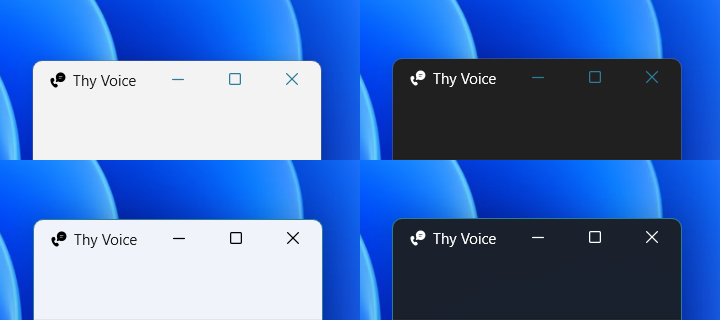
The problem I noticed is that the window buttons (minimize, maximize and close) default to theme accent colour and are quite jarring compared with Windows settings. The first step therefore was to set the background colour of these to transparent (but not change the hover colours so that they highlight when prodded by the user). However the foreground colour doesn’t change with the theme so these can end up disappearing if you switch themes!
The CommunityToolkit has a ThemeWatcher to raise an event at this point – could we just use that and change the text colours? No it turns out it doesn’t fire in a WinUI 3 project. However you can use the UISettings.ColorValuesChanged event instead. This fires both when changing theme colours and switching between light and dark. So now, we just need to have a reference to the AppWindowTitleBar and we can change the text colours when this event fires. I also found that when trying to capture a video of this in action it would regularly fail to update properly leaving it stuck in some limbo state – presumably something in the capture code for GameBar or the Snipping tool is swallowing the window messages used to trigger the change. However I’ve capture an image of the titlebar in the four states so you can see the difference. If you squint at it and cross your eyes you can probably recreate the transition in some kind of magic eye style.
The key things I had to set beyond the defaults to get it to look consistent were:-
On theme change I check the current theme and if IsCustomizationSupported() set the ButtonForegroundColor to Black for Light and White for Dark theme. Ideally these should use a theme color too so that they correctly adjust to other customisations.
Because of some odd behaviour (possibly due to screen recording) I found that changing the title text would make it less likely to fail to update. However with further testing I might not need to do that, and just ignore the screen recording quirk.
The Terminal and File Explorer approach uses a darker (or lighter on dark theme) colour when you hover over a button, rather than the accent colour. It’s more subtle and I’m not sure which theme resource these colours are derived from, so I’m not going to change this for now.
Preview Window
The second issue, which was with the preview window on the taskbar rather than the app window itself, was that it was showing a generic icon, even though the app icons were all setup correctly. I had missed a step, and Nick Randolph showed me what I’d forgotten. As well as setting the images for your package, you also need to set an icon for the AppWindow. This is a traditional .ico file which can contain multiple sizes and colour depths. Once I’d set this in the constructor for my MainWindow (this app only uses a single window) it was showing correctly in the preview.
AppIcon.ico is in the root folder of the project with a build type of Content. It’s important to note that .ico files don’t have separate light and dark theme images so this needs to be something which works well with either theme. Looking through some in-box examples they are a bit of a mixed bag.
Microsoft recently released their update to Phone Link to fully support iPhones on Windows 11. This means that for the best experience of using your iPhone you should switch to using Phone Link on Windows 11. Phone Link supports messaging, has more advanced notification support and sync call history.
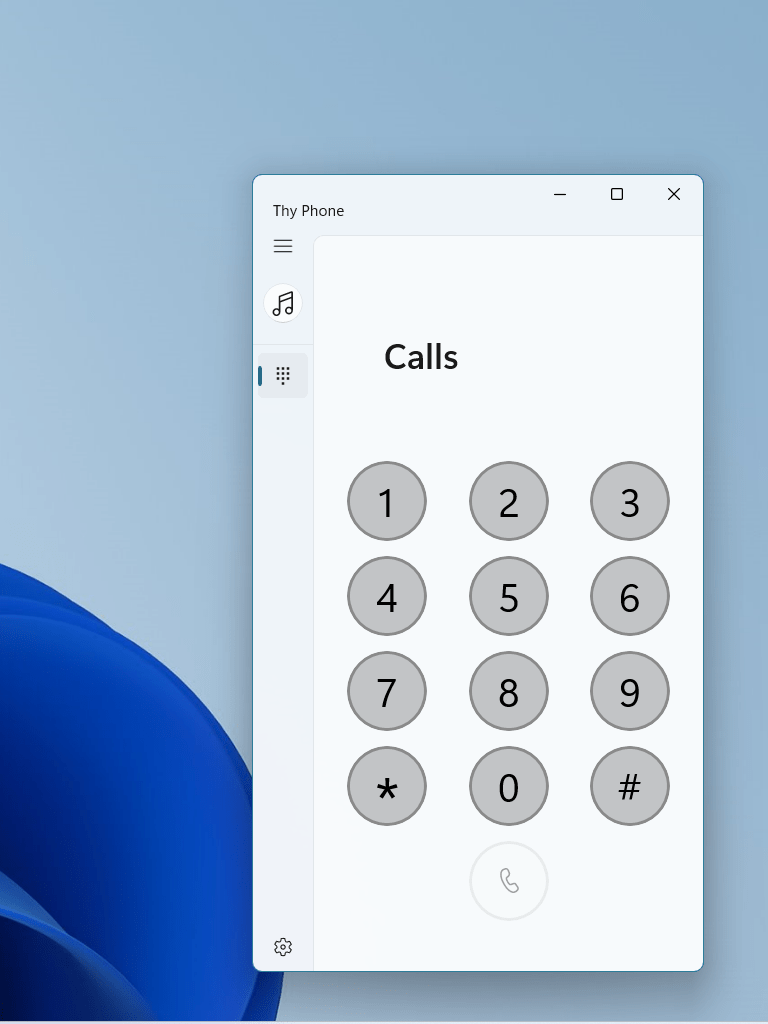
For everything else (not everyone uses Android or iPhone), then Thy Phone still supports hands-free calling and audio sharing on any other Bluetooth Handsfree capable device. This includes Nokia feature phones, Windows Phone, Blackberry and much more. To focus on this specific scenario our latest update for Windows 11 has a simplified UI to provide this core functionality. I’m still trying to work out how to access the elusive battery level which handsfree devices expose (you can see this in the Settings app).
For users on Windows 10, the original app is still available and also supports iPhone notifications and battery level. Some of the code used to support these Apple features will be made available as a companion library to the Bluetooth LE library in 32feet.NET.
Windows 11 introduced the concept of Focus Sessions which allow you to specify a fixed time to work uninterrupted. While active, Windows will not flash taskbar icons and will turn on Do Not Disturb mode to suppress notifications (this particular feature was known as Focus Assist in Windows 10).
From Windows 11 22H2 there is now a public API exposed to integrate with Focus Sessions. The passive API is available to all developers from a desktop application or UWP app. To actively start and stop focus sessions on behalf of the user you require special permission from Microsoft and a token to use with the LimitedAccessFeatures API – we won’t be looking at that in this post. The LimitedAccessFeatures documentation doesn’t explain how this works by Rafael Rivera investigated it in this blog post.
There are a number of reasons why you may wish to integrate with this functionality. It may be to use that status to reflect the user’s available. My Occupied app does this to automatically share your availability based on a number of activities you can perform on your PC. You may also wish to customise your user interface so that you can present a minimal UI with fewer distractions. After all, if you know Windows is supressing notifications, you probably don’t need to send them in the first place!
The entry point for the functionality is the FocusSessionManager class. In order to support multiple Windows versions you should wrap any access with a call to IsApiContractPresent and test for UniversalApiContract version 15 (introduced with Windows SDK version 10.0.22621.0). Next you need to check the static IsSupported property. After that you can access the default manager, check whether a focus session is currently active and attach an event handler for whenever the state changes:-
if (Windows.Foundation.Metadata.ApiInformation.IsApiContractPresent("Windows.Foundation.UniversalApiContract", 15))
{
    if (Windows.UI.Shell.FocusSessionManager.IsSupported)
    {
        focusSessionManager = Windows.UI.Shell.FocusSessionManager.GetDefault();
        focusSessionManager.IsFocusActiveChanged += Manager_IsFocusActiveChanged;
    }
}
The IsFocusActiveChanged event handler receives an instance of FocusSessionManager and you can query the IsFocusActive property to determine if the user is currently in a session.
Today the latest app update went live in the Microsoft Store. This update adds a quick manual override to your busy status which you can trigger from the tray icon.
The app continues to evolve to help you manage your free/busy time and share your status with colleagues.
Many organisations revolve around a communication tool like Microsoft Teams. Not only do they form the backbone of meetings in hybrid and remote working, but also one-to-one chats and calls. Microsoft Teams has a presence indicator for each user so that you can show your colleagues when you are available or do not wish to be interrupted. This is populated automatically when you are in a teams meeting or have an appointment in your calendar, however there isn’t an awareness of your status outside of this bubble.
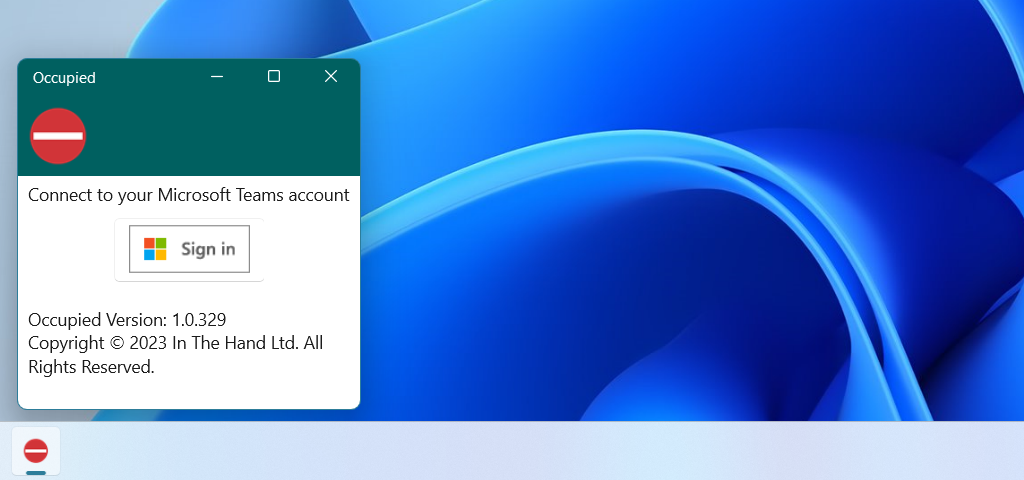
My new app (Occupied) attempts to improve this by adding in two additional sources to more accurately reflect your availability. Firstly it works with the hands-free phone system in Windows, used by Phone Link and Thy Phone, and will show you as busy whenever you are on a phone call. It fully respects your privacy – the app has no knowledge of the nature of the call, just when a call is active. The app cannot access your call logs and has no idea whether you are making a call on a personal or work mobile.
The second input comes from the new focus sessions support in Windows 11. If you are running Windows 11 22H2 or later you’ll be marked as “Do Not Disturb” in Teams for the duration of the session. In either case you can always override your availability and that takes precedence over an app generated status.
The app is a small utility which sits in your system tray and once you’ve linked it to your work account you can forget about it and it will sit in the background and work its magic. I’m hoping that it provides a useful automation which will help Microsoft Teams users respect each other’s working styles without adding any additional effort for the user.
The app is now available in the Microsoft Store for 99p (or your local equivalent). I’m interested in feedback on how useful people find this and other ways I can provide a more holistic Microsoft Teams presence experience.



 In The Hand Ltd