Blog

  • UWP and XAML CustomResource Markup

    UWP doesn’t support writing custom markup extensions however there is one built in markup extension which is extensible. The CustomResource extension allows you to write XAML such as:-

    <TextBlock Text="{CustomResource PortableStringResource1}"/>

    In this case PortableStringResource1 is a unique key to refer to a resource in a source of your choosing. There is no out of the box implementation so you need to create your own class which derives from Windows.UI.Xaml.Resources.CustomXamlResourceLoader and provide an implementation of GetResource. Then in code which runs during your app start-up you create a new instance of your custom class and assign it to CustomXamlResourceLoader.Current. Then all requests are passed to your code to be resolved.

    One place you may want to use this is where you are getting string resources from a different source than the modern resource system. In a pure UWP approach you can set an x:Uid for a XAML control then add string resources of the form MyId.SomeProperty to set the specified property from the resource. Another place you might have resources defined might be in a Portable Class Library. Because these work across multiple projects you might have string resources specified in a .resx file which you use with a number of projects (think Xamarin etc) and you may wish to also use these from a UWP client. Because of the way these resources are built into the UWP project you can access them via a Windows.ApplicationModel.Resources.ResourceLoader provided you specify the name of the resource set. This is the full namespace and classname of the generated class in the PCL. For example if your PCL has a base namespace of PortableClassLibrary and you have a resx file called StringResources.resx this is “PortableClassLibrary.StringResources”.

    For the platforms where it is supported I’ve added a WindowsXamlResourceLoader class to InTheHand.UI. This can be used to refer to either resources defined in the UWP application resw or a named resource set in a referenced library. The source can be found here:-

    https://github.com/inthehand/Charming/blob/master/Source/InTheHand/UI/Xaml/Resources/WindowsXamlResourceLoader.cs

    An example of setting up the resource loader is called in the App.xaml.cs App() constructor:-

    Windows.UI.Xaml.Resources.CustomXamlResourceLoader.Current = new InTheHand.UI.Xaml.Resources.WindowsXamlResourceLoader(typeof(PortableClassLibrary.StringResources).FullName);

    The sample project for this blog contains the UwpClientApp and PortableClassLibrary projects to demonstrate the complete solution.

    This is just one example of harnessing the CustomResource markup extension for your own use. You could write a resource loader to return values from any other source, you supply the glue to hook it together. The only limitation is you can’t really change the resource loader while dipping in and out of parts of your app so you need just one implementation. You could work around this by prefixing the key with different values linked to different sources…
  • Xamarin Forms Windows Colours

    When you work with custom renderers on Xamarin Forms (and it’s very difficult not to!) you often have to convert from Xamarin Forms types to their native platform equivalent. In the iOS and Android implementations Xamarin include some extension methods to easily convert Color to the native equivalent. Being the Cinderella of the Xamarin Forms platforms Windows platforms have missed out on this so I’ve filled the gap with this handy extension method:-

    https://gist.github.com/peterfoot/be89d5b3c5ac4cc16ae1

    This works for Windows Phone 8.1, Windows Store and UWP targets (sorry I haven’t created the Silverlight equivalent)

  • WebAuthenticationBroker Hints

    Anyone who has tried to use the WebAuthenticationBroker beyond the simplest of scenarios has probably run into problems and sometimes all you want is a good descriptive error message. Getting things setup just right often takes a certain amount of trial and error so I’m documenting a few things here which are the results of a certain amount of trial and a considerable amount of error. This is as much a reminder for myself the next time I try and do this as it is (hopefully) some useful extra information for you.

    Single Sign-in

    If you can get the stars to align correctly, your OAuth endpoint can perform single sign-in on a corporate network. If you read the documentation you’ll see you have to specify the flag WebAuthenticationOptions.UseCorporateNetwork when you call AuthenticateAsync. This can be confusing because this flag isn’t needed when debugging when your app is given Intranet access automatically. To set this flag you also need to specify Enterprise Authentication, Private Networks and Shared User Certificates capabilities in your application manifest. Once you’ve added these you can’t submit the app through the public Windows Store.

    A caveat to this is that you can only do single sign-in if your “web” application is setup with a redirect Uri which is the app package identity and you use the overload of AuthenticateAsync which doesn’t take a redirect Uri. This is the Uri returned from a call to Windows.Security.Authentication.Web.WebAuthenticationBroker.GetCurrentApplicationCallbackUri() at runtime. This identity will change between a side-loaded developer signed package and one which has been distributed through the Windows Store or a private company portal.

    Error Codes

    A lot of errors within the WebAuthenticationBroker process will result in a return status of WebAuthenticationStatus.UserCancel. However this is not always because the user has explicitly cancelled the process. The ResponseErrorDetail property returns an error code to give the reason and here are some possible values:-

    0x800c0019 – An SSL failure. A common cause of this is that the clock is not set correctly on your phone/PC and it can often occur when your device battery went flat and it reset itself to some default date in 2014 and you’ve forgotten to correct it.

    0x800c0005 – Network connection error. This is probably because you have no mobile signal and no WiFi.

    This isn’t an exhaustive list but knowing the common error codes allows you to write a descriptive message for the user to hopefully resolve the problem themselves.

  • Ordering the Surface Pro 4 Docking Station Adapter

    If you have a Surface Pro 3 Docking Station and want to use it with Surface Pro 4 you’ll probably have heard that you need an adaptor – a thin sheet of plastic which it seems is as elusive as hens teeth. You’ve possibly read the instructions here http://winsupersite.com/hardware/microsoft-finally-works-out-its-surface-pro-4-surface-pro-3-docking-station-spacer and here is the rest of the process:-

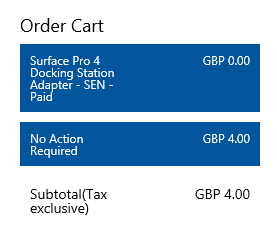
    Once you’ve selected “Replace an accessory” you’ll need to pick your device. Assuming you’ve already registered you just have to click on your Surface Pro 4 here. Then you’ll see choices for categories “Pens and Loops”, “Docking Station”, “Other”. You’ll need to select Docking Station and you may get a popup asking you to enter a product number. Of course you don’t have a product number for a product you don’t have so don’t panic. When you select that you don’t have a product number ignore the warnings that your product will be considered out of warranty. What should happen on the next screen is that only one product is available which is the adapter at an extravagant £0.00. You’ll also have to pay postage – for the UK this is £4 (+VAT). There is a drop down box for shipping type but this has only a single choice “No Action Required”, enter your shipping details and proceed to pay.

    adapter-cart
    I guess £4 is the “price of inaction” 🙂
  • Windows Embedded Compact 2013 & Visual Studio 2013

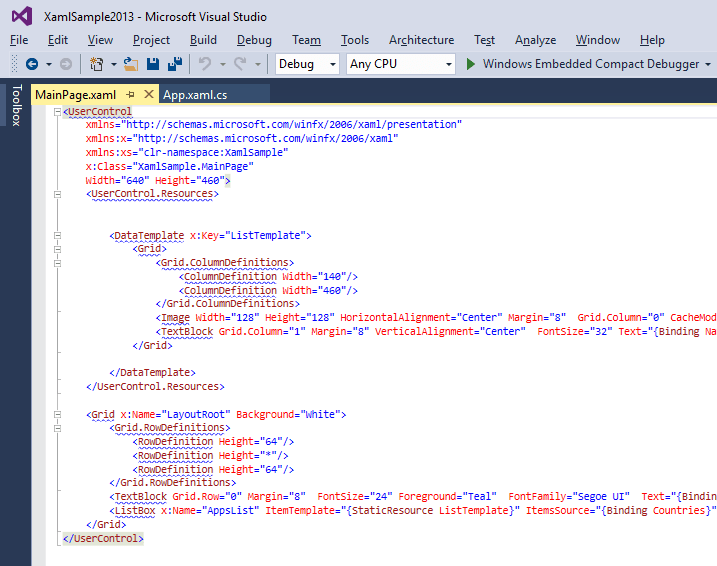
    The latest update to Windows Embedded Compact 2013 was a bit of a surprise as besides the usual cumulative bug fixes and tweaks it adds development support with Visual Studio 2015. Since the days of Windows Mobile 6 and even CE 7 it has been common to use an old version of Visual Studio to get things done but here the tools have jumped to the latest Visual Studio version.

    Besides the usual Console and Windows Forms project types we’ve tested XAML In The Hand too and you can build managed code XAML based applications. You can debug over Ethernet, edit your XAML with intellisense, use NuGet packages etc all as you would with “big” Windows development.

    xaml2015

    One of the new features added in Compact 2013 was Behaviors and while you can use them already in XAML In The Hand projects from your XAML we’re investigating whether it might be useful to add code support for these too depending on demand.

    The Compact 2013 installation is in two parts – Application Builder is the plugin for Visual Studio:-

    http://www.microsoft.com/en-in/download/details.aspx?id=38819

    The latest Compact 2013 Platform update is here:-

    http://www.microsoft.com/en-us/download/details.aspx?id=42027

    More details on XAML In The Hand can be found here:-

    XAML In The Hand


  • InTheHand.UI v9.0

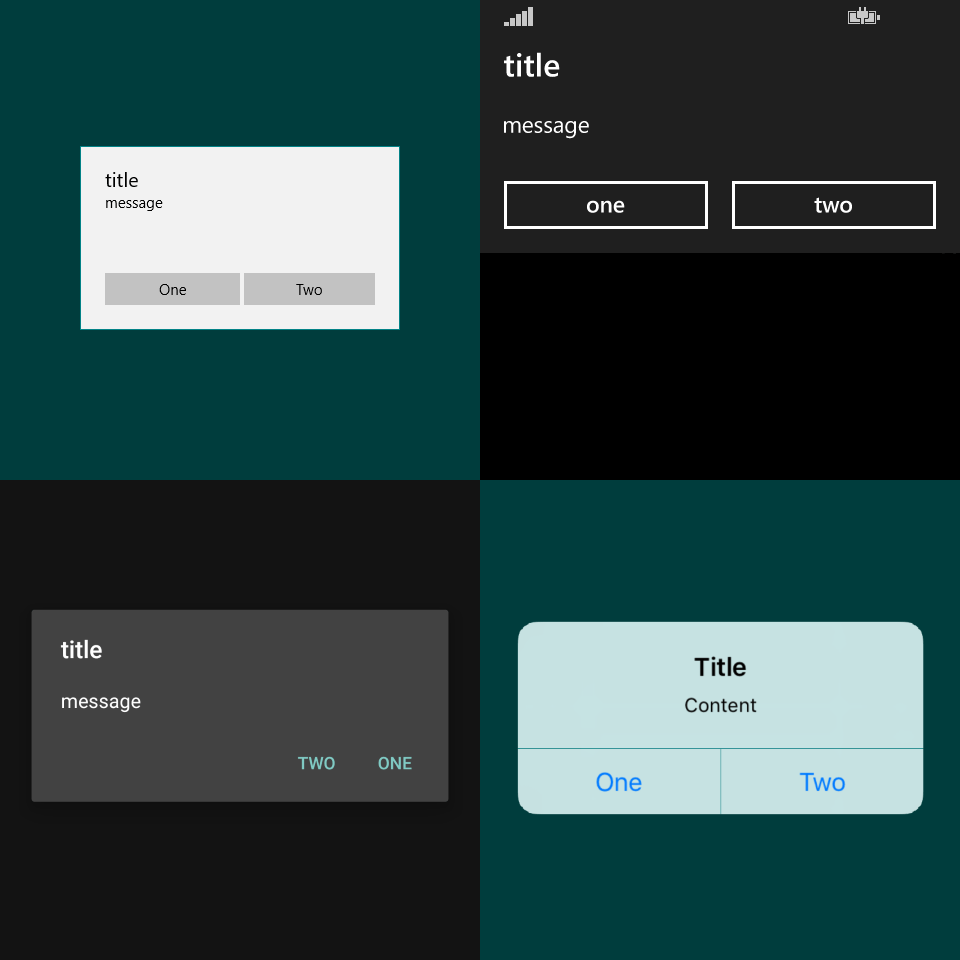
    I’ve updated InTheHand on NuGet and added the accompanying library containing UI functionality (InTheHand.UI). The main shared piece of functionality here is the MessageDialog (ala Windows.UI.Popups) and this works across all the Windows platforms (Including Windows Phone Silverlight) and iOS and Android. The appearance of the dialog is as the native experience with one exception…

    MessageDialog.UWP.Native

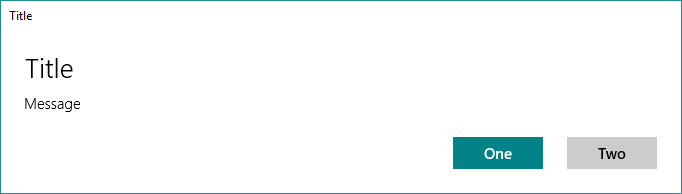
    We noticed on Windows 10 that the appearance of MessageDialog changed for our 8.1 app, rather than being a band across the width of the screen it was now a true floating window in its own right but this had one negative aspect – the title text appeared twice on the dialog. Users reported this as confusing and there is currently no workaround directly. In UWP apps there is now a ContentDialog control which is used for popping up content with up to two action buttons (you may recall this from Windows Phone 8.1) and so our implementation wraps this API on Windows 10 Desktop while exposing a single MessageDialog API. To avoid breaking the API we currently fall back to the system MessageDialog if you use three Commands. You can see a taste of the various flavours below:-

    MessageDialog.Montage

    The other functionality within InTheHand.UI is currently specific to Windows flavours and I’ll be discussing it in a future post.

  • Build Charming Apps v9.0 Preview

    With the impending release of Windows 10 I set about updating the Charming Apps libraries to support UWP targets and it soon became painfully clear that things had got too complicated. There was a separate dll for each small area of functionality and various dependencies and 17 NuGet packages to manage (each with multiple platforms).

    Version 9 is a reboot of the project and currently consists of just two packages – InTheHand.dll and InTheHand.UI.dll. The first of these is now live on NuGet in preview form and replaces a number of old libraries and adds new stuff! During the MVP Summit I was able to spend the Hackathon rebuilding my development environment and refactoring the entire solution.

    https://www.nuget.org/packages/InTheHand/

    The API follows the UWP model where possible, making it familiar to Windows developers while extending both backwards to prior Windows versions and also sideways to Xamarin platforms. Also new in Version 9 is a PCL build which allows you to call the shared functionality from a PCL with the functionality itself provided by the platform specific dll in the consuming application. This is useful in scenarios such as Xamarin Forms projects.

    For example InTheHand.ApplicationModel.Package provides a mechanism to query the current application package for name/version etc. This is the sort of information you might need for a custom About page or to pass to analytics etc. The InTheHand.ApplicationModel.DataTransfer namespace contains Clipboard and Sharing functionality which now supports Android and iOS too invoking the native experiences in each. The remainder of the InTheHand.ApplicationModel namespaces allow you to kick off a number of tasks such as SMS, Email etc. Other namespaces exist for querying display properties and battery state.

    All the code is on GitHub and a very rudimentary version of documentation is in the project Wiki. Most of the documentation in CodePlex still applies too and will be migrated in due course.

    https://github.com/inthehand/Charming

    Coming in the InTheHand.UI package are InTheHand.UI.Popups (MessageDialog) and InTheHand.UI.ApplicationSettings (currently Windows platforms only) both of which have some neat Windows 10 specific tweaks.

  • Self Installation of Hive

    Installing the Hive hardware was straight-forward because my existing controller had a standard backplate and so I didn’t have to change any wiring. The trouble came when trying to setup an account because when you ring the number on the included voucher no-one seems to understand the process for self-installed units. After I eventually got it sorted I was told there is an alternative way which doesn’t involve going round in circles with various sales/tech support etc phone lines:-

    When you order from Amazon there is a voucher code on the box. If then visit https://www.hivehome.com/shop/cart and enter the voucher code in. It will then allow you to create an online account.

    This should have been included with the voucher code because it seems a much more straight-forward approach. Unfortunately before I could use this I was already setup but I’m pinning it here for reference.

  • WinRT specific properties in Xamarin Forms XAML

    Xamarin Forms originally supported iOS, Android and Windows Phone Silverlight applications. The OnPlatform<T> class provides a mechanism for putting values directly into your XAML which are dependent on the host platform. This is often necessary to cope with different screen sizes and scaling behaviour across platforms. When Windows 8.1 and Windows Phone 8.1 were later added the OnPlatform class was not updated. This means that if you use OnPlatform it can’t provide a value for WinRT platforms. Without resorting to changing properties in the code-behind we wanted a way to set platform specific property values from XAML. Luckily the solution was quite simple – just 55 lines of code including doc comments and I’ve published the code here:-


    namespace InTheHand.Forms
    {
    /// <summary>
    /// Replacement for Xamarin.Forms.OnPlatform which supports the Windows (WinRT) platforms.
    /// </summary>
    /// <typeparam name="T"></typeparam>
    public sealed class OnPlatform2<T>
    {
    public OnPlatform2()
    {
    Android = default(T);
    iOS = default(T);
    WinPhone = default(T);
    Windows = default(T);
    Other = default(T);
    }
    public T Android{ get; set;}
    public T iOS { get; set; }
    public T WinPhone { get; set; }
    /// <summary>
    /// The value to use for WinRT (Windows Phone 8.1 and Windows 8.1).
    /// </summary>
    public T Windows { get; set; }
    /// <summary>
    /// Currently unused.
    /// </summary>
    public T Other { get; set; }
    public static implicit operator T(InTheHand.Forms.OnPlatform2<T> onPlatform)
    {
    switch(Xamarin.Forms.Device.OS)
    {
    case Xamarin.Forms.TargetPlatform.Android:
    return onPlatform.Android;
    case Xamarin.Forms.TargetPlatform.iOS:
    return onPlatform.iOS;
    case Xamarin.Forms.TargetPlatform.WinPhone:
    return onPlatform.WinPhone;
    case Xamarin.Forms.TargetPlatform.Windows:
    return onPlatform.Windows;
    default:
    return onPlatform.Other;
    }
    }
    }
    }

    view raw

    OnPlatform2.cs

    hosted with ❤ by GitHub

    To use in your XAML you just need to add an XML namespace declaration to your root node (e.g. ContentPage)

    xmlns:forms="clr-namespace:InTheHand.Forms;assembly=YOURASSEMBLY"

    Then use the class from your XAML. It works with any type which can be represented as a string in XAML. e.g.

    <Grid.Padding>
       <forms:OnPlatform2 x:TypeArguments="Thickness" iOS="5" Android="5" Windows="0,10,0,5"/>
    </Grid.Padding>
  • Xamarin Forms Maps on Windows Phone 8.1

    Some time ago Xamarin added support for Windows Phone 8.1 (and Windows 8.1) platforms to Xamarin Forms. I wrote a blog post about how to configure your project to run your Xamarin Forms app in a Windows Phone 8.1 project.

    Alongside the base Xamarin Forms API there is a Xamarin Forms Maps component which, as the name suggests, adds cross-platform mapping support for Xamarin Forms applications. However there is a catch, in the current version (1.5 at the time of writing this) only Windows Phone Silverlight is supported. So while you can target Windows Phone 8.1 with Xamarin Forms you can’t use the Xamarin Forms Maps functionality.

    With most controls there is a standard way to write a custom renderer to provide an implementation for a particular platform. Quite often these are not too complex – just mapping properties from a Xamarin Forms control to the native equivalent. Windows Phone 8.1 has a Map control built in so I set about writing a renderer.

    It wasn’t quite as straight-forward as I originally anticipated and it took a while to work out what the other platform implementations were doing but I got it to a point where 99% of the functionality is supported so decided to release the code (on GitHub here) and the compiled library (on NuGet here).

    Usage

    You can get up and running very quickly. You merely need to add the NuGet package to your Windows Phone 8.1 project and add one line of code:-

    InTheHand.FormsMaps.Init([MAP_TOKEN]);

    Place this in the OnLaunched method in your App.xaml.cs file. [MAP_TOKEN] is a string which you can get for your app from the Windows Dev Center. For debugging/test purposes you can pass null here and the map will display a banner indicating it is running without a token. I designed this to be as similar as possible as the other Xamarin.Forms.Maps platforms. Only the namespace is different. No changes are necessary to your PCL project to support this.

    Sample

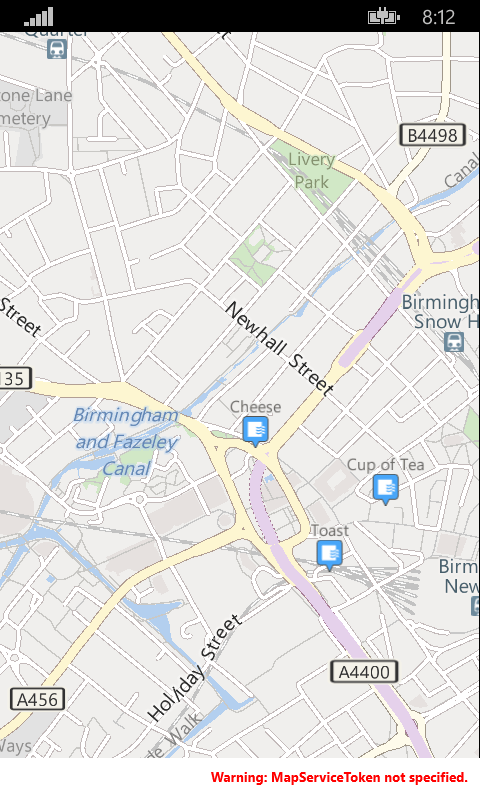
    There is a sample app in the GitHub repository which adds some food and drink pushpins to Birmingham. This is how it looks on Windows Phone:-

    MapsTest on Windows Phone Emulator
    MapsTest on Windows Phone Emulator

    As well as supporting the Map control itself the library also provides an implementation for the Geocoder class. This allows you to fetch an address (or addresses) for a given position or to lookup a location for a given address. I haven’t currently added this to the sample project, but there is nothing special to do here – it “just works” from your platform independent code.

    What’s Not In This Version

    The only real thing I didn’t put into this version was the ability to use different pushpin icons depending on the type of PushPin – Xamarin supports Generic, Place, SavedPin and SearchResult. All currently use the default image which you can see from the above screenshot.

    Thanks

    My last word is to say thanks to those who offered to test this and provided feedback on the initial build. I hope you’ll find this useful to easily add mapping to your Xamarin Forms projects on Windows Phone.