Tag: iOS

  • NFC support for all Uri types

    In order to save a few bytes, there is a special mechanism used in Uri NFC tags where one byte is reserved to match with specific Uri prefixes. A value of zero means the following text contains the full Uri, a value of one means the Uri starts with “http://www.”. There are actually 35 of these constants in total.

    How this behaves depends on the platform – Android handles this for you and returns a valid Uri, but on iOS you receive the raw bytes and must use this initial byte and the rest of the data to reconstruct the full Uri. InTheHand.Nfc needs to handle this transparently for you and support all the Uri types. On iOS we had previously only handled the first few common Uri types and so there might be situations where it wouldn’t return the full valid Uri. This is now resolved in v1.2.4 so if you need to scan a telnet: Uri from an NFC tag this now works as expected!

    You can download the latest version from NuGet. This release also adds specific .NET 10.0 builds. InTheHand.Nfc now provides a feature complete implementation of the WebNFC standard for your .NET mobile apps.

  • Writing NFC Tags in .NET

    I first added NFC code to 32feet.NET back in 2020. However, as other priorities came along it never got fully polished and released on NuGet. This year I finally got around to it and updated the code for .NET 8.0 as it had originally targeted Xamarin Forms.

    InTheHand.Nfc is available on NuGet and follows the API model of WebNFC – it supports reading and writing NDEF tags as this is the most widely used format for providing Urls, text and other custom data types. Although the original Windows codebase is still there it is largely untouched and untested because there is no definitive NFC hardware for Windows and the external Sony reader I had been using is no longer supported. I was able to install the drivers and get it running but I’m not currently able to read tags through the API. Since iOS and Android are more important platforms for this functionality I’ve not spent any more time on the Windows implementation yet.

    There is a sample .NET MAUI app to demonstrate how to use the library. However it should work on any other .NET based platform (Uno, Avalonia etc). There are some platform specific setup items to observe – NFC reading requires permission on both Android and iOS. For iOS you must also add the NFC Reading capability to your app id.

    The code is quite simple. It’s all async and uses Events for detecting tags. You can either pass a cancellation token to control when to stop scanning or if you don’t it will automatically stop after the first tag is scanned.

    Hopefully you’ll find this useful for adding NFC reading/writing to your .NET apps. I do want to re-enable the Windows functionality, and make sure everything described in the sample is also documented in the Wiki. The only missing functionality from WebNFC is the ability to make a tag read-only; if there is a demand I could look at adding this too.

  • 32feet – Bluetooth LE Device Discovery on iOS

    When I created the InTheHand.BluetoothLE library I modeled the API on WebBluetooth as this gave a simple API surface but as it was designed to run within a browser sandbox some of the functionality is intentionally limited. For device discovery the API only provides a selection dialog. One of the most requested features early-on was the ability to do device discovery in code so that the results could be displayed directly in your own app UI.

    Unfortunately iOS was late to get this functionality but it has now been incorporated into the latest version on NuGet (4.0.41). You can optionally apply filters to restrict the results by Bluetooth service UUID, name or just a name prefix.

    The release contains a number of bug fixes and we’ve had some great community contributions across Windows and Linux – thanks to GitHub users Yeti47, cogree, InvisiblePhil and h2oboi89!

  • Asking for Permission

    Asking for Permission

    I’ve been asked a number of times about the process to ask for Bluetooth permission for your app. I’ve been meaning to create something reusable for some time but it has languished on the To Do list for rather too long. I recently noticed that as of .NET 8.0, MAUI will incorporate a Bluetooth permission which simplifies the process for asking for permission in your app in a clean cross-platform way.

    I used this as an opportunity to refactor the library that I had started so I could create the same pattern for Xamarin Forms and .NET MAUI 7.0 so you can get started with it now and then switch to the in-box equivalent when you update your code. You can request permission with a single line of code:

    PermissionStatus status = await Permissions.RequestAsync<InTheHand.Bluetooth.Permissions.Bluetooth>();

    Today InTheHand.Bluetooth.Permissions went live on NuGet and the source is part of the existing 32feet.NET project. You can use this with either the Bluetooth Classic or Bluetooth LE libraries.

    It provides a simple way to request permission, which on some platforms won’t do anything noticeable but on others, such as Android, it will correctly prompt for permission as long as you’ve set up your manifest correctly.

  • 12 Days of Bluetooth – #6 Bluetooth Classic on iOS

    Today we take a quick detour to look at something specific to Apple devices.

    You Can’t Handle The API!

    iOS has always been the most “locked-down” mobile platform and one of its restrictions has been a lack of support for developers to work with Bluetooth Classic devices. “But wait, 32feet.NET has support for Bluetooth Classic on iOS!” comes a carefully planted cry from the audience. The truth is there are certain scenarios where you can talk to Bluetooth Classic but terms and conditions apply.

    As with wired accessories, Apple insists that Bluetooth devices require MFi (Made for iOS but originally Made for iPod) certification. This requires a different presentation of the service rather than just reporting Serial Port service or similar. MFi devices require a special chip to support it, making it quite an involved process for a manufacturer to implement. Therefore, on the small number of devices which support this there is often a mechanism to switch modes between iOS and everything else.

    The iOS SDK has a special API specifically for these devices called External Accessory framework and this supports both Bluetooth and wired accessories. As part of the certification each vendor is assigned a specific protocol identifier which is a text string. For example for Zebra thermal printers it is “com.zebra.rawport”.

    32feet.NET is able to implement both the BluetoothDevicePicker and the BluetoothClient using the External Accessory framework on the basis that each device exports only a single service and so maps whatever service UUID (99% of the time for Serial Port Profile) you request to the first available protocol on the device. If anyone knows of a device supporting multiple protocols I’d be very interested to hear about it. From there on in it’s a stream interface so just requires some wrapping to expose a standard .NET stream.

    The key differences between working with iOS and other platforms are:-

    • No device discovery – you have to present the picker to the user or get the previously paired devices.
    • No access to the Bluetooth address of the device.
    • Only a subset of devices are supported and may have to be placed in a specific mode.

    However, if you are aware of these limitations you can still use 32feet.NET to write cross-platform code despite the underlying implementation.

    Low Energy

    Luckily the support for Bluetooth Low Energy is a lot more open (although there are still limitations) and there are no specific device limitations. 32feet.NET’s Bluetooth Low Energy library supports iOS, watchOS, tvOS and macOS – they all share the same CoreBluetooth API (with just a few small differences!). We’ll look at Bluetooth Low Energy later in this series.

  • Touchscreen Visualisation on Xamarin iOS

    Seems to Have an Invisible Touch

    To produce a demonstration video on Android you can turn on screen visualisations from the Developer settings menu and this will shows screen interactions on a screen capture. No such option exists on iOS so you need to write some custom code in your app instead. A couple of solutions exist for native iOS app but to use these from Xamarin would require additional code to wrap. The alternative is to write the code from C# to achieve the same result.

    Wrap or Write

    My requirements were quite simple, for a first version I only needed to show single touch events and I wanted something which looked visually similar to the Android equivalent. It turns out that the solution is to inherit from UIWindow and add some extra code to capture touch events and draw to the screen. This means a single solution works anywhere in your app as a single Window is used regardless of what views you have. This should work in Xamarin Forms on iOS too by adding similar code to the FinishedLaunching method in your AppDelegate.

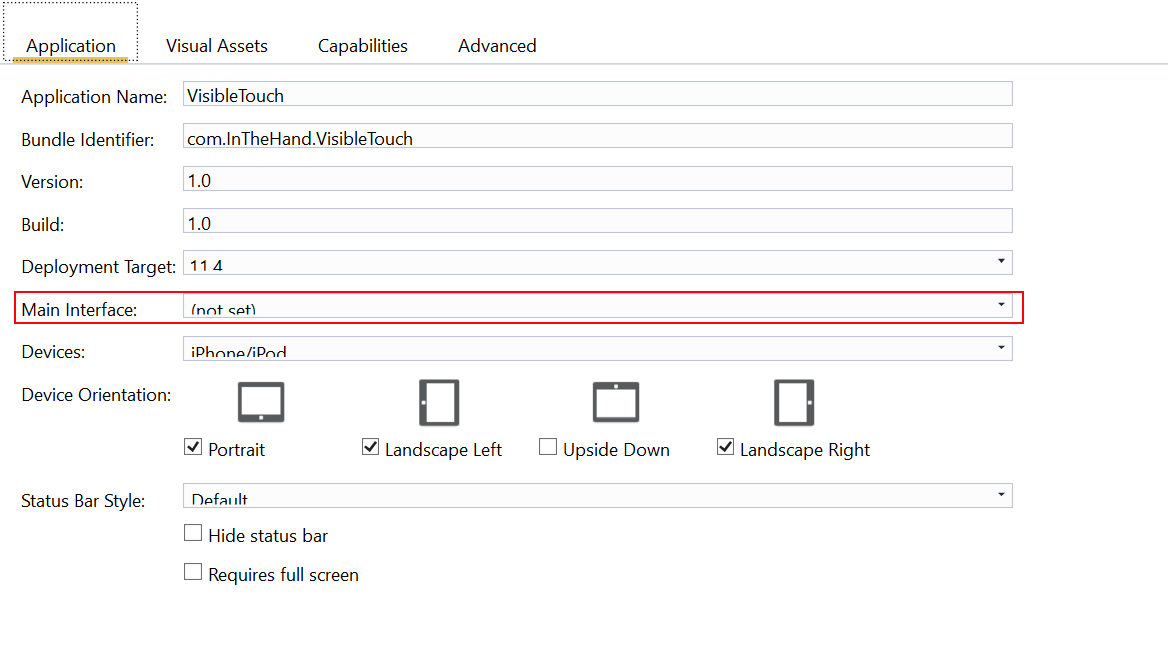
    When you create a blank Xamarin iOS app it will generate a Main.storyboard for the UI and this is hooked up in the Info.plist manifest so there will be no code in FinishedLaunching to setup the Window and root ViewController. The first step therefore is to un-set this:-

    visible-touch-info

    Then you can add code in the FinishedLaunching method to create the Window and load the storyboard.

    public override bool FinishedLaunching(UIApplication application, NSDictionary launchOptions)
    {
    	// Set a custom Window which handles touch events
    	Window = new InTheHand.TouchWindow(UIScreen.MainScreen.Bounds);
    
    	// Load root view controller from Storyboard into Window.
    	// You can't set this from Info.plist as it'll use a regular UIWindow.
    	Window.RootViewController = UIStoryboard.FromName("Main", null).InstantiateInitialViewController();
    	Window.MakeKeyAndVisible();
    
    	return true;
    }

    Some solutions to this use graphics to display the touch circle but I’ve gone for straightforward UIKit drawing code with a circular UIBezierPath. The full code for a working demo app is on GitHub here:-

    https://github.com/inthehand/VisibleTouch

    You can see the effect of this code in this video:-

    There are some limitations with this code. It supports single touch gestures only, if you use multiple fingers you’ll get a circle jumping around to the latest event. The circle can disappear quite abruptly, it will probably look better with a simple animation to fade out. I haven’t included code here to turn the visualisations on or off. Chances are you won’t want them on all the time so it would make sense to add a setting somewhere to toggle this. I did this myself using a settings bundle so you could toggle the setting before even running the app. That was interesting in itself and easier to integrate with Xamarin iOS than I expected but that is a topic for another blog post.

    If there is significant interest in this I can release this as a NuGet package for easy integration into your Xamarin iOS project. For now you can take the TouchWindow.cs code and drop it into a project and modify the AppDelegate as described above.

  • ListView Adventures – Auto-sizing Uneven Rows

    The Xamarin Forms ListView control has a tough job – it has to provide a platform agnostic, rich data-bindable control and yet take advantage of the performance and look-and-feel of the native control on each platform. I recently discovered an odd gotcha for a specific usage. It’s possible to have rows with different heights. There are a number of reasons you might want this, the simplest would be the case where you have multiple item templates to represent different types of item. A slightly more interesting scenario is a chat application. In this case you want each row to use the right amount of space for the message but you can’t hard-code specific row sizes. You need a template which you can measure and get an accurate height for that specific item obeying all the margins and spacing you’ve setup. As it turns out this doesn’t work on iOS and it is documented if you know where to look.

    The solution is to add some extra logic and this can of course be done by writing a custom renderer. Since there is a performance overhead in building the list item and measuring each one you only want to do this in the case that you can’t hard-code a row height. To look at the out of the box behaviour see the first screenshot below. You can see some attempt has been made to resize the rows but they don’t actually fit the content correctly.

    IMG_0102

    The XAML for this view looks like this:-

    <ListView ItemsSource="{Binding}" HasUnevenRows="True" BackgroundColor="LightGray" SeparatorVisibility="None">
     <ListView.ItemTemplate>
      <DataTemplate>
       <ith:AutoViewCell>
        <Frame Margin="20,10" HasShadow="True" CornerRadius="10">
         <Label Text="{Binding}"/>
        </Frame>
       </ith:AutoViewCell>
      </DataTemplate>
     </ListView.ItemTemplate>
    </ListView>

    As you can see I’ve define a new type derived from ViewCell. I’ve done this so that my renderer won’t be used for all ListView items but only those where we need this functionality. The AutoViewCellRenderer then does some extra work on iOS to set the item heights at runtime based on the data filled template. On Android and UWP it just uses the built in ViewCellRenderer which behaves as you’d expect.

    [assembly:ExportRenderer(typeof(AutoViewCell), typeof(AutoViewCellRenderer))]
    namespace InTheHand.Forms.Platform.iOS
    {
     public sealed class AutoViewCellRenderer : ViewCellRenderer
     {
      public override UITableViewCell GetCell(Cell item, UITableViewCell reusableCell, UITableView tv)
      {
       ViewCell vc = item as ViewCell;
    
       if (vc != null)
       {
        var sr = vc.View.Measure(tv.Frame.Width, double.PositiveInfinity, MeasureFlags.IncludeMargins);
    
        if (vc.Height != sr.Request.Height)
        {
         vc.ForceUpdateSize();
    
         sr = vc.View.Measure(tv.Frame.Width, double.PositiveInfinity, MeasureFlags.IncludeMargins);
         vc.Height = sr.Request.Height;
        }
       }
    
       return base.GetCell(item, reusableCell, tv);
      }
     }
    }

    It took a few goes to get this working correctly. First I checked if the vc.Height was -1, but found that this could be updated but still need re-measuring. Then I set upon the above which checks if the height matches the content and only if not calls ForceUpdateSize and measures again. This introduced a noticeable performance hit if called unnecessarily and this method could be called a lot when scrolling long lists. The result is the nicer looking:-
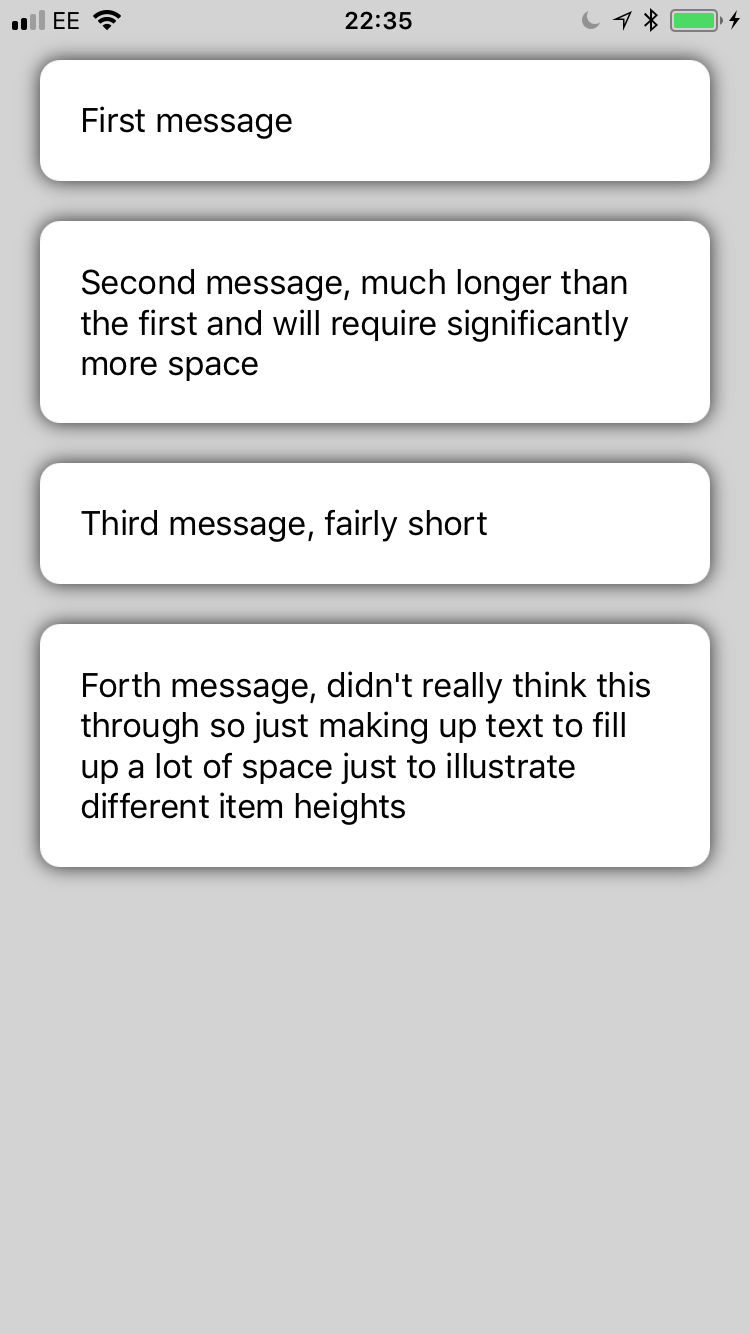
    IMG_0103

    This is part of InTheHand.Forms and will be rolled into the next NuGet release. Because the platform specific dll contains the renderer you need to call InTheHandForms.Init() to ensure it is registered.

  • Xamarin Release 7 Moved my Cheese/Apple

    I have a Xamarin project which outputs Windows, iOS and Android apps. Since the latest Xamarin update I just couldn’t get it to build my IPA file. It told me to check the project configuration – I haven’t changed the configuration and it all looks fine…

    When the project was created several Solution configurations were created – AppStore, AdHoc along with the usual Release/Debug. This was always a pain as you’d have to switch from Release to AppStore to build the iOS version for release. It turns out what has changed in this release is that Release now builds a store-ready IPA file and the AppStore configuration is now broken (and therefore redundant). By switching to Release I was able to build and submit a signed IPA to the store. The only other change is that IPA files are now output into timestamped subfolders on the build machine. You can use the “Show IPA file on Build Server” to display the actual location in Finder.

  • Charming Storage Update

    I’ve just released an update to Charming Storage on NuGet. After a lot of use in Windows Phone 8.1 projects I’ve reworked the TryGetItemAsync StorageFolder extension method to improve the performance. On average it is now takes 1/4 of the time to retrieve file items. Interestingly in Windows 10 this API becomes part of the Universal contract so it will be available on all platforms going forward.

    The other change in this release is the addition of a Xamarin iOS library. This includes a LocalSettings implementation for iOS apps. This means that rather than messing about with NSUserDefaults on iOS you can write the same code across Windows and iOS apps. We’ve got a few other “Universal” APIs for iOS and Android on the way…

  • iRAPP Remote Desktop

    Firstly, just to clarify, I don’t rap – this is a post about a useful Remote Desktop server for OSX. Wait, I hear you cry, you’re a Windows developer! Well that is true but I also use Xamarin to produce apps for iOS and Android and to build and deploy iOS apps you have to have a Mac in your workflow. Xamarin have done a great job to minimise this – you can do your development in Visual Studio on your PC but you have to connect to a Mac running their Build Server and you need to use the Mac to deploy apps to the iTunes store.

    Because it was only for occasional interaction I don’t want the Mac Mini (which is a very nice looking piece of hardware BTW) setup with a Keyboard/Mouse/Monitor taking up space so it’s running as a headless device. I originally used TeamViewer to occasionally connect to the device but randomly last month the PC client started crashing on load and even an uninstall/reinstall wouldn’t get it working again so I looked for an alternative. I came across iRAPP by CodeRebel. I’d not heard of it before but it seemed perfect – it’s a Remote Desktop provider supporting Microsoft’s RDP protocol which means you can connect using the standard Windows Remote Desktop app. The app is available for Windows, Windows Phone, Android, Mac and iOS and since I use other Windows machines I have it installed on every device I use. By installing iRAPP on my Mac it just works in my Windows environment with no hassles. I found it very reliable over the trial period and have just purchased a license – $79 for a year and even that process is straight-forward and just works. Purchase the license online and click Update License from the iRAPP control panel and boom it’s up and running again!

    There is also an iRAPP client for Windows which adds an extra dimension – it allows you to “blend” your desktop – switching to it adds the OSX menubar and dock to your desktop and will open apps in windows transparently on your desktop so you can feel like you are running OSX applications side by side with your Windows applications. Fun stuff but I didn’t really need this.

    If you’re interested take a look here – http://www.coderebel.com/products/irapp-client/. There’s no ulterior motive here – I’m not receiving a commission or anything, I was just really impressed by the product and it’s proved reliable and useful.