Tag: Bluetooth

  • 32feet – Bluetooth LE Device Discovery on iOS

    When I created the InTheHand.BluetoothLE library I modeled the API on WebBluetooth as this gave a simple API surface but as it was designed to run within a browser sandbox some of the functionality is intentionally limited. For device discovery the API only provides a selection dialog. One of the most requested features early-on was the ability to do device discovery in code so that the results could be displayed directly in your own app UI.

    Unfortunately iOS was late to get this functionality but it has now been incorporated into the latest version on NuGet (4.0.41). You can optionally apply filters to restrict the results by Bluetooth service UUID, name or just a name prefix.

    The release contains a number of bug fixes and we’ve had some great community contributions across Windows and Linux – thanks to GitHub users Yeti47, cogree, InvisiblePhil and h2oboi89!

  • Asking for Permission

    Asking for Permission

    I’ve been asked a number of times about the process to ask for Bluetooth permission for your app. I’ve been meaning to create something reusable for some time but it has languished on the To Do list for rather too long. I recently noticed that as of .NET 8.0, MAUI will incorporate a Bluetooth permission which simplifies the process for asking for permission in your app in a clean cross-platform way.

    I used this as an opportunity to refactor the library that I had started so I could create the same pattern for Xamarin Forms and .NET MAUI 7.0 so you can get started with it now and then switch to the in-box equivalent when you update your code. You can request permission with a single line of code:

    PermissionStatus status = await Permissions.RequestAsync<InTheHand.Bluetooth.Permissions.Bluetooth>();

    Today InTheHand.Bluetooth.Permissions went live on NuGet and the source is part of the existing 32feet.NET project. You can use this with either the Bluetooth Classic or Bluetooth LE libraries.

    It provides a simple way to request permission, which on some platforms won’t do anything noticeable but on others, such as Android, it will correctly prompt for permission as long as you’ve set up your manifest correctly.

  • Reinventing the Wheel Again – Bluetooth on Linux

    Reinventing the Wheel Again – Bluetooth on Linux

    Sometimes it takes a while to realise that an API is lying to you. When implementing Bluetooth Classic support for Linux on .NET 6.0 and above I came to this realisation after going directly to the native API.

    System.Net.Sockets has been available since the beginning of .NET. Traditionally this was a wrapper over the WinSock API which called into the same Win32 APIs you would use from C++, but providing an object-oriented API and throwing typed exceptions for native error codes. To use Bluetooth sockets on Windows or Linux you create a Socket with a specific AddressFamily. The Bluetooth address families have never been defined in .NET but 32feet.NET has provided implementations of these constants and classes to allow you to use Sockets for Bluetooth Rfcomm connections. The values and structures differ depending on platform and the library was able to hide those details from the consuming code.

    Creating a Socket with AF_BLUETOOTH on Linux would throw an exception indicating the address family was not supported. This seemed wrong as the BlueZ API is present on the device (in this case a Raspberry Pi running Raspberry Pi OS). So the first step was to talk to the organ grinder rather than the monkey – P/Invoking into the socket API in libc would give the true answer. Lo and behold the function returned a valid socket handle, not an error code.

    This is where we get to reinventing the wheel. I first encountered a similar issue when getting the library to work on Mono on Windows – to support Unity based projects. It terms out that the Mono Socket was similarly hobbled and I could get around this limitation by recreating the entire Socket class with the underlying Win32 API calls. Having had that eureka moment I was able to reuse the basics of that implementation (The Win32Socket in 32feet.NET) with a new LinuxSocket class. Because Windows Sockets is based on the same Berkeley Sockets model that Unix uses the APIs are more or less identical except for the library name. Therefore it didn’t take too long to implement a working BluetoothClient. I haven’t worked on the BluetoothListener for Linux yet, but I don’t imagine it too be too difficult after having learned all of the above via a lot of trial and error and slow remote debugging!

    Next Steps

    I’m now going to complete the testing and add the Listener support. In the future I hope that the .NET Socket support is improved to remove the current limitation. I would expect the API to accept any Address Family and pass any errors through in the standard way rather than being limited to a subset of address families.

    I’m not proposing that Microsoft adds any Bluetooth support into the the framework itself, but it should allow others to access available functionality through the underlying APIs, in the same way that we can on Windows. There is an open issue in the .NET Runtime tracking this, which I will be keeping an eye on.

    If there are specific features you’d like to see added to the library or you have an issue integrating a particular device please do get in touch. All of this development work is just me working in my spare time, so if you can support the project through GitHub Sponsors or OpenCollective that would be awesome. I can also provide formal support arrangements or custom development, contact me for details.

  • Introducing Thy Voice

    This week I’m launching a new app into the Microsoft Store. Following on from my experiences with enabling hands-free calling in Windows 10/11 for devices not supported by Microsoft’s own Phone Link app, I’ve been exploring this area further.

    I’d been interested in how the hands-free audio integrates into Windows and discovered how to utilise it to deliver audio to the remote phone. After reading about the Live Speech feature coming in iOS 17, I thought it would be interesting to bring this functionality to Windows. The resulting app, Thy Voice, allows you to participate in a voice call from your PC and use text to talk when you might not be able to use your own voice. There are many reasons why a user might not be able to use their voice, either temporarily or permanently and it seemed to me that if available on the PC it would be easier to converse via text than using the iPhone soft-keyboard. These types of tool are known as Augmentative and Alternative Communication (AAC).

    The user interface is WinUI 3.0 and designed to match the modern look of Windows 11, rather like the messaging feature in Phone Link or a Teams chat. As well as supporting live text entry you can create a collection of reusable phrases to speed up entry. Some examples are pre-loaded in the beginning based on some existing common messages for AAC users.

    Since only one app can be registered to use a specific hands-free device, I didn’t want to reinvent the wheel and break existing Phone Link features so Thy Voice sits alongside your existing phone software (Phone Link or Thy Phone) and can detect when a call is active. You make and receive calls through your existing app, you can decide whether to use Thy Voice to conduct the call via text.

    There are many possible enhancements, such as supporting other languages and allowing the voice to be set separately from the default Windows settings. I decided it was better to get the basic application launched and then grow it based on feedback. Talking of which, I’d be very interested in any feedback on the app, whether or not you are an existing AAC user. It’s always good to understand different perspectives and use-cases.

    Get it from Microsoft logo button
  • Bluetooth Classic and Low Energy – Different Approaches

    I often get asked about the different ways of using Bluetooth Classic and Bluetooth Low Energy with 32feet.NET. This post looks at the two different approaches and a bit of historical context.

    Separate Libraries

    The first key point here is that Bluetooth Classic and LE are handled by two different NuGet packages. 32feet.NET originated as a single dll which contained Bluetooth Classic, IrDA and Object Exchange (OBEX) functionality. As there was a lot of overlap this made sense but over time this became more unwieldy and many users wouldn’t necessarily use all the functionality. When I re-wrote it for Version 4.x I split these libraries up. InTheHand.Net.IrDA is still maintained but, as you can image, with a very small user base. Obex is handled by InTheHand.Net.Obex which can perform obex operations over Bluetooth, IrDA or TCP/IP. InTheHand.Net.Bluetooth contains all the Bluetooth Classic functionality.

    Classic Bluetooth

    Bluetooth was implemented, from Windows XP Service Pack 2, as a set of extensions to the Windows Sockets API (winsock) and some utility methods to control the radio and device information. The design of BluetoothClient, the main entry point to a Bluetooth classic connection, is based on TcpClient and IrDAClient from the Windows CE days. At the time of .NET 2.0 all the APIs were synchronous and the library was only cross-platform to the extent of supporting Windows desktop and Windows CE. As .NET has evolved it has taken advantage of some “free” upgrades to the System.Net.Sockets functionality which now includes full async/await support. There is still some work to do to asyncify some of the other APIs. The library now supports multiple platforms but with a common API. The key part was to emphasise Streams rather than the underlying Sockets because other platforms don’t use .NET Sockets.

    Going Low

    Bluetooth LE presents some different issues – again at the time there was already a range of potential platforms including Xamarin’s iOS, Android and Mac support. Rather than extend the classic library the Bluetooth LE support was built from scratch and modelled around the WebBluetooth API which was in a fairly stable state and supported on most browsers (not Safari though – boo!). The big difference with the Web* APIs is they put the user in full control and so the user has to pick a device themselves and consent to access. Because on a mobile app you are generally consenting to Bluetooth permissions on a per-app, rather than per-device, basis some of the process here is simplified. As I was aware that not all developers want to present a standard picker to the user I added a programmatic way to return discovered devices so that you can build your own UI around it. This is not implemented in iOS yet but is on my To-do list.

    Missing Parts

    The other big thing about using WebBluetooth as a model is there isn’t any peripheral support (exposing your own services to other devices). This is something I wanted to spend a bit more time designing and getting right. There is also no capability to set the radio on or off. If the platform supports this (and of course not all do) you can use a combination of the classic library to control the BluetoothRadio and then InTheHand.BluetoothLE for everything else. What you can’t do is use the InTheHand.Net.Bluetooth library to discover low energy devices. Even when devices are dual mode the effectively have a different address for both and so you can’t use this and then try to make a low energy connection later.

    A quirk with the classic library is that on Windows there are two APIs. The original winsock API and the newer Windows 10 API. Depending on the flavour you get served from the NuGet package, which is driven by your project target, you may get one or the other. There are currently a few quirks in the Windows 10 API used for discovery if you want it to timeout quickly. Also specialist devices like Hololens don’t have the legacy winsock API but if you’re targeting Unity, which uses Mono, it’ll pick the .NET 4.6.1 dll which is using the legacy API.

    Next Steps

    InTheHand.Net.Bluetooth is quite stable and I don’t plan on making big changes to it. The key demands have been better async support where relevant, extending support to macOS and Linux and access to raw Service Discovery Protocol (SDP) records where the underlying platform supports it.

    There is lots still to do on all the libraries and it’s a constantly moving field of .NET versions, platforms and Bluetooth updates. If you would like to get involved the GitHub project could definitely do with additional hands.

  • 12 Days of Bluetooth – #12 Summary

    Bluetooth is Big, Really Big

    Looking back over the different functionality I’ve covered in these past few posts has highlighted that Bluetooth is used for a wide range of scenarios, and it has grown massively from its simple beginnings.

    It is fair to say that looking at the evolution of each specification version that more emphasis has been placed on the Bluetooth Low Energy side. This makes a lot of sense because Bluetooth really excels in these situations where energy usage is low and the devices can be quite simple and narrow in functionality. We are surrounded by Bluetooth sensors, smart lights and beacons, let alone phones, PCs and headsets. With Bluetooth’s recent release of Auracast to enable broadcast audio over Low Energy we might see a move to more device types using new Low Energy services. On the development side, Bluetooth LE is widely support across platforms whereas there are limitations with Bluetooth Classic – such as iOS supporting only MFi certified devices.

    What Did We Just See?

    I realised part way through this series that I hadn’t planned out a table of contents to list all of the topics and so here is a reminder of all the posts in this series:-

    1. Introduction
    2. Discovery
    3. Protocols, Profiles and Services
    4. Serial Port Profile
    5. Coding Bluetooth Classic
    6. Bluetooth Classic on iOS
    7. Bluetooth Low Energy
    8. Bluetooth Low Energy in Code
    9. Pairing
    10. Hands-free
    11. Command and Control
    12. Summary (this post)

    There is still so much more that couldn’t fit into these posts so I plan to delve into so additional areas over the coming year on this blog.

    Next Steps

    Let me know if you have any feedback on 32feet.NET, the documentation, the samples or if there are any other topics you’d like me to take a more detailed look into. Probably the best way is to raise an issue in GitHub. Of course I’d welcome any contributions too, so pull requests would be gratefully received.

    Finally, throughout my career I have been connecting people to smart devices – mostly via .NET (Xamarin/MAUI/Uno) using Bluetooth, USB and other connectivity. This has allowed me to work with specialist medical devices, ensure the safety of field workers, ensure the roads get gritted and much more. If this sounds like the sort of problem I could solve for you in 2023 please get in touch and we can talk in more detail.

  • 12 Days of Bluetooth – #11 Command and Control

    When we last looked at Bluetooth Low Energy we looked at the code required to read the battery level from a device. There are two things we didn’t cover – writing values and sending commands to a device.

    Writing in the Air

    If you’re familiar with the service that you are writing to the process of writing a characteristic is fairly straightforward. The value must be passed as a byte array, the formatting of which depends on the characteristic. There are two subtly different methods of writing and you should check the properties of the characteristic to see which is supported. A normal Write operation requires an acknowledgement from the peripheral device so you can determine if/when the operation completes. For fire-and-forget operations the alternative WriteWithoutResponse method will provide a quick way to set a value. Web Bluetooth and 32feet.NET both provide separate methods for these two operations so you can clearly see which is being used.

    Command and Conquer

    The Characteristic in Bluetooth Low Energy can be though of as a Property in object-oriented programming – it has a value that supports some combination of read, write and change notification. There is no direct analogy in Bluetooth LE to a method where you may pass in zero or more arguments and receive some other value in return. However there are many third-party services which implement their own support for this using one or more characteristics.

    One of these is the Lego Wireless Protocol which is used with a range of Boost devices and the 2 port hub used in their range of trains. It does this using a single characteristic which supports write (without response) and notify operations. The hub can send you messages via the notifications and also use notifications to respond to messages you write to the characteristic. All the time there is no support for reading the characteristic value because each notification is just a snapshot and there is no logical current value.

    In order to support this service we start with the same initial steps as with the battery example – select a device, connect to the Gatt server on the device and then get the service and then characteristic to use. You do need to pair with the Hub first, however it seems quite happy to be paired with multiple devices so the Lego controller still works after pairing with a PC. The hub shows up as “HUB NO.4” to me, I’ll be honest I don’t know how this name is derived.

    To support change notifications there are two tasks – attach an event handler to the CharacteristicValueChanged event, and call the StartNotificationsAsync() method. This method hides the underlying process of writing to the ClientCharacteristicConfiguration descriptor with either the Notify or Indicate method depending on which is supported.

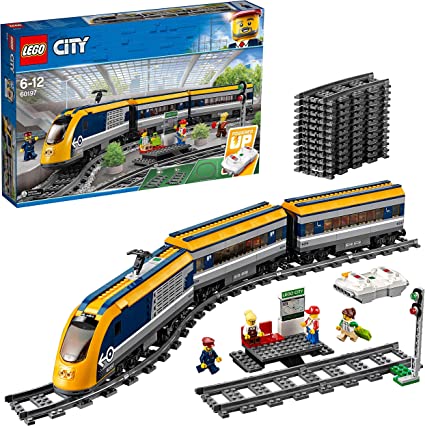
    When you connect to the Lego Hub it will send you a handful of HubAttachedIO messages to tell you what is connected to the ports of the hub and we can query more information about these. The type is quite helpful here as the motor reports as “SystemTrainMotor”. I’m using the Lego Passenger Train 60197 and out of the box it has only 1 port occupied with the drive motor. The second port can be used with the Lego Powered Up Lights 88005 set to add lights to the front of the train. The ports are numbered 0 and 1 in code, you may also receive messages regarding ports over 50 in index and these are reserved for internal use.

    Lego City Passenger Train Set 60197

    Each message contains a standard header of 3/4 bytes and this is then followed by specific data relevant to the type of message. The reason for the variable length of this header is that the first byte can either be used to indicate a message length of up to 127 bytes, or if it has the 8th bit set it indicates a longer length using 2 bytes (from 128 to 215). In this simple example all the packets will be relatively small so we don’t have to worry too much about this.

    The header bytes tell us the length, a hub id (always 0) and a message type. We use a switch statement on the message type to determine how to respond to each type. For each HubAttachedIO message (where the Port ID is less than 50) we send a PortModeInformationRequest message to get the name of the device attached to the port.

    The PortModeInformation message itself has multiple versions depending on the information requested so we parse the incoming name (“LPF2-TRAIN18”) then send another request for the RawRange – this will give us the minimum and maximum values we can set to the device. For the motor drive in the trainset it is -100 to 100 (with 0 being the motor at a dead stop).

    Full Steam Ahead

    In order to visualise this and provide a control mechanism the sample app has a Slider control and so once we have the range we setup the Slider control with the same range (and some labels for clarity) then use the ValueChanged event of the slider to send messages to control the motor. The PortValueSingle message changes a single value and requires the header, the port id (0 is Port A on the hub) and the value stored in 2 bytes.

    private async void Motor_ValueChanged(object sender, ValueChangedEventArgs e)
    {
       if(characteristic != null)
       {
          byte[] messageValue = new byte[6];
          messageValue[0] = 6;
          messageValue[2] = (byte)LegoMessageType.PortValueSingle;
          messageValue[3] = 0;
          BitConverter.GetBytes((ushort)e.NewValue).CopyTo(messageValue, 4);
          await characteristic.WriteValueWithoutResponseAsync(messageValue);
       }
    }

    This gives you the ability to run the train forwards and backwards (and of course stop) just by dragging the slider around. The controller which ships with the train set has three buttons for each channel which increment and decrement the value (speed in the case of the motor) and the middle button returns to zero.

    If you have added the lights, as I have, these show up on PortID 1 (Port B on the hub) and with a valid range of -10 to 10. I was intrigued to see what setting a negative value would do, sadly it didn’t change them to red, nor create a wormhole through space and time, but rather did exactly the same as the equivalent positive value.

    Sample Code

    The full sample project is on GitHub. It includes a number of useful constants and types from the Lego specification. I intend to properly work these up into a library for the Lego service.

  • 12 Days of Bluetooth – #10 Hands-Free

    Bluetooth Classic contains a handful of profiles which use AT commands to work with telephony devices over an RFComm connection. We discussed these briefly in #3 of this series and today will look in more detail and the most commonly implemented one – Hands Free Profile.

    Look No Hands!

    Two similar profiles exist in Headset Profile and Handsfree Profile. Headset was designed for devices with a single action button and mono audio.

    Hands-free Profile is more advanced and is what you’ll find in most car kits and headphone devices. It allows for more complex actions such as dialling numbers and additional audio codecs.

    What all the “AT-command” profile share is a set way of communicating over the serial connection using text commands which have a long history in the world of modems and telephony devices. We will look at some of these commands used to establish a connection later on.

    There are two separate (yet equally important) entities in the hands-free profile, the Audio Gateway (AG) which is the source of the audio (generally a Mobile Phone) and the Hands Free device which has speakers, microphone and controls which we want to operate the AG from.

    You Probably Don’t Want To Do This

    Whenever I’m asked about hands-free service I usually suggest steering clear of implementing this. In most cases your host device already has support for this profile and by establishing a connection you are potentially fighting with the OS itself. The other issue is that the audio part of the equation is handled via a separate Synchronous Connection Oriented (SCO) channel and this is handled lower in the stack than application developers normally have access to. Even in the sample program I created for this article you have to fight with Windows to ensure it is not already connected – the hands-free device won’t respond to multiple connections at the same time.

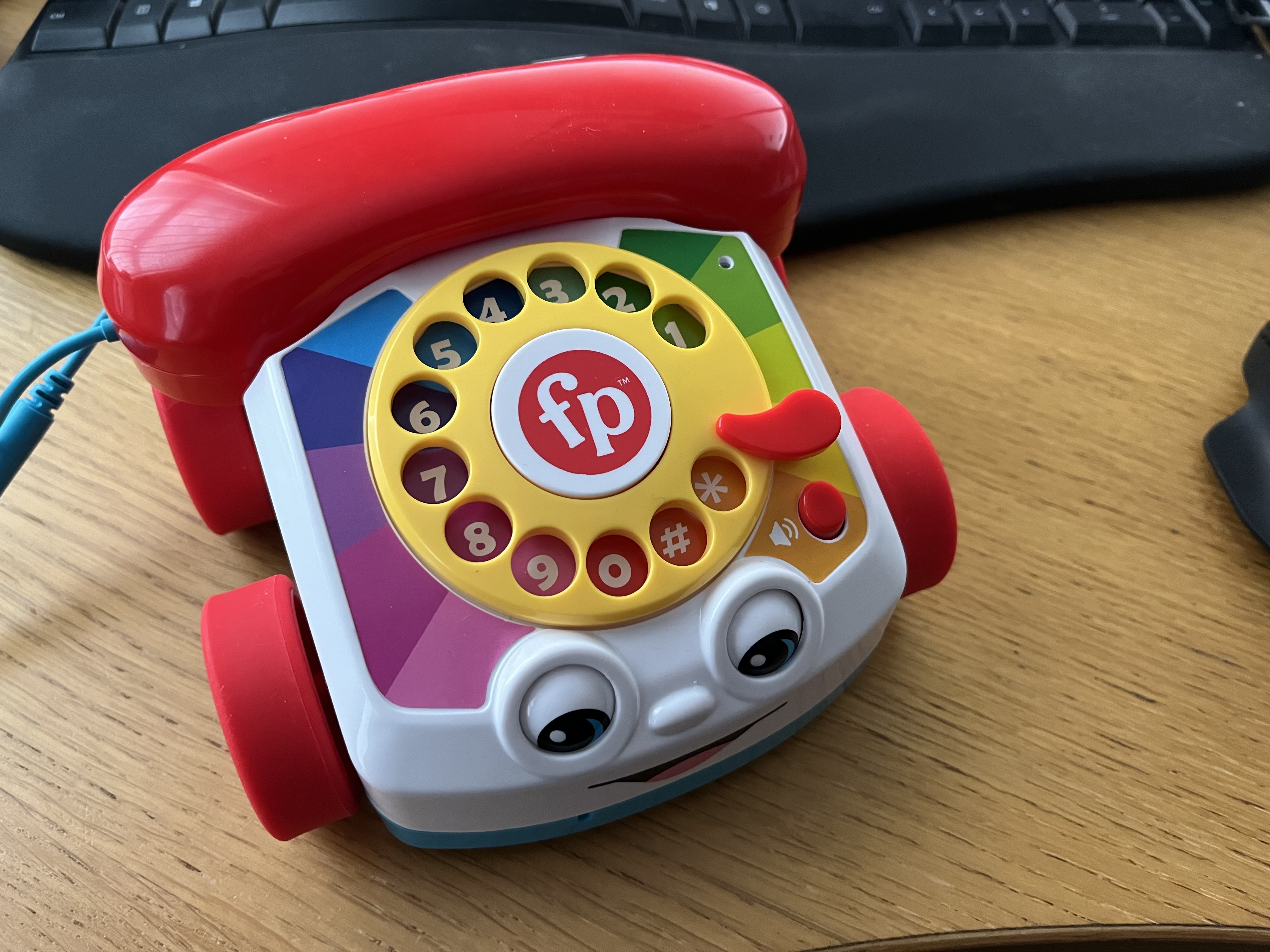
    In recent versions of Windows this built-in support for Handsfree Profile has had a public WinRT API which we can use. This means you can connect to a mobile phone and make your PC into a hands free device or speaker phone. This is how Thy Phone works with any mobile device whereas Microsoft chose to only allow Android devices with their Phone Link app. There is also support for the Windows PC to be the AG and connect to a Hands Free device such as a headset or one of these cool Fisher Price phones if you are lucky enough to have one!

    Fisher Price Chatter Telephone. Bluetooth toy rotary dial telephone.
    Fisher Price Chatter Telephone

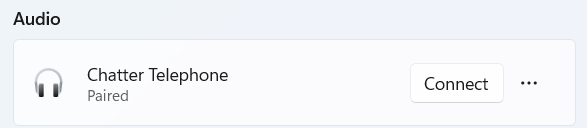
    If the hands free device is connected in Windows settings, you’ll need to disconnect it so that it just shows “Paired” then it is ready to accept a connection.

    Windows Settings showing handsfree devices connected, with menu showing disconnect option
    Windows settings showing device as paired (not currently connected)

    The sample app performs a couple of basic operations and will not establish an audio link.

    Into The Code

    The sample app is a simple .NET MAUI app created from the new project template. The full code is available here on GitHub. I’ve changed the default button to initiate a connection following these steps:-

    • Use the BluetoothDevicePicker to present the available devices to the user to pick one.
    • If selected use BluetoothClient to connect to the Hands-free service.
    • If successful get a Stream to read from the device and respond.

    The rest of the functionality then uses a listening loop which will read blocks of data from the device as ASCII text, and process each line at a time. All messages from the Hands-free device are a single line terminated by a return character. For each command we may need to return a specific response but all have to be followed with an “OK” response (or “ERROR” but we are not doing any error checking here). For responses from the AG to the HF each message is preceded and followed by a pair of carriage return and newline characters e.g. “\r\nOK\r\n” in C#.

    To establish a connection with the HF there are a number of standard and optional queries and responses to deal with. Firstly the HF device will tell the AG device which optional features it supports from a bitmask using the +BRSF code and you must reply similarly, though you can use “BRSF:0” to support none of them.

    The listening loop checks for these core messages and responds with the default responses. To any other command it will return OK. I won’t go into every command but you can look at the source code for more detail. I will highlight a couple of interesting ones:-

    From Core to Apple

    Apple published their own extension to the hands-free profile which is now quite widely supported and it allows the hands free device to report its battery level back to the iPhone (or any device that supports the command). The HF will first send “AT+XAPL” to the AG and if you respond with “+XAPL=iPhone,2” you indicate you support this iPhone specific battery notification. There are a couple of other flags other than 2 you can specify but this is the interesting one.

    After this the HF will send you “AT+IPHONEACCEV” containing key/values depending on which notifications you showed support for. You’ll need to parse this to find the value corresponding to the key 1 and this is a digit between 0 and 9 which give you the battery level of the hands free device to the nearest 10%. There is a helper method in the sample code which shows how to get this. This isn’t as accurate as the Bluetooth LE Battery Level service we looked at before but most handsfree devices use this method. Annoyingly, although Windows has an API for working with hands-free it doesn’t expose the battery level of devices even though you can see through the Windows Settings app that it knows. You can see from the screenshot above that my Chatter Telephone is at 70% battery.

    Call Me

    The last interesting command we listen for is the one to dial a number – “ATD“. The Fisher Price phone is not the most practical in this regard because you have the inherent slowness of dialling each digit and waiting for the dial to return to start with but you have to wait a few seconds following the last digit before it sends the ATD command to the AG. In the sample app we simply parse the number and display an alert dialog to the user. You could technically use this to kick off other actions, but I can’t see it catching on as an alternative to the Stream Deck or similar!

    Final Words

    If you’ve found this interesting, please look at the full sample project on GitHub. In order to start better housekeeping of the 32feet.NET repository I’ll be updating and moving sample apps into their own repository. If you have ideas for new samples or improvements to the existing ones please open an issue so that they can be prioritised, and of course pull-requests are welcomed too.

  • 12 Days of Bluetooth – #9 Pairing

    Both Classic and Low Energy devices can provide functionality to unpaired devices or require pairing first before exchanging sensitive information. However, what exactly is pairing?

    Stick a Pin in it

    The original mechanism for pairing uses a four digit PIN code. One device would need to be discoverable, and the other device upon discovering it would initiate the pairing process. Both sides would have to enter a matching PIN number to successfully pair. The devices then exchange keys which allows their future communication to be encrypted.

    For devices without their own method of input the PIN code would have to be hard-coded – it is not uncommon to find devices with “0000” or “1234” as the PIN. While this might seem very easy to break, they have a mechanism to enable pairing mode for a limited time and so you’d have to have physical access to the device to complete the whole pairing sequence.

    More Security, More Flexibility

    A weakness of the original approach is that it was potentially vulnerable to Man in the Middle attacks (MITM). This is where a device copies and relay the exact response from the two pairing devices so that they thought that they were talking directly but really this third device has access to their encrypted communications.

    Several updates have been made to Pairing through the various Bluetooth specification releases and supporting Low Energy devices. The method that is used for pairing depends on a negotiation between the devices to determine what input and output support they have. Because the capabilities can vary widely, there are a number of available methods.

    Just Works is a basic but relatively insecure approach because it doesn’t require any user input but is quick and easy to perform. It will be used when there is limited input/output support from the peripheral device. You might find this on something like a Bluetooth mouse.

    Passkey entry requires a display on the responding device, the initiator of the pairing will be required to enter the displayed code into their device.

    Out-of-band (OOB) pairing places a required piece of information outside the Bluetooth process. This could be via an NFC tag on the responding device with a unique piece of information. This makes it very difficult for any listening Bluetooth device to get involved in the process because it could not easily have physical access to the NFC tag at the same time. This process can also be known as “tap to pair”.

    Numeric Comparison requires a device with a display to show a random 6 digit number generated using the devices keys and provide at least two buttons for a yes/no response for the user to confirm that the number matches on both pairing devices.

    Authentication, Pairing or Bonding

    Technically Pairing is the process of key exchange between devices, and Bonding is the creation of a long term link after Pairing. Authentication means that the devices have exchanged keys and can conduct encrypted communication – authentication can be short-term, and not a long-term bond. However the words can be used differently in some SDKs. The Android Bluetooth APIs refer to Bonding, Windows APIs use Pairing. Apple don’t really want you to delve too deeply and so don’t expose the pairing mechanism. In the UI these are described as “My Devices”.

    Locking Down Bluetooth LE

    When the Services and Characteristics on a Bluetooth LE are defined they can have a security requirement that the accessing device is Authenticated. This might not be on all functionality – you could have access to the device information such as manufacturer and model, but require pairing for more sensitive device data.

  • 12 Days of Bluetooth – #8 Bluetooth Low Energy in Code

    Following on from the last post, which covered the technology of Bluetooth Low Energy, this post will look at how to use it from code using InTheHand.BluetoothLE. We’re going to look at an example using a simple but widely used service – Battery Service. You can probably guess what it is used for.

    Step One – Get your device

    In the Web Bluetooth world, you must ask the user to select a device using a picker, you can provide a filter to be specific about what type of devices to present to the user. Another restriction with Web Bluetooth is that you can only connect to services which you have specified during this picking process. 32feet.NET’s implementation eases this restriction by allowing you to connect to any service and also by accessing your device either by a programmatic discovery (so you can build your own custom UI), or by using an identifier you have stored from a previous session.

    For the purpose of this example I’ll show you the simplest approach using the picker.

    Debug.WriteLine("Requesting Bluetooth Device...");
    var device = await Bluetooth.RequestDeviceAsync(new RequestDeviceOptions { AcceptAllDevices = true });

    RequestDeviceAsync will return once the user has picked a device, or if they cancel the dialog. Therefore it’s important to check if the return value is null before proceeding. RequestDeviceOptions is a class which provides filters and options to the process, but you can set AcceptAllDevices to true which takes precedence over all other options. The method returns an instance of BluetoothDevice which exposes a unique id (platform specific) and a display name. It also has the ability to connect with the GATT server on the remote device to begin working with services.

    Step 2 – Connect to a Service

    var gatt = device.Gatt;
    Debug.WriteLine("Connecting to GATT Server...");
    await gatt.ConnectAsync();

    Once you have connected you can either request all of the services from the remote device, or select a specific service from its UUID. In this case we use the UUID of the Battery Service.

    Debug.WriteLine("Getting Battery Service");
    var service = await gatt.GetPrimaryServiceAsync(GattServiceUuids.Battery);
    

    Again you need to check if the service returned is null, as the device may not support the requested service. Once we have the service we can then proceed to get the characteristic. You may remember these levels from the “tree” diagram in the previous post.

    Step 3 – Characteristics

    Debug.WriteLine("Getting Battery Level Characteristic...");
    var characteristic = await service.GetCharacteristicAsync(BluetoothUuid.GetCharacteristic("battery_level"));
    

    You’ll see in this snippet I’ve shown an alternative way of specifying the UUID for the characteristic. All of the assigned service, characteristic and descriptor ids have a name too, and the BluetoothUuid class can look these up – so you have a choice of passing one of the predefined constants (like GattCharacteristicUuids.BatteryLevel) or the text version – either “battery_level” or, more formally, “org.bluetooth.characteristic.battery_level”.

    Debug.WriteLine("Reading Battery Level...");
    var value = await characteristic.ReadValueAsync();
    
    Debug.WriteLine($"Battery Level is {value[0]} %");

    Reading the value is quite straightforward. The data is returned as a byte array and the length will depending on the specific characteristic. In the case of battery level it is stored as a percentage value (0-100) in a single byte so we can just read the first element from the array.

    The battery level, unsurprisingly, doesn’t allow the value to be written to, but you can determine the capabilities of any characteristic using it’s Properties property which is a flagged enumeration. Some capabilities of specific characteristics have optional elements so you can’t assume that all devices will behave exactly the same – you need to read the Properties, and you can also read through the relevant Bluetooth specs to find out more. For example the iPhone I’m running this sample against reports Read and Notify flags in the Properties.

    Step 4 – Get Notified

    Notify and Indicate are two special flags which support change notifications, one of the reasons why Bluetooth Low Energy is more efficient than opening a connection and polling for particular values. From a developers perspective they are much the same, the difference under the hood is that Indicate requires a response from the subscribing device (but this is something which is hidden from you in the API).

    To support notifications there is a special Descriptor value on the Characteristic which is called ClientCharacteristicConfiguration. This must be written to with a value to indicate whether to use Notify, Indicate or None for no notifications. You also need to subscribe to the CharacteristicValueChanged event. However in both Web Bluetooth and 32feet.NET this is handled for you using StartNotificationsAsync and StopNotificationsAsync so you don’t need to worry about which underlying method is used.

    characteristic.CharacteristicValueChanged += Characteristic_CharacteristicValueChanged;
    await characteristic.StartNotificationsAsync();
    
    ...
    
    private void Characteristic_CharacteristicValueChanged(object sender, GattCharacteristicValueChangedEventArgs e)
    {
        Debug.WriteLine($"Battery Level has changed to {e.Value[0]} %");
    }

    Of course you can enumerate the Descriptors or retrieve a specific one via UUID if available. There are standard Bluetooth ones defined for ranges, units and formatting of the characteristic value.