Category: Uncategorized

  • Going Underground

    Going Underground

    Last week I had the opportunity to go on a Hidden London tour of Charing Cross Underground Station. These are organised tours for small group to explore parts of the underground network we tend not to think about. It’s a fascinating look into how areas are repurposed as the network continuously evolves.

    Original Charing Cross Jubilee Line route map
    The original Jubilee Line route prior to the 1990s extension.

    The first stop was through an unassuming door into an escalator shaft to the Jubilee Line. The line originally terminated at Charing Cross but when it was extended in the 1990s to serve the redeveloped Docklands it was redirected so trains no longer stop at Charing Cross. Unless due to an error a busy train is sent the wrong way leading to lots of confused passengers!

    The track is still permanently electrified, and the station can be used as a siding to park extra trains during busy events. It also provides a perfect space for Transport for London to test out new features before using them in “live” stations. Because it’s still a fully working platform it also provides a realistic space for training staff and emergency services. Finally, it’s also made appearances in several films, including Skyfall and Thor: The Dark World. Unfortunately, due to a blunder in the latter where Thor is told that it is two stops from Charing Cross to Greenwich the credibility of the film is ruined. Honestly, I’m not even sure if we can believe that a Norse god would be travelling around London in the first place!

    The platform looks perfectly ordinary, except all the posters are fake – at a glance they look fairly normal but there are clues in the details.

    Fake movie poster on the disused platform
    Fake poster for “Love on the Platform”. The clue is in the cast list!

    The next stop was to a different part of the station to see how the Jubilee Line was built. There is a long construction tunnel which runs all the way under Trafalgar Square to the construction site which is now the Sainsbury Wing of the National Gallery. Spoil from the tunnels was transported via carts and extracted from here – enough to fill hundreds of Olympic sized swimming pools. Because of the proximity to the foundations for Nelson’s Column the tunnel had to be built in a curve so as not to cause any movement. We were shown how many of the metal panels lining the tunnel were left over from the Victoria Line which was built in the previous decade. None of these underground spaces go unused, and the tunnel is now used to store spare equipment and material for making repairs.

    A view along then Jubilee Line construction tunnel running under Trafalgar Square
    A view along the construction tunnel, the curve showing we are close to the foundations for Nelson’s Column.

    The final section of the tour was to look at the ventilation shafts. It seems utterly mad that ventilation was not really thought of when the original tube lines were built. One thing which the Jubilee Line brought was dedicated ventilation tunnels to all the lines at the stations it passed through. We were shown where the exhaust air was released from a rather unassuming building just around the corner from Charing Cross mainline station. At the other end we were shown where the vents were placed above the Northern Line platform, and we could watch trains pull in and the doors open and close. Again, you can see James Bond running through some of this during Skyfall.

    View down from the ventilation shaft to the Northern Line platform below. A train is stopped and the doors have just closed.
    Mind the gap!

    Filming in the station must have been fascinating to watch, they had to bring down hundreds of extras, some of the heavy equipment had to be brought in via train. Skyfall was filmed here over 5 months and the result is about 10 minutes of the film. There are a few clues left behind, including a fake District and Circle Line sign and removal of the “Toblerones” between the escalators to allow Javier Bardem and Daniel Craig to slide down them.

    Fake District and Circle Line sign added for Skyfall. The original 1970s Jubilee Line sign is visible behind.
    Fake sign added for Skyfall. Unfortunately they forgot to cover up the original 1970s sign for the Jubilee Line and mainline stations which is just behind.

    There can’t be many days out which combine history, trains, geology, civil engineering and behind-the-scenes film tours. If you are interested in one or more of these I would highly recommend the tours as something a bit out of the ordinary to do in London!

  • In The Hand joins Neurodiversity in Business

    In The Hand joins Neurodiversity in Business

    Neurodiversity in Business (NiB)

    New initiative to help ensure greater workplace inclusion of the neurodivergent community

    Neurodiversity in Business (NiB) is an industry forum to support the participation of neurodivergent individuals in the workplace recently launched at the Houses of Parliament.

    The organisation, led by Dan Harris (Chief Executive Officer) draws upon the cumulative knowledge of neurodivergent experts and leading companies to share best practice and improve the employment and experience of the neurodiverse workforce.

    Speaking upon admission to NiB, Peter Foot, In The Hand Ltd Director said:

    “We are proud to support NiB’s aim of helping to create a better world and help improve the wellbeing of ND individuals.”

    As In The Hand joined NiB, Dan J Harris, CEO said:

    “We are delighted that In The Hand has become a member of NiB. It signals their commitment to ensuring a truly inclusive workplace and a desire to strive for the best in diversity and inclusion standards.

    We look forward to working with In The Hand and all our members in delivering meaningful change for the neurodivergent across business.”

    A selection of the forum’s founding members include: Accenture; ARM, AstraZeneca; Capita;  Hiscox; IBM, Kimberly Clark; KPMG, Lloyds Banking Group; Metro Bank; NatWest; Network Rail; Openreach; Oracle; Orange; Rolls Royce plc; Sky; TalkTalk; The Open University; Unilever; Virgin Media/O2 and many more.

    NiB also has an array of close partnerships with leading organisations in the ND ecosystem including: Auticon; Ambitious about Autism; the ADHD Foundation; the British Dyslexia Association; Caudwell Children’s Charity; Diversity and Ability (D&A); DO-IT Profiler; Genius Within, Lexxic; National Autistic Society and many more.

    For further information as to how to join NiB, please go to www.neurodiversityinbusiness.org

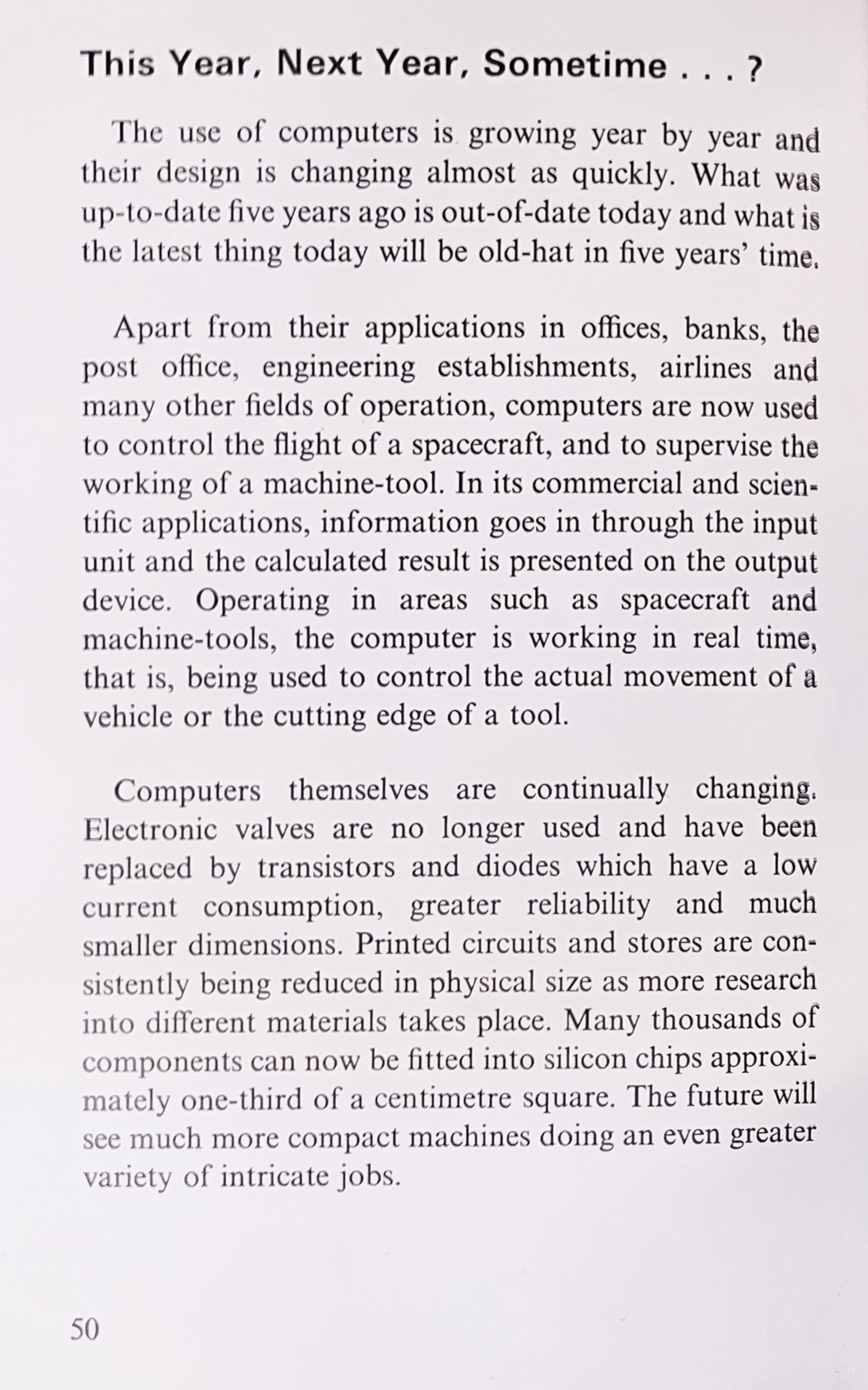
  • This Year, Next Year, Sometime…?

    One of the books I read when I first got interested in computers was from the Ladybird books How It Works series. The volume covering “The Computer” was published in 1979 and, as you can imagine, features plenty of suitably dated illustrations of computers of the time. It ends with a page speculating about the future of computers and their uses which is very conservative knowing where we are now. It’s very likely that our predictions in 2023 will equally be wide of the mark in a further 40 years.

    This Year, Next Year, Sometime...

The use of computers is growing year by year and their design is changing almost as quickly. What was up-to-date five years ago is out-of-date today and what is the latest thing today will be old-hat in five years' time.

From How It Works - The Computer (c) Ladybird Books Ltd 1979.

    (Ironically, when I first got this book it was already old-hat according to the first paragraph of this extract.)

  • Ukraine

    It’s difficult to come up with the right words to describe what we are seeing unfolding in Ukraine. It’s very easy to feel completely powerless. Our own government (United Kingdom) have been very weak with their response both in terms of sanctions and in supporting refugees, compared with many of our neighbours.

    The Disasters Emergency Committee co-ordinate a number of charities to respond to such events and are working to provide support to displaced people due to the conflict. The UK government will match donations (up to £20m). Please consider giving something, however small, to this or another appeal organised in your own country.

    As a small thing that I can do personally, I’ve made Thy Phone free for all users in Ukraine. Whether or not it will help someone keep in contact with friends and family I don’t know.

  • Latest Version of InTheHand.Core

    I’ve just updated the NuGet package for InTheHand.Core. This adds a VibrationDevice which works across all Xamarin Platforms (hardware permitting) and fixes a bug with PowerManager.RemainingChargePercent on iOS. The library now has 18 namespaces full of UWP APIs for all Xamarin platforms (and this doesn’t count the sister library InTheHand.UI). Check it out here:-

    https://www.nuget.org/packages/InTheHand.Core/

  • Charming Apps – Latest Version

    It’s been a few months since I did a NuGet release but lots has been going on in the code in the mean time. The focus this year has been less about harmonising Windows APIs across versions (although that’s still there of course), but widening the functionality to the Xamarin platforms. The result is that the vast majority of the APIs are now available across Android, iOS, Windows (UWP and 8.1) and Windows Phone (8.0, 8.1 Silverlight and 8.1 WinRT). In many cases I’ve added “light-up” support allowing Windows 10 functionality to be called from Windows (and Phone) 8.1 projects. This means you can write for maximum compatibility but take advantage of new features where available. The two packages are:-

    https://www.nuget.org/packages/InTheHand.Core/

    and

    https://www.nuget.org/packages/InTheHand.UI/

    As the name suggests the UI library separates out stuff which uses UI and so you can just use the former in a background task without worrying about dragging in UI dependencies.

    The APIs are all modelled on UWP, the only difference being the root namespace is InTheHand rather than Windows and async methods return Task<T> rather than IAsyncOperation<T>.

    The Core library features many namespaces around ApplicationModel – Interrogate app package metadata, make calls, send SMS and Emails, interact with Clipboard and Sharing. Beyond this are classes which take away the need to know which APIs to call on which platform – interrogate display properties, check network connectivity, read and write files and settings. This version extends the support for settings by supporting roaming settings on iOS just like Windows does – except these settings are roamed across the iCloud infrastructure rather than OneDrive. It’s important to add here that these settings only roam for devices on that specific platform type – Windows and iOS roaming data exist in separate worlds so data roamed from your iPhone Xamarin app won’t roam to your Windows laptop.

    AnalyticsInfo is available and can report the OS version on iOS/Android and Windows 10. This is supported in the 8.1 libraries if running on the newer OS version. DisplayRequest allows your app to ask the device to keep the screen on – for example for a reader or video player. PowerManager gives you battery information.

    Over in the InTheHand.UI library there are Badge and Toast notification APIs (Badge is not supported on Android). BadgeNotificationCreator and ToastNotificationCreator helper classes make it easy to create these notifications without having to deal with XML templates on Windows. A MessageDialog and a StatusBar which allows you to toggle a standard busy animation. On Windows there is also a unified SettingsPane API which uses the best available appearance depending on platform.

    Going forwards I’m looking at removing the Windows Phone 8.0 (and possibly 8.1 Silverlight) target to simplify things and would be interested in any feedback on that. As always all the code is on GitHub:-

    https://github.com/inthehand/Charming

  • Add Sharing to your UWP App

    With Windows 10 the original Charms introduced with Windows 8 have gone. Old Windows 8.x apps will display a window menu with those commands if supported in the app e.g.

    Window menu on Windows 8.1 Apps
    Window menu on Windows 8.1 Apps

    You’ll also notice the icon has changed in Windows 10 to a kind of “three person group hug from above” image whereas they had a kind of clockwise movement to them in Windows 8.1. When you take a look around the first-party apps in Windows 10 many make use of the same Share functionality but it is implemented within the app UI, either in an AppBar or somewhere relevant within the body of the app. For example Edge displays the Share button prominently at the top right of the window. The Store app displays a Share link inside the details for a specific app. Once you tap this the share experience is very similar to Windows 8.x.

    Windows Phone never supported charms but did provide the same sharing API from 8.1.  My Charming project originally started out by providing these for WP8.0 apps. Apps would have to add a Share button to the AppBar or menu and trigger the full-screen sharing experience. Moving your app to Windows 10 you will want to make use of sharing wherever it is relevant to your app. Taking an approach like Edge would mean adding a TopAppBar. You might use something like the following XAML:-

    <Page.TopAppBar>
      <CommandBar>
        <CommandBar.PrimaryCommands>
          <AppBarButton Label="Share" Icon="Share" Click="AppBarButton_Click"/>
        </CommandBar.PrimaryCommands>
      </CommandBar>
    </Page.TopAppBar>

    Until you realise that there isn’t an Icon called Share. It’s not a member of the Symbol enumeration which defines common symbols taken from the Segoe MDL2 Assets font. Luckily the actual glyph is available and we just need to use slightly longer syntax to specify it using a FontIcon:-

    <Page.TopAppBar>
      <CommandBar>
        <CommandBar.PrimaryCommands>
          <AppBarButton Label="Share" Click="AppBarButton_Click">
            <AppBarButton.Icon>
              <FontIcon FontFamily="Segoe MDL2 Assets" Glyph="& #xE72D;"/>
    </AppBarButton.Icon>
    </AppBarButton>
    </CommandBar.PrimaryCommands>
    </CommandBar>
    </Page.TopAppBar>
    

    That defines a visual element to start sharing, there are two tasks to be completed to allow successful sharing:-

    The handler for that button click must call the API which displays the Sharing prompt on screen. On Windows PCs this pops out from the right-hand side and on phones it is a full page view. The code can be as simple as this:-

    private void AppBarButton_Click(object sender, RoutedEventArgs e)
    {
       Windows.ApplicationModel.DataTransfer.DataTransferManager.ShowShareUI();
    }

    The other vital part of the process is to setup an event handler for the DataTransferManager which is called when the Share screen appears and asks your app for available data:-

    Windows.ApplicationModel.DataTransfer.DataTransferManager.GetForCurrentView().DataRequested += MainPage_DataRequested;

    The handler for this merely checks the presence of some text and if available shares it:-

    void MainPage_DataRequested(Windows.ApplicationModel.DataTransfer.DataTransferManager sender, Windows.ApplicationModel.DataTransfer.DataRequestedEventArgs args)
    {
       if(!string.IsNullOrEmpty(ContentText.Text))
       {
          args.Request.Data.SetText(ContentText.Text);
          args.Request.Data.Properties.Title = Windows.ApplicationModel.Package.Current.DisplayName;
       }
       else
       {
          args.Request.FailWithDisplayText("Nothing to share");
       }
    }

    This is only a very basic example. The package title is merely the app name. Imagine you have a news app – you may want to share the article title and a Url to the article on the web. You will probably want to control the availability of the Share button. For example in Edge the button is disabled while a page is loading and enabled once your sat on a finished page.

    By adding a Share button to your app you open it up to a variety of targets with very little investment – suddenly you have a mechanism to share your app content across social networks, email and productivity software like OneNote. Unlike Windows 8 you have the power to control the visibility and location of the share command so it fits best with how your app works – but it makes sense to use the same icon as your users will be familiar with this from elsewhere in the system.

  • .NET 4.6 and DateTime extras

    In case you missed it there is a great blog post on .NET 4.6 which is a part of Windows 10. Among the various performance and Hi-DPI improvements there are some more subtle enhancements. Perhaps as a nod to Microsoft’s new openness to other platforms there are some helper methods on DateTimeOffset for converting to and from UNIX times. These are represented as the number of seconds since 00:00 on the 1st of January 1970. I’d already come across situations where I needed this and had written a couple of simple conversion methods. They come in useful when doing interop with Android APIs for example. Why not match the .NET 4.6 API I thought so slightly tweaked them and put them in a Gist here:-


    using System;
    namespace InTheHand
    {
    /// <summary>
    /// Helper class for DateTimeOffset.
    /// </summary>
    public static class DateTimeOffsetHelper
    {
    private static DateTimeOffset dt = new DateTimeOffset(1970, 1, 1, 0, 0, 0, TimeSpan.Zero);
    /// <summary>
    /// Converts a Unix time expressed as the number of seconds that have elapsed since 1970-01-01T00:00:00Z to a DateTimeOffset value.
    /// </summary>
    /// <param name="seconds">A Unix time, expressed as the number of seconds that have elapsed since 1970-01-01T00:00:00Z (January 1, 1970, at 12:00 AM UTC).
    /// For Unix times before this date, its value is negative.</param>
    /// <returns>A date and time value that represents the same moment in time as the Unix time. </returns>
    public static DateTimeOffset FromUnixTimeSeconds(long seconds)
    {
    return dt.AddSeconds(seconds);
    }
    /// <summary>
    /// Returns the number of seconds that have elapsed since 1970-01-01T00:00:00Z.
    /// </summary>
    /// <param name="date">The DateTimeOffset value.</param>
    /// <returns>The number of seconds that have elapsed since 1970-01-01T00:00:00Z. </returns>
    /// <remarks>Unix time represents the number of seconds that have elapsed since 1970-01-01T00:00:00Z (January 1, 1970, at 12:00 AM UTC).
    /// It does not take leap seconds into account.
    /// <para>This method first converts the current instance to UTC before returning its Unix time.
    /// For date and time values before 1970-01-01T00:00:00Z, this method returns a negative value.</para></remarks>
    public static long ToUnixTimeSeconds(this DateTimeOffset date)
    {
    return Convert.ToInt64(date.Subtract(dt).TotalSeconds);
    }
    }
    }

  • iRAPP Remote Desktop

    Firstly, just to clarify, I don’t rap – this is a post about a useful Remote Desktop server for OSX. Wait, I hear you cry, you’re a Windows developer! Well that is true but I also use Xamarin to produce apps for iOS and Android and to build and deploy iOS apps you have to have a Mac in your workflow. Xamarin have done a great job to minimise this – you can do your development in Visual Studio on your PC but you have to connect to a Mac running their Build Server and you need to use the Mac to deploy apps to the iTunes store.

    Because it was only for occasional interaction I don’t want the Mac Mini (which is a very nice looking piece of hardware BTW) setup with a Keyboard/Mouse/Monitor taking up space so it’s running as a headless device. I originally used TeamViewer to occasionally connect to the device but randomly last month the PC client started crashing on load and even an uninstall/reinstall wouldn’t get it working again so I looked for an alternative. I came across iRAPP by CodeRebel. I’d not heard of it before but it seemed perfect – it’s a Remote Desktop provider supporting Microsoft’s RDP protocol which means you can connect using the standard Windows Remote Desktop app. The app is available for Windows, Windows Phone, Android, Mac and iOS and since I use other Windows machines I have it installed on every device I use. By installing iRAPP on my Mac it just works in my Windows environment with no hassles. I found it very reliable over the trial period and have just purchased a license – $79 for a year and even that process is straight-forward and just works. Purchase the license online and click Update License from the iRAPP control panel and boom it’s up and running again!

    There is also an iRAPP client for Windows which adds an extra dimension – it allows you to “blend” your desktop – switching to it adds the OSX menubar and dock to your desktop and will open apps in windows transparently on your desktop so you can feel like you are running OSX applications side by side with your Windows applications. Fun stuff but I didn’t really need this.

    If you’re interested take a look here – http://www.coderebel.com/products/irapp-client/. There’s no ulterior motive here – I’m not receiving a commission or anything, I was just really impressed by the product and it’s proved reliable and useful.

  • Calendar Import Now Universal

    In order to extend the app onto Windows devices I’ve re-written the Calendar Import app as a Universal app with separate UI and features for Windows 8.1 and Windows Phone 8.1. Both apps add the new feature of browsing for files to import from directly within the app itself. This is on top of the existing filetype support which means you can import an item directly from your Email attachments, Web Browser, NFC, Bluetooth etc

    Switching to a Windows Phone 8.1 project also means there are other new features we can support in upcoming releases. Users with a Windows Phone 8.0 device will continue to receive the 1.8 version until their device is updated to 8.1.

    WindowsStore_badge_en_English_Black_small_154x40