I was recently looking at migrating some code from Xamarin Forms to Uno Platform and one of the big changes when moving from Xamarin Forms to .NET 6 and later is a move towards using Microsoft.Extensions.DependencyInjection on all flavours of .NET. The key difference between this approach and DependencyService is that you have one shot to add your dependencies at the beginning of your app’s lifecycle. The DependencyService was more flexible as you could add registrations at any time before instantiating them. This makes it handy for apps which dynamically load optional areas of functionality.
I therefore took the Xamarin code and updated it and built it for .NET 6.0 so it will run on any .NET flavour with no dependencies. I removed a bunch of functionality related to handling Renderers since that was a very specific use-case and instead added support for any constructor parameters for already registered types. This allows you to pass services into your view models with no messy code. The only requirement is that your class has a single constructor, and all the types passed in as parameters have already been registered with DependencyService prior to calling Get<T>().
The result is a small NuGet package and the source is hosted on GitHub. Now, of course, this is not going to be the best approach for everyone but it provides another option when migrating from Xamarin Forms and it’s good to have choices when migrating legacy code.
Sometimes it takes a while to realise that an API is lying to you. When implementing Bluetooth Classic support for Linux on .NET 6.0 and above I came to this realisation after going directly to the native API.
System.Net.Sockets has been available since the beginning of .NET. Traditionally this was a wrapper over the WinSock API which called into the same Win32 APIs you would use from C++, but providing an object-oriented API and throwing typed exceptions for native error codes. To use Bluetooth sockets on Windows or Linux you create a Socket with a specific AddressFamily. The Bluetooth address families have never been defined in .NET but 32feet.NET has provided implementations of these constants and classes to allow you to use Sockets for Bluetooth Rfcomm connections. The values and structures differ depending on platform and the library was able to hide those details from the consuming code.
Creating a Socket with AF_BLUETOOTH on Linux would throw an exception indicating the address family was not supported. This seemed wrong as the BlueZ API is present on the device (in this case a Raspberry Pi running Raspberry Pi OS). So the first step was to talk to the organ grinder rather than the monkey – P/Invoking into the socket API in libc would give the true answer. Lo and behold the function returned a valid socket handle, not an error code.
This is where we get to reinventing the wheel. I first encountered a similar issue when getting the library to work on Mono on Windows – to support Unity based projects. It terms out that the Mono Socket was similarly hobbled and I could get around this limitation by recreating the entire Socket class with the underlying Win32 API calls. Having had that eureka moment I was able to reuse the basics of that implementation (The Win32Socket in 32feet.NET) with a new LinuxSocket class. Because Windows Sockets is based on the same Berkeley Sockets model that Unix uses the APIs are more or less identical except for the library name. Therefore it didn’t take too long to implement a working BluetoothClient. I haven’t worked on the BluetoothListener for Linux yet, but I don’t imagine it too be too difficult after having learned all of the above via a lot of trial and error and slow remote debugging!
Next Steps
I’m now going to complete the testing and add the Listener support. In the future I hope that the .NET Socket support is improved to remove the current limitation. I would expect the API to accept any Address Family and pass any errors through in the standard way rather than being limited to a subset of address families.
I’m not proposing that Microsoft adds any Bluetooth support into the the framework itself, but it should allow others to access available functionality through the underlying APIs, in the same way that we can on Windows. There is an open issue in the .NET Runtime tracking this, which I will be keeping an eye on.
If there are specific features you’d like to see added to the library or you have an issue integrating a particular device please do get in touch. All of this development work is just me working in my spare time, so if you can support the project through GitHub Sponsors or OpenCollective that would be awesome. I can also provide formal support arrangements or custom development, contact me for details.
I’m working on a WinUI 3 app at the moment and I’ve been trying to match the in-box titlebar behaviour for Windows 11. Anyone who has experience with Windows will immediately respond “Which One?” as various apps within Windows look different due to “reasons”.
My starting point is to match the Settings app, as this is a key part of built-in functionality. Of course during the course of this investigation I noticed that File Explorer and Terminal behave differently even though they are modern in-box apps. Legacy Win32 apps and Edge have a completely different look, let’s just ignore that for now.
Firstly I want to do as little as possible, so I have a WinUI 3 app with the default behaviour and have changed the titlebar to be custom drawn by the app following the documentation. It’s a good start and combining that with applying mica results in a modern looking window at a cursory glance.
The problem I noticed is that the window buttons (minimize, maximize and close) default to theme accent colour and are quite jarring compared with Windows settings. The first step therefore was to set the background colour of these to transparent (but not change the hover colours so that they highlight when prodded by the user). However the foreground colour doesn’t change with the theme so these can end up disappearing if you switch themes!
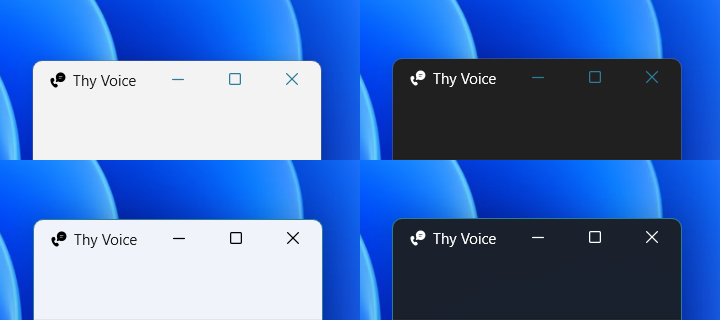
The CommunityToolkit has a ThemeWatcher to raise an event at this point – could we just use that and change the text colours? No it turns out it doesn’t fire in a WinUI 3 project. However you can use the UISettings.ColorValuesChanged event instead. This fires both when changing theme colours and switching between light and dark. So now, we just need to have a reference to the AppWindowTitleBar and we can change the text colours when this event fires. I also found that when trying to capture a video of this in action it would regularly fail to update properly leaving it stuck in some limbo state – presumably something in the capture code for GameBar or the Snipping tool is swallowing the window messages used to trigger the change. However I’ve capture an image of the titlebar in the four states so you can see the difference. If you squint at it and cross your eyes you can probably recreate the transition in some kind of magic eye style.
The key things I had to set beyond the defaults to get it to look consistent were:-
On theme change I check the current theme and if IsCustomizationSupported() set the ButtonForegroundColor to Black for Light and White for Dark theme. Ideally these should use a theme color too so that they correctly adjust to other customisations.
Because of some odd behaviour (possibly due to screen recording) I found that changing the title text would make it less likely to fail to update. However with further testing I might not need to do that, and just ignore the screen recording quirk.
The Terminal and File Explorer approach uses a darker (or lighter on dark theme) colour when you hover over a button, rather than the accent colour. It’s more subtle and I’m not sure which theme resource these colours are derived from, so I’m not going to change this for now.
Preview Window
The second issue, which was with the preview window on the taskbar rather than the app window itself, was that it was showing a generic icon, even though the app icons were all setup correctly. I had missed a step, and Nick Randolph showed me what I’d forgotten. As well as setting the images for your package, you also need to set an icon for the AppWindow. This is a traditional .ico file which can contain multiple sizes and colour depths. Once I’d set this in the constructor for my MainWindow (this app only uses a single window) it was showing correctly in the preview.
AppIcon.ico is in the root folder of the project with a build type of Content. It’s important to note that .ico files don’t have separate light and dark theme images so this needs to be something which works well with either theme. Looking through some in-box examples they are a bit of a mixed bag.
I often get asked about the different ways of using Bluetooth Classic and Bluetooth Low Energy with 32feet.NET. This post looks at the two different approaches and a bit of historical context.
Separate Libraries
The first key point here is that Bluetooth Classic and LE are handled by two different NuGet packages. 32feet.NET originated as a single dll which contained Bluetooth Classic, IrDA and Object Exchange (OBEX) functionality. As there was a lot of overlap this made sense but over time this became more unwieldy and many users wouldn’t necessarily use all the functionality. When I re-wrote it for Version 4.x I split these libraries up. InTheHand.Net.IrDA is still maintained but, as you can image, with a very small user base. Obex is handled by InTheHand.Net.Obex which can perform obex operations over Bluetooth, IrDA or TCP/IP. InTheHand.Net.Bluetooth contains all the Bluetooth Classic functionality.
Classic Bluetooth
Bluetooth was implemented, from Windows XP Service Pack 2, as a set of extensions to the Windows Sockets API (winsock) and some utility methods to control the radio and device information. The design of BluetoothClient, the main entry point to a Bluetooth classic connection, is based on TcpClient and IrDAClient from the Windows CE days. At the time of .NET 2.0 all the APIs were synchronous and the library was only cross-platform to the extent of supporting Windows desktop and Windows CE. As .NET has evolved it has taken advantage of some “free” upgrades to the System.Net.Sockets functionality which now includes full async/await support. There is still some work to do to asyncify some of the other APIs. The library now supports multiple platforms but with a common API. The key part was to emphasise Streams rather than the underlying Sockets because other platforms don’t use .NET Sockets.
Going Low
Bluetooth LE presents some different issues – again at the time there was already a range of potential platforms including Xamarin’s iOS, Android and Mac support. Rather than extend the classic library the Bluetooth LE support was built from scratch and modelled around the WebBluetooth API which was in a fairly stable state and supported on most browsers (not Safari though – boo!). The big difference with the Web* APIs is they put the user in full control and so the user has to pick a device themselves and consent to access. Because on a mobile app you are generally consenting to Bluetooth permissions on a per-app, rather than per-device, basis some of the process here is simplified. As I was aware that not all developers want to present a standard picker to the user I added a programmatic way to return discovered devices so that you can build your own UI around it. This is not implemented in iOS yet but is on my To-do list.
Missing Parts
The other big thing about using WebBluetooth as a model is there isn’t any peripheral support (exposing your own services to other devices). This is something I wanted to spend a bit more time designing and getting right. There is also no capability to set the radio on or off. If the platform supports this (and of course not all do) you can use a combination of the classic library to control the BluetoothRadio and then InTheHand.BluetoothLE for everything else. What you can’t do is use the InTheHand.Net.Bluetooth library to discover low energy devices. Even when devices are dual mode the effectively have a different address for both and so you can’t use this and then try to make a low energy connection later.
A quirk with the classic library is that on Windows there are two APIs. The original winsock API and the newer Windows 10 API. Depending on the flavour you get served from the NuGet package, which is driven by your project target, you may get one or the other. There are currently a few quirks in the Windows 10 API used for discovery if you want it to timeout quickly. Also specialist devices like Hololens don’t have the legacy winsock API but if you’re targeting Unity, which uses Mono, it’ll pick the .NET 4.6.1 dll which is using the legacy API.
Next Steps
InTheHand.Net.Bluetooth is quite stable and I don’t plan on making big changes to it. The key demands have been better async support where relevant, extending support to macOS and Linux and access to raw Service Discovery Protocol (SDP) records where the underlying platform supports it.
There is lots still to do on all the libraries and it’s a constantly moving field of .NET versions, platforms and Bluetooth updates. If you would like to get involved the GitHub project could definitely do with additional hands.
I’d completely forgotten about Pi day until I saw someone post about it online and I thought I should write about the happy coincidence that I’ve been working with a Raspberry Pi today.
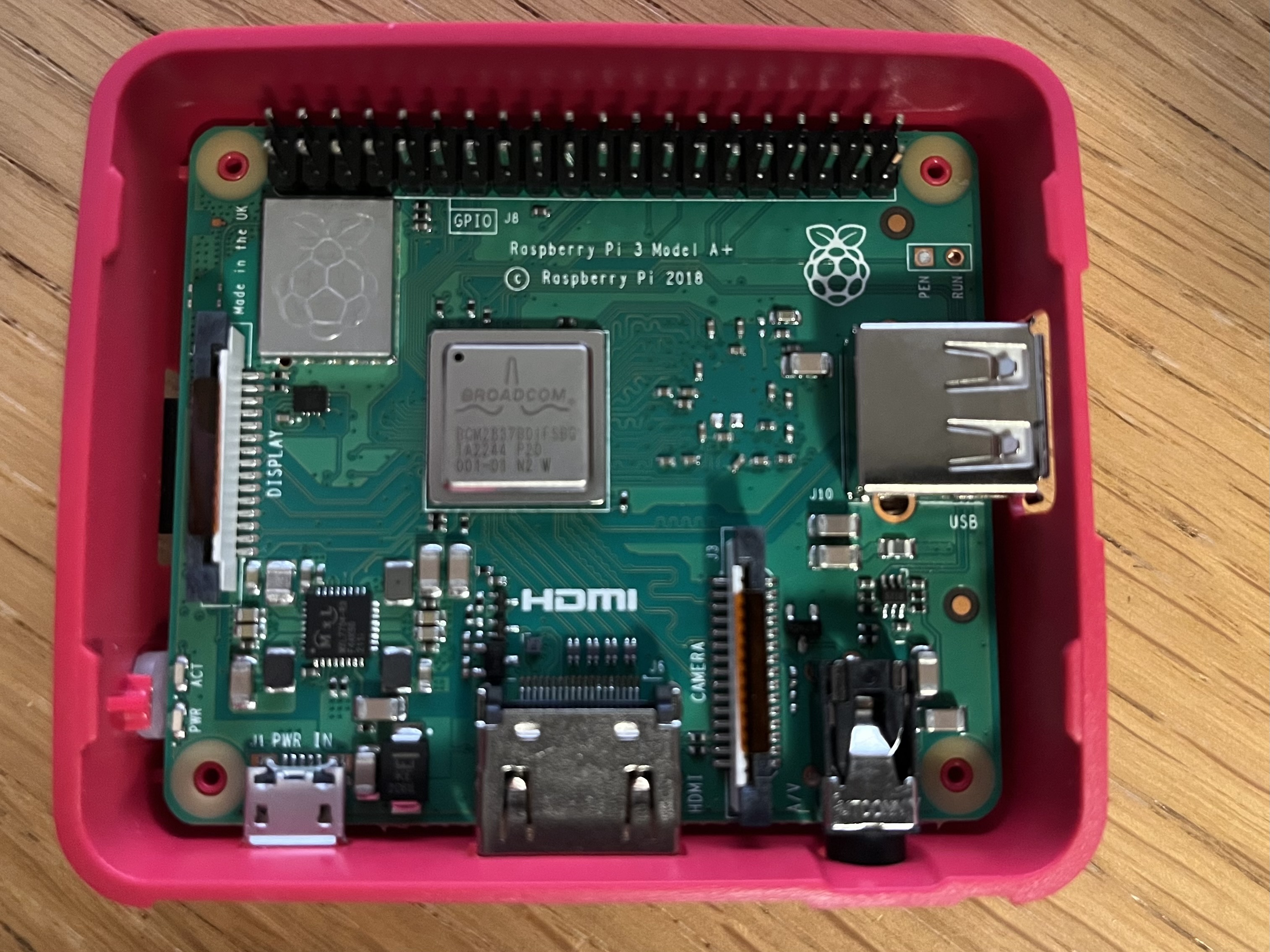
Last week I took delivery of a new Raspberry Pi. I have an older Pi 2 but I wanted to have a newer unit to allow me to develop 32feet.NET for Linux and the Raspberry Pi is a compact and simple device to setup for this purpose. There are still supply issues with the latest models but I was able to get a Raspberry Pi 3A+. The A is a shrunken form factor which is ridiculously small but only has one USB socket. I bought a kit from Pi Hut which included a power supply and case. I invested in the Raspberry Pi keyboard at the same time as this has a built in USB hub so that you can daisy-chain in a mouse and other peripherals. Because it has built in Wi-Fi the only other thing I had to plug in was an HDMI cable to a spare display. The Raspberry Pi 3 and 4 both have a built in Bluetooth adapter and both can run the ARM64 builds of Raspberry Pi OS.
Setting up the microSD card was straight-forward as long as you don’t pick the default Raspberry Pi OS image (which is 32-bit) and get the 64bit one. BlueZ, the official Bluetooth stack for Linux, is already included so the Bluetooth works out of the box. I needed to install the .NET SDK, enable SSH and then I was able to debug remotely from Visual Studio.
The process is not quite as slick as remote debugging an Android or iOS app. You have to build your code, then you need to deploy it to the Pi. To do this I used scp (Secure Copy). There is a process to follow to setup an SSH key and copy it to the Pi so that you don’t have to authenticate with a password to connect via SSH and this applies to scp too. The scp command lets you copy one or more files from the host PC to a directory on the Pi (you’ll want to create a directory on the Pi to run your new app from). You can also download files in the other direction if you need to get data back from the Pi after running the app.
Now you have the app deployed you can use the command line on the Pi to run the app using the dotnet command e.g.
dotnet MyApplication.dll
What I did was start the program off and wait for input, to give me time to connect the debugger then I can continue when ready. It’s just a straight-forward console app.
Console.WriteLine("Hello World!");
var inputString = Console.ReadLine();
For debugging from Visual Studio you go to Debug > Attach to process… Select SSH as the connection type and enter or find your Raspberry Pi device – the format is the SSH login of user@hostname. When you’ve connected you’ll see a list of processes running on the remote device and you should see one which begins “dotnet”. Click Attach and wait for the debugger to attach, setup breakpoints and load symbols. Once the activity dies down in the Output window you can type any text into the Pi command line and press enter and let the magic begin.
I’ve started by incorporating Linux.Bluetooth (previously known as Plugin.BlueZ) as this wraps most of the required Bluetooth LE functionality from the underlying DBus API. As I delve more into this I’ve had to poke around in DBus itself using Tmds.DBus. There is a useful study guide at the Bluetooth SIG which shows how it all works. Hopefully soon I’ll have the Linux support ready in preview form and it can be tested on other devices. Please get in touch through GitHub if you’d like to help out.
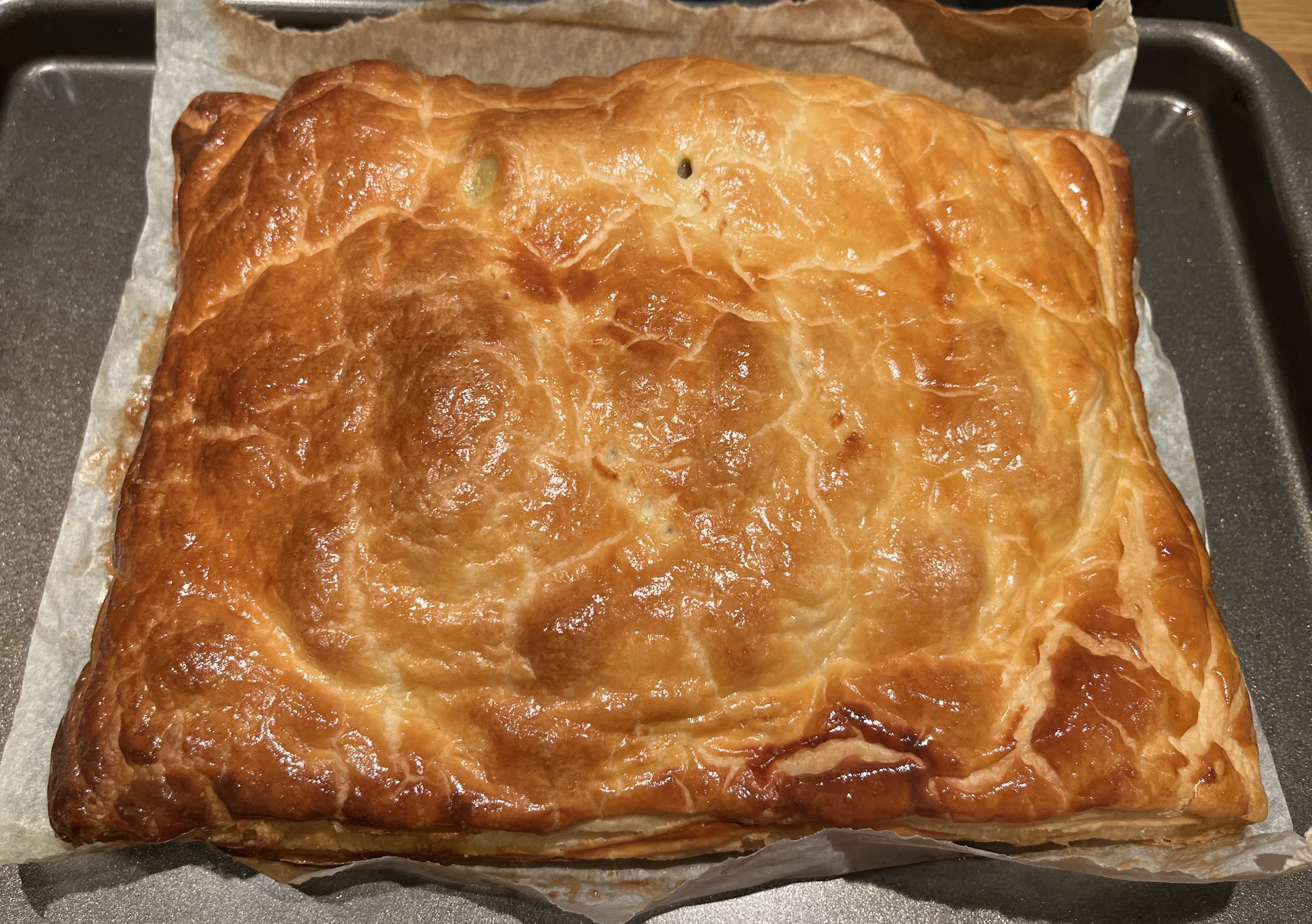
Oh, and coincidence number 2? I’d already planned to make a Pie for dinner tonight before realising the date – Yummy!
There is a particular issue when writing any code which will run on Android which presents external UI through an Intent or uses broadcasts in that you need to have a reference to the current Activity. I covered this in my last post.
Following on from that I moved the code to a new library (since it is required in both the Bluetooth Classic and Bluetooth LE libraries). It now provides a simple API which you can use to determine the current Activity without adding any framework dependencies.
InTheHand.AndroidActivity.CurrentActivity
The code can determine this on Xamarin Forms, .NET MAUI and Uno Platform. I haven’t figured out if there is a clean way to do this on Avalonia yet but there is a simple workaround for everything currently unsupported – including if you want to use the libraries from “native” Xamarin Android or .NET 6.0 Android and beyond.
Every Android project contains a main Activity. For an Avalonia mobile app this is in MainActivity.cs and is an empty class derived from AvaloniaMainActivity. Simply override the OnCreate method like so:-
protected override void OnCreate(Bundle savedInstanceState)
{
   // provide reference to current activity
   InTheHand.AndroidActivity.CurrentActivity = this;

   base.OnCreate(savedInstanceState);
}
Natively, Android apps are built around activities. These are distinct parts of an application which include UI and are designed to perform a particular task. Android allows you to start activities and pass data between them. A number of system dialogs are just activities which run and return a result.
Across Platforms
When using a cross-platform framework, whether it be Xamarin Forms, Uno or .NET Maui your app will generally have only a single Activity. You can create a complex application and never touch the template generated activity code. However when you want to call into an Activity, whether it be your own, a third-party library or a system feature, you need to have a reference to your current activity in order to launch another.
Each framework has its own method to help with this. On Xamarin Forms this is exposed in the Xamarin.Essentials library – Xamarin.Essentials.Platform.CurrentActivity. When migrating to .NET Maui this moved to the Microsoft.Maui.Essentials library – Microsoft.Maui.ApplicationModel.Platform.CurrentActivity. The new project templates add a line of code to the default MainActivity to initialize this and store a reference to the running activity.
On Uno the Uno base library includes Uno.UI.ContextHelper.Current which stores a reference to the activity and is initialised in the base Microsoft.UI.Xaml.ApplicationActivity class.
What’s the point of all this?
If we want to create a .NET library which works on all these different frameworks and has access to the activity we have some work to do. We can’t create a NuGet targeting different frameworks because these are all net6.0-android – you can’t specify the UI tech. We don’t want to provide multiple virtually-identical libraries tweaked for each framework, but we also don’t want to reference multiple dependencies in one library. The solution is a bit of good old-fashioned reflection. By checking for the presence of each of these types we can query the property and have our activity reference to use as required. Of course, none of these may be present. It’s entirely property our library is used from a “native” .NET Android app and the developer is working directly with the Android APIs. We can still provide a valuable API here but provide a method to pass the activity context to any API which requires it to display some UI. That allows us to cover all bases from a single dll for all “flavours” of .NET Android development. From your cross-platform code it’s entirely transparent. I’ve put my current code into a Gist here:-
This file contains hidden or bidirectional Unicode text that may be interpreted or compiled differently than what appears below. To review, open the file in an editor that reveals hidden Unicode characters.
Learn more about bidirectional Unicode characters
The good news from this is that InTheHand.BluetoothLE (as of the next NuGet drop) no longer has Xamarin or Maui dependencies but works just the same on these platforms. I’m interested in extending this to support Avalonia too. I may also move the code into its own library as I envision using it from a few places and it will be easier to maintain.

 In The Hand Ltd