Category: Bluetooth

  • Migrating Wiki content from CodePlex to GitHub

    I’ve seen a few articles on migrating your projects from CodePlex but they kind of ignore the Wiki and suggest just copying and pasting the text across. There is a way which will copy the entire contents and only require a little manual work. The instructions below are the steps I took to migrate the 32feet documentation across. There were 76 files in total so much easier that copying and pasting!

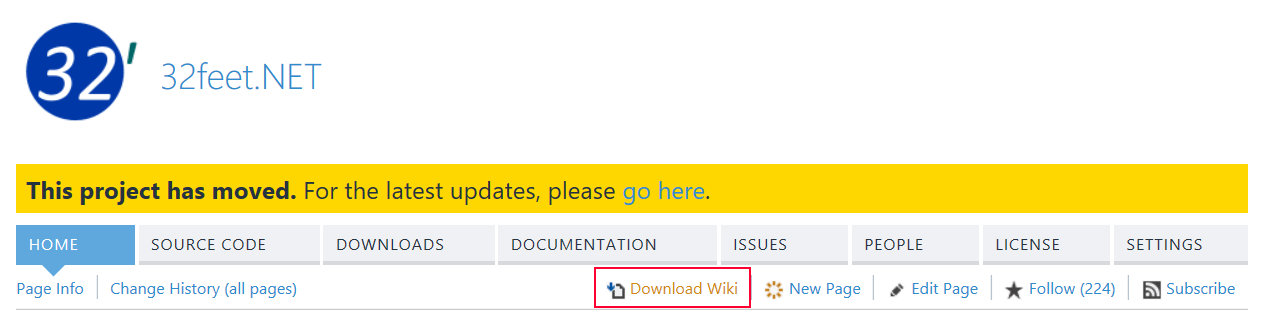
    First from the Home page of your CodePlex project you’ll see a button “Download Wiki” in the page toolbar. Click this to download a Zip file containing all the documents and supporting attachments for your Wiki.
    migrate-wiki-1

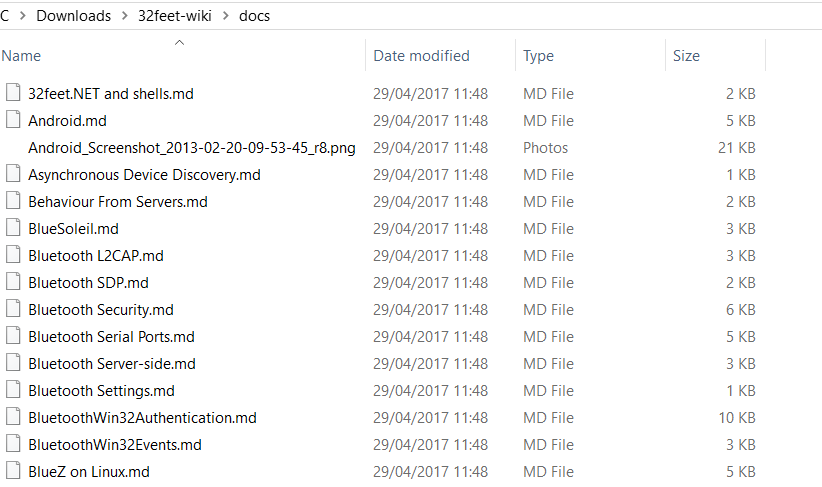
    This contains two folders, one in raw CodePlex format and the other (called “docs”) in Markdown. You’ll want the Markdown version. There are two standard files in this folder – Home.md is the homepage – the equivalent to your Readme on GitHub. This one you’ll probably want to copy and paste into a Readme.md file in your new repository. The Documentation.md is the entry point into your documentation Wiki. I removed the Home.md after copying the contents and renamed Documentation.md to Home.md as this is now the entry point into the Wiki documentation. If there are hard links back from child pages these may require fixing.
    migrate-wiki-2.png

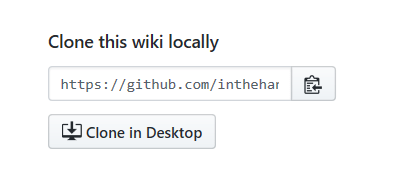
    In your GitHub project go to the Wiki tab and you’ll see an option on the right “Clone this wiki locally”. You can then use Visual Studio or any Git tool of your choice to work on a local clone of the Wiki repository.
    migrate-wiki-3.png

    This should be empty for a new GitHub project. Once you’ve done this you can copy all the Markdown and attachment files you downloaded and unzipped from CodePlex into this folder. Commit and Push this git repository and you’ve uploaded a (mostly) working Wiki to your new site.

    After doing this I noticed a couple of issues which required further changes. Firstly the inline code examples were broken:-

    migrate-wiki-4

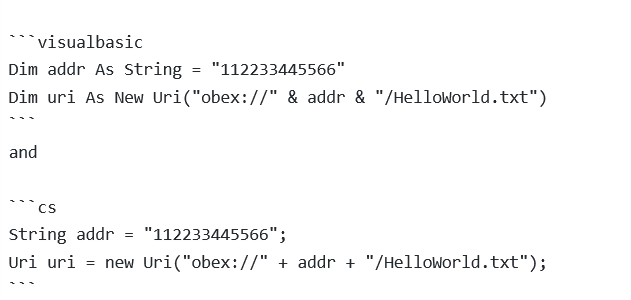
    A bit of digging revealed a slightly different “tag” for code in GitHub markdown which should be:-
    migrate-wiki-5

    Another quick fix was that GitHub requires tables to have a preceding blank line otherwise it just renders as raw text full of pipes.

    The last big formatting issue was the main Wiki page uses a number of anchors to various points in the table of contents and this was broken in conversion. It appears that there are automatically generated anchors for top level headers only. It is possible to workaround (although it feels dirty) by using inline HTML A tags e.g. replace

    {anchor:General Bluetooth Data Connections}

    with

    and link to it using

    [General Bluetooth Data Connections](#user-content-general-bluetooth-data-connections)

    I hope this helps you as you migrate your own projects from CodePlex.
  • Talking to Printers

    Recently I’ve been working with a selection of Bluetooth printers. During this work I’ve noticed an odd thing about the UWP Bluetooth APIs. It’s all about the Class of Device. These are a set of defined device types and are categorised into major and minor classes. For example a Printer has a Major class of Imaging and a Minor class of Printer. In the raw form the class of device is a bitmask and the bits reserved for the major class define the behaviour of the rest of the bits. The UWP API exposes a BluetoothClassOfDevice class and this has two properties – MajorClass and MinorClass and each uses an Enumeration. The interesting thing with this approach is that the MinorClass values overlap but have different meanings depending on the major class. There are already multiple fields with the same value – ComputerDesktop, PhoneCellular and PeripheralJoystick for example. For whatever reason all of the Imaging minor classes are missing – they all pre-date the original WinRT codebase so really should have been included.

    I created a gist to pull together my helper method and enum to make identifying printers a little easier. I created an extension method to return the correct minor class when you identify a device with a major class of imaging:-


    using System;
    using Windows.Devices.Bluetooth;
    namespace InTheHand.Devices.Bluetooth
    {
    /// <summary>
    /// Defines missing values in the <see cref="BluetoothMinorClass"/> enumeration for devices with a <see cref="BluetoothClassOfDevice.MajorClass"/> of Imaging.
    /// </summary>
    [Flags]
    public enum BluetoothImagingMinorClass
    {
    Uncategorized = 0,
    Display = 4,
    Camera = 8,
    Scanner = 16,
    Printer = 32,
    }
    /// <summary>
    /// Provides an extension method to get the Imaging minor class.
    /// </summary>
    public static class BluetoothClassOfDeviceExtensions
    {
    /// <summary>
    /// Returns the Minor Class of Device for an Imaging device.
    /// </summary>
    /// <param name="classOfDevice"></param>
    /// <returns></returns>
    public static BluetoothImagingMinorClass GetImagingMinorClass(this BluetoothClassOfDevice classOfDevice)
    {
    return (BluetoothImagingMinorClass)((int)classOfDevice.MinorClass);
    }
    }
    }

  • Bluetooth Development made easier in Windows 10

    With Windows (and Phone) 8.1 there were two different device capabilities which needed to be set to use either RfComm or Bluetooth LE from your app. You had to specify a target device (or All) and target service name(s). With Windows 10 there is a simpler option. You still have to edit the appxmanifest code as it is not visible in the manifest designer but you can set simply:-

    <Capabilities>
        ...
        <DeviceCapability Name="bluetooth" />
    </Capabilities>

    This gives you access to all Bluetooth functionality from your app. This is a much simpler approach and less prone to errors. Most of the documentation doesn’t mention this new value except for this page:-
    What’s different in Windows 10 Insider Preview
    “new valid values are “bluetooth”, “wiFiControl”, “radios”, and “optical”.”
    These are not mentioned on the “App capability declarations” page so it’s not clear which specific APIs the other intriguing values relate to…

  • 32feet and Windows Apps

    Some time ago I created a subset of 32feet.NET to extend the Bluetooth functionality in Windows Phone 8.0. This was for the Silverlight app model and the only API at the time was based around the Proximity APIs. When Windows Phone 8.1 came along it brought a whole new Bluetooth (and Bluetooth LE) API which was, for the most part, consistent with Windows 8.1. I never got around to updating my code for this model.

    Looking forwards Windows 10 is just around the corner and the UWP app model includes this same consistent API, with a few additions, across all the flavours of Windows – IoT, Phones and all shapes and sizes of PC. This time I went back to the drawing board and looked at what functionality was missing and could be added in.

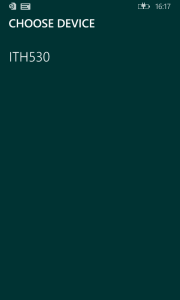
    One of the new APIs in Windows 10 is the DevicePicker in Windows.Devices.Enumeration. This is not strictly Bluetooth functionality – any class of device which can be enumerated can be used with it. However it serves as a Bluetooth device picker just fine. Since Windows 10 on phones is a little further away than the imminent launch on the desktop I thought there was a good case for providing this UI now to Windows Phone 8.1 apps and showing how to wrap it to pick Bluetooth devices. Thus you can easily reuse the same code in a Windows 10 project further down the track. Thus the InTheHand.Devices.Enumeration.DevicePicker was born. It uses the same API the exception being that screen rectangles passed in are ignored for Windows Phone as it uses a ContentDialog to pop up the selector. You can still customise the foreground/background and accent colors to match your app. For example the sample code displays this:-

    32feet DevicePicker

    To use the DevicePicker for Bluetooth devices you need to first have the capabilities set correctly in your package manifest (see here for details). Then assuming you have a button or similar to allow the user to start the selection process you can use the following code:-

    string aqs = RfcommDeviceService.GetDeviceSelector(RfcommServiceId.ObexObjectPush);
    
    DevicePicker picker = new DevicePicker();
    picker.Appearance.BackgroundColor = Color.FromArgb(0xff, 0, 0x33, 0x33);
    picker.Appearance.ForegroundColor = Colors.White;
    picker.Appearance.AccentColor = Colors.Goldenrod;
    
    // add our query string
    picker.Filter.SupportedDeviceSelectors.Add(aqs);
    
    // prompt user to select a single device
    DeviceInformation dev = await picker.PickSingleDeviceAsync(new Rect());
    if (dev != null)
    {
       // if a device is selected create a BluetoothDevice instance to get more information
       BluetoothDevice device = await BluetoothDevice.FromIdAsync(dev.Id);
    
       // or get the service which you can connect to
       RfcommDeviceService service = await RfcommDeviceService.FromIdAsync(dev.Id);
    }

    The CodePlex project includes the source code and two samples – one showing the device picker and retrieving device information, the other a Chat application (which is interoperable with the existing 32feet BluetoothChat sample on other platforms. The binaries for the DevicePicker are up on NuGet in this package.

    That covers off device selection, the other main area I knew needed some attention is Service Discovery. The Windows API provides the ability to supply custom SDP attributes when creating a service (or as mentioned in a previous blog post an “extension” record containing custom attributes). It also gives the ability to retrieve SDP records. However in both cases it uses IBuffer (the WinRT equivalent of a byte array). Therefore the other part of the new 32feet project is a set of functionality for building (and eventually parsing) SDP attribute values and records. I haven’t published this to NuGet yet as I’m still working on it but the code is there if you fancy a look.

    So the next step for 32feet on Windows is a DevicePicker for 8.1 which allows you to painlessly move your code forward to 10, and a portable SDP library which will work with 8.1 and 10 and possibly outside of Windows platforms too in the future…

  • Background Bluetooth Services on Windows Phone 8.1

    Added in Windows Phone 8.1 was a new RfcommConnectionTrigger which allows you to host a Bluetooth service on the device and have your background task triggered when an incoming connection is established. This makes a lot of sense as having to have your app in the foreground to receive connections limits the usage somewhat.

    In its simplest form you just need to specify an RfcommServiceId for your service, register your background task and the system publishes the required SDP record which allows other devices to discover your service. Your background task is executed when an incoming connection is received and you can cast the TriggerDetails of the received IBackgroundTaskInstance to an RfcommConnectionTriggerDetails. This gives you two useful things – RemoteDevice – a BluetoothDevice which describes the device which initiated the connection and Socket a StreamSocket which allows you to talk to the remote device.

    This works well for most devices but what if you have more specific requirements for the published SDP record. In a foreground app you’d use RfcommServiceProvider and this allows you to set individual SDP attributes which are appended to the default record. The RfcommConnectionTrigger mechanism provides something similar but there is literally no documentation on how it is expected to work. The difference from the foreground approach is that rather than setting attributes with id and raw body it has a property called SdpRecord which accepts an iBuffer. It’s very easy to get from a byte array to an iBuffer but we still have to create the SDP record…

    At first I thought the best approach was to look at what the default record contained – but unless you assign a record the property returns null (even once the background task is registered and the SDP record is published). The only way to see the exposed record is to read it remotely from another Bluetooth device (one which is a desktop app since device and service discovery is not supported from WinRT). I used Alan’s SdpBrowserDesktop app from 32feet.This showed a fairly standard set of attributes:-

    • Record:
    AttrId: 0x0000 -- ServiceRecordHandle
    UInt32: 0x10009
    AttrId: 0x0001 -- ServiceClassIdList
    ElementSequence
        Uuid16: 0x1101 -- SerialPort
    AttrId: 0x0004 -- ProtocolDescriptorList
    ElementSequence
        ElementSequence
            Uuid16: 0x100 -- L2CapProtocol
            UInt16: 0x3
        ElementSequence
            Uuid16: 0x3 -- RFCommProtocol
            UInt8: 0x6
    ( ( L2Cap, PSM=Rfcomm ), ( Rfcomm, ChannelNumber=6 ) )
    AttrId: 0x0005 -- BrowseGroupList
    ElementSequence
        Uuid16: 0x1002 -- PublicBrowseGroup

    The ServiceRecordHandle is allocated by the host device as is the Rfcomm channel (here 6). If I want to add a service name to this I realised I would have a problem – how can I build a record when I don’t yet know the port that will be assigned (and there is never a way to find this out from WinRT). I built the record anyway hoping that the system would simply read it and replace the value at registration. You get an ArgumentException at the point you call BackgroundTaskBuilder.Register() and it doesn’t contain any useful information. I tried a few variations of this approach and then happened upon another approach – what if I build a valid record but just for the attributes I want to add. Luckily this approach works – your custom attributes are appended to the end of the record and registration succeeds.

    I’m documenting this here because there isn’t a way to add to the MSDN documentation and hopefully someone searching will find the answer. I’m working on porting code across so that there is a friendly API available for all current Windows flavours which helps in reading and writing SDP records and attribute values. I can only assume the approaches used by the foreground and background APIs differ because they were written at different times by different teams.

    My custom record consists of an ElementSequence, with a 16bit UUID for the attribute (0x0100 – ServiceName) followed by a UTF-8 encoded string e.g.

    Element Sequence
       Uuid16: 0x0100
       String (len 11): "Hello World"

    Windows 10 supports this same approach and it is no longer for Phones only – it should be universal across phones, desktop and IOT so I anticipate people doing more advanced things with Bluetooth…

  • Resources from Bluetooth and NFC for Windows Phone and Beyond

    As promised here are the resources from yesterday’s session on Bluetooth and NFC. I’ve begun uploading the slides and code to this SkyDrive folder:-

    http://sdrv.ms/143OZD7

    I have a few finishing touches to put on the sharing library for NFC – it will be up on NuGet and CodePlex shortly.


  • Update to 32feet.NET for Windows Phone

    Version 8.1 of 32feet.NET for Windows Phone is now available via NuGet. This package adds some helper functionality for Bluetooth development. In particular this version includes the RfCommServiceId (designed to match the Windows 8.1 API) to provide information about various standard RfComm profiles. You can use this when connecting a StreamSocket or to filter devices in the BluetoothDevicePicker.

    Speaking of which the BluetoothDevicePicker has been updated to more closely follow the appearance of the dialog displayed when you use the built in Bluetooth photo sharing feature. Currently the library is built with localized resources in mind but has only English text. If you are interested in providing localized text in your own language please contact me.

    The CodePlex project contains the source and the Serial sample app. I’m working on some additional sample apps which will be added soon.

  • Bluetooth Development with Windows 8.1

    Unless you’ve been stuck under a rock (in which case what are you doing reading this?) you’ll know that Microsoft announced a preview release of Windows 8.1 at Build yesterday. While I haven’t got a development machine up and running yet (No easy upgrade if your device is UK English) I’ve been looking at the updated documentation at MSDN. Of the many new APIs described there are a couple of new namespaces which will be interesting to those working with Bluetooth devices:-

    Windows.Devices.Bluetooth.GenericAttributeProfile – Contains functionality to work with Bluetooth LE devices. This will make it possible to interact with devices such as FitBit and other low energy sensors and devices from within apps – which means support on ARM devices.

    Windows.Devices.Bluetooth.Rfcomm – Support for normal serial sockets Bluetooth. While completely different from the Windows Phone 8 API it provides the same functionality and more. Ability to enumerate and get notified of device arrival and departure and access to SDP attributes. There are identifiers for a number of standard profiles – Generic File Transfer, ObexFileTransfer, ObexObjectPush, PhoneBookAccess (client and server), SerialPort (SPP).

    A new Chat sample is available for 8.1 here – http://code.msdn.microsoft.com/windowsapps/Bluetooth-Rfcomm-Chat-afcee559

  • 32feet.NET for Windows Phone

    With the recent announcement of Windows Embedded Handheld 8 it seems fitting to discuss something related to industrial and line-of-business applications which you can develop now on the Windows Phone platform.

    I’ve released the first drop of 32feet.NET for Windows Phone 8 to our CodePlex site and NuGet. Because the programming model on Windows Phone (based on Windows Runtime StreamSockets) this is a separate package and doesn’t follow the programming model of the main 32feet.NET release. Windows Phone 8 supports Bluetooth programming out-of-the-box it is not straight-forward as it is build around the Windows Runtime Peer networking APIs but is different to the Windows 8 implementation. The aim of the 32feet library for Windows Phone is to simplify common tasks. This initial release adds the following features:-

    • Strongly typed extension methods for ConnectAsync which accept service Guids or numerical port numbers
    • BluetoothDevicePicker which offers an easy way for a user to select a device. Equivalent to the SelectBluetoothDeviceDialog in the core 32feet library.
    • Common Bluetooth service Guids
    • Bluetooth Barcode scanner sample. This sample app connects to a Motorola CS3070 scanner and allows input of Barcodes to the device screen. It should also work with other Bluetooth serial based scanners.

    This is just a first release and we will be continuing to develop the library as well as add further localisation and samples. For example to demonstrate connecting to applications running on the desktop (Sorry not Windows Store apps currently). Your feedback is valuable so please visit the CodePlex project site to provide feedback.

    There is a NuGet package available for the Windows Phone flavour of 32feet.NET to allow you to easily add it to your projects:-

    http://nuget.org/packages/32feet.NET.Phone

  • Persist Bluetooth Addresses on Windows Phone 8

    The Bluetooth API on Windows Phone 8 is based around some customisations to the Proximity APIs which are part of the Windows API introduced with Windows 8. When you “discover” devices you can retrieve a collection of device identifiers for paired devices. The first time you perform a task you will want to use this mechanism to select the appropriate device. However you may want your app to remember a specific device and try to connect again on subsequent attempts. In the old .NET world with 32feet.NET we have a constructor for BluetoothAddress which allows you to supply the address in a variety of string or numeric forms. In the Windows API the Windows.Networking.HostName type is used to represent a host name whether it is for a Bluetooth device or an IP address. Normally the read-only Type property will indicate the type of the host.

    In order to store a Bluetooth address for later use you should save the RawName property which for Bluetooth devices is in the form “(11:22:33:44:55:66)”. The dotted hex notation is fairly common but notice the address is wrapped in brackets. Now to restore this address in a HostName instance you can later use to open a socket you can use:-

    HostName storedHostName = new HostName(storedRawName);

    You’ll notice that this sets the host name and correctly sets the Type property to Bluetooth.