When we last looked at Bluetooth Low Energy we looked at the code required to read the battery level from a device. There are two things we didn’t cover – writing values and sending commands to a device.
Writing in the Air
If you’re familiar with the service that you are writing to the process of writing a characteristic is fairly straightforward. The value must be passed as a byte array, the formatting of which depends on the characteristic. There are two subtly different methods of writing and you should check the properties of the characteristic to see which is supported. A normal Write operation requires an acknowledgement from the peripheral device so you can determine if/when the operation completes. For fire-and-forget operations the alternative WriteWithoutResponse method will provide a quick way to set a value. Web Bluetooth and 32feet.NET both provide separate methods for these two operations so you can clearly see which is being used.
Command and Conquer
The Characteristic in Bluetooth Low Energy can be though of as a Property in object-oriented programming – it has a value that supports some combination of read, write and change notification. There is no direct analogy in Bluetooth LE to a method where you may pass in zero or more arguments and receive some other value in return. However there are many third-party services which implement their own support for this using one or more characteristics.
One of these is the Lego Wireless Protocol which is used with a range of Boost devices and the 2 port hub used in their range of trains. It does this using a single characteristic which supports write (without response) and notify operations. The hub can send you messages via the notifications and also use notifications to respond to messages you write to the characteristic. All the time there is no support for reading the characteristic value because each notification is just a snapshot and there is no logical current value.
In order to support this service we start with the same initial steps as with the battery example – select a device, connect to the Gatt server on the device and then get the service and then characteristic to use. You do need to pair with the Hub first, however it seems quite happy to be paired with multiple devices so the Lego controller still works after pairing with a PC. The hub shows up as “HUB NO.4” to me, I’ll be honest I don’t know how this name is derived.
To support change notifications there are two tasks – attach an event handler to the CharacteristicValueChanged event, and call the StartNotificationsAsync() method. This method hides the underlying process of writing to the ClientCharacteristicConfiguration descriptor with either the Notify or Indicate method depending on which is supported.
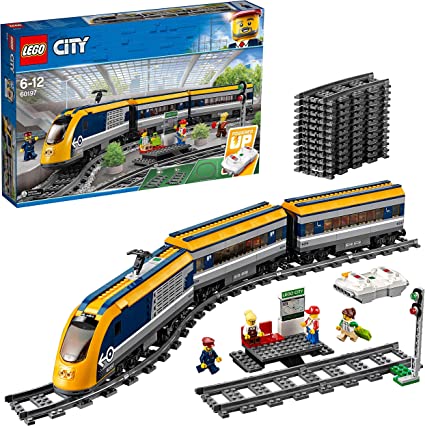
When you connect to the Lego Hub it will send you a handful of HubAttachedIO messages to tell you what is connected to the ports of the hub and we can query more information about these. The type is quite helpful here as the motor reports as “SystemTrainMotor”. I’m using the Lego Passenger Train 60197 and out of the box it has only 1 port occupied with the drive motor. The second port can be used with the Lego Powered Up Lights 88005 set to add lights to the front of the train. The ports are numbered 0 and 1 in code, you may also receive messages regarding ports over 50 in index and these are reserved for internal use.
Each message contains a standard header of 3/4 bytes and this is then followed by specific data relevant to the type of message. The reason for the variable length of this header is that the first byte can either be used to indicate a message length of up to 127 bytes, or if it has the 8th bit set it indicates a longer length using 2 bytes (from 128 to 215). In this simple example all the packets will be relatively small so we don’t have to worry too much about this.
The header bytes tell us the length, a hub id (always 0) and a message type. We use a switch statement on the message type to determine how to respond to each type. For each HubAttachedIO message (where the Port ID is less than 50) we send a PortModeInformationRequest message to get the name of the device attached to the port.
The PortModeInformation message itself has multiple versions depending on the information requested so we parse the incoming name (“LPF2-TRAIN18”) then send another request for the RawRange – this will give us the minimum and maximum values we can set to the device. For the motor drive in the trainset it is -100 to 100 (with 0 being the motor at a dead stop).
Full Steam Ahead
In order to visualise this and provide a control mechanism the sample app has a Slider control and so once we have the range we setup the Slider control with the same range (and some labels for clarity) then use the ValueChanged event of the slider to send messages to control the motor. The PortValueSingle message changes a single value and requires the header, the port id (0 is Port A on the hub) and the value stored in 2 bytes.
private async void Motor_ValueChanged(object sender, ValueChangedEventArgs e)
{
   if(characteristic != null)
   {
      byte[] messageValue = new byte[6];
      messageValue[0] = 6;
      messageValue[2] = (byte)LegoMessageType.PortValueSingle;
      messageValue[3] = 0;
      BitConverter.GetBytes((ushort)e.NewValue).CopyTo(messageValue, 4);
      await characteristic.WriteValueWithoutResponseAsync(messageValue);
   }
}
This gives you the ability to run the train forwards and backwards (and of course stop) just by dragging the slider around. The controller which ships with the train set has three buttons for each channel which increment and decrement the value (speed in the case of the motor) and the middle button returns to zero.
If you have added the lights, as I have, these show up on PortID 1 (Port B on the hub) and with a valid range of -10 to 10. I was intrigued to see what setting a negative value would do, sadly it didn’t change them to red, nor create a wormhole through space and time, but rather did exactly the same as the equivalent positive value.
Sample Code
The full sample project is on GitHub. It includes a number of useful constants and types from the Lego specification. I intend to properly work these up into a library for the Lego service.

 In The Hand Ltd