Quick update today as I’ve just published new builds of InTheHand.BluetoothLE and InTheHand.Net.Bluetooth to NuGet which support the new .NET 6.0 MAUI target platforms. There were some small code changes to make in the iOS/macOS APIs and on Android I had to replace the Xamarin.Essentials reference with the new Microsoft.Maui.Essentials package. That change was very straightforward – just adding a project property and changing the using namespace!
Blog
-
When is a BluetoothRadio not a BluetoothRadio?
A user of 32feet pointed out a change in behaviour between version 3.5 and 4.0. If you disabled the Bluetooth radio after initially getting a reference to the default radio it would still show the Mode as Connectable/Discoverable. I looked into the code and the 3.5 code was doing an additional check – calling BluetoothGetRadioInfo and if this call failed it would return PowerOff. However I then found that this call succeeds and so it still shows an active mode incorrectly. I believe this change probably happened around Windows 8 because the mechanism for disabling the radio changed around this time. However I don’t have a back catalogue of PCs to test this theory.
I had to go back to the drawing board – how do we discover the state of the radio – the API returns successfully and all the flags indicate it is active. The lower level IOCTL call behaves the same too. However if you try and enumerate the BluetoothRadios again* it fails and returns nothing because to this API a disabled radio is the same as no radio at all. So we now have a workaround – when getting the Mode we check to see if there is still a radio present – if not we return PowerOff. Version 4.0.28 includes this fix.
* Enumerating the radios is a bit of a misnomer – although the API introduced back in Windows XP allows for enumerating multiple radio devices, Windows has only ever allowed one at a time – if you attach a second radio it disables the first in device manager. So while you can have multiple radios (with potentially different pairing information) only one can be active at a time.
-
Improving Keyboard Navigation with NavigationView
Thy Phone uses the NavigationView control to provide a pop out navigation pane to provide a similar UI to Your Phone. I was contacted this week by a user indicating problems with the app for blind users – it doesn’t play well with screen readers and the keyboard navigation is not clear. My first investigation was to see how Your Phone differs and if there is anything I can learn from that. I’m also porting the entire app away from UWP and to desktop WinUI so this has also created a number of changes and issues. Ultimately I think this will make it a much more powerful app and this seems like a good time to rethink the UI and make it more inclusive.
Instantly something which struck me was that the NavigationView in Your Phone implements a number of AccessKeys, not just for the navigation items but also for the expand/contract button and the built-in Settings button. These are not a standard feature of the NavigationView control and I couldn’t find examples in any other first-party apps using the NavigationView. We are in a strange transition where some apps have a Windows 11 feel and others don’t – Compare Microsoft Store, To Do and Your Phone apps and even though all adopt a Windows 11 look they are wildly different.
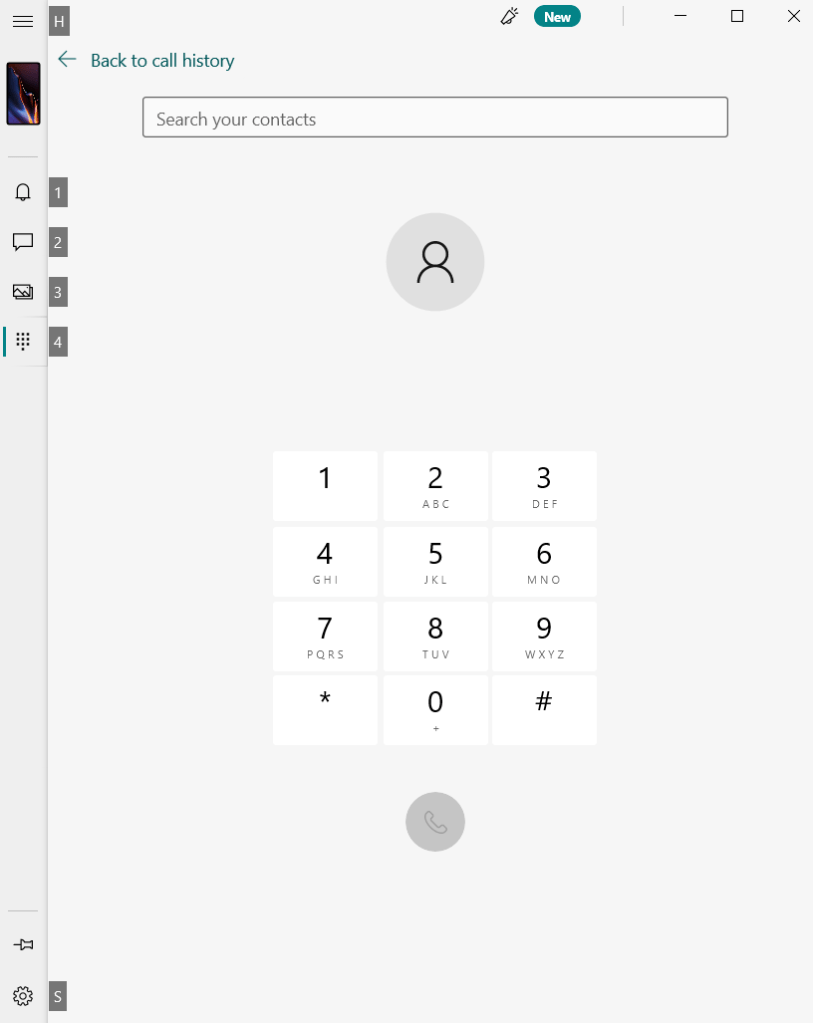
Your Phone showing AccessKey tips. I found that applying an AccessKey to the NavigationView control itself implemented the key for the expand/contract action. For Settings you have to access the SettingsItem, cast it to a NavigationViewItem and then set the AccessKey property. For both of these the tip placement must be manually set in order for all of them to line up.
I created a reusable code snipped in this Gist to apply the same behaviour as used in Your Phone to any NavigationView. It doesn’t allow for localisation in this iteration, I’ll leave it as an exercise for the reader to supply the strings from a resource so that you can change the keys to match the UI language.
This is only a tiny step on the way to improving the usability of the app. It will involve making lots more changes and probably deviating from the Your Phone look where it makes more sense.
-
Ukraine
It’s difficult to come up with the right words to describe what we are seeing unfolding in Ukraine. It’s very easy to feel completely powerless. Our own government (United Kingdom) have been very weak with their response both in terms of sanctions and in supporting refugees, compared with many of our neighbours.
The Disasters Emergency Committee co-ordinate a number of charities to respond to such events and are working to provide support to displaced people due to the conflict. The UK government will match donations (up to £20m). Please consider giving something, however small, to this or another appeal organised in your own country.
As a small thing that I can do personally, I’ve made Thy Phone free for all users in Ukraine. Whether or not it will help someone keep in contact with friends and family I don’t know.
-
32feet for WinRT
Currently the 32feet Bluetooth Classic library for Windows is build around the Win32 API to ensure support for Windows 7 as well as theoretically supporting prior versions no longer officially supported. It has always been my aim to implement the library using the newer WinRT APIs in order to support consistent functionality for apps running in the UWP sandbox as well as future-proofing the library.
In version 4.0.27 the UWP implementation includes BluetoothRadio, BluetoothClient, BluetoothDevicePicker and BluetoothSecurity. The BluetoothListener is not implemented at the moment. BluetoothRadio can read the mode but not set it currently as it requires a bit of trickery to ask for permission on the UI thread. This however means most of the functionality is now available from UWP apps including Hololens. Once there is a clean way to add this implementation to the desktop Windows dlls it’ll make it easier to support other Windows variants which don’t have all the Win32 APIs – like IoT.
If there is some functionality you’d like to see added please get involved in the GitHub issues to discuss and I’ll happily accept pull requests to continue enhancing the libraries.
-

Happy Birthday .NET
.NET is 20 years old this month. I can remember when I first encountered .NET and C# and found it a great step forward from Visual Basic and the C++ and Java I had learned at university. However, what really changed things for me was due to some very chance encounters I had ended up working with mobile phones (remember WAP browsers?) and in the process had come across the Pocket PC. I began working with embedded Visual Basic (eVB) and I found I could create applications that you could carry around in your pocket. I bought myself a chunky Compaq iPaq with an add on sleeve for a Compact Flash memory card – plenty of space for an app or three.
When the .NET Compact Framework Beta came around this was a game changer – a subset of the .NET Framework with the same Visual Studio tools including a drag and drop designer for the subset of WinForms and an “emulator”. Because .NETCF code was retargetable you could use your .NETCF dll on the desktop and share code across platforms.
Happy 20th Birthday .NET! Of course the Compact Framework didn’t hit RTM until later in 2002 but I was soon hooked. Although v1.0 was very basic (the base class library was quite small and there was no COM interop) the ability to interop with native code via P/Invoke meant it was possible to add functionality using a C++ wrapper. My first commercial library for .NET CF was an interop layer for ADOCE – the COM based data API around the built-in “Pocket Access” database engine. This replicated the ADO.NET System.Data APIs with the built-in database rather than adding the more complex SQLCE database engine saving a few megabytes of space and making use of ActiveSync’s Pocket Access sync engine. I went on to create a library around Pocket Outlook to access Calendar, Contacts and Tasks (and later Email) in a similar way. It wasn’t until several years later with Windows Mobile 5.0 that Microsoft provided a .NET API for this functionality.
The first Microsoft Mobility Developer Conference after the release of .NETCF 1.0 was in March 2003 in New Orleans and was closely followed by the European version at Disneyland Paris of all places. The event continued annually for a number of years, morphing into the Mobile and Embedded Developer Conference (MEDC) covering .NETCF, Windows CE, Pocket PC, Windows Mobile and the .NET Framework’s even smaller relation – the .NET Micro Framework.

Microsoft MDC 2003 The .NET Compact Framework got me into being an MVP too. I created a number of open source libraries, one of these (32feet.NET) has continued forward to this day adding in functionality and modernising (but still supporting Infrared data transfer!). Many others were part of a suite created by a group of like-minded MVPs called OpenNETCF. We created APIs to fill in many of the gaps in the .NET Compact Framework as well as add functionality relevant to mobile developers.
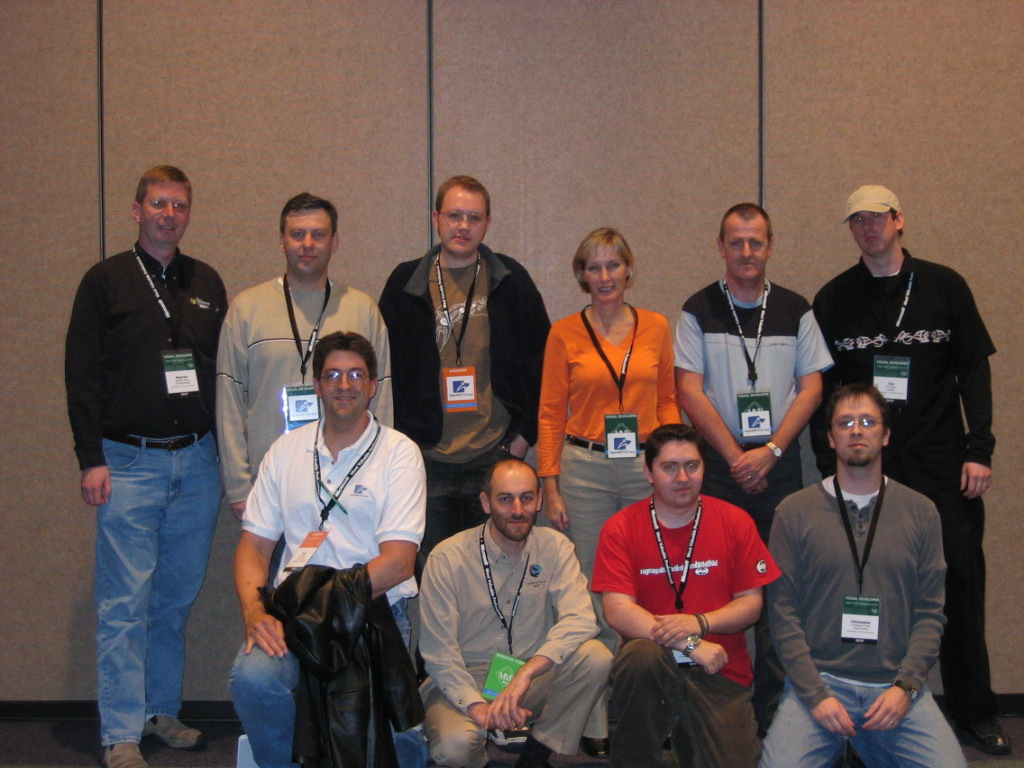
OpenNETCF – MVP Summit 2004 I had the opportunity to write a book, The Microsoft Mobile Development Handbook, with two fellow MVPs – Daniel Moth and Andy Wigley. It was released in 2007 and covered all aspects of developing mobile apps using .NET.

Peter Foot, Daniel Moth and Andy Wigley at Tech Ed 2007 Barcelona The .NET Compact Framework continued along for some time behind the scenes – it was used in Windows Phone (Versions 7 and 8 were based on Windows CE) although because of the stricter sandbox you couldn’t access the underlying APIs as before. Windows Phone 8.1 was re-worked to use the desktop OS and introduced the strange world of two different app models – Silverlight from Windows Phone 7 and the Windows 8 (WinRT) model which has developed into what we see in Windows 10 and 11 today.
In order to build for Android and iOS, we had Xamarin using the Mono framework to provide a comparable .NET runtime. Again we have the ability to share .NET code across multiple platforms and with Xamarin Forms/MAUI and Uno we have the ability to share UI too.
While a lot has changed in the last 20 years, the ability to create apps across mobile and desktop platforms is still recognisable even though what we have now is much more powerful. I still believe that having had to design code for tiny processors, dodgy networks and limited pixels has been immensely helpful in how to approach any mobile development today.
There will be a live broadcast on 14th February to celebrate the special occasion.
-
We Don’t Talk About IrDA
We take for granted that every mobile phone, tablet and laptop has Bluetooth built in, and probably use it all the time for headphones, mice etc without even thinking about developing software for it. There was a time long ago when phones and laptops had IrDA built in and it could be used for exchanging data from contacts to images.
Not all industries move as fast as consumer electronics so you can often still find IrDA in specialist devices in the medical world and beyond. Although it’s no longer ready to run out-of-the-box there is still supported IrDA support in Windows 10 and 11 and an API which is neatly wrapped in InTheHand.Net.IrDA.
Understandably IrDA is now an optional feature in Windows which you can add from Settings > Apps > Optional features > IrDA infrared. You may need to add it as part of your configuration and you can do this programmatically via a Powershell command:-
Add-WindowsCapability -Online -Name "Network.Irda~~~~0.0.1.0"The IrDA support in Windows includes the Sockets based API and a few sharing features (the ability to send or receive files) but this is more hidden than it used to be and doesn’t integrated with the new Share experience. You can access settings via the classic Control Panel.
The InTheHand.Net.IrDA library provides a simple .NET API over the IrDA specific Socket options and extensions. It’s modelled on the API from the .NET Compact Framework, but that was never implemented by Microsoft for desktop Windows so became part of 32feet.NET. InTheHand.Net.IrDA now only has desktop Win32 support, there didn’t seem any point in including the Window CE implementation (as with Bluetooth there were some differences in the underlying API).
Functionality-wise you can discover remote devices (in practise a single remote device at a time). The device info contains a display name and an address and you can open a Socket to that address and send and receive binary data. Beyond the basics of this you need to know what the remote device expects and luckily there are some standards here.
Sending and receiving files is done using Object Exchange (OBEX) and InTheHand.Net.Obex allows you to send files programmatically over IrDA and Bluetooth. Obex is similar to HTTP but all the commands and headers are passed in a compact binary form to cater for the limited bandwidth of these kind of connections.
-
Back to the Future With C++/WinRT
Recently I was asked to investigate a scenario for a desktop C++ application. It was something I’d done before with C# and used a number of WinRT APIs. This meant I had to refresh myself in C++ which has changed again since the last time I used it!
I started with the latest C++/WinRT template so a lot of the plumbing is already set up for you. However there was a useful reference here with mappings for some common things from C# and how they appear in C++.
Of course if your starting point is an existing desktop C++ app there are a few steps you need to follow to add WinRT functionality. I found this reference useful.
-
Moving from MvvmLight to Microsoft Mvvm Toolkit – Messaging
I recently needed to rework an existing Xamarin project and replace the MvvmLight implementation with the new Microsoft Mvvm Toolkit. This is generally an easy process and it has been designed as the spiritual successor to Laurent’s library.
One area which had more changes was the Messaging namespace where the app had made use of some built-in messaging types which have no direct equivalent in the Microsoft library. Faced with the issue of further changing the app or simply reimplementing the MvvmLight functionality for the Mvvm Toolkit I chose the latter approach and created an equivalent NotificationMessage class which I’ve put into a Gist in case it is handy for anyone else.
This file contains hidden or bidirectional Unicode text that may be interpreted or compiled differently than what appears below. To review, open the file in an editor that reveals hidden Unicode characters. Learn more about bidirectional Unicode charactersnamespace Microsoft.Toolkit.Mvvm.Messaging.Messages { public sealed class NotificationMessage<T> { public NotificationMessage(T content, string notification) { Content = content; Notification = notification; } public T Content { get; } public string Notification { get; } } } -
32feet.NET on .NET 5.0 and Above
Version 4.0.22 of InTheHand.BluetoothLE (and 4.0.25 of InTheHand.Net.Bluetooth for Rfcomm) marks an important milestone. It adds a .NET 5.0 specific build which is important because the approach used to access WinRT APIs has changed since .NET Core 3.x and so the library was not compatible with later versions. Now it will run on Windows 10 on .NET 5.0 and 6.0.
This release also adds some new functionality which goes beyond the WebBluetooth API on which it is based. You can now read the negotiated MTU (Maximum Transmission Unit) for the current connection. Importantly it also requests a higher than default value on Android. The reasoning behind this is that generally platforms use a value in the region of 512 bytes but Android starts with a default value of 20 bytes. Prior to this update you had to write platform specific code to change it, but now we request 512 bytes on connection and whatever value is negotiated (it may still be lower than this depending on the radio device and remote peripheral) is readable from the Mtu property.


 In The Hand Ltd