Blog

  • 12 Days of Bluetooth – #6 Bluetooth Classic on iOS

    Today we take a quick detour to look at something specific to Apple devices.

    You Can’t Handle The API!

    iOS has always been the most “locked-down” mobile platform and one of its restrictions has been a lack of support for developers to work with Bluetooth Classic devices. “But wait, 32feet.NET has support for Bluetooth Classic on iOS!” comes a carefully planted cry from the audience. The truth is there are certain scenarios where you can talk to Bluetooth Classic but terms and conditions apply.

    As with wired accessories, Apple insists that Bluetooth devices require MFi (Made for iOS but originally Made for iPod) certification. This requires a different presentation of the service rather than just reporting Serial Port service or similar. MFi devices require a special chip to support it, making it quite an involved process for a manufacturer to implement. Therefore, on the small number of devices which support this there is often a mechanism to switch modes between iOS and everything else.

    The iOS SDK has a special API specifically for these devices called External Accessory framework and this supports both Bluetooth and wired accessories. As part of the certification each vendor is assigned a specific protocol identifier which is a text string. For example for Zebra thermal printers it is “com.zebra.rawport”.

    32feet.NET is able to implement both the BluetoothDevicePicker and the BluetoothClient using the External Accessory framework on the basis that each device exports only a single service and so maps whatever service UUID (99% of the time for Serial Port Profile) you request to the first available protocol on the device. If anyone knows of a device supporting multiple protocols I’d be very interested to hear about it. From there on in it’s a stream interface so just requires some wrapping to expose a standard .NET stream.

    The key differences between working with iOS and other platforms are:-

    • No device discovery – you have to present the picker to the user or get the previously paired devices.
    • No access to the Bluetooth address of the device.
    • Only a subset of devices are supported and may have to be placed in a specific mode.

    However, if you are aware of these limitations you can still use 32feet.NET to write cross-platform code despite the underlying implementation.

    Low Energy

    Luckily the support for Bluetooth Low Energy is a lot more open (although there are still limitations) and there are no specific device limitations. 32feet.NET’s Bluetooth Low Energy library supports iOS, watchOS, tvOS and macOS – they all share the same CoreBluetooth API (with just a few small differences!). We’ll look at Bluetooth Low Energy later in this series.

  • 12 Days of Bluetooth – #5 Coding Bluetooth Classic

    All the previous posts in this series have talked about Bluetooth technology, in this post we will look at a practical example (using .NET of course!).

    32feet.NET

    From the initial release of the .NET Compact Framework, Microsoft included a library to work with IrDA. This used an API similar to TcpClient and TcpListener but also included functionality to enumerate devices. All of this was built on top of Windows sockets support which was already part of the OS – functionality which was also present in desktop Windows even though it had no .NET API. I set about creating a library which provided the same functionality so that it would work on both full .NET and the Compact Framework. Additionally I was looking at the Bluetooth APIs on both platforms. They had similar capabilities but completely different APIs except for the sockets support which was largely the same. 32feet.NET came about by combining all of this into one library. The name is derived from the fact that 32 feet (or 20 metres) was the maximum range of Bluetooth at the time.

    The library has gone through some updates over time but still based around Client and Listener classes and Sockets doing the actual communication work. In order to support a wider range of platforms the BluetoothClient supports working with a stream which sits above the underlying Socket. There are a number of good reasons for this – on Android the incoming and outgoing streams are separate entities – the library hides this behind a single stream. On iOS there are no Sockets, in fact there is no API for Bluetooth Classic but there is a workaround of sorts (this one deserves its own blog post).

    Discovery

    The first time you want to connect to a device and exchange some data you will first need to discover the available devices. Since the process can take some time to complete it is a good idea to save the address of the chosen device if you are going to use it again. It will be much easier to try to connect, and handle failure, than performing a new discovery each time.

    BluetoothClient currently provides a single method to perform discovery which is run synchronously (for historical reasons but this is something being worked on). The method has an optional parameter to limit the number of results returned but depending on the platform this won’t always shorten the overall time taken. The method returns a read-only collection of BluetoothDeviceInfo objects. This type contains the address, name and class of device information to uniquely identify a remote device. You can enumerate the devices using a foreach loop and read the properties to determine if they match your required device type:-

    foreach (BluetoothDeviceInfo bdi in client.DiscoverDevices())
    {
        // do something with the device...
        System.Diagnostics.Debug.WriteLine(bdi.DeviceName + " " + bdi.DeviceAddress);
    }

    Pick Me, Pick Me!

    If you don’t want to reinvent the wheel yourself you can also take advantage of the native OS device picker. The BluetoothDevicePicker has been rewritten to support async and multi-platforms. Its predecessor the SelectBluetoothDeviceDialog was closely tied to WinForms. This class will present a familiar UI to the user and return either a device if chosen or null if the user cancelled:-

    var picker = new BluetoothDevicePicker();
                
    device = await picker.PickSingleDeviceAsync();

    Make a Connection

    Once you have a device, you need to know the UUID (a Guid in .NET) of the service you want to connect to. The BluetoothService class contains static Guids for all the standard defined services. You pass the address and service UUID to the Connect method. Once this method returns you can check the Connected property to determine if it was successful. From here you can call the GetStream method to return a standard .NET Stream which you can use to read from and write to. If you are writing text then you can wrap this in a StreamWriter (ensuring you use the expected encoding) and write data to the device. Since the stream used implements buffering, be sure to call Flush() to empty the buffer and send all data to the remote device. The following example is used with a generic serial printer which echoes text to the thermal print roll. There are escape codes to print images, barcodes etc but for simplicity we just send simple text.

    When finished make sure you close the stream (by default a StreamWriter will close the associated stream when you close that), this in turn closes the underlying socket.

    client.Connect(device.DeviceAddress, BluetoothService.SerialPort);
    if (client.Connected)
    {
        stream = client.GetStream();
        StreamWriter sw = new StreamWriter(stream, System.Text.Encoding.UTF8);
        sw.WriteLine("Hello world!");
        sw.Flush();
        sw.Close();
    }

    One of the interesting things which you may notice after a while is that disconnections are not reported immediately – a socket may continue to report that it is connected even if the remote device has powered down. The first notice you get that a connection has broken is usually an error when writing data. We will look into this in more detail in a future post.

    Get Involved

    If you would like to get involved there are plenty of opportunities to contribute to the code or documentation as the project expands to new device platforms and functionality. You can also sponsor the project to help move things along.

    Next Time

    In the next post we will look at what on earth is going on with iOS!
  • 12 Days of Bluetooth – #4 Serial Port Profile

    Today we are delving into the details of a basic and widely used service. We may well come back and revisit the lower layers, but this topic will look at something you are likely to use when doing Bluetooth Classic (not Low Energy) development.

    Cutting the Cable

    One of the early aims for Bluetooth was to provide a wireless alternative to the humble Serial Port. Physically a serial port is very basic and allows two-way communication with just a few wires. Over the years faster speeds have been introduced but otherwise it’s the same tech which powers lots of legacy devices such as (if you can remember them) wonderful squawking dial up modems!

    The Bluetooth protocol stack has a number of layers and the one which is commonly accessible to developers is called RFComm (Radio Frequency Communication) and atop this sits a number of standard services which you can implement. The simplest is Serial Port service which has the short id 0x1101. This defines a basic data connection which behaves like a traditional serial port. You can connect to the serial port service on any device (usually you’ll need to have paired with the device first) and exchange data. The Serial Port service doesn’t define what that data should be – you have to know what the remote device is and what to expect.

    Lots of common devices expose just the Serial Port service and will provide their own documentation on protocols etc supported. For example, several Bluetooth printers use Serial Port but you have to know the device specific printing language to correctly print anything. Some may have a binary protocol, others something text based. When we look into some of the telephony profiles, we’ll see that they are often based around the AT commands which were used to talk to phones and modems although these use specific services like Headset and Hands Free and you can use the relevant specifications to understand the commands and responses.

    A device can technically advertise multiple services with the same service UUID, but thankfully this is rare. This can make it tricky when requesting a service by UUID because you’ll generally get the channel number of the first service (which hopefully is the desired one). You’d need to do a more complex SDP lookup to see the differences and decide which to use. SDP records include a name so this can be used to differentiate. Some devices have multiple ways of interacting using different services – many barcode scanners support both Serial Port Profile for low-level control and also HID (Human Interface Device) to appear to the device as a standard keyboard. While the channel id should remain fixed for the lifetime of the device (until powered down/rebooted) we can’t assume it will always be the same and so should request by UUID and not channel number.

    Virtual Insanity

    On desktop PCs there can be quite a lot of old software which is still used long after we expect. It can be too risky to update legacy software to change from a world of COM ports to Bluetooth devices. Therefore, Windows has supported the use of Virtual COM ports. There are only specific scenarios where this makes sense, and you absolutely shouldn’t be considering using them just because you are using Serial Port Profile.

    A virtual serial port is an extra layer of software on top of the normal RFComm connection which exposes itself on your PC as a regular COM port. Therefore, when you have a legacy program which uses a COM port for a GPS, measuring scale or any similar device you can tell the software to use this COM port and it will be oblivious to the actual connection method. You can get Bluetooth to Serial adaptors which allow you to connect a legacy RS-232 device and then advertise Serial Port service. Many of us will have one of these in our box of cables and adaptors which we keep “just in case”.

    In Windows 10/11 the virtual COM ports are a little more hidden as they are part of the old Control Panel and not in the modern Settings app. Go to Bluetooth & Devices, scroll down to More Bluetooth settings and then select the COM ports tab. You can add an outgoing port – assigning a virtual COM port to a specific remote device, or an incoming port – creating a local serial port service which other devices can connect to.

    Next Time

    In the next post we’ll look in a bit more detail at writing code to talk to a device.

  • 12 Days of Bluetooth – #3 Protocols, Profiles and Services

    In this entry we look into the architecture of Bluetooth a little more.

    Stack to Basics

    The Bluetooth protocol stack consists of separate layers from the physical radio up to the high level services which enable various uses from headsets to printers and beyond. The lower levels happen below the Host Controller Interface which is the boundary between device drivers and the OS provided APIs.

    In a very simplified form the stack looks like this:-

    • Services
    • RFComm
    • L2CAP
    • HCI
    • Baseband
    • Radio

    At the bottom the radio level defines the physical radio properties and the actual transmission and receipt of signals. Closely linked to this is the Baseband layer which defines addressing, packet formats and power control.

    HCI (Host Controller Interface) is the layer that provides a standard communication with the host operating system. The OS (whether desktop like Windows or macOS or mobile like Android) provides its own API over this. One of the challenges of 32feet.net is to provide a consistent API across these different operating systems.

    L2CAP (Logical Link Control and Adaptation Protocol) manages multiplexing of multiple services to the underlying HCI, segmentation and reassembly of packets and quality of service(QoS). Not all OSs expose an API for L2CAP services for app developers.

    RFComm (Radio Frequency Communication) provides a simple protocol over L2CAP which emulates the functionality of serial port communication. Operating systems generally expose RFComm functionality via Sockets (similar to IP networking). Essentially once you’ve opened a connection you have the ability to read and write and the socket handles buffering for you.

    Profile or Service?

    You may see features described as either a profile (Serial Port Profile) or a service. Each profile represents a related group of functionalities, and it can consist of one or more service. Commonly this might be because of separate client and server elements to the service. In most cases the profile is assigned the same UUID as the main service it exposes, but in a few cases, there is a separate UUID for the profile from the related services e.g. Basic Imaging Profile (0x111A) which defines separate services including ImagingResponder (0x111B). Therefore, you would never connect to 0x111A itself.

    The services above RFComm start with the most generic – Serial Port Profile which is designed to emulate an RS-232 style serial port connection wirelessly. The other common services fit into a number of broad categories – those based around telephony and audio generally use AT style text commands for control, many of which are based on earlier modem and GSM specifications. For services with audio the RFComm service provides only the control, the audio is carried by a separate SCO (Synchronous Connection-Oriented) link beneath the HCI layer.

    Other services used for exchanging data such as contacts, files and photos use the Object Exchange (Obex) protocol over a serial connection. Obex is a very lightweight protocol originally used over IrDA (Infrared) connections to exchange business cards and more. Switching to Bluetooth meant that you could exchange data faster, over longer distances and without having to have the devices pointing exactly at each other! Fun fact: 32feet.net still supports IrDA and OBEX even on Windows 11 if you have an IrDA adaptor!

    Bluetooth and .NET

    32feet is a .NET library for working with Bluetooth and related personal area networking technologies. When I created it in 2003 it originally contained Bluetooth serial support for Windows CE and desktop Windows along with IrDA and OBEX (Object Exchange). More recently the library has been modernised and Bluetooth LE added, along with support for more platforms. If you would like to get involved there are plenty of opportunities to contribute to the code or documentation as the project expands to new device platforms and functionality. You can also sponsor the project to help move things along.

    Next Time

    In future posts we will expose some of the common services that you might come across.

  • 12 Days of Bluetooth – #2 Discovery

    Continuing the series, today’s post looks at how we discover and identify Bluetooth devices.

    I’m Not a Number

    Every Bluetooth device has a unique numerical address baked into the hardware – like a MAC address for a network adaptor. It is 48 bits long and is often displayed in hexadecimal form, usually with colon separators between each byte e.g. XX:XX:XX:XX:XX:XX. Prior to Bluetooth 4.0 devices would expose a fixed address which meant it was easy to track a device between multiple locations by logging the arrival and departure of a specific address.

    With the introduction of Bluetooth Low Energy there is the possibility to expose random addresses which can either last between device boots or rotate on a timer. The device shares an Identity Resolving Key when paired with other devices which allows the other device to identify the device from its new random address.

    Finally, a non-resolvable address is a random 46 bits and cannot be tracked. This type is quite rare.

    What’s In a Name

    Beyond the address each device also can expose a display name – this is really for the user’s benefit as it can be displayed during discovery and pairing and can either be baked into the device as a model name or customisable like “Keith’s iPhone”. The name can theoretically contain up to 248 bytes but considering you may be listing items on a small screen you have to think about a short and snappy way to identify the device. Sometimes where you might have a large number of the same device (think Barcode scanners in a warehouse) the display name may incorporate the last few digits of the address to help differentiate them.

    Show Some Class

    For Bluetooth Classic there are some additional hints as to the identity of the device. A Class of Device (CoD) contains a bitmask of a major and minor device class e.g. Computer / Desktop. There are classes defined for mainstream devices like phones, headsets etc as well as toys and medical devices. Another bitmask within this CoD defines a ServiceClass which hints and the kind of capabilities of the device while being separate from actual services supported. So if the device specifies Audio it gives us an idea of the kind of device but doesn’t specify which audio services it might support.

    Service Please!

    To actually determine whether we can use a device we have to know if it supports a specific service and for this we have Service Discovery Protocol (SDP). Each service has a unique UUID which is defined by the developer. For services which are adopted and managed by the Bluetooth SIG these have a 16-bit short identifier and a fixed “suffix” which is the same for all these services. For example Service Discovery Server can be referred to with the short id 0x1000 or the full UUID {00001000-0000-1000-8000-00805F9B34FB}. For the purposes of .NET the UUID is 128-bit so maps to the System.Guid type. Any custom UUID you create for a bespoke service must not overlap the official Bluetooth identifiers. If you want to implement one of the standard services you’ll need to follow the specifications so that the behaviour is consistent and other devices can use your service.

    Each active service runs on a specific channel and part of the purpose of SDP is to lookup the channel to make a connection. You shouldn’t hard-code the channel number because this may change. SDP exposes all of the services exposed by a device and parameters for specific services. Most device APIs provide only a mechanism to open a connect to a classic service using the UUID and handle the channel lookup internally.

    Coming Up

    Next time we’ll take a deeper dive into a particular service and how it can be used.

  • 12 Days of Bluetooth – #1 Introduction

    I thought I would set myself the challenge of blogging about Bluetooth between now and Twelfth Night. I’m going to look at 12 topics covering the technology, the various services and capabilities as well as, of course, referencing how 32feet can help you use the technology.

    What’s in a Name?

    We probably all know the origin of the Bluetooth name – It comes from the nickname of a Norwegian king with severe dental problems. However, the actual technology was the result of collaboration between Nokia, Ericsson and Intel in the late 1990s to create a short-range radio technology for connecting devices. The Bluetooth name was only intended as a codename, but it stuck thankfully, rather than a number of bland product names suggested. Even the logo was created from Nordic runes representing King Harald’s initials.

    On the Air

    Bluetooth uses the unlicenced 2.4Ghz band. It uses Frequency-Hopping which helps to avoid interference and make it more difficult to jam or intercept the signal. A lot of how Bluetooth works at the radio level follows on from a technique developed by Hollywood actress Hedy Lamarr and composer George Antheil in the 1940s. They had designed a technique for sending secret messages to radio-guided torpedoes. The US Navy rejected the technology but seized it as “alien property” as Hedy Lamarr was an Austrian citizen at the time. It then got “lost” and not rediscovered again until the 1960s.

    Version 1.0

    The Bluetooth 1.0 specification was published in 1999. Primarily supporting serial port connections wirelessly and with a throughput of just 721 kbps and a range of 10 metres (32 feet) it nevertheless provided a first step on the long journey to today’s capabilities. It would go on to replace the almost ubiquitous IrDA ports found on phones at the time which could be used to exchange contacts and other files, and support ever higher audio quality.

    Once Again with Less Energy

    In 2013 with Bluetooth 4.0 a new Low Energy mode to provide a much more efficient way of working with intermittently active devices. A whole separate set of service specifications exist for Bluetooth LE and each has one or more characteristic which represents a logical value. These can provide read, write and notify functionality. The latter of which allows devices to re-establish a connection to notify when a value changes, rather than the old approach of using a constantly open data stream.

    Bluetooth and .NET

    32feet is a .NET library for working with Bluetooth and related personal area networking technologies. When I created it in 2003 it originally contained Bluetooth serial support for Windows CE and desktop Windows along with IrDA and OBEX (Object Exchange). More recently the library has been modernised and Bluetooth LE added, along with support for more platforms. If you would like to get involved there are plenty of opportunities to contribute to the code or documentation as the project expands to new device platforms and functionality.

    Coming Up

    Next time we will look at how Bluetooth devices are discovered and identified.

  • Thy Phone for Windows 11

    In the recent Windows 11 22H2 release Microsoft deprecated a number of APIs used for making phone calls. Previously Thy Phone had used these because they presented a standard Windows dialog for call handling (incoming and outgoing) and the experience was consistent with Your Phone / Phone Link.

    The reason for removing these was given as an opportunity for differentiating apps by providing a custom UI. So rather than having the option of taking either approach and choosing to keep a consistent experience with Android calling, I’ve had to re-invent the wheel and create a new call progress dialog and notifications for incoming calls.

    This week’s new release of Thy Phone 1.27 features these changes and ensures the app continues to work on Microsoft’s latest OS versions. v1.25 will be the last release for Windows 10 as I just can’t spread my limited time and energy across multiple versions of the app.

    You’ll get a toast notification with answer/reject buttons when there is an incoming call. This is as close as possible to the Phone Link behaviour. For an in-progress call I’ve created a new dialog which displays the caller name/number, call duration and buttons to toggle mute, switch audio to the phone or hang up the call. In a future release I will add an in-call keypad and possibly the ability to put calls on hold and switch between them to restore feature parity with Windows 10. It didn’t make it into this release because of the work involved and the need to get an update out quickly to unblock the app with the basic calling functionality.

    I’m hoping that something positive can come out of this, and am looking at how to make some of this re-usable with a 32feet library for Bluetooth Handsfree calling. Both Windows and macOS have APIs for this so it would be good to provide a consistent cross-platform API around the functionality.

  • New 32feet.NET Documentation

    New 32feet.NET Documentation

    I managed to complete one of those jobs I’d been meaning to get around to for sometime and to celebrate getting the to-do list down to triple figures I thought I’d share the good news!

    Many years ago I built the documentation for 32feet.NET combined with the other libraries I had at the time:-

    Pontoon – UWP APIs for multiple platforms – a kind of Uno light of its day

    InTheHand.Forms – Collection of various add-ons for Xamarin Forms including the original MediaElement.

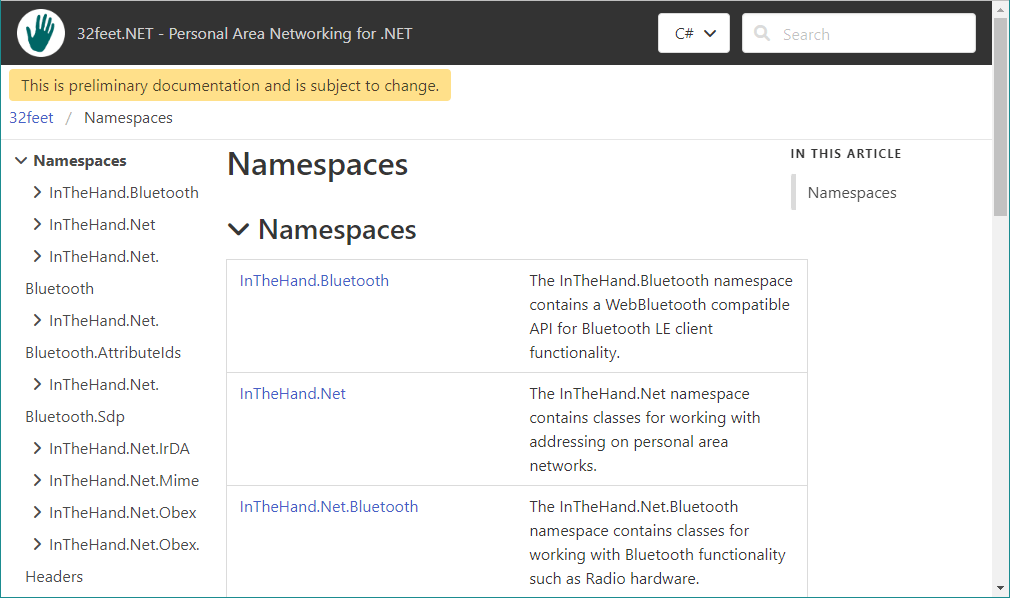
    Since these are both essentially obsolete, and the 32feet documentation is now very out of date, I needed to completely refresh it. Ideally I’d have setup the magical DocFX and had the whole process automated to generate documentation on each release but, of course, perfect is the enemy of done. Instead I went back to my trusty Sandcastle Help File Builder and created a project to bring in all the current 32feet libraries (there are currently 5 with at least 1 more on the way). The latest docs should be much clearer and focus entirely on the current APIs. I’ve left the “preliminary” tag on for now and will be working through to fill in any gaps highlighted in the docs. If you have any specific bugs/suggestions please raise an issue in the GitHub project and tag it with the “documentation” topic.

  • Tasks for Alexa Refreshed

    Unfortunately for the past couple of weeks the Alexa skill to synchronise Microsoft To Do with Alexa lists has been limping along due to a mix up with my Azure subscription taking the Azure Function which serves the skill offline. Of course these things always happen when you’re on vacation and don’t have the ability to fix them!

    Once I was able to get the service back up and running there was an ongoing issue with the configuration which meant that new registrations were not completing successfully meaning that changes from the Microsoft side were not being sent to Alexa. Implementing a fix for this was complicated by the fact that I’ve been working on a re-write of the service due to the Microsoft Office API being used reaching end of life and with a shutdown imminent. I’ve therefore had to re-write it against Microsoft Graph which finally supports Todo items but not 100% of the functionality which I could take advantage of in the old Office 365 REST service.

    The long and short of it is that I bit the bullet and completed the Graph API work and the new codebase is now up and running. I’ve also been able to take advantage of updating the Azure Function to .NET 6. The Microsoft Graph API doesn’t support subscribing to notifications for all Todo items so I’ve made the tough choice of removing support for custom lists – the skill will now only synchronise the two standard Alexa lists (To-do and Shopping list). While I know that some users will be disappointed with this, the overhead required to support managing multiple subscriptions and list mappings for custom lists is really beyond the time and energy I have available to work on this and the compromise is a service which satisfies 95% of users and can continue to be maintained as a free skill.

    Because of authentication changes in moving from the Office API to Microsoft Graph it will be necessary to disable and re-enable the skill to pick up the required permissions to read/write Todo items in Microsoft Graph. There are step by step instructions for doing this in the Frequently Asked Questions.

    There is one last gotcha – Microsoft Graph doesn’t currently send change notifications when Todo items are deleted. Therefore to remove a Todo item you should mark it complete before deleting it otherwise it will remain in the Alexa list (or you should delete it from Alexa). This has been confirmed as a known issue and a fix is in the works so the skill will be able to take advantage of this in the next month or two.

  • Home Assistant Adds In-box Bluetooth Support

    Yesterday’s release of Home Assistant 2022.8 adds built-in Bluetooth support. This allows multiple integrations to share common functionality and (important for non-Linux platforms) share a single Bluetooth adapter.

    In the release are five integrations built on top of this support, along with Apple HomeKit support for Bluetooth devices (even if you don’t have an Apple device).

    For more information on the integration and details of supported Bluetooth adapters see the integration page.