Blog

  • Titlebars and Themes: A WinUI Adventure

    I’m working on a WinUI 3 app at the moment and I’ve been trying to match the in-box titlebar behaviour for Windows 11. Anyone who has experience with Windows will immediately respond “Which One?” as various apps within Windows look different due to “reasons”.

    My starting point is to match the Settings app, as this is a key part of built-in functionality. Of course during the course of this investigation I noticed that File Explorer and Terminal behave differently even though they are modern in-box apps. Legacy Win32 apps and Edge have a completely different look, let’s just ignore that for now.

    Firstly I want to do as little as possible, so I have a WinUI 3 app with the default behaviour and have changed the titlebar to be custom drawn by the app following the documentation. It’s a good start and combining that with applying mica results in a modern looking window at a cursory glance.

    The problem I noticed is that the window buttons (minimize, maximize and close) default to theme accent colour and are quite jarring compared with Windows settings. The first step therefore was to set the background colour of these to transparent (but not change the hover colours so that they highlight when prodded by the user). However the foreground colour doesn’t change with the theme so these can end up disappearing if you switch themes!

    The CommunityToolkit has a ThemeWatcher to raise an event at this point – could we just use that and change the text colours? No it turns out it doesn’t fire in a WinUI 3 project. However you can use the UISettings.ColorValuesChanged event instead. This fires both when changing theme colours and switching between light and dark. So now, we just need to have a reference to the AppWindowTitleBar and we can change the text colours when this event fires. I also found that when trying to capture a video of this in action it would regularly fail to update properly leaving it stuck in some limbo state – presumably something in the capture code for GameBar or the Snipping tool is swallowing the window messages used to trigger the change. However I’ve capture an image of the titlebar in the four states so you can see the difference. If you squint at it and cross your eyes you can probably recreate the transition in some kind of magic eye style.
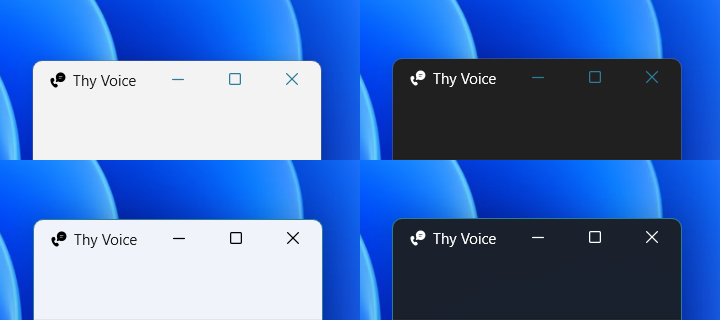
    Screenshot of title bars in inactive and active states on light and dark themes.

    The key things I had to set beyond the defaults to get it to look consistent were:-

    ButtonBackgroundColor = Colors.Transparent;
    ButtonInactiveBackgroundColor = Colors.Transparent;
    ButtonInactiveForegroundColor = (Windows.UI.Color)App.Current.Resources["SystemAccentColor"];

    On theme change I check the current theme and if IsCustomizationSupported() set the ButtonForegroundColor to Black for Light and White for Dark theme. Ideally these should use a theme color too so that they correctly adjust to other customisations.

    Because of some odd behaviour (possibly due to screen recording) I found that changing the title text would make it less likely to fail to update. However with further testing I might not need to do that, and just ignore the screen recording quirk.

    The Terminal and File Explorer approach uses a darker (or lighter on dark theme) colour when you hover over a button, rather than the accent colour. It’s more subtle and I’m not sure which theme resource these colours are derived from, so I’m not going to change this for now.

    Preview Window

    The second issue, which was with the preview window on the taskbar rather than the app window itself, was that it was showing a generic icon, even though the app icons were all setup correctly. I had missed a step, and Nick Randolph showed me what I’d forgotten. As well as setting the images for your package, you also need to set an icon for the AppWindow. This is a traditional .ico file which can contain multiple sizes and colour depths. Once I’d set this in the constructor for my MainWindow (this app only uses a single window) it was showing correctly in the preview.

    m_AppWindow = GetAppWindowForCurrentWindow();
    m_AppWindow.SetIcon("AppIcon.ico");

    AppIcon.ico is in the root folder of the project with a build type of Content. It’s important to note that .ico files don’t have separate light and dark theme images so this needs to be something which works well with either theme. Looking through some in-box examples they are a bit of a mixed bag.

  • Bluetooth Classic and Low Energy – Different Approaches

    I often get asked about the different ways of using Bluetooth Classic and Bluetooth Low Energy with 32feet.NET. This post looks at the two different approaches and a bit of historical context.

    Separate Libraries

    The first key point here is that Bluetooth Classic and LE are handled by two different NuGet packages. 32feet.NET originated as a single dll which contained Bluetooth Classic, IrDA and Object Exchange (OBEX) functionality. As there was a lot of overlap this made sense but over time this became more unwieldy and many users wouldn’t necessarily use all the functionality. When I re-wrote it for Version 4.x I split these libraries up. InTheHand.Net.IrDA is still maintained but, as you can image, with a very small user base. Obex is handled by InTheHand.Net.Obex which can perform obex operations over Bluetooth, IrDA or TCP/IP. InTheHand.Net.Bluetooth contains all the Bluetooth Classic functionality.

    Classic Bluetooth

    Bluetooth was implemented, from Windows XP Service Pack 2, as a set of extensions to the Windows Sockets API (winsock) and some utility methods to control the radio and device information. The design of BluetoothClient, the main entry point to a Bluetooth classic connection, is based on TcpClient and IrDAClient from the Windows CE days. At the time of .NET 2.0 all the APIs were synchronous and the library was only cross-platform to the extent of supporting Windows desktop and Windows CE. As .NET has evolved it has taken advantage of some “free” upgrades to the System.Net.Sockets functionality which now includes full async/await support. There is still some work to do to asyncify some of the other APIs. The library now supports multiple platforms but with a common API. The key part was to emphasise Streams rather than the underlying Sockets because other platforms don’t use .NET Sockets.

    Going Low

    Bluetooth LE presents some different issues – again at the time there was already a range of potential platforms including Xamarin’s iOS, Android and Mac support. Rather than extend the classic library the Bluetooth LE support was built from scratch and modelled around the WebBluetooth API which was in a fairly stable state and supported on most browsers (not Safari though – boo!). The big difference with the Web* APIs is they put the user in full control and so the user has to pick a device themselves and consent to access. Because on a mobile app you are generally consenting to Bluetooth permissions on a per-app, rather than per-device, basis some of the process here is simplified. As I was aware that not all developers want to present a standard picker to the user I added a programmatic way to return discovered devices so that you can build your own UI around it. This is not implemented in iOS yet but is on my To-do list.

    Missing Parts

    The other big thing about using WebBluetooth as a model is there isn’t any peripheral support (exposing your own services to other devices). This is something I wanted to spend a bit more time designing and getting right. There is also no capability to set the radio on or off. If the platform supports this (and of course not all do) you can use a combination of the classic library to control the BluetoothRadio and then InTheHand.BluetoothLE for everything else. What you can’t do is use the InTheHand.Net.Bluetooth library to discover low energy devices. Even when devices are dual mode the effectively have a different address for both and so you can’t use this and then try to make a low energy connection later.

    A quirk with the classic library is that on Windows there are two APIs. The original winsock API and the newer Windows 10 API. Depending on the flavour you get served from the NuGet package, which is driven by your project target, you may get one or the other. There are currently a few quirks in the Windows 10 API used for discovery if you want it to timeout quickly. Also specialist devices like Hololens don’t have the legacy winsock API but if you’re targeting Unity, which uses Mono, it’ll pick the .NET 4.6.1 dll which is using the legacy API.

    Next Steps

    InTheHand.Net.Bluetooth is quite stable and I don’t plan on making big changes to it. The key demands have been better async support where relevant, extending support to macOS and Linux and access to raw Service Discovery Protocol (SDP) records where the underlying platform supports it.

    There is lots still to do on all the libraries and it’s a constantly moving field of .NET versions, platforms and Bluetooth updates. If you would like to get involved the GitHub project could definitely do with additional hands.

  • Phones and Windows 11 – June 2023 Update

    Phones and Windows 11 – June 2023 Update

    Microsoft recently released their update to Phone Link to fully support iPhones on Windows 11. This means that for the best experience of using your iPhone you should switch to using Phone Link on Windows 11. Phone Link supports messaging, has more advanced notification support and sync call history.

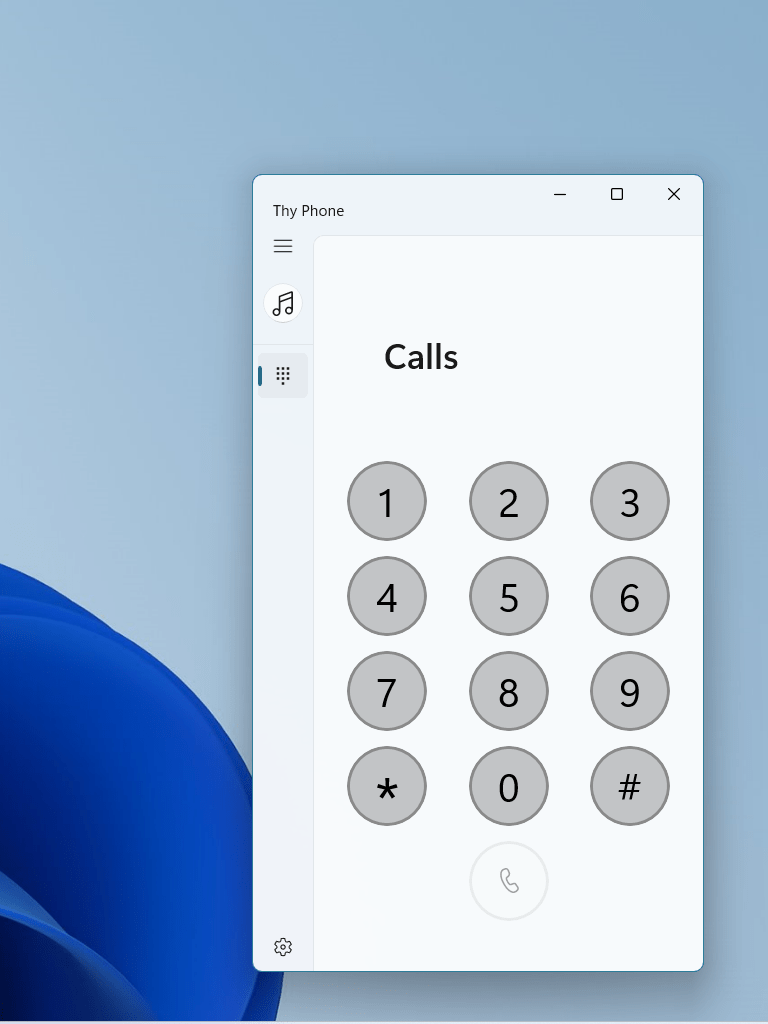
    For everything else (not everyone uses Android or iPhone), then Thy Phone still supports hands-free calling and audio sharing on any other Bluetooth Handsfree capable device. This includes Nokia feature phones, Windows Phone, Blackberry and much more. To focus on this specific scenario our latest update for Windows 11 has a simplified UI to provide this core functionality. I’m still trying to work out how to access the elusive battery level which handsfree devices expose (you can see this in the Settings app).

    For users on Windows 10, the original app is still available and also supports iPhone notifications and battery level. Some of the code used to support these Apple features will be made available as a companion library to the Bluetooth LE library in 32feet.NET.

  • In The Hand joins Neurodiversity in Business

    In The Hand joins Neurodiversity in Business

    Neurodiversity in Business (NiB)

    New initiative to help ensure greater workplace inclusion of the neurodivergent community

    Neurodiversity in Business (NiB) is an industry forum to support the participation of neurodivergent individuals in the workplace recently launched at the Houses of Parliament.

    The organisation, led by Dan Harris (Chief Executive Officer) draws upon the cumulative knowledge of neurodivergent experts and leading companies to share best practice and improve the employment and experience of the neurodiverse workforce.

    Speaking upon admission to NiB, Peter Foot, In The Hand Ltd Director said:

    “We are proud to support NiB’s aim of helping to create a better world and help improve the wellbeing of ND individuals.”

    As In The Hand joined NiB, Dan J Harris, CEO said:

    “We are delighted that In The Hand has become a member of NiB. It signals their commitment to ensuring a truly inclusive workplace and a desire to strive for the best in diversity and inclusion standards.

    We look forward to working with In The Hand and all our members in delivering meaningful change for the neurodivergent across business.”

    A selection of the forum’s founding members include: Accenture; ARM, AstraZeneca; Capita;  Hiscox; IBM, Kimberly Clark; KPMG, Lloyds Banking Group; Metro Bank; NatWest; Network Rail; Openreach; Oracle; Orange; Rolls Royce plc; Sky; TalkTalk; The Open University; Unilever; Virgin Media/O2 and many more.

    NiB also has an array of close partnerships with leading organisations in the ND ecosystem including: Auticon; Ambitious about Autism; the ADHD Foundation; the British Dyslexia Association; Caudwell Children’s Charity; Diversity and Ability (D&A); DO-IT Profiler; Genius Within, Lexxic; National Autistic Society and many more.

    For further information as to how to join NiB, please go to www.neurodiversityinbusiness.org

  • Keeping Focus

    Keeping Focus

    Windows 11 introduced the concept of Focus Sessions which allow you to specify a fixed time to work uninterrupted. While active, Windows will not flash taskbar icons and will turn on Do Not Disturb mode to suppress notifications (this particular feature was known as Focus Assist in Windows 10).

    From Windows 11 22H2 there is now a public API exposed to integrate with Focus Sessions. The passive API is available to all developers from a desktop application or UWP app. To actively start and stop focus sessions on behalf of the user you require special permission from Microsoft and a token to use with the LimitedAccessFeatures API – we won’t be looking at that in this post. The LimitedAccessFeatures documentation doesn’t explain how this works by Rafael Rivera investigated it in this blog post.

    There are a number of reasons why you may wish to integrate with this functionality. It may be to use that status to reflect the user’s available. My Occupied app does this to automatically share your availability based on a number of activities you can perform on your PC. You may also wish to customise your user interface so that you can present a minimal UI with fewer distractions. After all, if you know Windows is supressing notifications, you probably don’t need to send them in the first place!

    The entry point for the functionality is the FocusSessionManager class. In order to support multiple Windows versions you should wrap any access with a call to IsApiContractPresent and test for UniversalApiContract version 15 (introduced with Windows SDK version 10.0.22621.0). Next you need to check the static IsSupported property. After that you can access the default manager, check whether a focus session is currently active and attach an event handler for whenever the state changes:-

    if (Windows.Foundation.Metadata.ApiInformation.IsApiContractPresent("Windows.Foundation.UniversalApiContract", 15))
    {
        if (Windows.UI.Shell.FocusSessionManager.IsSupported)
        {
            focusSessionManager = Windows.UI.Shell.FocusSessionManager.GetDefault();
            focusSessionManager.IsFocusActiveChanged += Manager_IsFocusActiveChanged;
        }
    }

    The IsFocusActiveChanged event handler receives an instance of FocusSessionManager and you can query the IsFocusActive property to determine if the user is currently in a session.

  • The Next Step for the Occupied App

    Today the latest app update went live in the Microsoft Store. This update adds a quick manual override to your busy status which you can trigger from the tray icon.

    Screenshot showing the Occupied app busy status toggle.

    The app continues to evolve to help you manage your free/busy time and share your status with colleagues.

    Read more about it here.

  • Book Review: .Net MAUI for C# Developers

    Book Review: .Net MAUI for C# Developers

    Jesse Liberty and Rodrigo Juarez have created this book to guide the reader through all aspects of creating apps with .NET MAUI. It assumes a level of experience with C# and .NET but is not limited to previous Xamarin developers. In fact while Xamarin Forms is mentioned it does not get in the way of the .NET MAUI discussion – this is very much a guide to how to create apps with what is available now.

    The style is well structured and yet friendly in tone and throughout the book the code samples follow the creation of a single app from start to finish. Each chapter builds on the last and the code repository which accompanies the book contains branches at each chapter point in the book so that you can drop in at any point.

    Importantly the book begins with setting up your development PC with the tools required to complete the app. When discussing configuring Visual Studio, Jesse admits that screens may change with Visual Studio updates – something which is always a hazard when writing a technical book.

    While it mainly focuses on XAML and C#, it does venture into creating UI with C# and using fluent syntax to simplify this code. Beyond the .NET MAUI APIs themselves the book covers the Community Toolkit libraries which are a great set of resources beyond the core platform.

    A whole chapter is dedicated to MVVM and using the latest MVVM Community Toolkit it shows how to quickly build ViewModels using code generators to handle all the boilerplate code required for properties to support change events. There are lots of notes covering things like naming conventions and project structure. These are both helpful and non-judgmental, recognising different approaches.

    Each chapter ends with a clear summary and a set of quiz questions (if that’s your learning style).

    Ultimately this is a great resource, both for an existing developer who wants to start with .NET MAUI, or for someone transitioning with prior experience of Xamarin Forms. There are plenty of code snippets and screenshots to illustrate each chapter. I definitely recommend this book if you want to become familiar with .NET MAUI.

    Disclaimer: I received a free review copy of the eBook. No other consideration was provided for this review or the content thereof.

  • Sense a presence in the workforce

    Many organisations revolve around a communication tool like Microsoft Teams. Not only do they form the backbone of meetings in hybrid and remote working, but also one-to-one chats and calls. Microsoft Teams has a presence indicator for each user so that you can show your colleagues when you are available or do not wish to be interrupted. This is populated automatically when you are in a teams meeting or have an appointment in your calendar, however there isn’t an awareness of your status outside of this bubble.

    My new app (Occupied) attempts to improve this by adding in two additional sources to more accurately reflect your availability. Firstly it works with the hands-free phone system in Windows, used by Phone Link and Thy Phone, and will show you as busy whenever you are on a phone call. It fully respects your privacy – the app has no knowledge of the nature of the call, just when a call is active. The app cannot access your call logs and has no idea whether you are making a call on a personal or work mobile.

    The second input comes from the new focus sessions support in Windows 11. If you are running Windows 11 22H2 or later you’ll be marked as “Do Not Disturb” in Teams for the duration of the session. In either case you can always override your availability and that takes precedence over an app generated status.

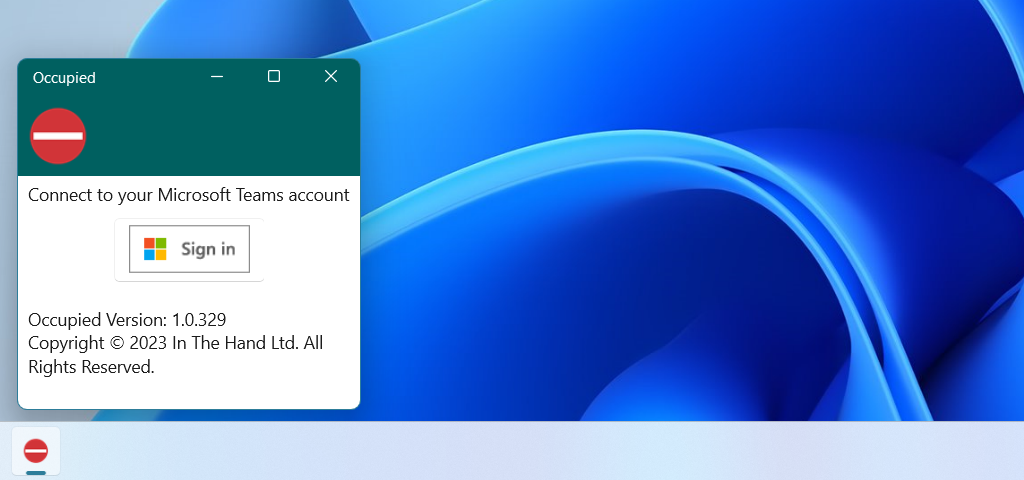
    Screenshot of the Occupied sign-in screen.

    The app is a small utility which sits in your system tray and once you’ve linked it to your work account you can forget about it and it will sit in the background and work its magic. I’m hoping that it provides a useful automation which will help Microsoft Teams users respect each other’s working styles without adding any additional effort for the user.

    The app is now available in the Microsoft Store for 99p (or your local equivalent). I’m interested in feedback on how useful people find this and other ways I can provide a more holistic Microsoft Teams presence experience.

  • A Journey Through Azure Maps

    This article was originally written in 2018 and there have been a number of additions to the API since then.

    Azure Maps is a suite of services for working with constantly changing location-based information. These cover everything you’ll need whether managing systems with moving elements (Route, Traffic), finding contextual information (Search, Time Zone) or presenting location to users (Render, Map Control).

    Setting up an account is easy, as with all other Azure services you create and manage your Maps account through Azure Portal. This gives you a unique subscription key to pass with each API call. Azure Portal lets you monitor usage and handling billing through your Azure subscription. You can get started in seconds and there is a generous free usage quota per month.

    On the move

    A courier business needs to keep its trucks moving as efficiently as possible to minimize fuel costs and cut down time taken to deliver goods. This requires the ability to both track packages and the vehicles they travel on in real-time and plan complex routes for the drivers to follow.

    On point

    Azure Maps Search service can be used to get physical map coordinates for each delivery address. You can either pass a free form query containing a full or partial address or use the structured API for more direct matches.

    https://atlas.microsoft.com/search/address/json?subscription-key={subscription-key}&api-version=1.0&query=One Microsoft Way&countrySet=US

    This process is known as geocoding and once you have a latitude and longitude you can plot the location on a map or use it to build a route.

    En route

    Once a set of coordinates is available for a particular delivery area they can be passed to the Route service to calculate the best driving route. You can calculate routes with up to 50 waypoints. For up to 20 waypoints you can have the Route service calculate the best order for you. But it doesn’t stop there, there are many more options available to improve the route calculation. If route calculation is done just-in-time you can request that the service use its traffic data to help decide the route to use. Traffic data is updated every few minutes and could save in both wasted fuel and time by avoiding problems.

    https://atlas.microsoft.com/route/directions/json?subscription-key={subscription-key}&api-version=1.0&query=56.551095,14.161954:55.73535,9.131333&traffic=true&instructionsType=text

    In order to support long lists of waypoints you can send the request as a POST and write the lat/long points in the body of the request using a GeoJSON document.

    You can specify vehicle information in great detail, such as weight, height, and width which will exclude unsuitable roads. There is also built in support for hazardous cargos so you can specify standard Hazmat codes to exclude restricted roads. You can also supply fuel consumption information for combustion or electric engines.

    On the way

    Having the best route planned is one thing, to make use of it you need to provide instructions to the driver. You can request either coded instructions which you can render locally or full text instructions in the requested language with optional HTML style tags for context.

    "message": "Keep left at <street>Taulovmotorvejen</street>/<roadNumber>E20</roadNumber> toward <signpostText>Kolding</signpostText>"

    The “instructionsType” parameter to a Route API call specifies the flavor of instructions to return.

    On time

    A customer who has a package in transit will want to be able to track its progress. The package probably has a log with its progress across the globe but to present this to a customer you probably need to convert time stamps into local time for each point. The Time Zone service will allow you to do this. It handles daylight saving changes and the service is backed by the IANA time zone database which is regularly updated. It requires a lat/long coordinate and a UTC timestamp as reference:

    https://atlas.microsoft.com/timezone/byCoordinates/json?subscription-key={subscription-key}&api-version=1.0&options=zoneinfo&query=-13.606902,-172.486005&timeStamp=2015-01-01T12:00:00Z

    Your customer will see that their delivery arrived at their local depot at 4am and they’ll be confident it’ll be delivered that day. The Search service also supports multiple languages which means you can customize the addresses you display to the customer based on their language preferences.

    On screen

    In the back office of your business you need to be able to see that your deliveries are progressing smoothly. You can easily build a map view into your dashboard using the Azure Maps Control. This is a JavaScript control you can easily integrate with an HTML user interface.

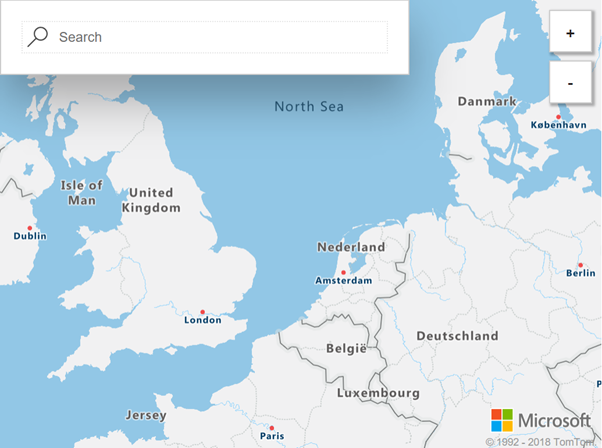
    Azure Maps control showing northern Europe, along with search and zoom controls.
    Azure Maps control

    It has a simple API for adding pins and drawing a variety of geometric shapes. You can even toggle live traffic display with a single line of code. You don’t have to write custom code to load individual map tiles and handle zooming and panning – all this functionality is built right into the control. It uses vector maps for smooth zooming and has a modern uncluttered design. You just need to add a stylesheet and script reference to the Azure Maps control: –

    <link rel="stylesheet" href="https://atlas.microsoft.com/sdk/css/atlas.min.css?api-version=1.0" type="text/css" />
    https://atlas.microsoft.com/sdk/js/atlas.min.js?api-version=1.0

    Then, within the body of your HTML, create an element and give it a unique id (e.g., “map”).

    <div id="map">
        <script>
            var MapsAccountKey = "<_your account key_>";
            var map = new atlas.Map("map", {
                "subscription-key": MapsAccountKey,
                center: [47.59093,-122.33263],
                zoom: 12
            });
        </script>
    </div>
    

    The parameters passed to the Map constructor are the id within the document (in this case “map”), then your subscription key, a point to center the map on, and a zoom level.

    Onwards

    Here we’ve only looked at a few of the uses for Azure Maps, there are many more possibilities. Although we’ve discussed moving vehicles you might instead have a collection of fixed installations. Imagine you were monitoring the properties of distributed sensors and you wanted to visualize the status on a map to see if problems are isolated or following a trend. You could make use of the vast database of addresses to validate data entry.

    The Azure Maps services have been designed to interoperate with a number of open standards such as GeoJSON and can be integrated with other geographic information systems. The RESTful API means they can easily be consumed from a range of languages across a spectrum of devices. You can read about all the Azure Maps services in more detail in the official documentation.

  • This Year, Next Year, Sometime…?

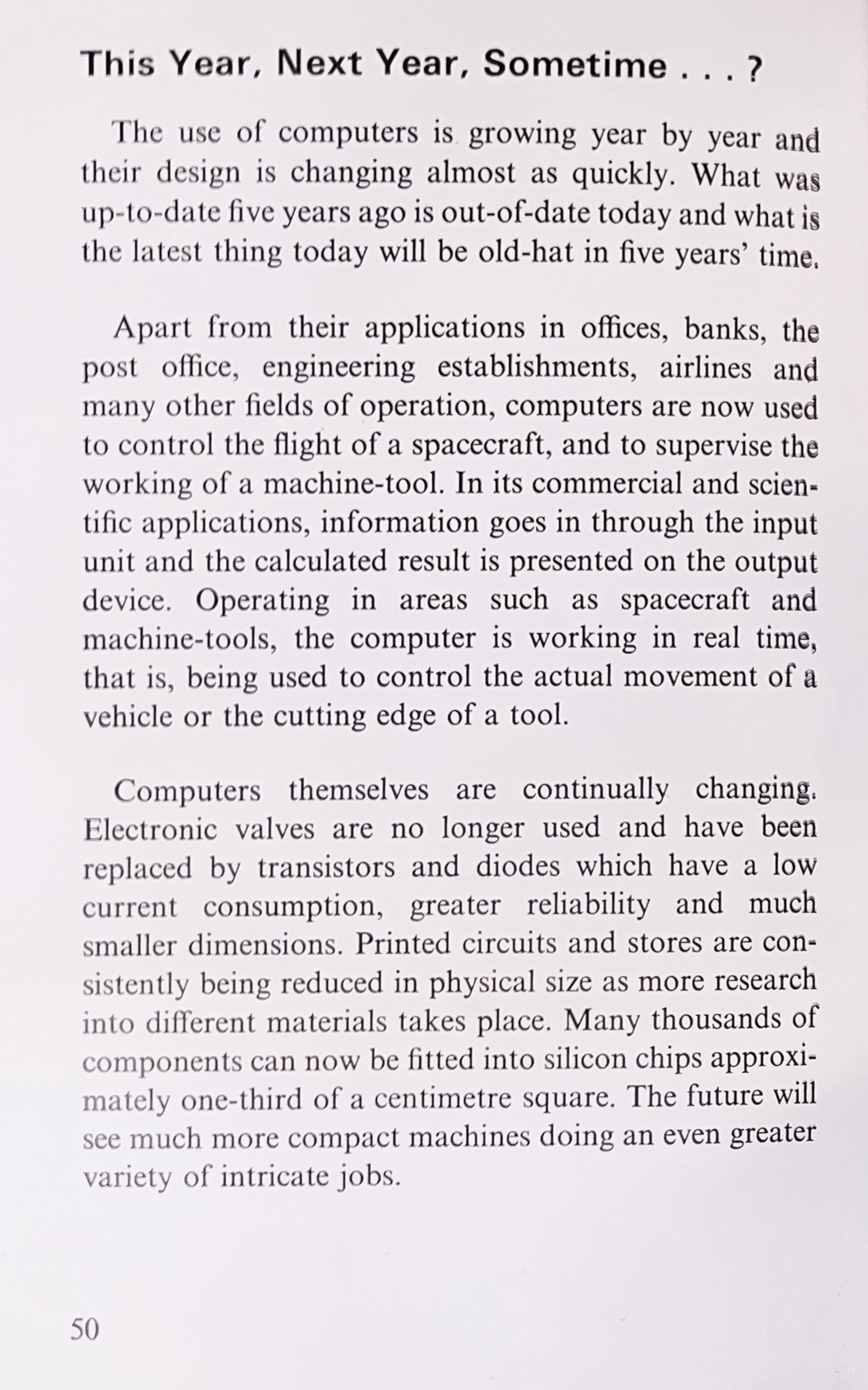
    One of the books I read when I first got interested in computers was from the Ladybird books How It Works series. The volume covering “The Computer” was published in 1979 and, as you can imagine, features plenty of suitably dated illustrations of computers of the time. It ends with a page speculating about the future of computers and their uses which is very conservative knowing where we are now. It’s very likely that our predictions in 2023 will equally be wide of the mark in a further 40 years.

    This Year, Next Year, Sometime...

The use of computers is growing year by year and their design is changing almost as quickly. What was up-to-date five years ago is out-of-date today and what is the latest thing today will be old-hat in five years' time.

From How It Works - The Computer (c) Ladybird Books Ltd 1979.

    (Ironically, when I first got this book it was already old-hat according to the first paragraph of this extract.)