Blog

  • Vibration and Profiles with Mobile In The Hand 4.0

    One of the goals of the Mobile In The Hand library has always been to provide a consistent managed API regardless of which specific flavour of Windows Mobile device you are using. One example of this is using the Vibration feature used to alert the user. The APIs are completely different and so we have provided a simple managed API composing of just two static methods:-

    InTheHand.WindowsMobile.Forms.Vibrate.Play();

    System.Threading.Thread.Sleep(500);

    InTheHand.WindowsMobile.Forms.Vibrate.Stop();


    You generally won’t want to vibrate the device for very long because it would be both annoying, and a battery drain. To avoid holding up your UI thread you can call the methods on a separate thread. Just remember you must call Stop() to turn off the vibration.

    Another example of functionality which is implemented differently between touchscreen and non-touchscreen devices are Profiles. Standard Edition devices can feature a number of profiles for different scenarios, touch screen devices have just three – On, Vibrate only and Off. To retrieve all of the available profiles use the following code:-


    foreach(string profile in InTheHand.WindowsMobile.Forms.MobileDevice.Profiles)

    {

    MessageBox.Show(profile);

    }

    You can set the device profile using a call to SetProfile:-

    InTheHand.WindowsMobile.Forms.MobileDevice.SetProfile(“Vibrate”);

    The name of the currently selected profile is available from the CurrentProfile property:-

    MessageBox.Show(InTheHand.WindowsMobile.Forms.MobileDevice.CurrentProfile);

    A full online library of class documentation for all this and more is available. For more information about Mobile In The Hand see the product page.
  • Using Bluetooth Headsets with Mobile In The Hand 4.0

    A commonly requested feature is the ability to switch audio to play through a Bluetooth headset device. Mobile In The Hand 4.0 brings this functionality to .NET Compact Framework developers allowing you to play any device audio through a paired headset device. It also includes classes to playback sounds too.

    The AudioGateway sample application which ships with the library contains the functionality to playback a sound file and toggle between the device speaker and a headset. The code to perform the switch is incredibly simple:-

    private   BluetoothAudioGateway bag = new BluetoothAudioGateway();

    The BluetoothAudioGateway exists in the InTheHand.WindowsMobile.Media namespace. A CheckBox control toggles the output using the following code:-

    private   void chkGateway_CheckStateChanged(object sender, EventArgs e)

    {


       if (chkGateway.Checked)

       {

          bag.OpenAudio();

       }


       else

       {

          bag.CloseAudio();

       }

    }

    OpenAudio opens the connection to the headset and sends audio output to it. CloseAudio closes the connection and returns output to the built in speaker. The SoundPlayer class is used to play back a sound file:-

    InTheHand.Media. SoundPlayer sp = new InTheHand.Media.SoundPlayer(txtFilename.Text);

    sp.Play();

    A full online library of class documentation for all this and more is available. For more information about Mobile In The Hand see the product page.

  • Windows Mobile Provisioning using Mobile In The Hand 4.0

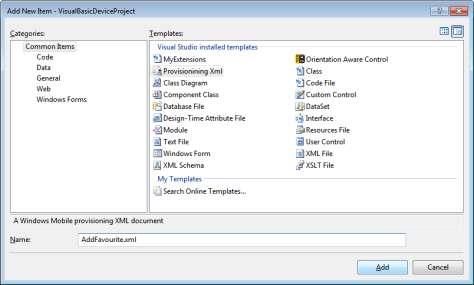
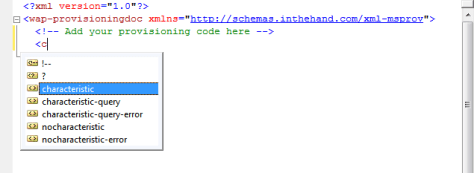
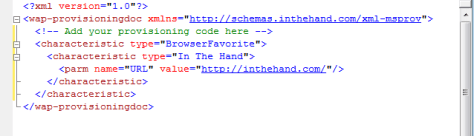
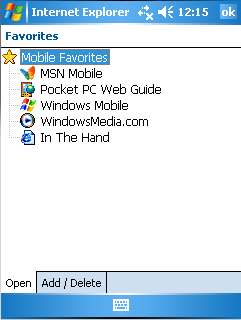
    In the last post we saw the new My Extensions template which adds access to new Visual Basic features. In this post we will look at another new item introduced with Mobile In The Hand 4.0 – Provisioning XML. Visual Studio has a rich XML Editor built in, Windows Mobile uses provisioning XML documents for everything from adding a browser favourite through to configuring a new GPRS network. The new template allows you to quickly create an empty Provisioning XML document and includes the schema to ensure your document is valid. Let Visual Studio’s Intellisense help you quickly build a provisioning document. As with the Visual Basic example you start with an existing device project, in this case it can be either C# or Visual Basic. Select Add New Item and choose Provisioning XML from the list:- Add In this example I have called the file AddFavourite.xml (no prizes for guessing what task we will be performing). The document is created with a skeleton provisioning document. Notice the namespace is provided which links to the schema we installed for you. You can now add the required code between the wap-provisioningdoc tags. As you start to type the IntelliSense will suggest valid elements for you based on the schema:-   This makes it very easy to quickly build up a complete document:- You can process a configuration document like this using the ConfigurationManager class. By setting the document as an embedded resource you can use the following code to load it and pass it to the ConfigurationManager:-

    Dim xd As New System.Xml.XmlDocument
    xd.Load(System.Reflection.Assembly.GetExecutingAssembly().GetManifestResourceStream("VisualBasicDeviceProject.AddFavourite.xml"))
    InTheHand.WindowsMobile.Configuration.ConfigurationManager.ProcessConfiguration(xd, False)

    After running this code you can check your Internet Explorer Mobile favourites:- For more information about the library see the product page.

  • New “My” Functionality in Mobile In The Hand 4.0

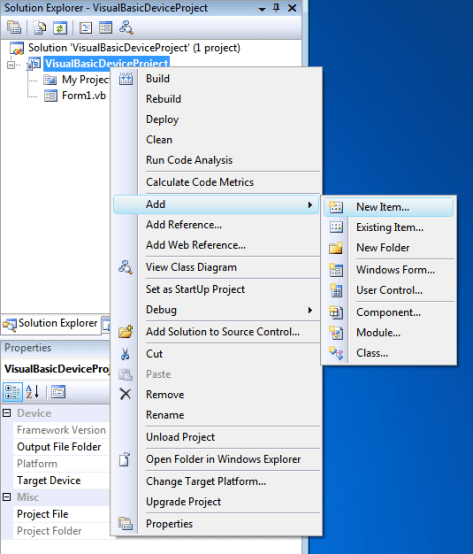
    This blog post will walk through the process of adding the additional “My” functionality added in InTheHand.VisualBasic. To start off, open Visual Studio 2008 and create a new Visual Basic device project (or open an existing one). At this point you’ll end up with a solution window which looks a bit like this. Note the inspired project name in this example:-


    The next step is to right-click the project and select Add > New Item… from the menu:-

    This will bring up the Add New Item window from which you should see MyExtensions among the list. Select this (you can change the default name if required) and click Add.

    The new code file is added to the project. You don’t need to edit this and you won’t be interacting with it directly from your code. Your solution window will now look like this:-


    You can now get on with building your application. Any time you start to type My you’ll see a much longer list of options:-

    Application, Computer and User are new items added by this library and provide additional functionality, all remaining a direct subset of the desktop experience. For example I added a button and in the Click handler added this simple code snippet:-

    MessageBox.Show(

    My.Application.Info.ProductName)

    On running the code the Product Name is retrieved from the assembly information:-


    In a future post I’ll run through the various items available through the “My” syntax. For more information about the library see the product page.

  • Mobile In The Hand 4.0 Released

    Today we put the final touches to Mobile In The Hand 4.0 and have released this latest version of the suite. This is a major reworking of the code and the library is now broken into 10 separate dlls so you only need to deploy the specific functionality you require in a project. We have also added some additional functionality alongside the code libraries themselves to add “My” keyword functionality for Visual Basic users and make it easier to incorporate and edit provisioning XML documents. Over the next few weeks I’ll be posting a number of blog articles to highlight new features and elaborate on some of the less visible features.

    Full details of the library are available on the product page.

  • Domain Name Woes

    Normally when I renew a domain it goes through smoothly in plenty of time and nothing “exciting” happens. For some reason the provider decided to do something to the domain at the same time as it was being automatically renewed which has lead inthehand.com to go into some form of limbo for the best part of a week. I have been assured that it will be restored within 48 hours. It has been very frustrating – if it had been a server issue it would have been easy to tweak the DNS to at least point to some kind of holding page which would have restored some form of service after a few hours. As the issue was with the domain name and I had no way to fix the name server records there was nothing I could do to restore any kind of functionality. For the time being you can still access the website using one of the alternative domains – www.inthehand.co.uk or www.inthehand.net. Sorry to anyone who has tried accessing the website or email during this period. If you have emailed me and not received a response please resend and replace .com with either .co.uk or .net and it’ll get through.

  • Widgets and Samsung

    There has been a lot of buzz recently around Widgets because of the support in the upcoming Windows Mobile 6.5 release. However don’t forget that Widgets are based on web standards and therefore can run on a wide variety of platforms. For example Samsung has just released a Widget SDK for their phone handsets:-

    http://innovator.samsungmobile.com/platform.main.do?platformId=12

    This covers a couple of Windows Mobile devices as well as those running on other platforms. Their SDK ties into the Eclipse developer tools which is probably not something which will be familiar to those who concentrate on Windows Mobile development. As we know though you can create Widgets with notepad if needs must.

    Because Widgets are standards based that doesn’t mean that you can easily write a single Widget and then run it on a variety of platforms. While Samsung have provided a consistent model for their different phones there are still cases where you would want to customise the widget for different device types. Likewise between different SDKs there are some device specific objects which are not present across all platforms – for example on Windows Mobile a number of SystemState properties are exposed. So while you may be able to share part of your code between different platforms you are going to need to make changes and test accordingly to support a wide range of devices.

  • Phone Recording in Windows Mobile

    There has been some buzz recently about further changes to the Windows Mobile 6.5 user experience since it was announced and the developer emulators released. For example this article has some screenshots:-

    http://forum.xda-developers.com/showthread.php?t=544445

    It shows changes to the soft-key menus at the bottom of the screen and a complete revamp of the tab control. Further on in this article there is a description of some registry keys which can be used to enable recording of voice calls which enables a new menu item inside the phone application. As it turns out these registry keys work on Windows Mobile 6.1 also as I was able to test on an HTC Touch Diamond 2. For reference the registry settings are:-

    [HKEY_LOCAL_MACHINESystemAudioRecording]
    “Enabled”=dword:00000001
    [HKEY_LOCAL_MACHINESoftwareMicrosoftVoice]
    “EnableCallRecordMenuItem”=dword:00000001
    “AllowInCallRecording”=dword:00000001

    Soft reset the device after setting these and you should notice a new Record menu item when in a phone call. You can listen to the recordings using the Notes application, they are given a unique filename with the timestamp of the call.

  • Samsung Release Windows Mobile SDK 1.2

    This latest release adds new APIs for FM Radio and devices with front and back cameras. The radio control allows you to turn on/off the radio, go to a specific frequency, seek up or down and read RDS data. You’ll need to uninstall the previous version if you have it before installing this package. So if you develop for Samsung devices what are you waiting for – grab the download here:-

    http://innovator.samsungmobile.com/down/cnts/toolSDK.detail.view.do?platformId=2&cntsId=4604

  • Roamin’ Umpire

    When a mobile system requires a data connection in the field you accept incurring a certain cost to establish a GPRS connection. You may be lucky enough to have an unlimited plan or you may be billed based on the volume of data you use. Either way reducing the amount of data you send and receive is valuable as it will reduce the time taken to synchronise data improving the user experience and reducing load on your servers.

    However have you considered what happens when you take the device out of your home network? Roaming data charges can vary from high to extortionate and you probably won’t have the luxury of a flat usage plan. In fact in a lot of cases you might want to restrict the application when used outside of the normal operating network – either to stop all data communications or to limit them to a minimum and perhaps only synchronise when the user manually initiates it rather than on a regular schedule. If you look at a couple of synchronisation applications – ActiveSync or Live Mesh for example these have a checkbox option to disable a synchronisation schedule when the device is roaming on a foreign network – the user has to actively change this before the device will automatically connect and synchronise data. This can be quite a good model to follow in your own applications. You may alternatively decide to set this behaviour based on a central policy rather than letting the user choose.

    In order to react to changes in the network you can use the State and Notifications Broker which exposes a property with the current roaming status – SystemState.PhoneRoaming which is a boolean property. Because you can trap this event you can react as soon as the device registers on a foreign network or when it returns home and customise your code accordingly. Unfortunately not all applications are this considerate – Microsoft’s MyPhone client will continue to sync automatically unless you disable scheduled synchronisation while roaming – the opposite behaviour to their other applications. Let’s hope this is tweaked in a software update to help avoid nasty surprises!