Tag: .NET

  • MVP for 2025

    I’m really pleased and humbled to have been re-awarded the Microsoft MVP award for 2025. This year I’ve been awarded in the .NET category as my focus has been on .NET MAUI and .NET across multiple platforms. When I started on the MVP journey in 2003 it was for the .NET Compact Framework so I’m very lucky to have continued to use .NET from the simple Pocket PC through to todays phones and tablets.

    Congratulations to all the new and renewed MVPs, it is a great community to be a part of.

  • UI’ve Been Framed

    Recently I’ve been migrating Xamarin Forms UIs to .NET MAUI and have come across a recurring problem. The Frame control was a core part of Xamarin Forms and used for drawing a border and/or shadow around a control. With the changes introduced in MAUI there is a new Border control which has a lot more flexibility and is built from the ground up for MAUI. To provide a migration path Microsoft kept the Frame control in MAUI but it uses a legacy renderer rather than the modern handler approach and this is where the problems seem to occur. We’ve noticed that, particularly on Android, we would sometimes get exceptions from within the FrameRenderer, it wasn’t predictable and it seemed like it was more of a problem when there were multiple nested Frames within a Page.

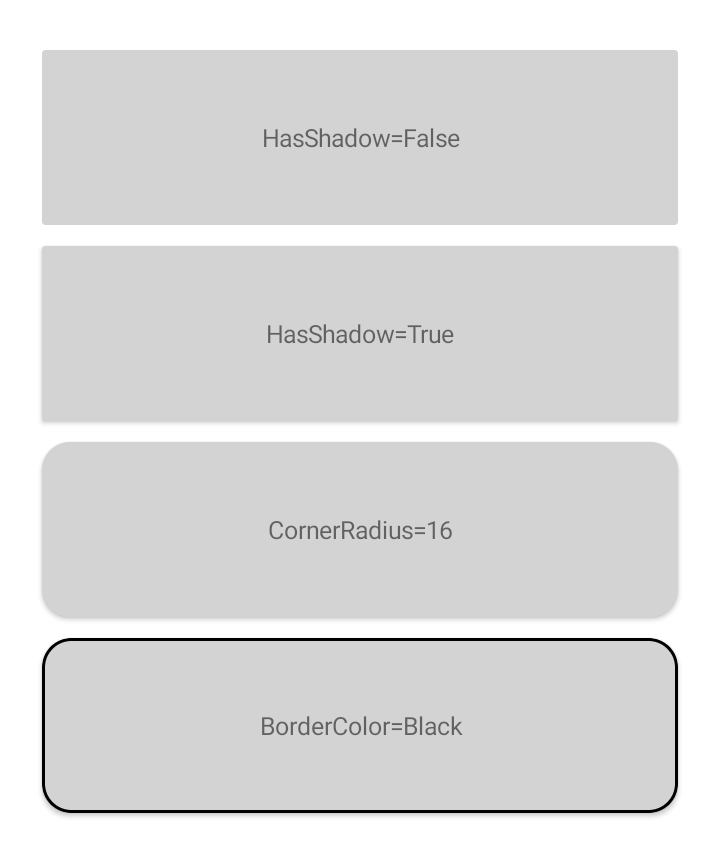
    The solution was to bite the bullet and to begin replacing these Frames with an equivalent Border. This is fairly straightforward and you can create a style to set your Borders up with the same appearance. Below is an example of some standard Frame appearances, in a moment we’ll look at how to recreate each with the Border control.

    iOSAndroid
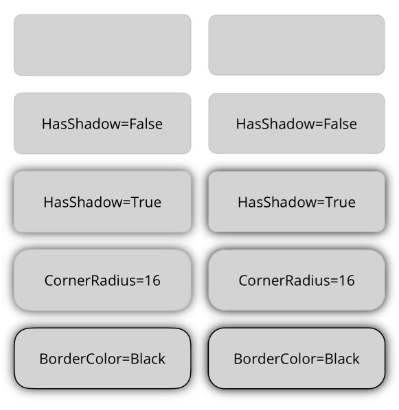
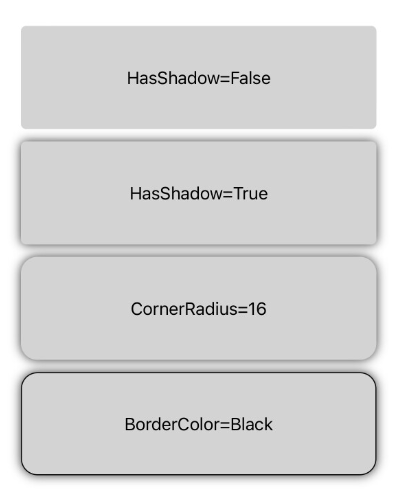
    Xamarin Forms Frame appearance

    The first thing to notice is that the default appearance does vary depending on platform. Shadows seem to be barely noticeable on Android but that may be dependent on the OS version used. By default the Frame control has a corner radius of 4, no shadow and a light grey border colour. In hindsight I should have picked a different example background colour!

    Heading to the Border

    Now we have a reference point we can recreate the same look using the Border control. When adding a Frame to a MAUI page the corner radius seems to have changed to 8 by default. To recreate the shape we have to specify the StrokeShape for the Border because this can be any Shape and by default will be a plain Rectangle. You can set this in XAML to a RoundRectangle and include the corner radius. The Stroke property defines the outline brush. Set the StrokeThickness to 1 to match the line style of the Frame.

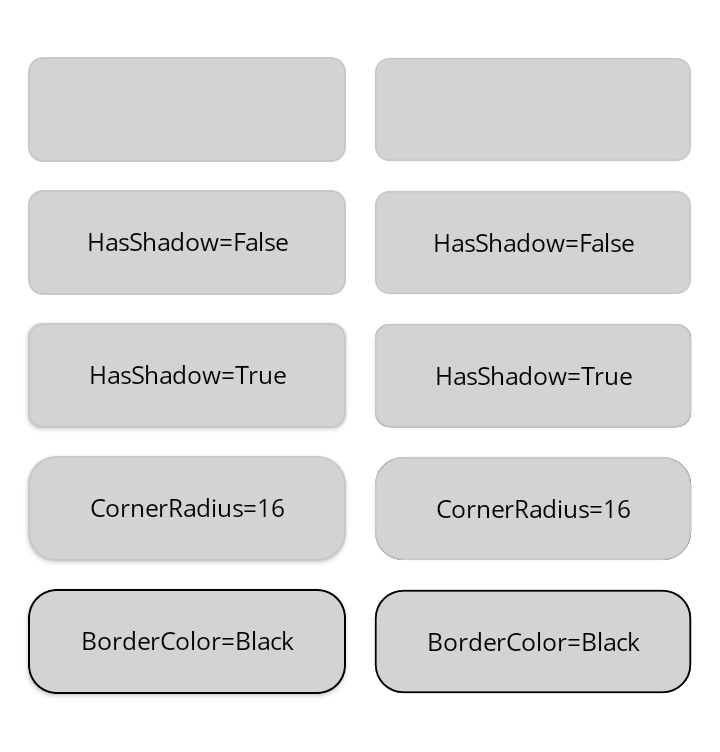
    Shadows are handled differently in MAUI so you can set the Shadow property on any class derived from VisualElement. Setting the Shadow to one with a radius of 5 creates an equivalent look to the Frame. The full XAML with a side-by-side comparison looks like this:-

    <?xml version="1.0" encoding="utf-8" ?>
    <ContentPage xmlns="http://schemas.microsoft.com/dotnet/2021/maui&quot;
    xmlns:x="http://schemas.microsoft.com/winfx/2009/xaml&quot;
    x:Class="MauiBorders.MainPage">
    <Grid Padding="16"
    RowDefinitions="60,60,60,60,60"
    ColumnDefinitions="*,*"
    ColumnSpacing="16"
    RowSpacing="16">
    <Frame Grid.Row="0" Grid.Column="0" BackgroundColor="LightGray">
    <Label Text="" HorizontalTextAlignment="Center" VerticalTextAlignment="Center"/>
    </Frame>
    <Border Grid.Row="0" Grid.Column="1" BackgroundColor="LightGray" StrokeShape="RoundRectangle, 8">
    <Label Text="" HorizontalTextAlignment="Center" VerticalTextAlignment="Center"/>
    </Border>
    <Frame Grid.Row="1" Grid.Column="0" BackgroundColor="LightGray" HasShadow="False">
    <Label Text="HasShadow=False" HorizontalTextAlignment="Center" VerticalTextAlignment="Center"/>
    </Frame>
    <Border Grid.Row="1" Grid.Column="1" BackgroundColor="LightGray" StrokeShape="RoundRectangle, 8">
    <Label Text="HasShadow=False" HorizontalTextAlignment="Center" VerticalTextAlignment="Center"/>
    </Border>
    <Frame Grid.Row="2" Grid.Column="0" BackgroundColor="LightGray" HasShadow="True">
    <Label Text="HasShadow=True" HorizontalTextAlignment="Center" VerticalTextAlignment="Center"/>
    </Frame>
    <Border Grid.Row="2" Grid.Column="1" BackgroundColor="LightGray" StrokeShape="RoundRectangle, 8">
    <Border.Shadow>
    <Shadow Radius="5"/>
    </Border.Shadow>
    <Label Text="HasShadow=True" HorizontalTextAlignment="Center" VerticalTextAlignment="Center"/>
    </Border>
    <Frame Grid.Row="3" Grid.Column="0" BackgroundColor="LightGray" HasShadow="True" CornerRadius="16">
    <Label Text="CornerRadius=16" HorizontalTextAlignment="Center" VerticalTextAlignment="Center"/>
    </Frame>
    <Border Grid.Row="3" Grid.Column="1" BackgroundColor="LightGray" StrokeShape="RoundRectangle, 16">
    <Border.Shadow>
    <Shadow Radius="5"/>
    </Border.Shadow>
    <Label Text="CornerRadius=16" HorizontalTextAlignment="Center" VerticalTextAlignment="Center"/>
    </Border>
    <Frame Grid.Row="4" Grid.Column="0" BackgroundColor="LightGray" BorderColor="Black" HasShadow="True" CornerRadius="16">
    <Label Text="BorderColor=Black" HorizontalTextAlignment="Center" VerticalTextAlignment="Center"/>
    </Frame>
    <Border Grid.Row="4" Grid.Column="1" BackgroundColor="LightGray" Stroke="Black" StrokeThickness="1" StrokeShape="RoundRectangle, 16">
    <Border.Shadow>
    <Shadow Radius="5"/>
    </Border.Shadow>
    <Label Text="BorderColor=Black" HorizontalTextAlignment="Center" VerticalTextAlignment="Center"/>
    </Border>
    </Grid>
    </ContentPage>
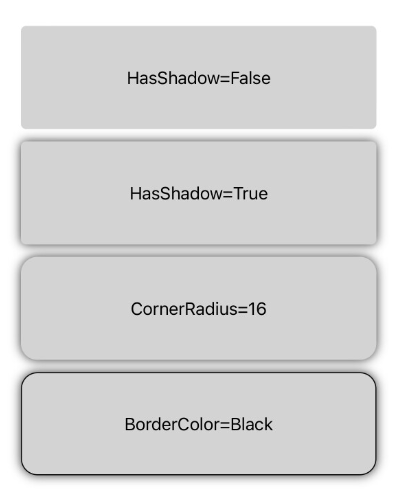
    iOSAndroid
    MAUI Frame and Border appearance

    As mentioned at the start, if you have a standard look you can define these properties in a style and apply to Borders throughout your app. Because the border is a more flexible control you have a lot more options around the shape and the outline of the control. For example even when sticking with the RoundRectangle you can specify individual corner radii and the outline stroke can be a gradient rather than a solid colour.

  • Asking for Permission

    Asking for Permission

    I’ve been asked a number of times about the process to ask for Bluetooth permission for your app. I’ve been meaning to create something reusable for some time but it has languished on the To Do list for rather too long. I recently noticed that as of .NET 8.0, MAUI will incorporate a Bluetooth permission which simplifies the process for asking for permission in your app in a clean cross-platform way.

    I used this as an opportunity to refactor the library that I had started so I could create the same pattern for Xamarin Forms and .NET MAUI 7.0 so you can get started with it now and then switch to the in-box equivalent when you update your code. You can request permission with a single line of code:

    PermissionStatus status = await Permissions.RequestAsync<InTheHand.Bluetooth.Permissions.Bluetooth>();

    Today InTheHand.Bluetooth.Permissions went live on NuGet and the source is part of the existing 32feet.NET project. You can use this with either the Bluetooth Classic or Bluetooth LE libraries.

    It provides a simple way to request permission, which on some platforms won’t do anything noticeable but on others, such as Android, it will correctly prompt for permission as long as you’ve set up your manifest correctly.

  • DependencyService for all

    I was recently looking at migrating some code from Xamarin Forms to Uno Platform and one of the big changes when moving from Xamarin Forms to .NET 6 and later is a move towards using Microsoft.Extensions.DependencyInjection on all flavours of .NET. The key difference between this approach and DependencyService is that you have one shot to add your dependencies at the beginning of your app’s lifecycle. The DependencyService was more flexible as you could add registrations at any time before instantiating them. This makes it handy for apps which dynamically load optional areas of functionality.

    I therefore took the Xamarin code and updated it and built it for .NET 6.0 so it will run on any .NET flavour with no dependencies. I removed a bunch of functionality related to handling Renderers since that was a very specific use-case and instead added support for any constructor parameters for already registered types. This allows you to pass services into your view models with no messy code. The only requirement is that your class has a single constructor, and all the types passed in as parameters have already been registered with DependencyService prior to calling Get<T>().

    The result is a small NuGet package and the source is hosted on GitHub. Now, of course, this is not going to be the best approach for everyone but it provides another option when migrating from Xamarin Forms and it’s good to have choices when migrating legacy code.

  • Bluetooth Classic and Low Energy – Different Approaches

    I often get asked about the different ways of using Bluetooth Classic and Bluetooth Low Energy with 32feet.NET. This post looks at the two different approaches and a bit of historical context.

    Separate Libraries

    The first key point here is that Bluetooth Classic and LE are handled by two different NuGet packages. 32feet.NET originated as a single dll which contained Bluetooth Classic, IrDA and Object Exchange (OBEX) functionality. As there was a lot of overlap this made sense but over time this became more unwieldy and many users wouldn’t necessarily use all the functionality. When I re-wrote it for Version 4.x I split these libraries up. InTheHand.Net.IrDA is still maintained but, as you can image, with a very small user base. Obex is handled by InTheHand.Net.Obex which can perform obex operations over Bluetooth, IrDA or TCP/IP. InTheHand.Net.Bluetooth contains all the Bluetooth Classic functionality.

    Classic Bluetooth

    Bluetooth was implemented, from Windows XP Service Pack 2, as a set of extensions to the Windows Sockets API (winsock) and some utility methods to control the radio and device information. The design of BluetoothClient, the main entry point to a Bluetooth classic connection, is based on TcpClient and IrDAClient from the Windows CE days. At the time of .NET 2.0 all the APIs were synchronous and the library was only cross-platform to the extent of supporting Windows desktop and Windows CE. As .NET has evolved it has taken advantage of some “free” upgrades to the System.Net.Sockets functionality which now includes full async/await support. There is still some work to do to asyncify some of the other APIs. The library now supports multiple platforms but with a common API. The key part was to emphasise Streams rather than the underlying Sockets because other platforms don’t use .NET Sockets.

    Going Low

    Bluetooth LE presents some different issues – again at the time there was already a range of potential platforms including Xamarin’s iOS, Android and Mac support. Rather than extend the classic library the Bluetooth LE support was built from scratch and modelled around the WebBluetooth API which was in a fairly stable state and supported on most browsers (not Safari though – boo!). The big difference with the Web* APIs is they put the user in full control and so the user has to pick a device themselves and consent to access. Because on a mobile app you are generally consenting to Bluetooth permissions on a per-app, rather than per-device, basis some of the process here is simplified. As I was aware that not all developers want to present a standard picker to the user I added a programmatic way to return discovered devices so that you can build your own UI around it. This is not implemented in iOS yet but is on my To-do list.

    Missing Parts

    The other big thing about using WebBluetooth as a model is there isn’t any peripheral support (exposing your own services to other devices). This is something I wanted to spend a bit more time designing and getting right. There is also no capability to set the radio on or off. If the platform supports this (and of course not all do) you can use a combination of the classic library to control the BluetoothRadio and then InTheHand.BluetoothLE for everything else. What you can’t do is use the InTheHand.Net.Bluetooth library to discover low energy devices. Even when devices are dual mode the effectively have a different address for both and so you can’t use this and then try to make a low energy connection later.

    A quirk with the classic library is that on Windows there are two APIs. The original winsock API and the newer Windows 10 API. Depending on the flavour you get served from the NuGet package, which is driven by your project target, you may get one or the other. There are currently a few quirks in the Windows 10 API used for discovery if you want it to timeout quickly. Also specialist devices like Hololens don’t have the legacy winsock API but if you’re targeting Unity, which uses Mono, it’ll pick the .NET 4.6.1 dll which is using the legacy API.

    Next Steps

    InTheHand.Net.Bluetooth is quite stable and I don’t plan on making big changes to it. The key demands have been better async support where relevant, extending support to macOS and Linux and access to raw Service Discovery Protocol (SDP) records where the underlying platform supports it.

    There is lots still to do on all the libraries and it’s a constantly moving field of .NET versions, platforms and Bluetooth updates. If you would like to get involved the GitHub project could definitely do with additional hands.
  • Book Review: .Net MAUI for C# Developers

    Book Review: .Net MAUI for C# Developers

    Jesse Liberty and Rodrigo Juarez have created this book to guide the reader through all aspects of creating apps with .NET MAUI. It assumes a level of experience with C# and .NET but is not limited to previous Xamarin developers. In fact while Xamarin Forms is mentioned it does not get in the way of the .NET MAUI discussion – this is very much a guide to how to create apps with what is available now.

    The style is well structured and yet friendly in tone and throughout the book the code samples follow the creation of a single app from start to finish. Each chapter builds on the last and the code repository which accompanies the book contains branches at each chapter point in the book so that you can drop in at any point.

    Importantly the book begins with setting up your development PC with the tools required to complete the app. When discussing configuring Visual Studio, Jesse admits that screens may change with Visual Studio updates – something which is always a hazard when writing a technical book.

    While it mainly focuses on XAML and C#, it does venture into creating UI with C# and using fluent syntax to simplify this code. Beyond the .NET MAUI APIs themselves the book covers the Community Toolkit libraries which are a great set of resources beyond the core platform.

    A whole chapter is dedicated to MVVM and using the latest MVVM Community Toolkit it shows how to quickly build ViewModels using code generators to handle all the boilerplate code required for properties to support change events. There are lots of notes covering things like naming conventions and project structure. These are both helpful and non-judgmental, recognising different approaches.

    Each chapter ends with a clear summary and a set of quiz questions (if that’s your learning style).

    Ultimately this is a great resource, both for an existing developer who wants to start with .NET MAUI, or for someone transitioning with prior experience of Xamarin Forms. There are plenty of code snippets and screenshots to illustrate each chapter. I definitely recommend this book if you want to become familiar with .NET MAUI.

    Disclaimer: I received a free review copy of the eBook. No other consideration was provided for this review or the content thereof.

  • Bluetooth from Unity

    An ongoing issue with 32feet.NET is that it wouldn’t work inside Unity. The reason is that the System.Net.Sockets classes behave slightly differently in the Mono runtime to the desktop .NET framework and you can’t create a Socket using the Bluetooth specific address family.

    In order to work around the issue it was necessary to P/Invoke into the native winsock functions, essentially rebuilding a subset of the Socket class. In parallel to this work I’ve been rebuilding 32feet with a more modern API which is less tied to Sockets (primarily just used on desktop Windows) and able to map onto a range of platforms. Another big change for this version is support for Bluetooth LE alongside classic Rfcomm on supported platform. Currently this library supports Xamarin Android and iOS along with UWP, Windows desktop .NET 4.6 and Mono .NET 2.0 for Unity. I’m working on a macOS implementation too. The API is essentially designed to be a more friendly version of the UWP API. In order to support such an old version of .NET, the Unity version is entirely synchronous whereas most of the API is normally async.

    In order to test this I wrote a very simple script for Unity which picks a specific paired device, connects to a serial port service over Rfcomm and sends a string. Yes that’s right I have a 3d game that I can print from!

    This is currently in preview (but available on NuGet now). There is a lot still to finish including generating the documentation. I’m hoping for some useful feedback, particularly on the Unity work but also any of the other current platforms. Feel free to join in the discussions on GitHub.