Category: Xamarin

  • Building a Better Button

    I’ve used the Xamarin.Forms Button in a number of projects and while it has slowly improved (adding support for images etc) it’s still lacking in a few areas. Recently I needed to add support for wrapping and truncation options and these are mysteriously absent from the stock control.
    For inspiration I looked at the Label control as this has a LineBreakMode property which allows you to use a variety of truncation or wrapping modes. This seemed perfect and rather than re-invent the wheel I set about adding the same property to the Button. Both iOS and Android support these options via LineBreakMode and Ellipsize properties respectively. Along the way I found it was necessary to improve the logic on iOS for sizing to fit content and the InTheHand.Forms.FormattedButton was born. I was also able to use this opportunity to fix a niggly issue with the iOS button where it fitted the label to the full width of the button so if you used a background the text was jammed against the left/right edges which looks ugly.
    It’s intuitive to use from XAML:-

    <cc:MyButton LineBreakMode="WordWrap" Text="This is a wrapping button with no other special properties set just a single long descriptive text value"/>

    The new control is in the GitHub project and the NuGet package.

  • InTheHand.Forms Updates

    I’ve updated the InTheHand.Forms NuGet package with a few new features:-

    • .NET Standard support.
    • Stretch property to define how to handle cropping/zooming of the video to fit the MediaElement size.
    • NaturalVideoWidth and NaturalVideoHeight allow you to adjust your UI based on the actual aspect ratio of a video file at runtime.
    • Removed obsolete OnPlatform2 as the Xamarin OnPlatform has now been updated to support additional platforms.
  • GitHub Latest

    While I prepare to refresh my main machine with Windows 10 Creator’s Update and the latest Visual Studio and Xamarin updates I thought I’d throw together a summary of open-source progress since I last blogged:-

    Since the announcement of CodePlex’s upcoming retirement I’ve been moving projects across to GitHub. 32feet and my Compact Framework archive are now moved, there is just some tweaking to be done on the Wiki content for the former. I’m planning a blog post on the process I’ve used.

    I’ve reworked the existing documentation site which was hosting the Pontoon documentation and it now also contains InTheHand.Forms and 32feet documentation. The Compact Framework stuff may follow but it depends on getting the dependencies setup just right for the help file builder.

    Pontoon has had a number of enhancements. I’ve been refactoring the code to better handle the number of different platforms which are supported. This has also allowed me to identify gaps and fill some of them. Android now has InTheHand.Devices.Radios support for Bluetooth and the ability to launch any StorageFile with Launcher.LaunchFileAsync. macOS now has full support for local and roaming settings as-per iOS.

  • Forms Previewer and Custom Controls

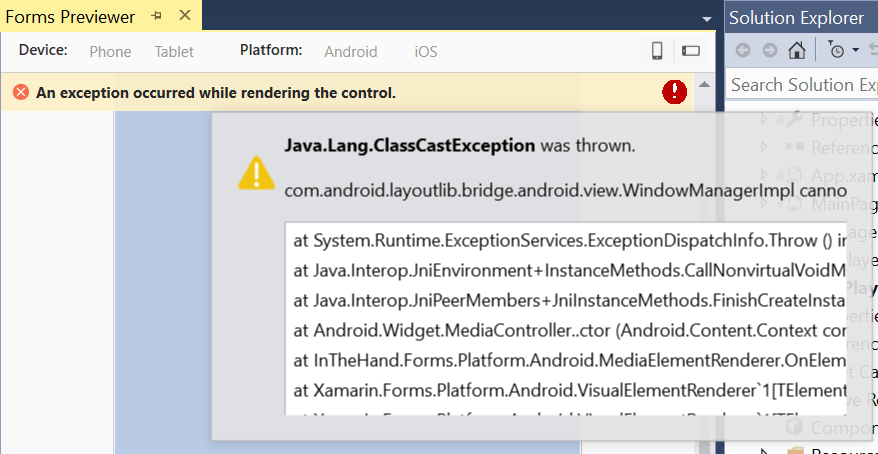
    Recent versions of Xamarin include the Forms Previewer which generates a live representation of your XAML as it will appear on iOS or Android. I noticed one slight problem when working on my MediaElement control…

    The Android renderer instantiates a MediaController object. This is a standard Android class but the Forms Previewer would throw an exception any time my control was placed on a page. The exception popup is not very friendly either – it truncates text and has no method to copy the text to the clipboard.

    forms-previewer-error
    Forms Previewer Exception


    I needed a way to determine if the code was running in the Forms Previewer and to just fake it and not create the native control. This will render a grey box for the MediaElement which frankly is fine with me to get the layout right. It turns out that in the absence of an IsDesignTime equivalent property there is a simple way to tell if your code is executing in a real app or not – and it’s the same as Silverlight (remember that?). Simply check if Application.Current is null inside the OnElementChanged method. If there is a current application you can render the control normally, if Current is null then don’t call the code to create the control.

    if (Application.Current != null)
    {
         // create native control here..
    }

    The iOS renderer also uses a native control (AVPlayerViewController) but doesn’t present the same issue so this workaround wasn’t necessary there.

  • Playing Media with Xamarin Forms

    Xamarin Forms has quite a rich set of controls which work natively across platforms however a big gap in the functionality is the ability to play audio or video content.

    You can create custom controls for Xamarin and from the platform-specific renderers you have full access to the APIs provided by that platform to create complex controls of your own. However on a couple of projects I’ve needed to display a video and it felt to me like a fairly standard control we take for granted when doing “native” development.

    The good news is that you don’t have to do this yourself because I’ve put my control up onto GitHub and NuGet and it’s ready to roll for Android, iOS and of course Windows UWP. If you’ve used the Windows MediaElement you already know how to use it too.


    <?xml version="1.0" encoding="utf-8" ?>
    <ContentPage xmlns="http://xamarin.com/schemas/2014/forms&quot;
    xmlns:x="http://schemas.microsoft.com/winfx/2009/xaml&quot;
    xmlns:local="clr-namespace:MediaPlayerSample"
    xmlns:forms="clr-namespace:InTheHand.Forms;assembly=InTheHand.Forms"
    x:Class="MediaPlayerSample.MainPage">
    <StackLayout>
    <forms:MediaElement HorizontalOptions="Fill" VerticalOptions="Center" HeightRequest="240" x:Name="Media" AreTransportControlsEnabled="true" Source="http://video.ch9.ms/ch9/334f/891b78a5-642d-40b4-8d02-ff40ffdd334f/LoginToLinkedinUSingXamarinAuth_mid.mp4"/&gt;
    </StackLayout>
    </ContentPage>

    view raw

    MainPage.xaml

    hosted with ❤ by GitHub

    Simply add the InTheHand.Forms NuGet package and add a namespace to your XAML and add the MediaElement control. You can do the basics straight from XAML, but you can add a Name to the control and interact with it from the code too. There is full documentation for the control online. If you have any issues/feature suggestions please post them to GitHub.

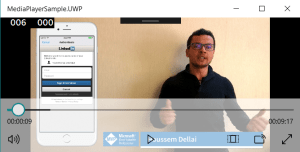
    The player controls can be toggled using the AreTransportControlsEnabled property. The displayed controls will match the native appearance of the target platform. For example the sample above uses a link to a Channel9 video on Xamarin Auth by @HoussemDellai and you can see below how it is rendered on an Android app and a UWP desktop app:-

    screenshot_20170301-220605mediaplayer-uwp

    I’ve also been working on support for the ms-appx scheme for Source Uris allowing you use a common way of referring to files in the application package. This should be in the next NuGet release (after 1.0.2017.301) along with a legacy Windows Phone 8.1 renderer.

    I hope you find this useful in adding media to your Xamarin Forms projects!

  • Xamarin-certified

    Xamarin-certified

    I’ve just completed and passed the exam and am now a Xamarin-certified Mobile developer. Having been working with Xamarin since the days of Mono for Android and MonoTouch I should have probably have got around to doing this earlier. Now it’s done I can relax and concentrate on the important task of making a chocolate cake tomorrow! But first it’s time for a celebratory drink!

  • Pontoon – Yet More Platforms

    What started as a Windows project (unifying the then separate Phone and PC APIs) has since expanded through the Xamarin platforms (iOS and Android) and beyond. The latest NuGet package adds Apple tvOS, macOS and the recently announced Tizen .NET Preview.

    The usual caveat applies that not all platforms support all functionality but there is already support for the Windows.Storage style file API, and Geolocation, Accelerometer and Gyrometer sensors, Badge and Toast notifications, VibrationDevice and PowerManager (obviously don’t expect all of these to be present in a Smart TV).

    Currently there isn’t a unique NuGet platform ID for Tizen so the dll is “advertised” as .NET Standard 1.3. This will only work on Tizen and if you try to consume in any other .NET Standard project will result in errors. We’ll update this as and when a new NuGet TFM is supported.

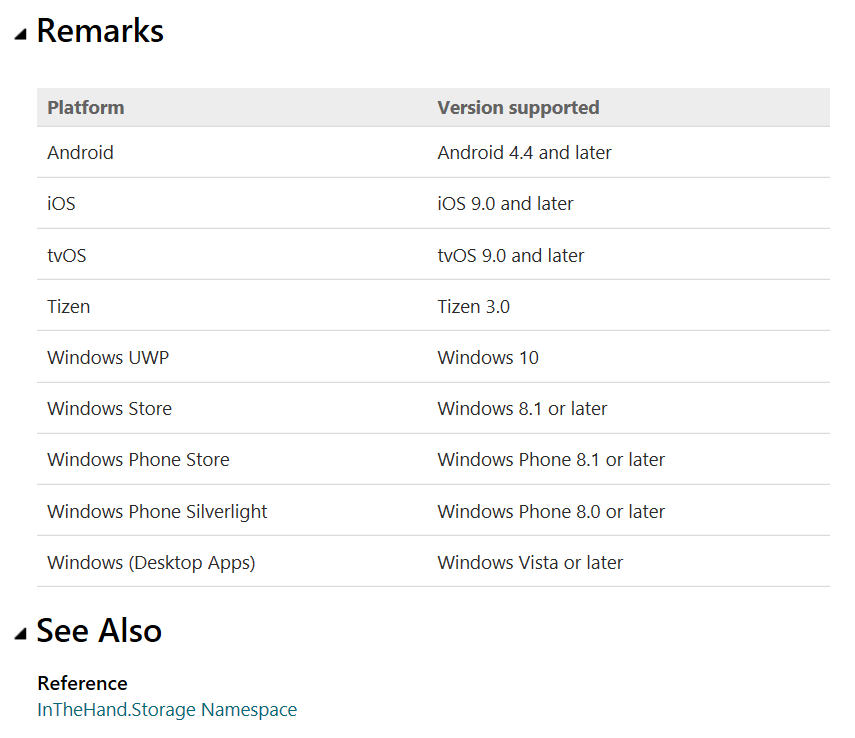
    I’ve also been updating the documentation with more platform information, so most classes should now have a table like the example below. I’d welcome any feedback on better ways to surface this information.

    platform-table

  • Pontoon – Available Functionality

    As with the Universal Windows Platform itself, Pontoon has a rich API which supports functionality which may not be available on all platforms. There are two reasons for this – either the platform doesn’t natively support the feature or I just haven’t got around to implementing it yet.

    There is a simple mechanism to test for functionality at runtime – and as with the rest of the API it’s the same as UWP – InTheHand.Foundation.Metadata.ApiInformation. Using this class you can check for the availability of types, properties, methods etc. via name. The only difference being that all classes have the root InTheHand namespace.

    Currently there are a number of APIs which aren’t available on all platforms. Today’s release adds Accelerometer and Gyroscope for Windows (except Win32) and iOS. Another new API is LaunchFolderAsync on the Launcher class which is only present on Windows UWP and Win32 platforms – you would check for this using IsMethodPresent.

    As always I welcome all constructive feedback – please use GitHub to raise any issues.

    NuGet: https://www.nuget.org/packages/InTheHand.Pontoon/

    GitHub: https://github.com/inthehand/Pontoon

    Docs: http://inthehand.github.io/
  • Introducing Pontoon – A flexible bridge to the Universal Windows Platform

    I first created the “Charming” libraries for Windows Phone in order to add some APIs which were added to Windows 8 but not available on phone. Many of the early ones replicated the “Charms” related functionality (Sharing/Search/Settings) hence the silly name.

    When I created version 9 about a year ago I consolidated lots of separate libraries into just two – InTheHand and InTheHand.UI. The latter contained UI specific functionality such as MessageDialog, ToastNotification and ApplicationSettings. Following this I extended the library with support for iOS and Android using Xamarin and exposing the same UWP style API.

    As I’ve been doing Xamarin development recently I’m constantly having to look for or write wrappers for native APIs to use across platforms. You sometimes find libraries which claim to provide a cross-platform API but actually only support iOS and Android. I looked at the large codebase I already had and thought about other areas which could be implemented across all the Windows and Xamarin platforms. Among the Windows platforms I added Win32 support so you can use these same APIs from Console, WinForms or WPF applications on versions prior to Windows 10. Since a lot of desktop apps still support Windows Vista and 7 this was very important to provide future code compatibility with Windows 10.

    I’d toyed with changing the name before because it’s now irrelevant in an OS which no longer has the concept of Charms. I thought about the Windows 10 “bridges” – to take Desktop Apps, iOS and Silverlight to UWP and thought what I have here is effectively another bridge. It’s a flexible one though and it also works in both directions. You can code C# on numerous platforms and that code will be instantly portable to UWP. You can also use your UWP knowledge to easily target some of the more fiddly aspects of Xamarin platforms consistently. If you consider a Xamarin Forms application which might target iOS, Android and Windows once you step beyond laying out forms with the built in controls and basic page navigation there is no common API to work with Settings, Files, Geolocation, Network connectivity and more. If you are able to find a NuGet library which supports all the platforms you need you’ll have to learn a whole new API too. One word which kept springing to mind with the concept of a flexible bridge is Pontoon and so this is what I chose. Wikipedia says “A pontoon bridge, also known as a floating bridge, uses floats or shallow-draft boats to support a continuous deck for pedestrian and vehicle travel”. Although I renamed the GitHub repository this is a direct continuation of the Charming codebase but there will be a few breaking changes hence the new NuGet package and major version change.

    If you are interesting in contributing to the library please do get in touch. There are a number of open issues which are still to be addressed and many more API areas which would make sense to implement in this way. I’ve consciously avoided most UI areas because this is something you’ll need to approach differently for each platform (unless you use Xamarin Forms) and I didn’t want introduce any additional dependencies. There are some UI elements such as StatusBar, MessageDialog, Toast/Badge notifications, CameraCaptureUI etc. I consider these to be part of the “Chrome” rather than your app UI – they will all have a very different look and feel depending on the platform but perform the same functions.

    I’m still working on a sample application. I’ll probably use Xamarin Forms in order to create a simple UI to surface as much of this functionality as possible.

    As always I welcome all constructive feedback – please use GitHub to raise any issues.

    NuGet: https://www.nuget.org/packages/InTheHand.Pontoon/

    GitHub: https://github.com/inthehand/Pontoon

    Docs: http://inthehand.github.io/


  • Xamarin Forms Navigation Awareness

    Xamarin Forms offers a NavigationPage control which allows you to do linear navigation and integrates with the native Back button on Android and Windows. However from the individual Page it isn’t possible to tell how you arrived at the page. I had a situation in a project where I needed to know whether a page appeared via a forward or backward navigation. The Page control doesn’t have an equivalent to the OnNavigatedTo / OnNavigatedFrom methods that Windows has.

    I therefore came up with an implementation by writing a custom NavigationPage and adding an interface which a Page could optionally implement to expose the OnNavigatedTo / OnNavigatedFrom methods.

    To add the functionality you merely need to replace the code (probably in App.cs) which initializes your NavigationPage to e.g.

    MainPage = new InTheHand.Forms.NavigationPage2(new FirstPage());

    Then in the page you add the interface:-

    public partial class FirstPage : ContentPage, IPageNavigation

    An add an implementation of these methods. Visual Studio can generate these for you but remember by default these will throw NotImplementedExceptions

    public void OnNavigatedTo(InTheHand.Forms.NavigationEventArgs args)
    {
       switch (args.NavigationMode)
       {
          case NavigationMode.New:
             StatusLabel.Text = "Navigated forward to this page from " + (args.Page == null ? "<unknownpage>" : args.Page.GetType().ToString());
             break;
    
          case NavigationMode.Back:
             StatusLabel.Text = "Navigated backward to this page from " + (args.Page == null ? "<unknownpage>" : args.Page.GetType().ToString());
             break;
       }
    }

    The sample project on GitHub demonstrates a simple scenario with three pages and multiple ways of navigating between them. Each shows a status label showing how the user navigated to the page. Because it hooks into the NavigationPage it isn’t linked to any controls you set up to programmatically navigate, nor does it matter if a back navigation was initiated by a hardware back button, or a programmatic navigation.