Category: Windows Mobile

  • Interesting Windows Phone News for MIX10

    There have been rumours floating around all over the web about Windows Phone future versions. Microsoft have remained tight lipped allowing various tech sites to come up with all sorts of fanciful stories. However a tantalising news snippet has appeared on Microsoft’s website for MIX10 the conference for designers and developers coming up in March in Las Vegas:-

    http://live.visitmix.com/News/Windows-Phone-at-MIX10

    It will definitely be worth keeping an eye on this event, hopefully more information will be released as the sessions and schedule are firmed up:-

    http://live.visitmix.com/Sessions#/tags/WindowsPhone


  • New Development Certificates

    Microsoft have now released some replacement developer certificates for Windows Mobile. See this post for details and a download link:-

    http://windowsteamblog.com/blogs/wmdev/archive/2010/01/12/new-windows-mobile-developer-certificates.aspx

  • Expired Development Certificates

    As some of you may have noticed the development certificates which are shipped with the Windows Mobile 6 SDK all expired on 31st December 2009. There have been no updates provided yet so the only official workaround is to fiddle with the date on your development PC and devices to set it before 31/12/2009. A ray of hope has been cast by moderator “Chunsheng Tang” on the MSDN forums:-

    “FYI. The issue will be addressed in the next SDK update in the near furture. Besides the workarounds mentioned in this thread, you can also temporarily change the date of the development PC and the devices backward (make sure it’s before 12/31/2009).”

  • Email Configuration with Mobile In The Hand 4.0

    One of the new items introduced in version 4.0 is a wrapper for the Email configuration provider. This provides a one-stop-shop to access and modify email account settings. This is used for all email account types except for Exchange synchronisation. Each account is identified by a unique Guid so to work with account settings you’ll need to know this. This is exposed through a property of the EmailAccount object, for example the following code loops through all available EmailAccounts for which there is a unique ID (excludes the Exchange account).

    foreach       (EmailAccount ea in os.EmailAccounts)

    {

       if (ea.Properties[AccountProperty.UniqueStoreID] != null)


    The UniqueStoreID is a Guid property and so can be cast to the Guid type (the Properties collection returns items of type object because it caters for all different types of properties).

    Guid g = (Guid)ea.Properties[AccountProperty.UniqueStoreID];

    The EmailAccountConfiguration class is located in InTheHand.WindowsMobile.Configuration.dll in the InTheHand.WindowsMobile.Configuration.Providers namespace. A new instance is created by passing the Guid into the constructor:-

    InTheHand.WindowsMobile.Configuration.Providers.EmailAccountConfiguration eac = new InTheHand.WindowsMobile.Configuration.Providers.EmailAccountConfiguration(g);

    Once created you have access to a number of properties which describe the account, you can change any of these and push your changes by calling the Update() method. Properties available include the incoming and outgoing servers, the ServiceType – either “POP3” or “IMAP4”, DownloadDays (number of past days to download) and many more. The documentation for the class is available in the online library. For more information about Mobile In The Hand see the product page.


  • Internet Connection Sharing with Mobile In The Hand 4.0

    In Mobile In The Hand 4.0 all the Windows Mobile networking features are found in the InTheHand.WindowsMobile.Net assembly. This contains support for Connection Manager, Internet Sharing and Wireless Manager. This post will look at the Internet Sharing classes. Internet Sharing was introduced in Windows Mobile 5.0 AKU 3 but is generally associated with Windows Mobile 6. You can share an internet connection over a USB connection or over Bluetooth using the PAN (Personal Area Network) profile. To enable or disable a sharing session from your code you need only call a single method which looks like this:-

    InTheHand.WindowsMobile.Net.InternetSharing.Enable(InTheHand.WindowsMobile.Net.SharingConnection.Bluetooth,”O2″)

    The first argument is a member of the SharingConnection enumeration which contains values for Bluetooth and Usb. The second argument is the name of the internet connection to use – this is the name of the GPRS connection which will be dialled. A simple Disable method exists to shut down the sharing connection:-

    InTheHand.WindowsMobile.Net.InternetSharing.Disable()

    You must remember to disable the connection once you have finished using it.

    A full online library of class documentation for all this and more is available. For more information about Mobile In The Hand see the product page.
  • More on “My” Functionality in Mobile In The Hand 4.0

    In the last post on “My” functionality I showed you how to get started adding the My Extensions to your project. In this post I have assembled a detailed tree of all the “My” functionality added in Mobile In The Hand 4.0.

    • My
      • Application
        • Culture
        • Info
          • AssemblyName
          • CompanyName
          • Copyright
          • Description
          • DirectoryPath
          • ProductName
          • Title
          • Trademark
          • Version
        • UICulture
      • Computer
        • Audio
          • Play()
          • PlaySystemSound()
          • Stop()
        • Clipboard
          • Clear()
          • GetData()
          • GetDataObject()
          • GetImage()
          • GetText()
          • SetData()
          • SetDataObject()
          • SetImage()
          • SetText()
        • Clock
          • GmtTime
          • LocalTime
          • TickCount
        • FileSystem
          • CombinePath()
          • CopyDirectory()
          • CopyFile()
          • CreateDirectory()
          • DeleteDirectory()
          • DeleteFile()
          • Drives
          • FileExists()
          • GetDirectories()
          • GetDirectoryInfo()
          • GetDriveInfo()
          • GetFileInfo()
          • GetFiles()
          • GetName()
          • GetParentPath()
          • GetTempFileName()
          • MoveDirectory()
          • MoveFile()
          • OpenTextFileReader()
          • OpenTextFileWriter()
          • ReadAllBytes()
          • ReadAllText()
          • RenameDirectory()
          • RenameFile()
          • SpecialDirectories
            • CurrentUserApplicationData
            • MyDocuments
            • ProgramFiles
            • Programs
            • Temp
          • WriteAllBytes()
          • WriteAllText()
        • Info
          • AvailablePhysicalMemory
          • AvailableVirtualMemory
          • InstalledUICulture
          • OSPlatform
          • OSVersion
          • TotalPhysicalMemory
          • TotalVirtualMemory
        • Keyboard
          • SendKeys()
        • Name
        • Ports
          • OpenSerialPort()
          • SerialPortNames
        • Registry
          • ClassesRoot
          • CurrentUser
          • GetValue()
          • LocalMachine
          • SetValue()
        • Screen
      • User
        • Name

    A full online library of class documentation for all this and more is available. For more information about Mobile In The Hand see the product page.

  • Vibration and Profiles with Mobile In The Hand 4.0

    One of the goals of the Mobile In The Hand library has always been to provide a consistent managed API regardless of which specific flavour of Windows Mobile device you are using. One example of this is using the Vibration feature used to alert the user. The APIs are completely different and so we have provided a simple managed API composing of just two static methods:-

    InTheHand.WindowsMobile.Forms.Vibrate.Play();

    System.Threading.Thread.Sleep(500);

    InTheHand.WindowsMobile.Forms.Vibrate.Stop();


    You generally won’t want to vibrate the device for very long because it would be both annoying, and a battery drain. To avoid holding up your UI thread you can call the methods on a separate thread. Just remember you must call Stop() to turn off the vibration.

    Another example of functionality which is implemented differently between touchscreen and non-touchscreen devices are Profiles. Standard Edition devices can feature a number of profiles for different scenarios, touch screen devices have just three – On, Vibrate only and Off. To retrieve all of the available profiles use the following code:-


    foreach(string profile in InTheHand.WindowsMobile.Forms.MobileDevice.Profiles)

    {

    MessageBox.Show(profile);

    }

    You can set the device profile using a call to SetProfile:-

    InTheHand.WindowsMobile.Forms.MobileDevice.SetProfile(“Vibrate”);

    The name of the currently selected profile is available from the CurrentProfile property:-

    MessageBox.Show(InTheHand.WindowsMobile.Forms.MobileDevice.CurrentProfile);

    A full online library of class documentation for all this and more is available. For more information about Mobile In The Hand see the product page.

  • Using Bluetooth Headsets with Mobile In The Hand 4.0

    A commonly requested feature is the ability to switch audio to play through a Bluetooth headset device. Mobile In The Hand 4.0 brings this functionality to .NET Compact Framework developers allowing you to play any device audio through a paired headset device. It also includes classes to playback sounds too.

    The AudioGateway sample application which ships with the library contains the functionality to playback a sound file and toggle between the device speaker and a headset. The code to perform the switch is incredibly simple:-

    private   BluetoothAudioGateway bag = new BluetoothAudioGateway();

    The BluetoothAudioGateway exists in the InTheHand.WindowsMobile.Media namespace. A CheckBox control toggles the output using the following code:-

    private   void chkGateway_CheckStateChanged(object sender, EventArgs e)

    {


       if (chkGateway.Checked)

       {

          bag.OpenAudio();

       }


       else

       {

          bag.CloseAudio();

       }

    }

    OpenAudio opens the connection to the headset and sends audio output to it. CloseAudio closes the connection and returns output to the built in speaker. The SoundPlayer class is used to play back a sound file:-

    InTheHand.Media. SoundPlayer sp = new InTheHand.Media.SoundPlayer(txtFilename.Text);

    sp.Play();

    A full online library of class documentation for all this and more is available. For more information about Mobile In The Hand see the product page.

  • Windows Mobile Provisioning using Mobile In The Hand 4.0

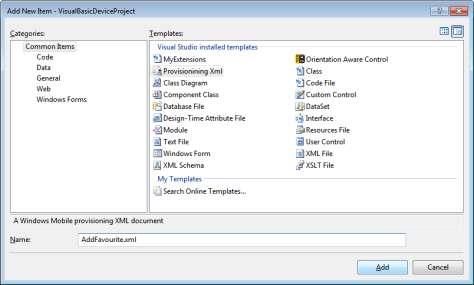
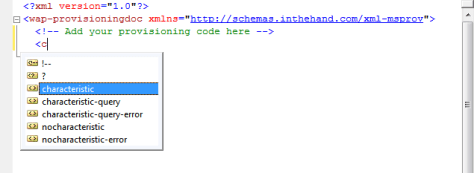
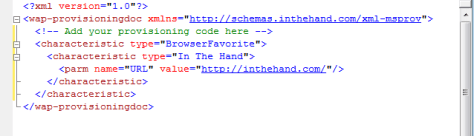
    In the last post we saw the new My Extensions template which adds access to new Visual Basic features. In this post we will look at another new item introduced with Mobile In The Hand 4.0 – Provisioning XML. Visual Studio has a rich XML Editor built in, Windows Mobile uses provisioning XML documents for everything from adding a browser favourite through to configuring a new GPRS network. The new template allows you to quickly create an empty Provisioning XML document and includes the schema to ensure your document is valid. Let Visual Studio’s Intellisense help you quickly build a provisioning document. As with the Visual Basic example you start with an existing device project, in this case it can be either C# or Visual Basic. Select Add New Item and choose Provisioning XML from the list:- Add In this example I have called the file AddFavourite.xml (no prizes for guessing what task we will be performing). The document is created with a skeleton provisioning document. Notice the namespace is provided which links to the schema we installed for you. You can now add the required code between the wap-provisioningdoc tags. As you start to type the IntelliSense will suggest valid elements for you based on the schema:-   This makes it very easy to quickly build up a complete document:- You can process a configuration document like this using the ConfigurationManager class. By setting the document as an embedded resource you can use the following code to load it and pass it to the ConfigurationManager:-

    Dim xd As New System.Xml.XmlDocument
    xd.Load(System.Reflection.Assembly.GetExecutingAssembly().GetManifestResourceStream("VisualBasicDeviceProject.AddFavourite.xml"))
    InTheHand.WindowsMobile.Configuration.ConfigurationManager.ProcessConfiguration(xd, False)

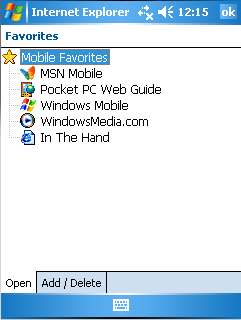
    After running this code you can check your Internet Explorer Mobile favourites:- For more information about the library see the product page.

  • New “My” Functionality in Mobile In The Hand 4.0

    This blog post will walk through the process of adding the additional “My” functionality added in InTheHand.VisualBasic. To start off, open Visual Studio 2008 and create a new Visual Basic device project (or open an existing one). At this point you’ll end up with a solution window which looks a bit like this. Note the inspired project name in this example:-


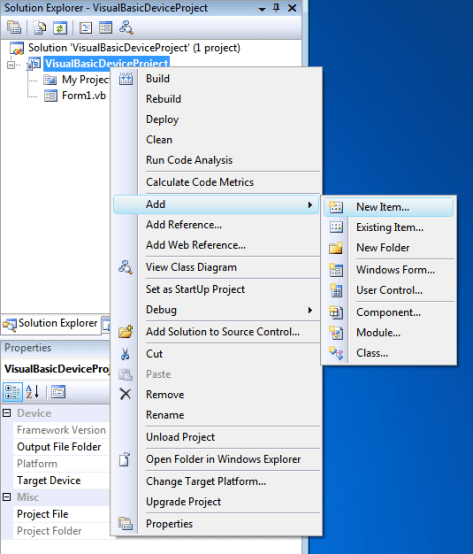
    The next step is to right-click the project and select Add > New Item… from the menu:-

    This will bring up the Add New Item window from which you should see MyExtensions among the list. Select this (you can change the default name if required) and click Add.

    The new code file is added to the project. You don’t need to edit this and you won’t be interacting with it directly from your code. Your solution window will now look like this:-


    You can now get on with building your application. Any time you start to type My you’ll see a much longer list of options:-

    Application, Computer and User are new items added by this library and provide additional functionality, all remaining a direct subset of the desktop experience. For example I added a button and in the Click handler added this simple code snippet:-

    MessageBox.Show(

    My.Application.Info.ProductName)

    On running the code the Product Name is retrieved from the assembly information:-


    In a future post I’ll run through the various items available through the “My” syntax. For more information about the library see the product page.