Category: Mapping

  • A Journey Through Azure Maps

    This article was originally written in 2018 and there have been a number of additions to the API since then.

    Azure Maps is a suite of services for working with constantly changing location-based information. These cover everything you’ll need whether managing systems with moving elements (Route, Traffic), finding contextual information (Search, Time Zone) or presenting location to users (Render, Map Control).

    Setting up an account is easy, as with all other Azure services you create and manage your Maps account through Azure Portal. This gives you a unique subscription key to pass with each API call. Azure Portal lets you monitor usage and handling billing through your Azure subscription. You can get started in seconds and there is a generous free usage quota per month.

    On the move

    A courier business needs to keep its trucks moving as efficiently as possible to minimize fuel costs and cut down time taken to deliver goods. This requires the ability to both track packages and the vehicles they travel on in real-time and plan complex routes for the drivers to follow.

    On point

    Azure Maps Search service can be used to get physical map coordinates for each delivery address. You can either pass a free form query containing a full or partial address or use the structured API for more direct matches.

    https://atlas.microsoft.com/search/address/json?subscription-key={subscription-key}&api-version=1.0&query=One Microsoft Way&countrySet=US

    This process is known as geocoding and once you have a latitude and longitude you can plot the location on a map or use it to build a route.

    En route

    Once a set of coordinates is available for a particular delivery area they can be passed to the Route service to calculate the best driving route. You can calculate routes with up to 50 waypoints. For up to 20 waypoints you can have the Route service calculate the best order for you. But it doesn’t stop there, there are many more options available to improve the route calculation. If route calculation is done just-in-time you can request that the service use its traffic data to help decide the route to use. Traffic data is updated every few minutes and could save in both wasted fuel and time by avoiding problems.

    https://atlas.microsoft.com/route/directions/json?subscription-key={subscription-key}&api-version=1.0&query=56.551095,14.161954:55.73535,9.131333&traffic=true&instructionsType=text

    In order to support long lists of waypoints you can send the request as a POST and write the lat/long points in the body of the request using a GeoJSON document.

    You can specify vehicle information in great detail, such as weight, height, and width which will exclude unsuitable roads. There is also built in support for hazardous cargos so you can specify standard Hazmat codes to exclude restricted roads. You can also supply fuel consumption information for combustion or electric engines.

    On the way

    Having the best route planned is one thing, to make use of it you need to provide instructions to the driver. You can request either coded instructions which you can render locally or full text instructions in the requested language with optional HTML style tags for context.

    "message": "Keep left at <street>Taulovmotorvejen</street>/<roadNumber>E20</roadNumber> toward <signpostText>Kolding</signpostText>"

    The “instructionsType” parameter to a Route API call specifies the flavor of instructions to return.

    On time

    A customer who has a package in transit will want to be able to track its progress. The package probably has a log with its progress across the globe but to present this to a customer you probably need to convert time stamps into local time for each point. The Time Zone service will allow you to do this. It handles daylight saving changes and the service is backed by the IANA time zone database which is regularly updated. It requires a lat/long coordinate and a UTC timestamp as reference:

    https://atlas.microsoft.com/timezone/byCoordinates/json?subscription-key={subscription-key}&api-version=1.0&options=zoneinfo&query=-13.606902,-172.486005&timeStamp=2015-01-01T12:00:00Z

    Your customer will see that their delivery arrived at their local depot at 4am and they’ll be confident it’ll be delivered that day. The Search service also supports multiple languages which means you can customize the addresses you display to the customer based on their language preferences.

    On screen

    In the back office of your business you need to be able to see that your deliveries are progressing smoothly. You can easily build a map view into your dashboard using the Azure Maps Control. This is a JavaScript control you can easily integrate with an HTML user interface.
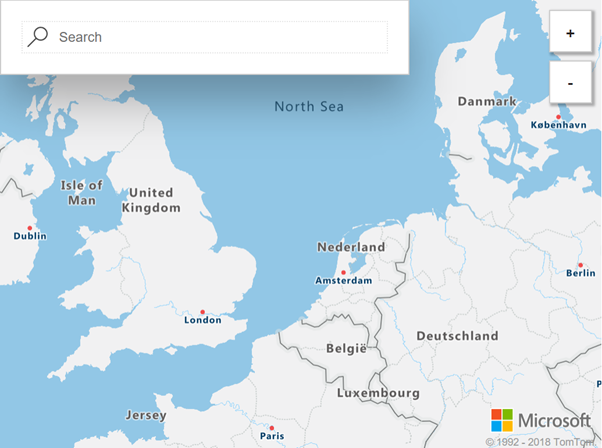
    Azure Maps control showing northern Europe, along with search and zoom controls.
    Azure Maps control

    It has a simple API for adding pins and drawing a variety of geometric shapes. You can even toggle live traffic display with a single line of code. You don’t have to write custom code to load individual map tiles and handle zooming and panning – all this functionality is built right into the control. It uses vector maps for smooth zooming and has a modern uncluttered design. You just need to add a stylesheet and script reference to the Azure Maps control: –

    <link rel="stylesheet" href="https://atlas.microsoft.com/sdk/css/atlas.min.css?api-version=1.0" type="text/css" />
    https://atlas.microsoft.com/sdk/js/atlas.min.js?api-version=1.0

    Then, within the body of your HTML, create an element and give it a unique id (e.g., “map”).

    <div id="map">
        <script>
            var MapsAccountKey = "<_your account key_>";
            var map = new atlas.Map("map", {
                "subscription-key": MapsAccountKey,
                center: [47.59093,-122.33263],
                zoom: 12
            });
        </script>
    </div>
    

    The parameters passed to the Map constructor are the id within the document (in this case “map”), then your subscription key, a point to center the map on, and a zoom level.

    Onwards

    Here we’ve only looked at a few of the uses for Azure Maps, there are many more possibilities. Although we’ve discussed moving vehicles you might instead have a collection of fixed installations. Imagine you were monitoring the properties of distributed sensors and you wanted to visualize the status on a map to see if problems are isolated or following a trend. You could make use of the vast database of addresses to validate data entry.

    The Azure Maps services have been designed to interoperate with a number of open standards such as GeoJSON and can be integrated with other geographic information systems. The RESTful API means they can easily be consumed from a range of languages across a spectrum of devices. You can read about all the Azure Maps services in more detail in the official documentation.
  • Xamarin Forms Maps on Windows Phone 8.1

    Some time ago Xamarin added support for Windows Phone 8.1 (and Windows 8.1) platforms to Xamarin Forms. I wrote a blog post about how to configure your project to run your Xamarin Forms app in a Windows Phone 8.1 project.

    Alongside the base Xamarin Forms API there is a Xamarin Forms Maps component which, as the name suggests, adds cross-platform mapping support for Xamarin Forms applications. However there is a catch, in the current version (1.5 at the time of writing this) only Windows Phone Silverlight is supported. So while you can target Windows Phone 8.1 with Xamarin Forms you can’t use the Xamarin Forms Maps functionality.

    With most controls there is a standard way to write a custom renderer to provide an implementation for a particular platform. Quite often these are not too complex – just mapping properties from a Xamarin Forms control to the native equivalent. Windows Phone 8.1 has a Map control built in so I set about writing a renderer.

    It wasn’t quite as straight-forward as I originally anticipated and it took a while to work out what the other platform implementations were doing but I got it to a point where 99% of the functionality is supported so decided to release the code (on GitHub here) and the compiled library (on NuGet here).

    Usage

    You can get up and running very quickly. You merely need to add the NuGet package to your Windows Phone 8.1 project and add one line of code:-

    InTheHand.FormsMaps.Init([MAP_TOKEN]);

    Place this in the OnLaunched method in your App.xaml.cs file. [MAP_TOKEN] is a string which you can get for your app from the Windows Dev Center. For debugging/test purposes you can pass null here and the map will display a banner indicating it is running without a token. I designed this to be as similar as possible as the other Xamarin.Forms.Maps platforms. Only the namespace is different. No changes are necessary to your PCL project to support this.

    Sample

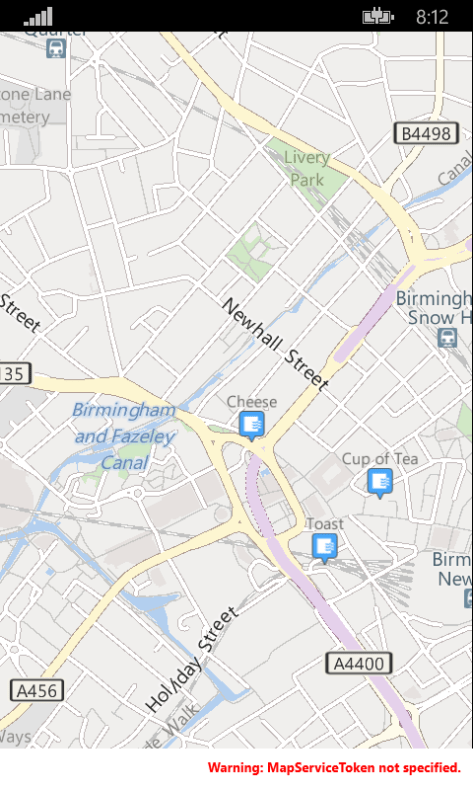
    There is a sample app in the GitHub repository which adds some food and drink pushpins to Birmingham. This is how it looks on Windows Phone:-

    MapsTest on Windows Phone Emulator
    MapsTest on Windows Phone Emulator

    As well as supporting the Map control itself the library also provides an implementation for the Geocoder class. This allows you to fetch an address (or addresses) for a given position or to lookup a location for a given address. I haven’t currently added this to the sample project, but there is nothing special to do here – it “just works” from your platform independent code.

    What’s Not In This Version

    The only real thing I didn’t put into this version was the ability to use different pushpin icons depending on the type of PushPin – Xamarin supports Generic, Place, SavedPin and SearchResult. All currently use the default image which you can see from the above screenshot.

    Thanks

    My last word is to say thanks to those who offered to test this and provided feedback on the initial build. I hope you’ll find this useful to easily add mapping to your Xamarin Forms projects on Windows Phone.

  • Windows Live Local goes live

    As the name suggests, Windows Live Local (the new name for MSN Virtual Earth) is now live. It has a fresh new look, mapping data for Europe (woohoo!), supports driving directions, custom pushpins and for a selection of US cities it has high quality “birds-eye” images. There have been some changes to the API in this version, full details of which are due to hit MSDN today.

  • New MSN APIs to debut Tuesday

    [Via MP2KMag.com]


    At PDC on Tuesday (13th) Microsoft will unveil a new collection of APIs for it’s MSN services to be available from http://msdn.microsoft.com/msn, these will include:-


    • MSN Search Web Services
    • MSN Messenger Activity API (already available here)
    • MSN Virtual Earth API

    The last item is interesting. Firstly it sounds like this will be a “proper” documented API, rather than the jscript hacks currently available. Secondly it is being offered free for both commercial and non-commercial use. It is interesting therefore to see how it stacks up against it’s big brother Mappoint Web Service for simple commercial applications.


    Speaking of which, the new version of Mappoint Web Service (4.0) will also be released at PDC. New features include support for polygons, some new map styles, and further extensions to the mapping coverage.


    [Update] MWS 4.0 SDK is available:-


    http://www.microsoft.com/downloads/details.aspx?FamilyID=cb5148a9-f09e-4ec8-992f-16478c0b5d9a&DisplayLang=en

  • Developing with Virtual Earth 2

    Casey posted this cool technique of using the Virtual Earth Locator in your own apps. Next task is to find out how to stop it locating me in Surrey 🙂

  • Developing with Virtual Earth

    Now that the hype has died down on Virtual Earth it is interesting to see what developers are doing with the product even though it doesn’t expose any kind of developer API. The best place to start is at Dr Neil’s site Via Virtual Earth. There are a few articles here showing how to pull maps from virtual earth onto your own website. To a user outside the US the mapping detail available is a bit lacking, you get quite a selection of place names, but no roads and satellite imagery only at a very high level.


    Hopefully the technologies demonstrated in Virtual Earth will permeate through to the Mappoint Web Service, as the dynamic pan and zoom, imagery and pushpin labels are quite impressive.

  • How They Beta Test Mappoint Products

    Ever wondered how Microsoft test their location products? I mean it’s not like you can test them in every possible location. Well two guys in Great Britain are trying to come close by driving the length and breadth of Great Britain passing through key points as they go – They have already covered the furthest South, East and West already. You can track their progress on a special blog and win a copy of Autoroute with GPS receiver if you estimate their mileage.


    Autoroute 2006 (European version of Streets & Trips) is due out in October, no details of features for the new release have been announced yet.

  • Proximity Search With SQL 2000

    The “Implementing a Proximity Search with SQL 2000” article describes how to create a local method of searching for nearby places on your own locally held data. However it makes a couple of assumptions, one being that you will import your data via Access.


    It’s quite likely that you may want to put your place data directly into SQL Server, you can then calculate the X, Y and Z co-ordinates using a stored proceedure. Firstly I’ll assume you place the data into a table in your SQL database with fieldnames Latitude and Longitude storing the values in decimal degrees as a float type. You’ll also need to add columns named XAxis, YAxis and ZAxis to your table, again with a float type. Then the following stored proceedure can be used to populate these fields.


    UPDATE [tablename] SET XAxis = cos(RADIANS(Latitude)) * cos(RADIANS(Longitude)),
    YAxis = cos(RADIANS(Latitude)) * sin(RADIANS(Longitude)),
    ZAxis = sin(RADIANS(Latitude))
    WHERE XAxis IS NULL;


    Note that the where clause ensures it doesn’t process rows you have already populated. You may choose to run this procedure manually when you add new data, or schedule it to run regularly. If your data is editable once it’s in the database, you should ensure the X,Y,Z values are removed if the Latitude and Longitude are changed on a record. Once you’ve run this on your data you can use the FindNearby procedure described in the article.