Category: Alexa

  • Farewell Tasks for Alexa

    Just over four years ago I released a free Alexa skill to synchronise your Microsoft To-do list with Alexa’s own lists. Sadly any effort to create an add-on for another product usually ends in either the product getting “sherlocked” or a required API being deprecated. This time it was the latter. Amazon have deprecated their List Management API and it will stop working on 1st July. There is no alternative API to use, as was the case when Microsoft deprecated their Office APIs and moved to Microsoft Graph, so this really is the end of the road.

    The skill has been hidden from the skills marketplace but will continue to function for existing users for another week or so, then I will shut down the Azure services and it will be final.

    While I won’t miss the support headaches I did find it an interesting learning experience, not only getting to grips with Microsoft Graph and its intricacies, but also coding for Alexa using .NET which I couldn’t have done without the excellent work by Tim Heuer and Steven Pears.

  • Tasks for Alexa Refreshed

    Unfortunately for the past couple of weeks the Alexa skill to synchronise Microsoft To Do with Alexa lists has been limping along due to a mix up with my Azure subscription taking the Azure Function which serves the skill offline. Of course these things always happen when you’re on vacation and don’t have the ability to fix them!

    Once I was able to get the service back up and running there was an ongoing issue with the configuration which meant that new registrations were not completing successfully meaning that changes from the Microsoft side were not being sent to Alexa. Implementing a fix for this was complicated by the fact that I’ve been working on a re-write of the service due to the Microsoft Office API being used reaching end of life and with a shutdown imminent. I’ve therefore had to re-write it against Microsoft Graph which finally supports Todo items but not 100% of the functionality which I could take advantage of in the old Office 365 REST service.

    The long and short of it is that I bit the bullet and completed the Graph API work and the new codebase is now up and running. I’ve also been able to take advantage of updating the Azure Function to .NET 6. The Microsoft Graph API doesn’t support subscribing to notifications for all Todo items so I’ve made the tough choice of removing support for custom lists – the skill will now only synchronise the two standard Alexa lists (To-do and Shopping list). While I know that some users will be disappointed with this, the overhead required to support managing multiple subscriptions and list mappings for custom lists is really beyond the time and energy I have available to work on this and the compromise is a service which satisfies 95% of users and can continue to be maintained as a free skill.

    Because of authentication changes in moving from the Office API to Microsoft Graph it will be necessary to disable and re-enable the skill to pick up the required permissions to read/write Todo items in Microsoft Graph. There are step by step instructions for doing this in the Frequently Asked Questions.

    There is one last gotcha – Microsoft Graph doesn’t currently send change notifications when Todo items are deleted. Therefore to remove a Todo item you should mark it complete before deleting it otherwise it will remain in the Alexa list (or you should delete it from Alexa). This has been confirmed as a known issue and a fix is in the works so the skill will be able to take advantage of this in the next month or two.

  • Alexa Skill with Azure Functions – Messaging

    In the previous Alexa post I talked about building a List skill to integrate with a third-party list provider. This gives you a mechanism to react to changes in Alexa’s lists and write them to your external provider, but what about implementing a two-way sync?

    When you setup account linking for your skill the user goes through an OAuth flow to authorise your app and this returns a token and a refresh token to Amazon. The Alexa infrastructure manages this securely and handles the refresh process for you. Therefore only your skill function can continue to access your third-party service. Therefore when you have a callback mechanism from your third-party provider you need a way of passing the change information into your skill to be processed. Luckily there is a messaging service to do this.

    As with the list functionality there is a library to handle the messaging requests – Alexa.NET.SkillMessaging. The code you use to send the message will have to have the client id and client secret of your skill – you can find these from the Alexa Developer Console on the web.

    var client = new AccessTokenClient(AccessTokenClient.ApiDomainBaseAddress);
    var accessToken = await client.Send(clientId, clientSecret);

    This access token can then be used to send messages to your skill. Each message consists of a payload which is a Dictionary<string,string> and a timeout. You create an SkillMessageClient and send the message to a specified user id. The Amazon user id is given to you when your skill is first enabled and the account is linked. The id is specific to the skill and cannot be used to personally identify a user.

    var payload = new Dictionary<string, string> { { "Key", "Some Value" } };
    var messageClient = new Alexa.NET.SkillMessageClient(alexaEndpoint + "/v1/skillmessages/users/", accessToken.Token);
    var messageToSend = new Alexa.NET.SkillMessaging.Message(payload, 3600);
    var messageId = await messages.Send(messageToSend, userId);

    An extra complication is that there are multiple API endpoints for the SkillMessageClient depending on the region. This means you’ll have to store the endpoint along with the alexa userid so you know which to use for a specific user. If successful a unique id for the message is returned. In your skill code you have to enable support to recognise the incoming message and handle the action. In the case of a list change event from a third-party provider this would be to load the specific changed item and then write the values to the Alexa list.

    As with the list support we need to register the messaging library so that the skill request can be correctly deserialised into a MessageReceivedRequest.

    RequestConverter.RequestConverters.Add(new MessageReceivedRequestTypeConverter());

    Then when reading your incoming request you can check the request type and add code to process the message. The MessageReceivedRequest contains a Message property with the dictionary of values sent from your other function. The user id is already included with all incoming requests in the Context.System.User.UserId property.

    Combining this with the list support already discussed you can see how to use the ListManagement API to write changes into the Alexa lists.
  • Alexa List Skills with Azure Functions

    When  I was building my Microsoft To-do Alexa skill I found Matteo’s series of blog posts on Alexa + Azure very useful. However I needed to go beyond the functionality described there and knew I’d need to delve deeper into the Alexa Skills Kit documentation. The first item I thought I’d blog about is the Alexa List Management API. I’m not going to open source the skill but I thought I’d share some pointers which could be useful to other developers.

    What is a List Skill?

    Alexa has built in lists for To-do items and Shopping List. These are quite basic (there are no due dates or reminders for example) but a third-party can extend them to synchronise them with another back-end. When you create a list skill you aren’t providing Alexa with an API into your datastore, but rather are taking responsibility to maintain synchronisation between two copies of the list. Your list items could be updated either from Alexa via the web or app or, more commonly, via a user’s voice command. To support this your skill subscribes to a number of list events which fire whenever an item is added, modified or deleted. Likewise on your backend you’ll need to handle changes and communicate them back to your Alexa skill. I’ll discuss this messaging infrastructure in a future post.

    In its simplest form a List skill doesn’t have to have any speech interface of its own. It just has to handle the standard list events and require read (and likely write) permission on the Alexa household lists.

    Building a List Skill

    If your skill isn’t a regular custom skill you can’t edit the manifest through the Alexa Skill Kit dashboard and so you would use the Alexa Skill Kit command line tools. However rather than suffer the misery of a command prompt you can use trusty Visual Studio Code and the official Alexa Skills Kit Toolkit extension. This allows you to edit your skill metadata in Visual Studio Code’s editor and use the command palette to perform common operations like deploying the skill. The metadata for a skill is expressed in json and the editor has intellisense for the schema. A manifest for a list skill must contain an events object containing a list of standard event types:-

    "events":{
          "endpoint":{
            "uri":"https://YourAzureFunctionAppEndpoint/api/FunctionName",
            "sslCertificateType": "Wildcard"
          },
          "subscriptions":[
           {
             "eventName": "SKILL_ENABLED"
           },
           {
             "eventName": "SKILL_DISABLED"
           },
           {
             "eventName": "SKILL_PERMISSION_ACCEPTED"
           },
           {
            "eventName": "SKILL_PERMISSION_CHANGED"
           },
           {
            "eventName": "SKILL_ACCOUNT_LINKED"
           },
           {
            "eventName": "ITEMS_CREATED"
           },
           {
            "eventName": "ITEMS_UPDATED"
           },
           {
            "eventName": "ITEMS_DELETED"
           },
           {
            "eventName": "LIST_CREATED"
           },
           {
            "eventName": "LIST_UPDATED"
           },
           {
            "eventName": "LIST_DELETED"
           }
          ]
        },
    Also in order to be able to query the list items and write changes you must also request permissions. You’ll need to be careful as the user can revoke these:-
        "permissions": [
          {
            "name": "alexa::household:lists:read"
          },
          {
            "name": "alexa::household:lists:write"
          }
        ]
    The endpoint you defined for events will receive all the event types so you’ll need to write code to read the event type and react accordingly. Now this is where we step into the unknown – the list events require a different request type than is covered with the Alexa.NET library. The good news is there are already a range of companion NuGet packages for specific Alexa APIs and Alexa.Net.ListManagement has what we need here.
    For each of these libraries we have to add a line of code at the beginning of our function to tell the main Alexa.NET library how to deserialise the request. For list management this is:-
    RequestConverter.RequestConverters.Add(new ListSkillEventRequestTypeConverter());
                
    Then from our deserialised SkillRequest we can get the type to determine the type of request which is a specific type depending on the list event e.g. ListSkillItemCreatedRequest. The body of this request will contain a list id which may represent the To-Do list, Shopping List or a custom list. It will also contain one or more list item ids for the newly created item(s).

    Modifying List Items

    The other part of the ListManagement library is the ListManagementClient. This provides access to read and write list items and wraps the REST API. The constructor takes an access token which is passed to your skill in the skill request’s Context.System.ApiAccessToken property. With this (assuming you are granted the required permissions) you can query all list metadata and create, modify and delete list items. However these are operations you’ll mainly do triggered by changes in your linked back-end so you can keep Alexa’s copy of the list in sync with your own data.
    In the next post I’ll look at how to implement messaging so that your own system can send a message to your skill to update items…
  • Talking About Tasks

    Talking About Tasks

    Back in 2010 Microsoft released Windows Phone 7. It was a huge change from the Pocket PC/Windows Mobile OS which had preceded it and while it brought a modern UI and app-store infrastructure it missed a number of pieces of core functionality from the older phones. One of these was support for Tasks. I set about writing an app which became “Tasks In The Hand” and became very popular in those early days. Even when Microsoft later added basic Tasks functionality in Windows Phone 7.5 the app still had a healthy following because it supported views and features absent from the in-box app.

    Skipping forward to today Microsoft’s Task story is rather different. After purchasing Wunderlist they began writing a new app called Microsoft To-Do which is available across multiple platforms – iOS and Android for mobile and Windows for desktop. Crucially though, under the hood, it’s still based on Office 365 (or Outlook.com for personal Microsoft IDs) for storage and so works just as well with the traditional Tasks view in Outlook on the desktop.

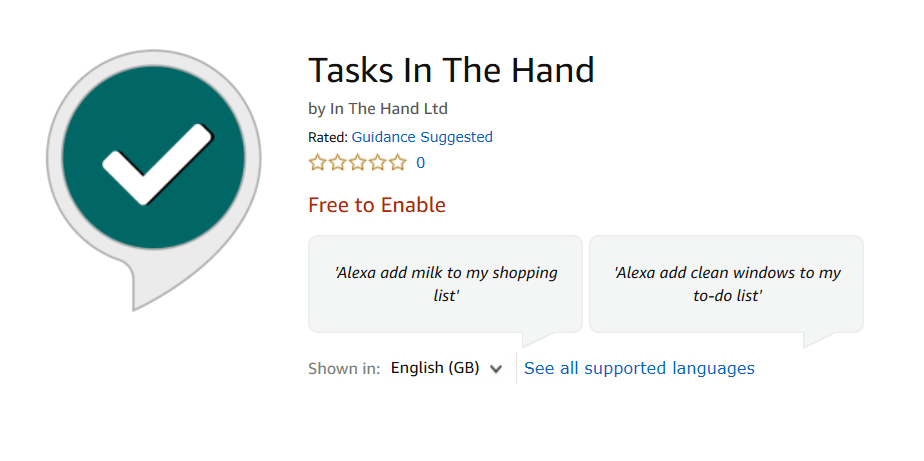
    Back in 2010 we did not have voice assistants but now we have Alexa, Google Home and Cortana. If you get used to using Microsoft To-Do everywhere, as I have, you miss having integration with a voice assistant and so that is where I decided Tasks In The Hand needed to go next. Today my Alexa Skill was released into the store for anyone to connect with their Echo or similar device.

    Tasks In The Hand in the Alexa Skills Store
    Tasks In The Hand in the Alexa Skills Store

    Tasks In The Hand in the Alexa Store

    The skill links with your Microsoft ID, which is either associated with an Office 365 account or an Outlook.com personal account. Once setup you can add tasks to your Alexa To-Do list or items to your Amazon Shopping List and they’ll synchronise with your Microsoft account. You can modify, complete or delete these items via Microsoft To-Do and those changes are synched back to Alexa. After you’ve linked accounts any items you add to your default Tasks folder or Amazon Shopping List folder will also be synchronised with Alexa.

    The Skill was built using Azure Functions and I found Matteo Pagani‘s series of Blog posts very useful with getting started working with Alexa Skill Kit. It uses Tim Heuer‘s excellent Alexa.NET package to handle the interactions with Amazon.

    The skill is completely free, I hope you find it as useful as I have and please get in touch if you have any feedback.

  • Family Calendar with Amazon Echo

    Update 15th February 2017

    Alexa can now be paired with an Outlook.com account which means you no longer have to use this workaround.


    We’ve used the “Family Room” feature from Windows Phone and although it’s been discontinued the shared Outlook.com calendar is still vital. We’ve got an Amazon Echo but when setting it up found that only Google calendar integration is available. It turns out that it is possible to hook this up albeit without the ability to add new events via Alexa.

    First you’ll need a Google account. If you don’t already have one you can set one up just to use with Alexa. We’ll come back to Google later.

    Now open your browser of choice and log into your Outlook.com account. Go to the Calendar app. On the left you should see a list of “Your calendars” and your shared calendar will be listed e.g. “Family Room”. Click Settings (The cog near the top right of the screen next to your profile picture) and Options. You’ll see a link in the tree of settings called “Publish calendar”. Click this then select the name of your shared calendar e.g. Family Room. Under “Show availability, titles and locations” click create. There will be two links created – you only need the ICS one.

    Log into your Google Calendar account. On the left side there is a section called “Other calendars” with a small downwards arrow to the right. Click this and select “Add by URL”. Paste the URL you created earlier and click Add Calendar.

    Google Calendar will now add all the events from your shared calendar and will periodically update when the Outlook.com ICS feed updates.

    Finally log into the Alexa web portal (https://alexa.amazon.com or https://alexa.amazon.co.uk etc). Go to Settings and in the “Account” section select Calendar. Link your Google calendar (if you haven’t already) and you’ll see a list of available calendars. Because I don’t use my Google calendar other than for the Family Room import I selected only the Family Room option.

    Once that’s done you can query Alexa about things in your family calendar!