Blog

  • Bluetooth with Xamarin Mac

    I’ve been working on adding macOS support to 32feet.NET and there are two frameworks in macOS for Classic Bluetooth – IOBluetooth and IOBluetoothUI. I soon discovered that neither of these had bindings in the standard Xamarin.Mac package which is referenced by all Xamarin Mac applications. I decided to build binding libraries for both APIs and publish the code as part of 32feet.NET. This means you can either use the IOBluetooth lower-level APIs yourself or later use the platform-agnostic 32feet API.

    Today I’ve published the first release of the InTheHand.IOBluetoothUI package. There are fewer APIs than IOBluetooth and I’ve already begun the manual process of simplifying and making it more “.NET friendly”. There is also documentation to add, though even Apple’s documentation on IOBluetooth is rather thin at best…

    These are by no means final and there will be changes to the APIs as names are cleaned up and more is tested and fixed. If you’d like to try them in your projects please let me know your feedback via GitHub. Those NuGet packages are:-

    https://www.nuget.org/packages/InTheHand.IOBluetooth/

    https://www.nuget.org/packages/InTheHand.IOBluetoothUI/


  • Bluetooth from Unity

    An ongoing issue with 32feet.NET is that it wouldn’t work inside Unity. The reason is that the System.Net.Sockets classes behave slightly differently in the Mono runtime to the desktop .NET framework and you can’t create a Socket using the Bluetooth specific address family.

    In order to work around the issue it was necessary to P/Invoke into the native winsock functions, essentially rebuilding a subset of the Socket class. In parallel to this work I’ve been rebuilding 32feet with a more modern API which is less tied to Sockets (primarily just used on desktop Windows) and able to map onto a range of platforms. Another big change for this version is support for Bluetooth LE alongside classic Rfcomm on supported platform. Currently this library supports Xamarin Android and iOS along with UWP, Windows desktop .NET 4.6 and Mono .NET 2.0 for Unity. I’m working on a macOS implementation too. The API is essentially designed to be a more friendly version of the UWP API. In order to support such an old version of .NET, the Unity version is entirely synchronous whereas most of the API is normally async.

    In order to test this I wrote a very simple script for Unity which picks a specific paired device, connects to a serial port service over Rfcomm and sends a string. Yes that’s right I have a 3d game that I can print from!

    This is currently in preview (but available on NuGet now). There is a lot still to finish including generating the documentation. I’m hoping for some useful feedback, particularly on the Unity work but also any of the other current platforms. Feel free to join in the discussions on GitHub.

  • More on Xamarin Insights Migration

    Since the original release of InTheHand.AppCenter.Insights just over a week ago there have been a few hundred installs, which is nice. There has also been a major change at App Center and logging handled exceptions is now supported. Therefore the latest update (version 1.5) takes full advantage of this and utilises this new API so we don’t lose vital stacktrace information and these are correctly shown as errors rather than events with some of the exception properties. This is a great move from Microsoft as it brings the App Center functionality into parity with Xamarin Insights which has just three weeks remaining before it is shut down.

    If you have a project currently using Xamarin Insights I recommend you install my library to quickly switch over before the deadline. If you’re already using my library I highly recommend you update to the latest version for the full exception reporting support.

  • From Xamarin Insights to Visual Studio AppCenter

    If you haven’t already heard about Visual Studio AppCenter then you should check out this blog post introducing it. Microsoft have had multiple devops technologies which all lived in separate silos. Along with its own Azure Insights it inherited Xamarin Insights and Test Cloud when it acquired Xamarin and also HockeyApp. There was obviously a lot of overlap and a mammoth task of building a unified solution.

    In terms of crash reporting and analytics AppCenter owes much to HockeyApp, there’s even built in handling of viewing HockeyApp data from AppCenter. No such luck from Xamarin Insights and you’ll need to find your own time to migrate across before Xamarin Insights is retired on March 31st. I had an idea that as a stop-gap solution it would be useful to have the same API as Xamarin Insights but move to the AppCenter back-end. Thus was born InTheHand.AppCenter.Insights. This is now available on NuGet and the rest of this post will look into switching over to it and a bit of information about finding the data in the AppCenter website.

    The library exposes the same API as the original Xamarin.Insights package but AppCenter doesn’t support 100% of the functionality so there are some gotchas when using it. You shouldn’t need to modify any of your code and when you are ready you can start calling the AppCenter API directly and eventually phase out the wrapper.

    To start, open your existing solution and remove the Xamarin.Insights NuGet package from your projects. Next add the InTheHand.AppCenter.Insights package. It is a .NET Standard 1.0 library for maximum compatibility, it could have been higher for the supported platforms but it doesn’t need any APIs beyond 1.0. Rebuilding your app now and it should all build without any errors against the new library.

    I’ve used the Obsolete attribute on methods/properties which are not supported, calling them will just be a no-op but you can remove these calls if you don’t want the warnings.

    Now we’re not quite finished – your code still uses an API key for Xamarin Insights. You’ll need to create a new App on AppCenter for the required platform(s) and this will give you a new key (a Guid string) and you’ll need to replace the old Xamarin API key with this one where you call Insights.Initialize in each head project.

    Once you’ve done this and rebuilt your app you’ll have working crash reporting and analytics going through to AppCenter and you haven’t had to re-write any code yet.

    [Updated 8th March 2018] As of version 1.5 the Report method now supports logging exceptions to AppCenter as this functionality was recently added to AppCenter. You’ll see stack traces etc fully preserved in your App Center dashboard.

    Remember I mentioned some gotchas earlier? Well there is one big gotcha – AppCenter doesn’t allow you to send handled exception reports – the Report method. So when the library processes these they are tracked analytics events with various properties of the Exception added. This means the presentation in AppCenter is not as good as the true crash reports. Unfortunately currently only the first 64 characters of the stack trace are preserved.

    [Updated 28th February 2018] As of version 1.1 the library also supports Identify and will set these values using AppCenter’s SetCustomProperties feature. The unique ID you assign is given the name “Unique ID”.

    AppCenter doesn’t natively support logging events with timing so the ITrackHandle implementation writes the total duration in seconds as part of the key/value data for the event.

    A full crash entry looks like this in AppCenter:-
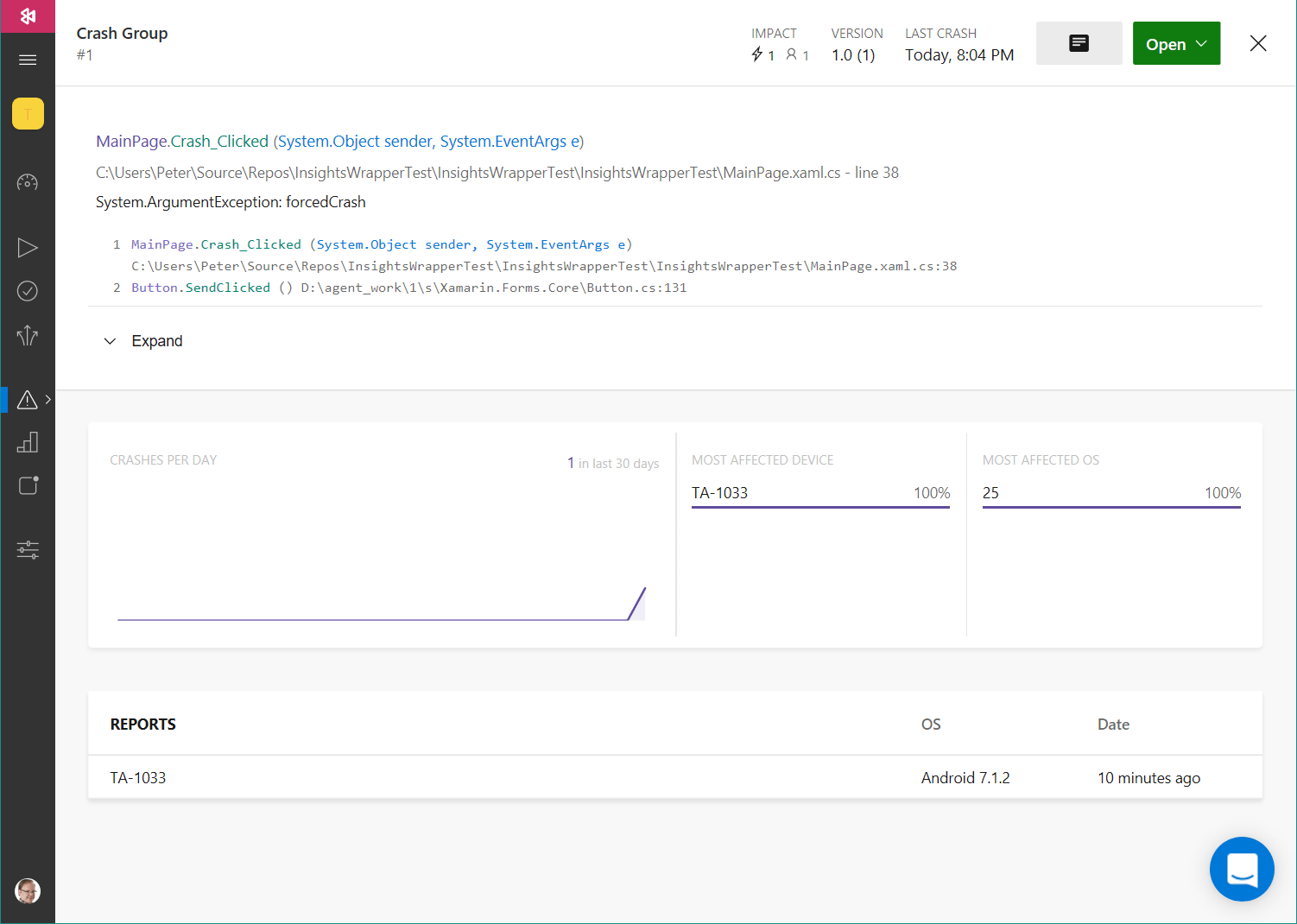
    forcedCrash

    An event generated by a reported exception looks like this:-
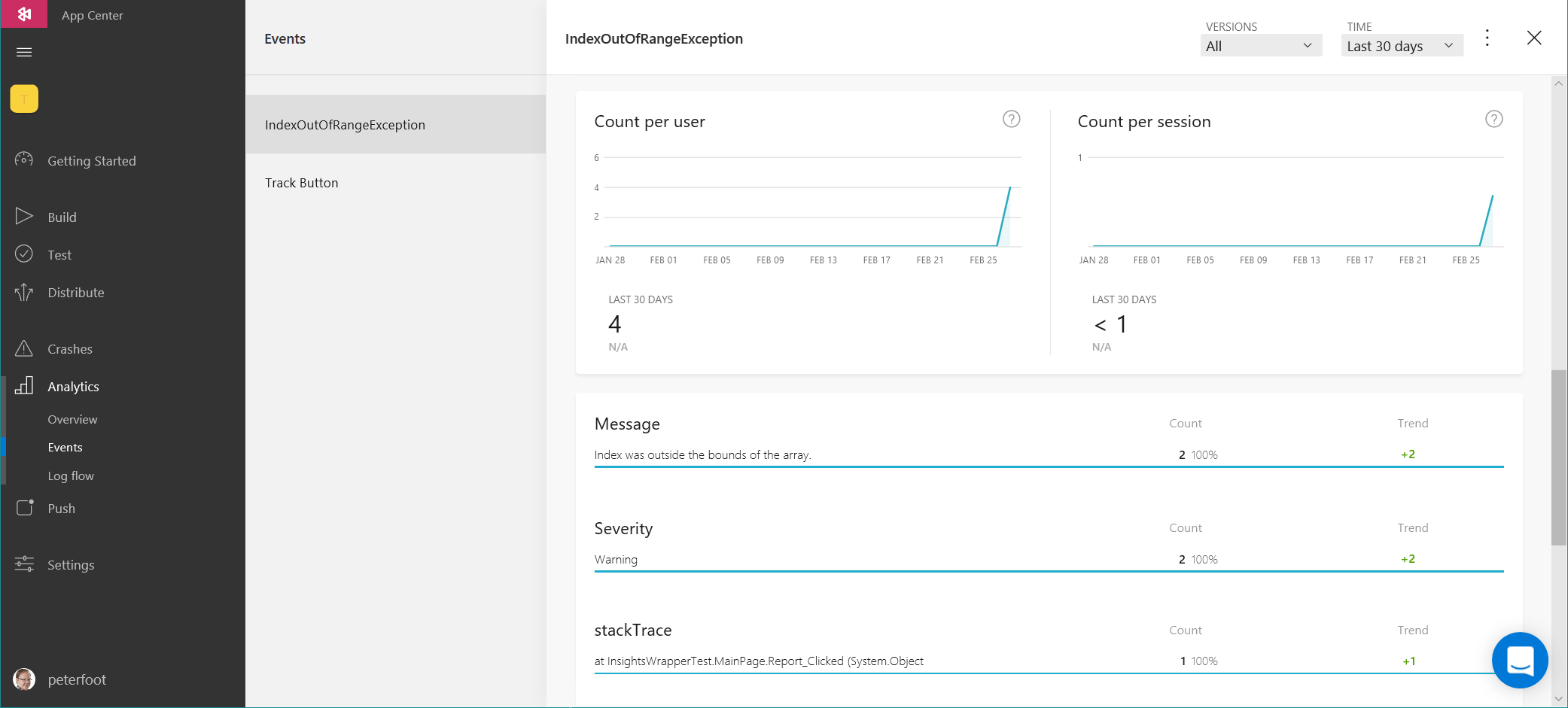
    reportedException

    The problem of course is that you don’t get reports logically grouped into exceptions thrown by the same code, instead you get a single “event” with the exception name and then properties which may indicate totally different stack traces. This is obviously not ideal but the danger of creating separate events using both the stack trace and exception is that there is a limit of 200 unique events. If you don’t manually delete ones you’ve finished working on as you might mark a crash as Closed you could hit this limit and lose data. I hope it is something that gets added to AppCenter soon, Microsoft promised this functionality would be in place before the Xamarin Insights shutdown but the deadline is fast approaching. When the API becomes available obviously I’ll update the wrapper as required. This is after all a temporary solution to help with the transition.

    NuGet: InTheHand.AppCenter.Insights


  • ListView Adventures – Auto-sizing Uneven Rows

    The Xamarin Forms ListView control has a tough job – it has to provide a platform agnostic, rich data-bindable control and yet take advantage of the performance and look-and-feel of the native control on each platform. I recently discovered an odd gotcha for a specific usage. It’s possible to have rows with different heights. There are a number of reasons you might want this, the simplest would be the case where you have multiple item templates to represent different types of item. A slightly more interesting scenario is a chat application. In this case you want each row to use the right amount of space for the message but you can’t hard-code specific row sizes. You need a template which you can measure and get an accurate height for that specific item obeying all the margins and spacing you’ve setup. As it turns out this doesn’t work on iOS and it is documented if you know where to look.

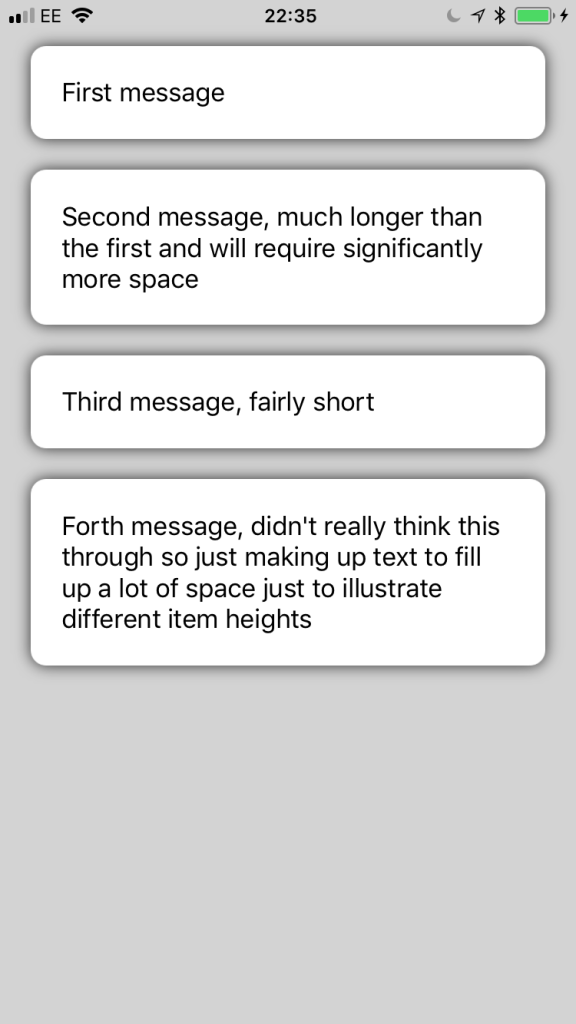
    The solution is to add some extra logic and this can of course be done by writing a custom renderer. Since there is a performance overhead in building the list item and measuring each one you only want to do this in the case that you can’t hard-code a row height. To look at the out of the box behaviour see the first screenshot below. You can see some attempt has been made to resize the rows but they don’t actually fit the content correctly.

    IMG_0102

    The XAML for this view looks like this:-

    <ListView ItemsSource="{Binding}" HasUnevenRows="True" BackgroundColor="LightGray" SeparatorVisibility="None">
     <ListView.ItemTemplate>
      <DataTemplate>
       <ith:AutoViewCell>
        <Frame Margin="20,10" HasShadow="True" CornerRadius="10">
         <Label Text="{Binding}"/>
        </Frame>
       </ith:AutoViewCell>
      </DataTemplate>
     </ListView.ItemTemplate>
    </ListView>

    As you can see I’ve define a new type derived from ViewCell. I’ve done this so that my renderer won’t be used for all ListView items but only those where we need this functionality. The AutoViewCellRenderer then does some extra work on iOS to set the item heights at runtime based on the data filled template. On Android and UWP it just uses the built in ViewCellRenderer which behaves as you’d expect.

    [assembly:ExportRenderer(typeof(AutoViewCell), typeof(AutoViewCellRenderer))]
    namespace InTheHand.Forms.Platform.iOS
    {
     public sealed class AutoViewCellRenderer : ViewCellRenderer
     {
      public override UITableViewCell GetCell(Cell item, UITableViewCell reusableCell, UITableView tv)
      {
       ViewCell vc = item as ViewCell;
    
       if (vc != null)
       {
        var sr = vc.View.Measure(tv.Frame.Width, double.PositiveInfinity, MeasureFlags.IncludeMargins);
    
        if (vc.Height != sr.Request.Height)
        {
         vc.ForceUpdateSize();
    
         sr = vc.View.Measure(tv.Frame.Width, double.PositiveInfinity, MeasureFlags.IncludeMargins);
         vc.Height = sr.Request.Height;
        }
       }
    
       return base.GetCell(item, reusableCell, tv);
      }
     }
    }

    It took a few goes to get this working correctly. First I checked if the vc.Height was -1, but found that this could be updated but still need re-measuring. Then I set upon the above which checks if the height matches the content and only if not calls ForceUpdateSize and measures again. This introduced a noticeable performance hit if called unnecessarily and this method could be called a lot when scrolling long lists. The result is the nicer looking:-

    IMG_0103

    This is part of InTheHand.Forms and will be rolled into the next NuGet release. Because the platform specific dll contains the renderer you need to call InTheHandForms.Init() to ensure it is registered.

  • Building a Better Button

    I’ve used the Xamarin.Forms Button in a number of projects and while it has slowly improved (adding support for images etc) it’s still lacking in a few areas. Recently I needed to add support for wrapping and truncation options and these are mysteriously absent from the stock control.
    For inspiration I looked at the Label control as this has a LineBreakMode property which allows you to use a variety of truncation or wrapping modes. This seemed perfect and rather than re-invent the wheel I set about adding the same property to the Button. Both iOS and Android support these options via LineBreakMode and Ellipsize properties respectively. Along the way I found it was necessary to improve the logic on iOS for sizing to fit content and the InTheHand.Forms.FormattedButton was born. I was also able to use this opportunity to fix a niggly issue with the iOS button where it fitted the label to the full width of the button so if you used a background the text was jammed against the left/right edges which looks ugly.
    It’s intuitive to use from XAML:-

    <cc:MyButton LineBreakMode="WordWrap" Text="This is a wrapping button with no other special properties set just a single long descriptive text value"/>

    The new control is in the GitHub project and the NuGet package.

  • Adventures in Desktop App Conversion

    The Desktop App Converter (or Project Centennial) is a way of packaging up traditional desktop applications in appx format for the Windows 10 store. You would commonly use it for modernising an existing app. This allows you to take advantage of store distribution and incrementally add modern functionality to it.

    My requirement was a little different. I needed a way of adding functionality to a UWP app which is not currently possible via UWP. The functionality in question was the ability to show a progress bar on the desktop taskbar entry. If you don’t know what I mean by this it is what you get with many desktop installers or other apps which make large downloads to keep you informed of progress while you do something else. There are two ways of approaching this – you can include a desktop “full-trust” component inside the same app package as a UWP app allowing you to mix and match and submit to the store as a single entity but this requires the developer to get full trust certification each time you repeat the process. The other approach is to build a standalone desktop bridge app to call the Win32 APIs necessary to control the taskbar and have other UWP apps call into this via an API. This way once the enabling app has gone through certification subsequent UWP apps can make use of it without any special permissions. Underneath there is a simple Uri scheme to request taskbar changes and so the caller won’t throw an error if the “Taskbar Progress” app isn’t installed.


    taskbar test (2)
    Taskbar Progress in a UWP app


    The API to call this is already part of Pontoon as the InTheHand.UI.ViewManagement. StatusBarProgressIndicator. This mirrors the API in UWP which is only available on phone devices. We wrap the functionality for you so there is a common API across mobile and desktop flavours of Windows as well as Android and iOS (although iOS is limited to a indeterminate spinner).

    I have a very basic sample app which I’m just waiting to convert from private to public in the store and will update this post with a link when published.

    Get Taskbar Progress from the Windows Store

    Pontoon on GitHub

  • InTheHand.Forms Updates

    I’ve updated the InTheHand.Forms NuGet package with a few new features:-

    • .NET Standard support.
    • Stretch property to define how to handle cropping/zooming of the video to fit the MediaElement size.
    • NaturalVideoWidth and NaturalVideoHeight allow you to adjust your UI based on the actual aspect ratio of a video file at runtime.
    • Removed obsolete OnPlatform2 as the Xamarin OnPlatform has now been updated to support additional platforms.
  • Read iBeacons from UWP

    I recently got some estimate beacons and have been trying out various things with them. By default they are configured to support Apple’s iBeacon format and could be used in an iOS app to provide location awareness in a close environment. You can read the same data from UWP and can add some location/context awareness in this way. In this post I’ll just discuss the iBeacon approach.

    In UWP development there is a BluetoothLEAdvertisementWatcher which is used to read advertisement data from nearby Bluetooth Low Energy devices. The watcher fires the Received event for each advertisement found and you can read the data as required. The key to using iBeacon is to understand how the data is encoded. Advertisement sizes are limited so they need to be designed to be as compact as possible while providing enough information to uniquely identify each device. The iBeacon format consists of a UUID (Guid) and two unsigned short integers. These should be thought of as a hierarchical format:-

    UUID > Major > Minor

    A location aware app would use a unique UUID for its own use, for example a chain of stores. The Major id would then represent an individual store and the Minor id a location within that store. In iOS the raw iBeacon advertisements are “hidden” from the CoreBluetooth API and instead exposed by CoreLocation. In UWP we use the BluetoothLEAdvertisementWatcher and reconstruct the elements of the beacon. These are stored in a ManufacturerData section with Apple’s manufacturer id (0x4C) used. Within this we access the raw data as an iBuffer (WinRT/UWP equivalent of a byte[] array). The DataReader class is used to sequentially read through the data. The data is:-

    Byte 0 – type – 2 for iBeacon

    Byte 1 – data length: 21 bytes for iBeacon

    Bytes 2-17: UUID

    Bytes 18-19: Major ID

    Bytes 20-21: Minor ID

    We must be careful to respect the byte ordering of the Guid element, the following Gist wraps up the operation:-


    public App()
    {
    this.InitializeComponent();
    this.Suspending += OnSuspending;
    _watcher = new BluetoothLEAdvertisementWatcher();
    _watcher.Received += _watcher_Received;
    _watcher.Start();
    }
    private void _watcher_Received(BluetoothLEAdvertisementWatcher sender, BluetoothLEAdvertisementReceivedEventArgs args)
    {
    foreach(BluetoothLEManufacturerData md in args.Advertisement.ManufacturerData)
    {
    if(md.CompanyId == 0x4C) // Apple
    {
    DataReader reader = DataReader.FromBuffer(md.Data);
    byte advertismentType = reader.ReadByte(); // 0x02 – iBeacon
    byte len = reader.ReadByte(); // 0x15 (21) – iBeacon
    int a = reader.ReadInt32();
    short b = reader.ReadInt16();
    short c = reader.ReadInt16();
    byte[] d = new byte[8];
    reader.ReadBytes(d);
    Guid uuid = new Guid(a, b, c, d);
    ushort major = reader.ReadUInt16();
    ushort minor = reader.ReadUInt16();
    Debug.WriteLine(uuid + " " + major + " " + minor + " " + args.RawSignalStrengthInDBm);
    }
    }
    }

    view raw

    App.xaml.cs

    hosted with ❤ by GitHub

    The event also gives you the Rssi, you can use this to make a general assumption about the relative distance of multiple beacons but should not assume a direct measurement of distance from it.

  • Migrating Wiki content from CodePlex to GitHub

    I’ve seen a few articles on migrating your projects from CodePlex but they kind of ignore the Wiki and suggest just copying and pasting the text across. There is a way which will copy the entire contents and only require a little manual work. The instructions below are the steps I took to migrate the 32feet documentation across. There were 76 files in total so much easier that copying and pasting!

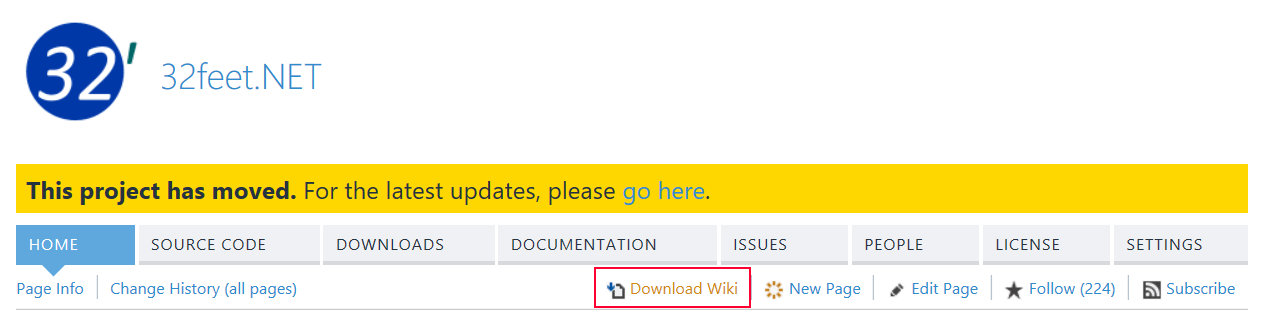
    First from the Home page of your CodePlex project you’ll see a button “Download Wiki” in the page toolbar. Click this to download a Zip file containing all the documents and supporting attachments for your Wiki.

    migrate-wiki-1

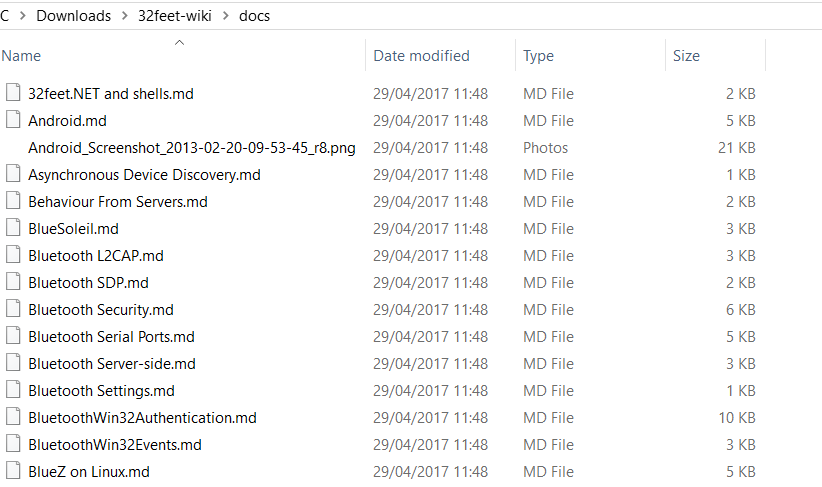
    This contains two folders, one in raw CodePlex format and the other (called “docs”) in Markdown. You’ll want the Markdown version. There are two standard files in this folder – Home.md is the homepage – the equivalent to your Readme on GitHub. This one you’ll probably want to copy and paste into a Readme.md file in your new repository. The Documentation.md is the entry point into your documentation Wiki. I removed the Home.md after copying the contents and renamed Documentation.md to Home.md as this is now the entry point into the Wiki documentation. If there are hard links back from child pages these may require fixing.

    migrate-wiki-2.png

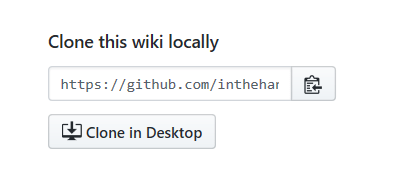
    In your GitHub project go to the Wiki tab and you’ll see an option on the right “Clone this wiki locally”. You can then use Visual Studio or any Git tool of your choice to work on a local clone of the Wiki repository.

    migrate-wiki-3.png

    This should be empty for a new GitHub project. Once you’ve done this you can copy all the Markdown and attachment files you downloaded and unzipped from CodePlex into this folder. Commit and Push this git repository and you’ve uploaded a (mostly) working Wiki to your new site.

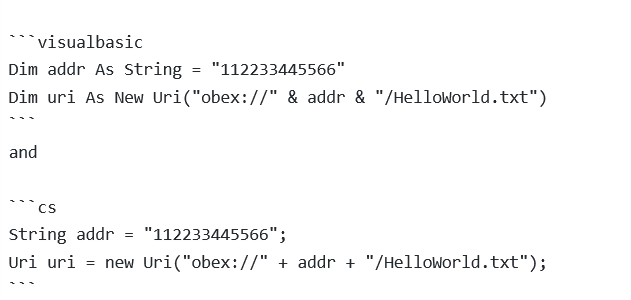
    After doing this I noticed a couple of issues which required further changes. Firstly the inline code examples were broken:-

    migrate-wiki-4

    A bit of digging revealed a slightly different “tag” for code in GitHub markdown which should be:-

    migrate-wiki-5

    Another quick fix was that GitHub requires tables to have a preceding blank line otherwise it just renders as raw text full of pipes.

    The last big formatting issue was the main Wiki page uses a number of anchors to various points in the table of contents and this was broken in conversion. It appears that there are automatically generated anchors for top level headers only. It is possible to workaround (although it feels dirty) by using inline HTML A tags e.g. replace

    {anchor:General Bluetooth Data Connections}

    with

    and link to it using

    [General Bluetooth Data Connections](#user-content-general-bluetooth-data-connections)

    I hope this helps you as you migrate your own projects from CodePlex.