Author: Peter Foot

  • Migrating Wiki content from CodePlex to GitHub

    I’ve seen a few articles on migrating your projects from CodePlex but they kind of ignore the Wiki and suggest just copying and pasting the text across. There is a way which will copy the entire contents and only require a little manual work. The instructions below are the steps I took to migrate the 32feet documentation across. There were 76 files in total so much easier that copying and pasting!

    First from the Home page of your CodePlex project you’ll see a button “Download Wiki” in the page toolbar. Click this to download a Zip file containing all the documents and supporting attachments for your Wiki.
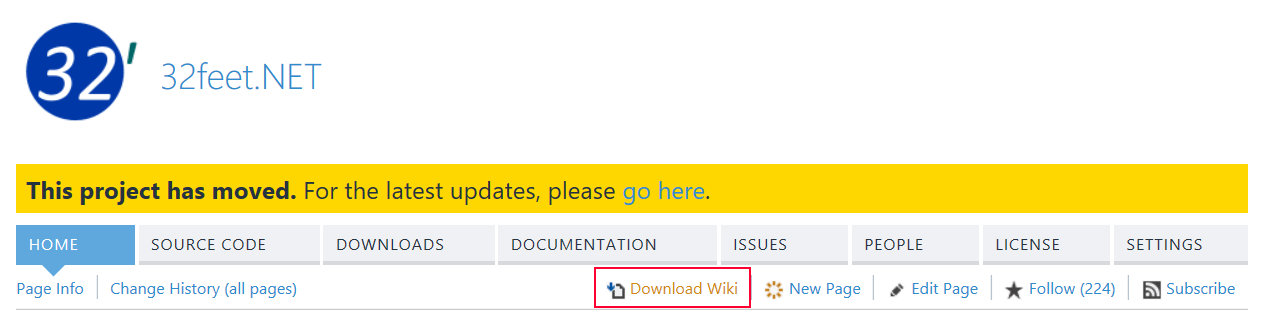
    migrate-wiki-1

    This contains two folders, one in raw CodePlex format and the other (called “docs”) in Markdown. You’ll want the Markdown version. There are two standard files in this folder – Home.md is the homepage – the equivalent to your Readme on GitHub. This one you’ll probably want to copy and paste into a Readme.md file in your new repository. The Documentation.md is the entry point into your documentation Wiki. I removed the Home.md after copying the contents and renamed Documentation.md to Home.md as this is now the entry point into the Wiki documentation. If there are hard links back from child pages these may require fixing.
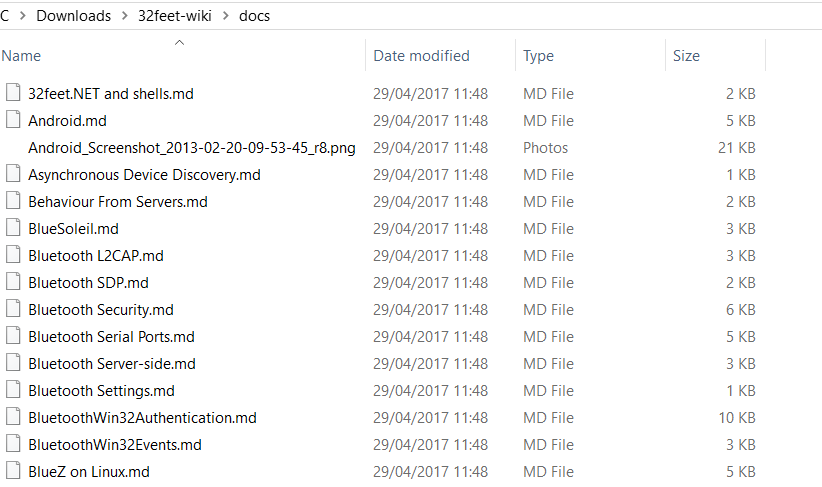
    migrate-wiki-2.png

    In your GitHub project go to the Wiki tab and you’ll see an option on the right “Clone this wiki locally”. You can then use Visual Studio or any Git tool of your choice to work on a local clone of the Wiki repository.
    migrate-wiki-3.png

    This should be empty for a new GitHub project. Once you’ve done this you can copy all the Markdown and attachment files you downloaded and unzipped from CodePlex into this folder. Commit and Push this git repository and you’ve uploaded a (mostly) working Wiki to your new site.

    After doing this I noticed a couple of issues which required further changes. Firstly the inline code examples were broken:-

    migrate-wiki-4

    A bit of digging revealed a slightly different “tag” for code in GitHub markdown which should be:-
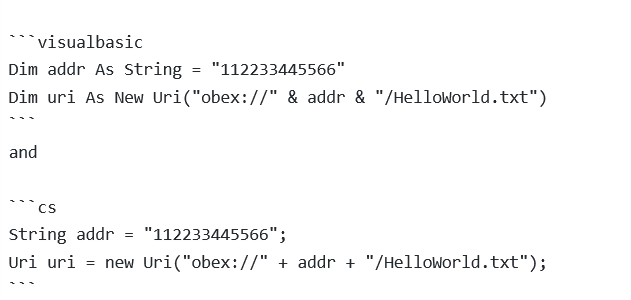
    migrate-wiki-5

    Another quick fix was that GitHub requires tables to have a preceding blank line otherwise it just renders as raw text full of pipes.

    The last big formatting issue was the main Wiki page uses a number of anchors to various points in the table of contents and this was broken in conversion. It appears that there are automatically generated anchors for top level headers only. It is possible to workaround (although it feels dirty) by using inline HTML A tags e.g. replace

    {anchor:General Bluetooth Data Connections}

    with

    and link to it using

    [General Bluetooth Data Connections](#user-content-general-bluetooth-data-connections)

    I hope this helps you as you migrate your own projects from CodePlex.
  • GitHub Latest

    While I prepare to refresh my main machine with Windows 10 Creator’s Update and the latest Visual Studio and Xamarin updates I thought I’d throw together a summary of open-source progress since I last blogged:-

    Since the announcement of CodePlex’s upcoming retirement I’ve been moving projects across to GitHub. 32feet and my Compact Framework archive are now moved, there is just some tweaking to be done on the Wiki content for the former. I’m planning a blog post on the process I’ve used.

    I’ve reworked the existing documentation site which was hosting the Pontoon documentation and it now also contains InTheHand.Forms and 32feet documentation. The Compact Framework stuff may follow but it depends on getting the dependencies setup just right for the help file builder.

    Pontoon has had a number of enhancements. I’ve been refactoring the code to better handle the number of different platforms which are supported. This has also allowed me to identify gaps and fill some of them. Android now has InTheHand.Devices.Radios support for Bluetooth and the ability to launch any StorageFile with Launcher.LaunchFileAsync. macOS now has full support for local and roaming settings as-per iOS.

  • Talking to Printers

    Recently I’ve been working with a selection of Bluetooth printers. During this work I’ve noticed an odd thing about the UWP Bluetooth APIs. It’s all about the Class of Device. These are a set of defined device types and are categorised into major and minor classes. For example a Printer has a Major class of Imaging and a Minor class of Printer. In the raw form the class of device is a bitmask and the bits reserved for the major class define the behaviour of the rest of the bits. The UWP API exposes a BluetoothClassOfDevice class and this has two properties – MajorClass and MinorClass and each uses an Enumeration. The interesting thing with this approach is that the MinorClass values overlap but have different meanings depending on the major class. There are already multiple fields with the same value – ComputerDesktop, PhoneCellular and PeripheralJoystick for example. For whatever reason all of the Imaging minor classes are missing – they all pre-date the original WinRT codebase so really should have been included.

    I created a gist to pull together my helper method and enum to make identifying printers a little easier. I created an extension method to return the correct minor class when you identify a device with a major class of imaging:-


    using System;
    using Windows.Devices.Bluetooth;
    namespace InTheHand.Devices.Bluetooth
    {
    /// <summary>
    /// Defines missing values in the <see cref="BluetoothMinorClass"/> enumeration for devices with a <see cref="BluetoothClassOfDevice.MajorClass"/> of Imaging.
    /// </summary>
    [Flags]
    public enum BluetoothImagingMinorClass
    {
    Uncategorized = 0,
    Display = 4,
    Camera = 8,
    Scanner = 16,
    Printer = 32,
    }
    /// <summary>
    /// Provides an extension method to get the Imaging minor class.
    /// </summary>
    public static class BluetoothClassOfDeviceExtensions
    {
    /// <summary>
    /// Returns the Minor Class of Device for an Imaging device.
    /// </summary>
    /// <param name="classOfDevice"></param>
    /// <returns></returns>
    public static BluetoothImagingMinorClass GetImagingMinorClass(this BluetoothClassOfDevice classOfDevice)
    {
    return (BluetoothImagingMinorClass)((int)classOfDevice.MinorClass);
    }
    }
    }

  • Forms Previewer and Custom Controls

    Recent versions of Xamarin include the Forms Previewer which generates a live representation of your XAML as it will appear on iOS or Android. I noticed one slight problem when working on my MediaElement control…

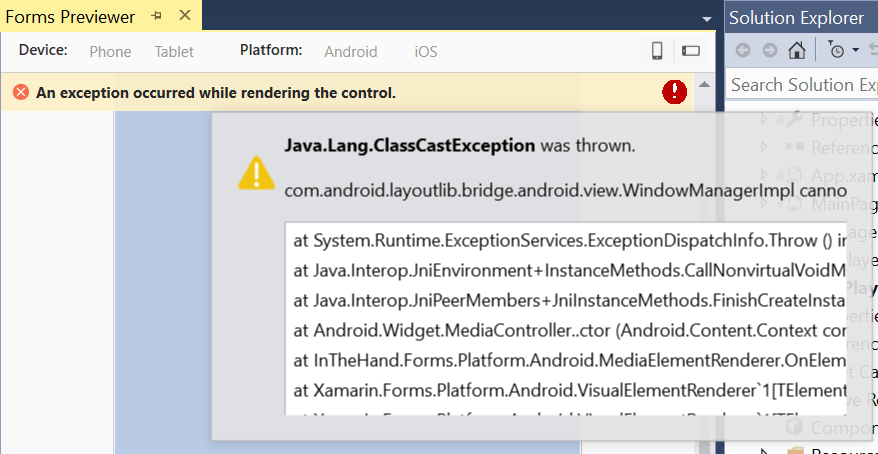
    The Android renderer instantiates a MediaController object. This is a standard Android class but the Forms Previewer would throw an exception any time my control was placed on a page. The exception popup is not very friendly either – it truncates text and has no method to copy the text to the clipboard.

    forms-previewer-error
    Forms Previewer Exception


    I needed a way to determine if the code was running in the Forms Previewer and to just fake it and not create the native control. This will render a grey box for the MediaElement which frankly is fine with me to get the layout right. It turns out that in the absence of an IsDesignTime equivalent property there is a simple way to tell if your code is executing in a real app or not – and it’s the same as Silverlight (remember that?). Simply check if Application.Current is null inside the OnElementChanged method. If there is a current application you can render the control normally, if Current is null then don’t call the code to create the control.

    if (Application.Current != null)
    {
         // create native control here..
    }

    The iOS renderer also uses a native control (AVPlayerViewController) but doesn’t present the same issue so this workaround wasn’t necessary there.

  • Playing Media with Xamarin Forms

    Xamarin Forms has quite a rich set of controls which work natively across platforms however a big gap in the functionality is the ability to play audio or video content.

    You can create custom controls for Xamarin and from the platform-specific renderers you have full access to the APIs provided by that platform to create complex controls of your own. However on a couple of projects I’ve needed to display a video and it felt to me like a fairly standard control we take for granted when doing “native” development.

    The good news is that you don’t have to do this yourself because I’ve put my control up onto GitHub and NuGet and it’s ready to roll for Android, iOS and of course Windows UWP. If you’ve used the Windows MediaElement you already know how to use it too.


    <?xml version="1.0" encoding="utf-8" ?>
    <ContentPage xmlns="http://xamarin.com/schemas/2014/forms&quot;
    xmlns:x="http://schemas.microsoft.com/winfx/2009/xaml&quot;
    xmlns:local="clr-namespace:MediaPlayerSample"
    xmlns:forms="clr-namespace:InTheHand.Forms;assembly=InTheHand.Forms"
    x:Class="MediaPlayerSample.MainPage">
    <StackLayout>
    <forms:MediaElement HorizontalOptions="Fill" VerticalOptions="Center" HeightRequest="240" x:Name="Media" AreTransportControlsEnabled="true" Source="http://video.ch9.ms/ch9/334f/891b78a5-642d-40b4-8d02-ff40ffdd334f/LoginToLinkedinUSingXamarinAuth_mid.mp4"/&gt;
    </StackLayout>
    </ContentPage>

    view raw

    MainPage.xaml

    hosted with ❤ by GitHub

    Simply add the InTheHand.Forms NuGet package and add a namespace to your XAML and add the MediaElement control. You can do the basics straight from XAML, but you can add a Name to the control and interact with it from the code too. There is full documentation for the control online. If you have any issues/feature suggestions please post them to GitHub.

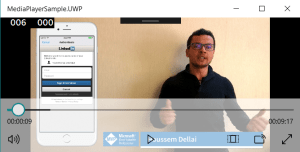
    The player controls can be toggled using the AreTransportControlsEnabled property. The displayed controls will match the native appearance of the target platform. For example the sample above uses a link to a Channel9 video on Xamarin Auth by @HoussemDellai and you can see below how it is rendered on an Android app and a UWP desktop app:-

    screenshot_20170301-220605mediaplayer-uwp

    I’ve also been working on support for the ms-appx scheme for Source Uris allowing you use a common way of referring to files in the application package. This should be in the next NuGet release (after 1.0.2017.301) along with a legacy Windows Phone 8.1 renderer.

    I hope you find this useful in adding media to your Xamarin Forms projects!

  • All New Clipboarder

    My free Clipboarder app for Windows Phone has now (finally) been re-written as a universal Windows 10 app. It’s currently available across all Windows 10 platforms (except Xbox but that seems fairly logical!). The app provides a share target allowing you to share data from modern apps to the clipboard to be pasted into any app (old or new, doesn’t matter as long as it has text input). A new feature made possible by using UWP is roaming content across devices. You can share something to your clipboard on your phone and then use it from the Clipboarder app on your desktop PC. The app still supports the clipboard Uri scheme in case you’ve been using it for clipboard access in Windows Phone 8.1 (appx) apps.

    Download from the store (Free):-

    https://www.microsoft.com/store/apps/9wzdncrdkj7j


  • Family Calendar with Amazon Echo

    Update 15th February 2017

    Alexa can now be paired with an Outlook.com account which means you no longer have to use this workaround.


    We’ve used the “Family Room” feature from Windows Phone and although it’s been discontinued the shared Outlook.com calendar is still vital. We’ve got an Amazon Echo but when setting it up found that only Google calendar integration is available. It turns out that it is possible to hook this up albeit without the ability to add new events via Alexa.

    First you’ll need a Google account. If you don’t already have one you can set one up just to use with Alexa. We’ll come back to Google later.

    Now open your browser of choice and log into your Outlook.com account. Go to the Calendar app. On the left you should see a list of “Your calendars” and your shared calendar will be listed e.g. “Family Room”. Click Settings (The cog near the top right of the screen next to your profile picture) and Options. You’ll see a link in the tree of settings called “Publish calendar”. Click this then select the name of your shared calendar e.g. Family Room. Under “Show availability, titles and locations” click create. There will be two links created – you only need the ICS one.

    Log into your Google Calendar account. On the left side there is a section called “Other calendars” with a small downwards arrow to the right. Click this and select “Add by URL”. Paste the URL you created earlier and click Add Calendar.

    Google Calendar will now add all the events from your shared calendar and will periodically update when the Outlook.com ICS feed updates.

    Finally log into the Alexa web portal (https://alexa.amazon.com or https://alexa.amazon.co.uk etc). Go to Settings and in the “Account” section select Calendar. Link your Google calendar (if you haven’t already) and you’ll see a list of available calendars. Because I don’t use my Google calendar other than for the Family Room import I selected only the Family Room option.

    Once that’s done you can query Alexa about things in your family calendar!

  • Xamarin-certified

    Xamarin-certified

    I’ve just completed and passed the exam and am now a Xamarin-certified Mobile developer. Having been working with Xamarin since the days of Mono for Android and MonoTouch I should have probably have got around to doing this earlier. Now it’s done I can relax and concentrate on the important task of making a chocolate cake tomorrow! But first it’s time for a celebratory drink!

  • Simulate the Surface Dial

    The Surface Dial, and the RadialController API provide an interesting new input metaphor. You may have some ideas of how you could use it but don’t actually have the hardware. Since I tried creating an Etch-a-Sketch app using the dial I was thinking about how to implement a second dial.

    Most of us already have a mouse with a central wheel. I decided that for the purposes of prototyping apps for the dial, or to implement a second dial-like device I could create an API around that wheel. There are a few limitations but the basic functionality is the same. The SimulatedRadialController class was born and after a few tweaks to adjust for the fact the mouse wheel reports movement in large steps (30 degrees in my testing) so I reduced this down to perform smaller movements.

    The control is packaged up with NuGet. The code to use it is essentially the same as the code for the built in RadialController, the main difference being the lack of a Menu to support multiple tools. You hook up the events:-

    c = SimulatedRadialController.CreateForCurrentView();
    c.RotationChanged += C_RotationChanged;
    c.ButtonClicked += C_ButtonClicked;

    The rotation event just changes the angle of a RotateTransform on a UI element:-

    private void C_RotationChanged(SimulatedRadialController sender, SimulatedRadialControllerRotationChangedEventArgs args)
    {
            WheelTransform.Angle += args.RotationDeltaInDegrees;
    }

    I plan to add this to the previous Etch-a-Sketch sample app to provide both horizontal and vertical controls using the Dial and mouse wheel as left and right controls.


  • Pontoon – Yet More Platforms

    What started as a Windows project (unifying the then separate Phone and PC APIs) has since expanded through the Xamarin platforms (iOS and Android) and beyond. The latest NuGet package adds Apple tvOS, macOS and the recently announced Tizen .NET Preview.

    The usual caveat applies that not all platforms support all functionality but there is already support for the Windows.Storage style file API, and Geolocation, Accelerometer and Gyrometer sensors, Badge and Toast notifications, VibrationDevice and PowerManager (obviously don’t expect all of these to be present in a Smart TV).

    Currently there isn’t a unique NuGet platform ID for Tizen so the dll is “advertised” as .NET Standard 1.3. This will only work on Tizen and if you try to consume in any other .NET Standard project will result in errors. We’ll update this as and when a new NuGet TFM is supported.

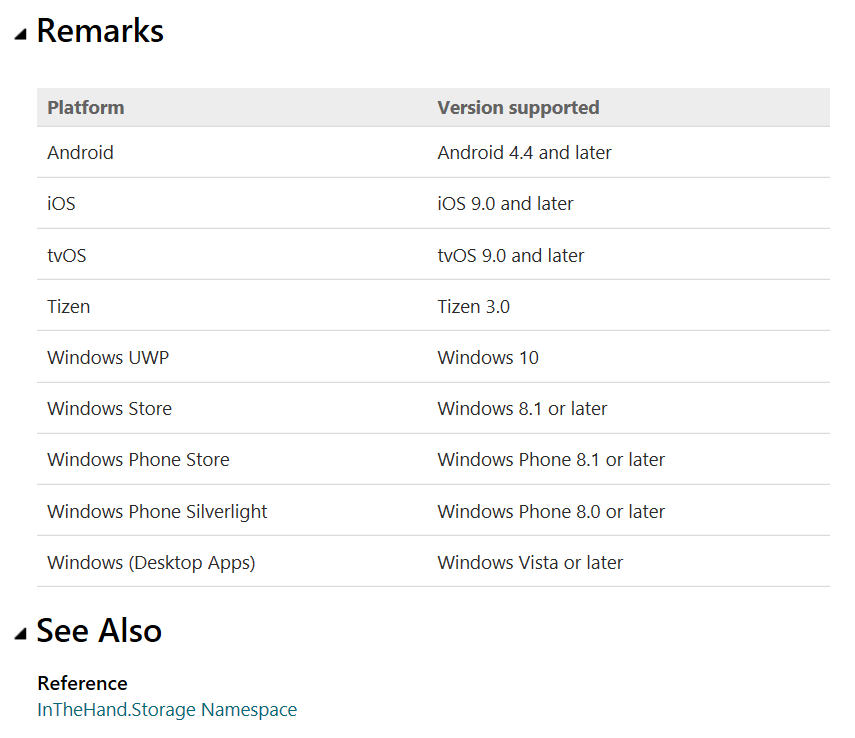
    I’ve also been updating the documentation with more platform information, so most classes should now have a table like the example below. I’d welcome any feedback on better ways to surface this information.

    platform-table